almost-no-markdown-vault
A distraction-free Obsidian vault that disables most Markdown formatting using a custom plugin and CSS snippet.
almost-no-markdown-vault
A distraction-free Obsidian vault that disables most Markdown formatting using a custom plugin and CSS snippet.
Clean. Calm. Controlled. A distraction-free Obsidian vault that disables most Markdown styling and formatting triggers — so your writing stays raw, plain, and predictable.
🧩 Finally type passwords, serial keys, and config strings without fear — no auto-formatting, no lost characters, no unwanted rendering.
📁 Includes Joplin-style sidebar navigation using the Notebook Navigator plugin, giving you a familiar folder-based workflow.
👉 Get it on Gumroad
Intro price - $20 one-time
Includes lifetime access to any future updates:
🎯 Buy the Almost No Markdown Vault →
🔍 What This Vault Does
The Almost No Markdown Vault disables most visible Markdown formatting, including:
Bold (bold)
Italic (italic)
Inline code (code)
Code blocks (``` or ~~~)
Headings (# Heading)
Horizontal rules (---, ***)
Blockquotes (> quote)
Internal links ([[link]])
Numbered and bulleted lists (1., - item)
Checklists (- [ ])
Superscript (^text)
Inline math ($math$)
HTML tags (<b>, <div>, etc.)
Hidden formatting triggered by the Tab key
This lets you type freely without fear of your text changing appearance, activating styling, or triggering invisible formatting behaviors.
✅ What Still Works
Markdown still functions behind the scenes — your notes remain portable and markdown-valid.
[[Internal links]], superscripts (^word), and math blocks ($math$) remain functional in the backend — just without any visual styling.
Files and folders work exactly as in a normal vault. You can revert at any time by disabling the plugin and snippet.
📁 Joplin-Like Navigation
If you're coming from Joplin, you'll feel right at home.
Thanks to the built-in Notebook Navigator plugin (already enabled in this vault), your folder and note layout closely mirrors Joplin’s familiar structure:
Folders (notebooks) are always visible in the left sidebar. Notes appear in a central list when clicking a folder. Note contents open in the main editing pane.
This setup creates a clean, three-pane experience — just like Joplin — without the clutter of backlinks, tags, and popups. It's perfect for those who prefer structured notebooks over Obsidian's default graph/tag-centric layout.
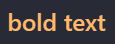
📸 Markdown Comparison – Before vs After
| Markdown Feature | Default Vault | Almost No Markdown Vault |
|---|---|---|
| Bold | | 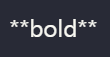 |
| Italic | 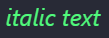 |  |
| Strikethrough |  | 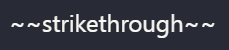 |
| Inline Code | 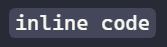 | 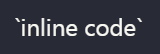 |
| Code Block |  | 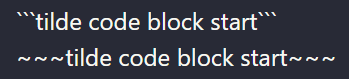 |
| Heading | 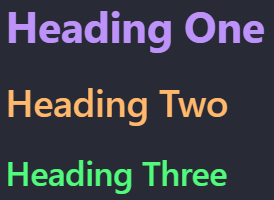 | 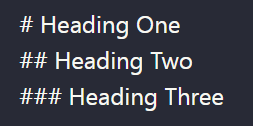 |
| Horizontal Rule |  |  |
| Blockquote | 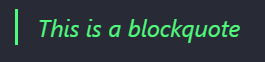 | 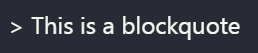 |
| Internal Link | 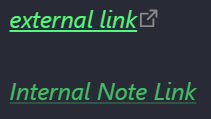 |  |
| Numbered List | 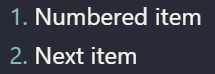 | 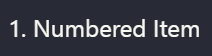 |
| Bullet List | 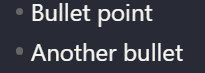 | 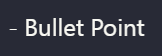 |
| Checklist | 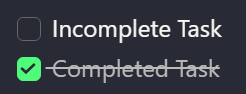 | 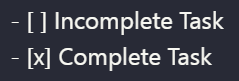 |
| Superscript | 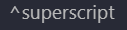 | 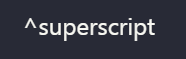 |
| Math | 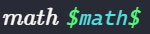 | 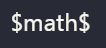 |
| HTML Tags |  |  |
| Tab-triggered Formatting |  |  |
🚧 What Still Works (Unintentionally)
While this vault disables nearly all visible Markdown formatting, three formatting behaviors remain due to current technical limitations:
-
[[Internal Links]]
Typing
[[will still show a dropdown suggestion and link to the note.The dropdown can be hidden via CSS, but pressing Enter will still open the note.
✅ You can still use
[[as plain text manually, just avoid pressing Enter. -
(Blockquotes)
Typing > at the start of a line still creates a quote block.
Formatting appears visually suppressed, but behavior remains under the hood.
Workaround: You can prefix with another character (e.g. * > quote) to prevent quote parsing.
-
Heading Syntax
Typing # Title will still apply internal header block formatting.
While the styling is visually removed, Obsidian will still treat it as a heading.
For now, treat # like a special character — it won’t look like a heading, but it still behaves like one (e.g. appears in the outline panel).
📘 Want to see what Markdown normally does in Obsidian? View full Markdown behavior examples →
🔧 How It Works
This vault uses:
A custom Obsidian plugin (main.js) to override parts of the Markdown tokenizer and disable trigger keys.
A CSS snippet (disable-inline-formatting.css) to visually suppress most formatting styles.
⚠️ Note: The Tab key is intentionally disabled in this vault to prevent it from activating hidden formatting behaviors like code blocks.
📦 Installation
See [[Setup Instructions.txt]] for full setup steps, including:
How to install Obsidian (if new)
How to open this vault or switch from another
How to import your existing notes into this vault
💡 Ideal For...
Writers who want zero formatting distractions Joplin users switching to Obsidian Plaintext minimalists Technical users tired of accidental styling
❓ FAQ
Q: Can I still use Markdown syntax? Yes — all Markdown is preserved in your files. It just won’t render with formatting while using this vault.
Q: Will this affect other Obsidian vaults? No. This setup is 100% self-contained. It won't change anything outside this vault.
Q: Can I undo this later? Yes — you can remove the plugin and CSS snippet at any time to return to full Markdown rendering.
🛒 Get the Vault
Grab the vault here: 👉 nomarkdown.gumroad.com/l/vault
📬 Support
Contact: nomarkdown@outlook.com
How to Install
- Download the repository ZIP below
- Unzip it and find the CSS snippet file
- Move the CSS file into your vault's
.obsidian/snippets/folder - Open Obsidian → Settings → Appearance → CSS Snippets → Enable it
Stats
Stars
1
Forks
0
Last updated 7mo ago
Categories