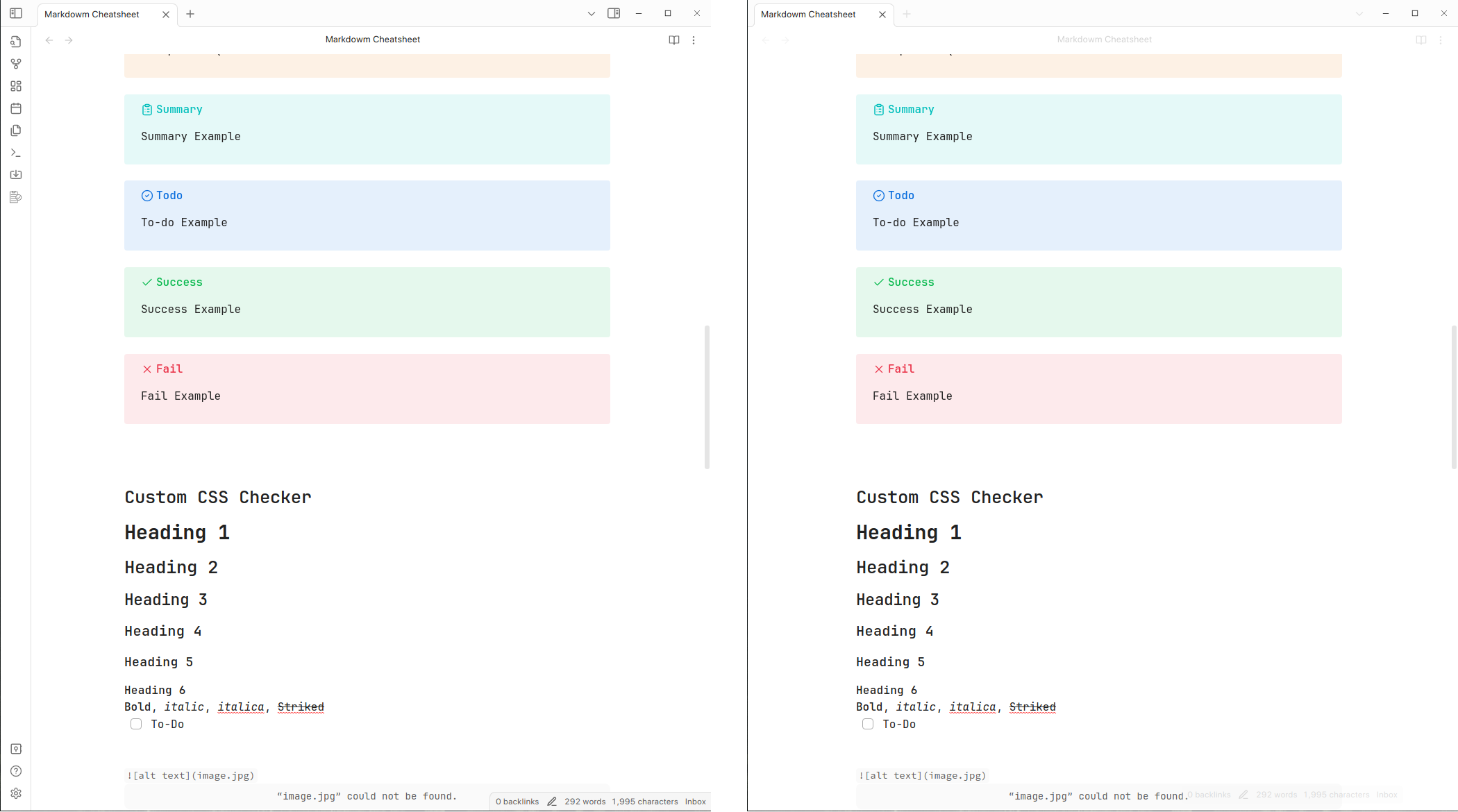
Cleaner Theme Obsidian Snippet
A quick CSS Snippet for Obsidian to make (any) theme more clean and focused.
Cleaner Theme for Obsidian
This small snippet will make the any theme cleaner. It's goal is to remove any unecessary elements and focus only on the notes itself using keyboard shortcurts to interact with Obsidian.
Faded elements
As you can see, some UI elements are just faded, such as the note header and status bar on the bottom. Those will increase their opacity once you mouseover.
Removing Sidebars
To interact with the sidebars UI, to have a even more focused view, I recommend to hide those. This can be easily done using the Toggle Right Sidebar and Toggle Left Sidebar commands that can be found using ctrl+k (cmd+k on MacOS) shortcurt.
A easier way is to add a keyboard shortcut to activate that command, I recommend using ctrl+[ to toggle left and ctrl+] to toggle right.
How to install
- Download the Cleaner-Theme.css file
- Download as .zip
- Extract
- Drop on your Obsidian CSS Snippets folder
- Open settings in Obsidian
- Appearance tab
- CSS snippets section
- Click on the folder icon
- Activate it!
- Open settings in Obsidian
- Appearance tab
- CSS snippets section
- cleaner-theme.css should appear here
Why this is not a full theme?
Themes can have much more resources, such as styling specific elements. This is a flexible way to always have a way to "clean" any theme.
How to Install
- Download the repository ZIP below
- Unzip it and find the CSS snippet file
- Move the CSS file into your vault's
.obsidian/snippets/folder - Open Obsidian → Settings → Appearance → CSS Snippets → Enable it
Stats
Stars
2
Forks
0
Last updated 32mo ago
Categories