SNIPPETDhananjayPorwal
Super Minimal Setup
Obsidian Super Minimal Setup is a streamlined, easy-to-use template for Obsidian, featuring a clean theme, essential plugins, and custom CSS snippets. Boost productivity with automated notes, image uploads, and GitHub backups—all in a distraction-free environment. Perfect for minimalists seeking efficient note-taking.
CSSAny theme
<h1 align="center">Obsidian Super Minimal Setup</h1>
<p align="center">
<img src="https://raw.githubusercontent.com/DhananjayPorwal/obsidian-minimal-setup/main/Images/obsidian-icon.png" height="130" width="130"/>
</p>
# 👋 Introduction
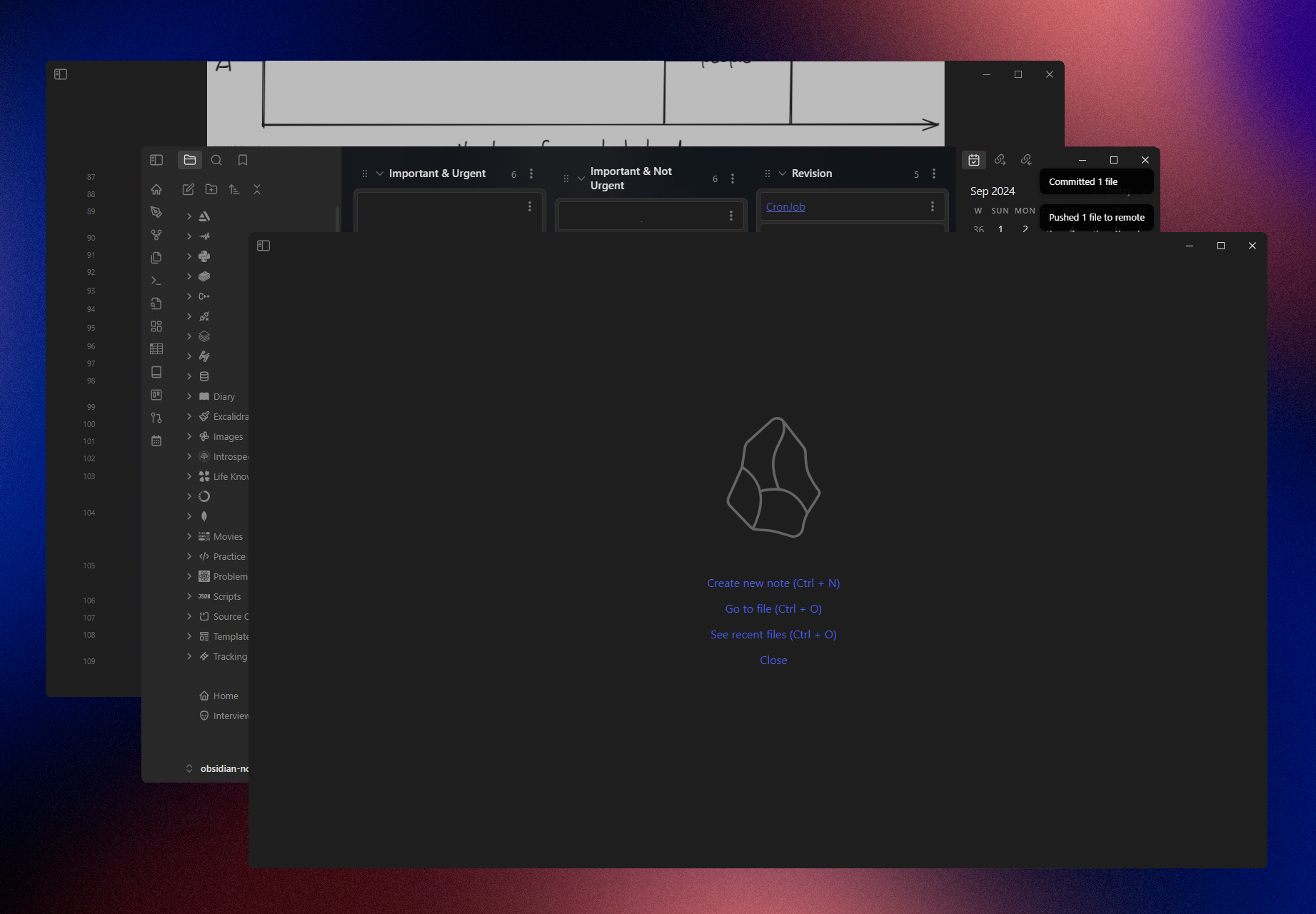
Get started with Obsidian effortlessly with this super minimal setup. It features a clean, simple theme, essential plugins, and handy CSS snippets, allowing you to dive straight into note-taking without any distractions.
# 🌆 Showcase
https://github.com/user-attachments/assets/be915be6-9817-4ceb-a104-2b5f54ab923f
# 📦 Installation
1. Download and install [Obsidian](https://obsidian.md/).
2. Get the latest release of this [repository](https://github.com/DhananjayPorwal/obsidian-super-minimal-setup/releases/).
3. Extract the contents of the zip file.
4. Open the extracted folder in your Obsidian vault.
5. Configure the following plugins:
- [Imgur](obsidian://show-plugin?id=obsidian-imgur-plugin) : Need to add your Imgur Client ID.
- [LanguageTool Integration](obsidian://show-plugin?id=obsidian-languagetool-plugin) : Need to add your LanguageTool API Key.
- [QuickAdd](obsidian://show-plugin?id=quickadd) : Need to add your QuickAdd settings.
- `QuickAdd Settings` -> `Manage Macros` -> `Configure` -> Click on `⚙️` _(1. movies)_ -> _Add your API Key_
# 🎨 Theme
The theme used in this setup is [Minimal Theme](https://minimal.guide). It is a clean, minimalistic theme that is easy on the eyes and provides a distraction-free environment for note-taking.

# 🎨 CSS Snippets
1. Custom Width for page.
2. Custom Icon for new tab.
3. Custom CSS for Admonition Plugin.
4. Custom Background for Kanban Plugin.
5. CSS to add scrollbars to overflowing Obsidian slides
# 📝 Usage
1. Can Add Movies using QuickAdd Plugin.
2. Can Add Books using Book Plugin.
3. Using Template, can add daily new notes.
4. Additional shapes in canvas.
5. Can add tables with advanced features.
6. Track your goals using Tracker Plugin.
7. Add code blocks with syntax highlighting.
8. Add images using Imgur Plugin (No need to store it offline).
9. Auto backup on GitHub using Git Plugin.
# 🧩 Plugins
<table>
<thead>
<tr>
</tr>
</thead>
<tbody>
<tr>
<td><a href="obsidian://show-plugin?id=obsidian-admonition">Admonition</a></td>
<td><a href="obsidian://show-plugin?id=advanced-canvas">Advanced Canvas</a></td>
<td><a href="obsidian://show-plugin?id=table-editor-obsidian">Advanced Tables</a></td>
</tr>
<tr>
<td><a href="obsidian://show-plugin?id=obsidian-book-search-plugin">Book Search</a></td>
<td><a href="obsidian://show-plugin?id=calendar">Calendar</a></td>
<td><a href="obsidian://show-plugin?id=code-block-plugin">Code Block</a></td>
</tr>
<tr>
<td><a href="obsidian://show-plugin?id=cmdr">Commander</a></td>
<td><a href="obsidian://show-plugin?id=dataview">Dataview</a></td>
<td><a href="obsidian://show-plugin?id=obsidian-excalidraw-plugin">Excalidraw</a></td>
</tr>
<tr>
<td><a href="obsidian://show-plugin?id=obsidian-git">Git</a></td>
<td><a href="obsidian://show-plugin?id=homepage">Homepage</a></td>
<td><a href="obsidian://show-plugin?id=hotkeysplus-obsidian">Hotkeys++</a></td>
</tr>
<tr>
<td><a href="obsidian://show-plugin?id=obsidian-icon-folder">Iconize</a></td>
<td><a href="obsidian://show-plugin?id=obsidian-imgur-plugin">Imgur</a></td>
<td><a href="obsidian://show-plugin?id=obsidian-kanban">Kanban</a></td>
</tr>
<tr>
<td><a href="obsidian://show-plugin?id=obsidian-languagetool-plugin">LanguageTool Integration</a></td>
<td><a href="obsidian://show-plugin?id=obsidian-latex-suite">Latex Suite</a></td>
<td><a href="obsidian://show-plugin?id=obsidian-minimal-settings">Minimal Theme Settings</a></td>
</tr>
<tr>
<td><a href="obsidian://show-plugin?id=obsidian-outliner">Outliner</a></td>
<td><a href="obsidian://show-plugin?id=periodic-notes">Periodic Notes</a></td>
<td><a href="obsidian://show-plugin?id=quickadd">QuickAdd</a></td>
</tr>
<tr>
<td><a href="obsidian://show-plugin?id=obsidian-smart-typography">Smart Typography</a></td>
<td><a href="obsidian://show-plugin?id=obsidian-tracker">Tracker</a></td>
<td><a href="obsidian://show-plugin?id=various-complements">Various Complements</a></td>
</tr>
</tbody>
</table>
# 🫂 Credits
- [Obsidian Note Taking](https://obsidian.md/)
- [Obsidian Community Forum](https://forum.obsidian.md/)
- [Obsidian Plugin Authors](https://obsidian.md/plugins)
- [Obsidian Theme Creator](https://minimal.guide/home)
How to Install
- Download the CSS file below
- Move it to your vault's
.obsidian/snippets/folder - Open Obsidian → Settings → Appearance → CSS Snippets → Enable it
Stats
Stars
38
Forks
0
Last updated 19mo ago
Tags
super-minimal