
Custom CSS snippets for Obsidian.
About CSS snippets
CSS is a language to describe how to present a HTML document. By adding CSS snippets you can redefine parts of obsidian user interface, such as size and color of headings.
Obsidian looks for CSS snippets inside vault configuration folder, usually a folder named .obsidian.
To add a CSS snippet on Desktop, follow these steps —
- Open settings.
- Under
Appearance>CSS snippets, selectOpen snippets foldericon. - In the snippets folder, create/copy a CSS file that contains the snippet.
- In Obsidian, under
Appearance>CSS snippets, selectReload snippetsicon to see the snippet in the list from where you can enable it.
To add a CSS snippets on a Mobile/Tablet, you will need to follow these steps —
- Use the file manager to access the configuration folder and place the
snippet.cssin the snippet folder.
Available CSS snippets
align-image.css
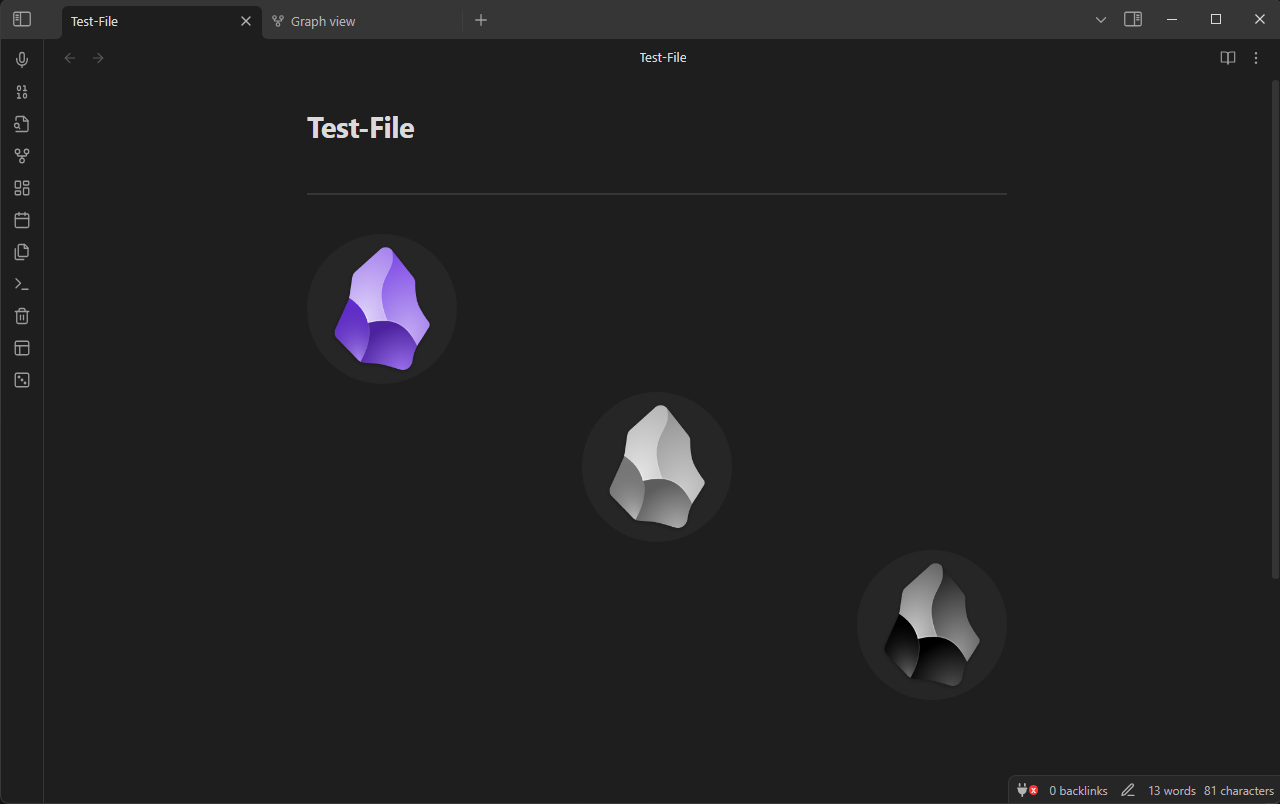
- Lets you specify the image position in alt text. Apply settings by using the following syntaxes —
[[<image_file_name>|left]]
[[<image_file_name>|center]]
[[<image_file_name>|right]]
[[<image_file_name>|grid]]
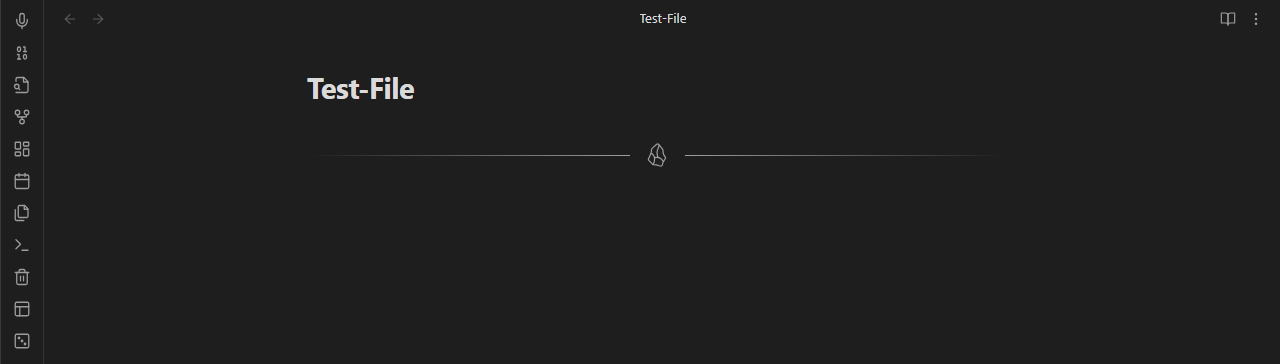
custom-hr.css
- Adds a custom horizontal line with obsidian logo in the middle.
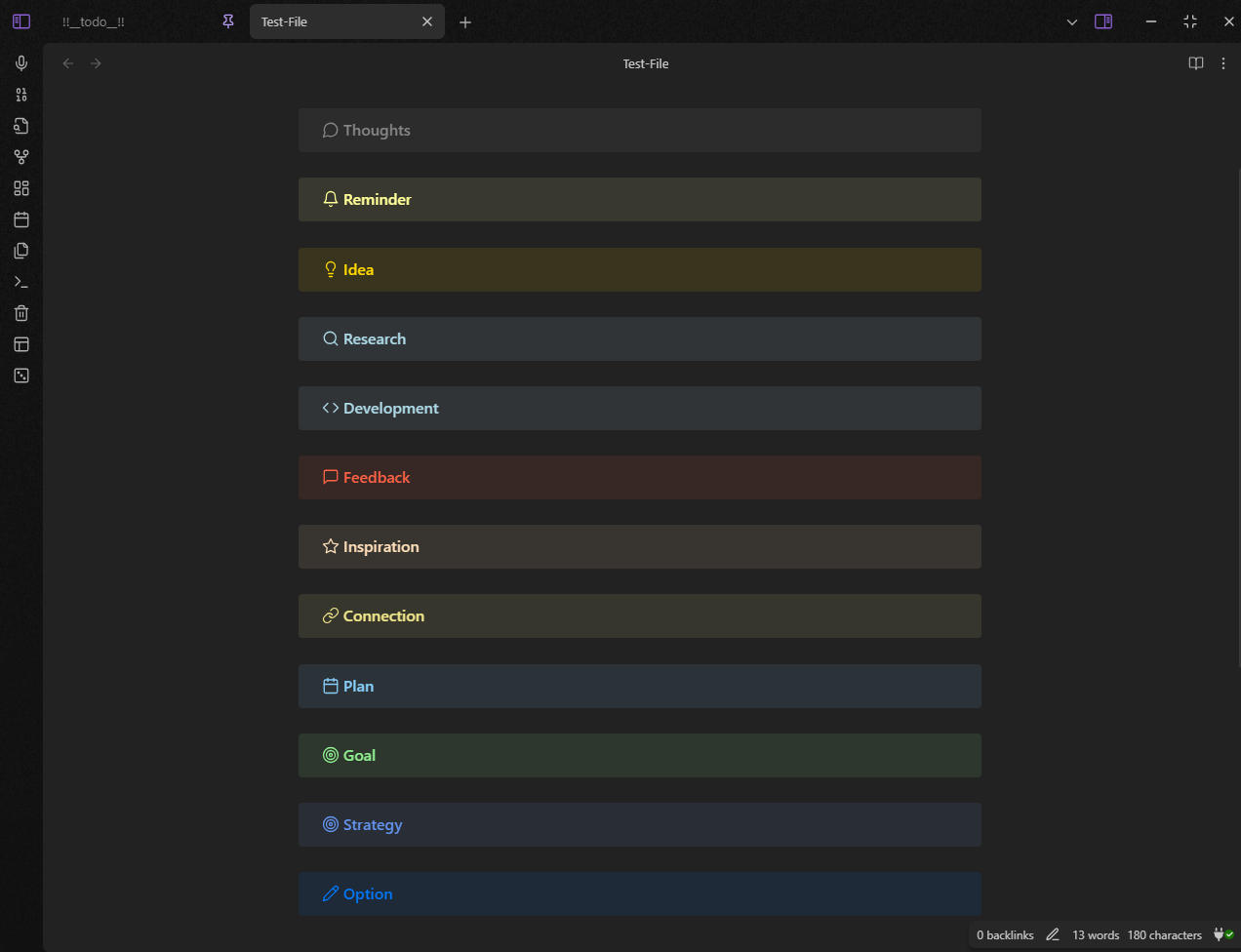
extra-callout.css
- Adds extra callout types.
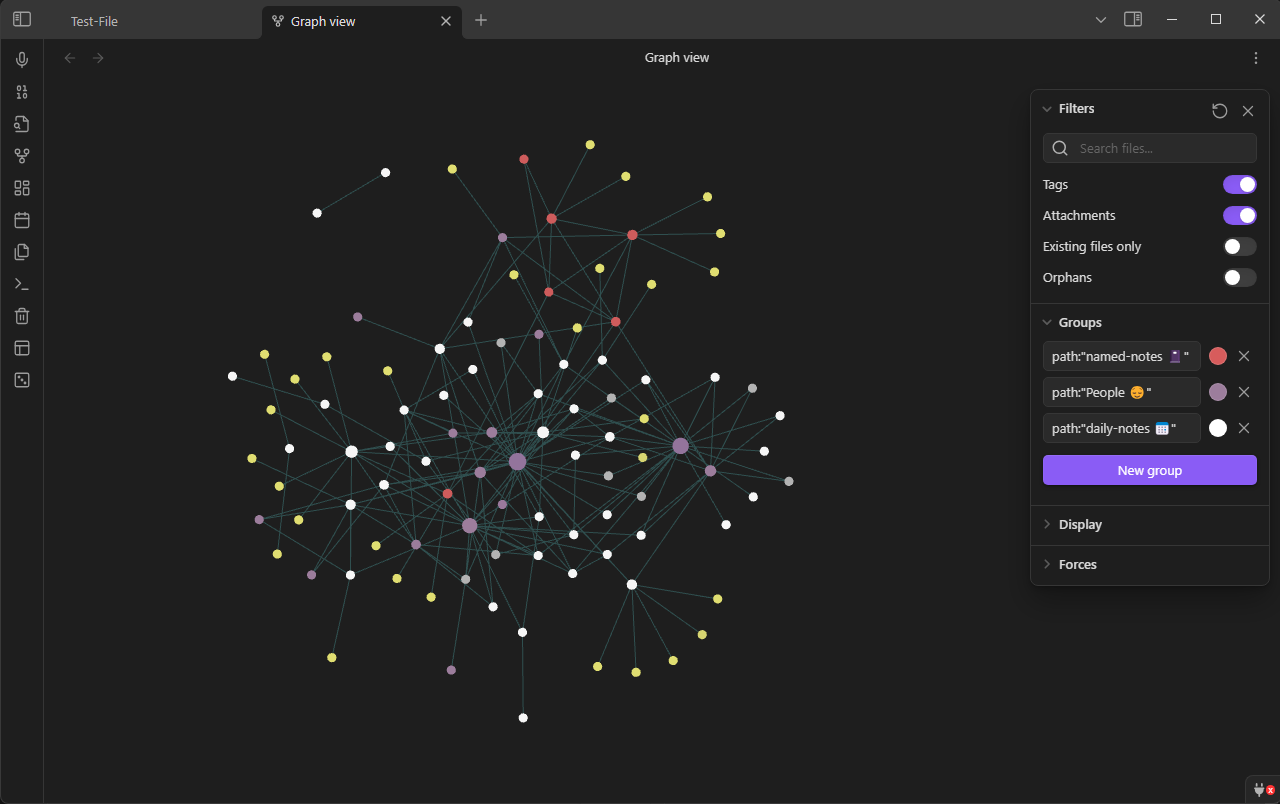
graph-mod.css
- Adds a custom graph view theme.
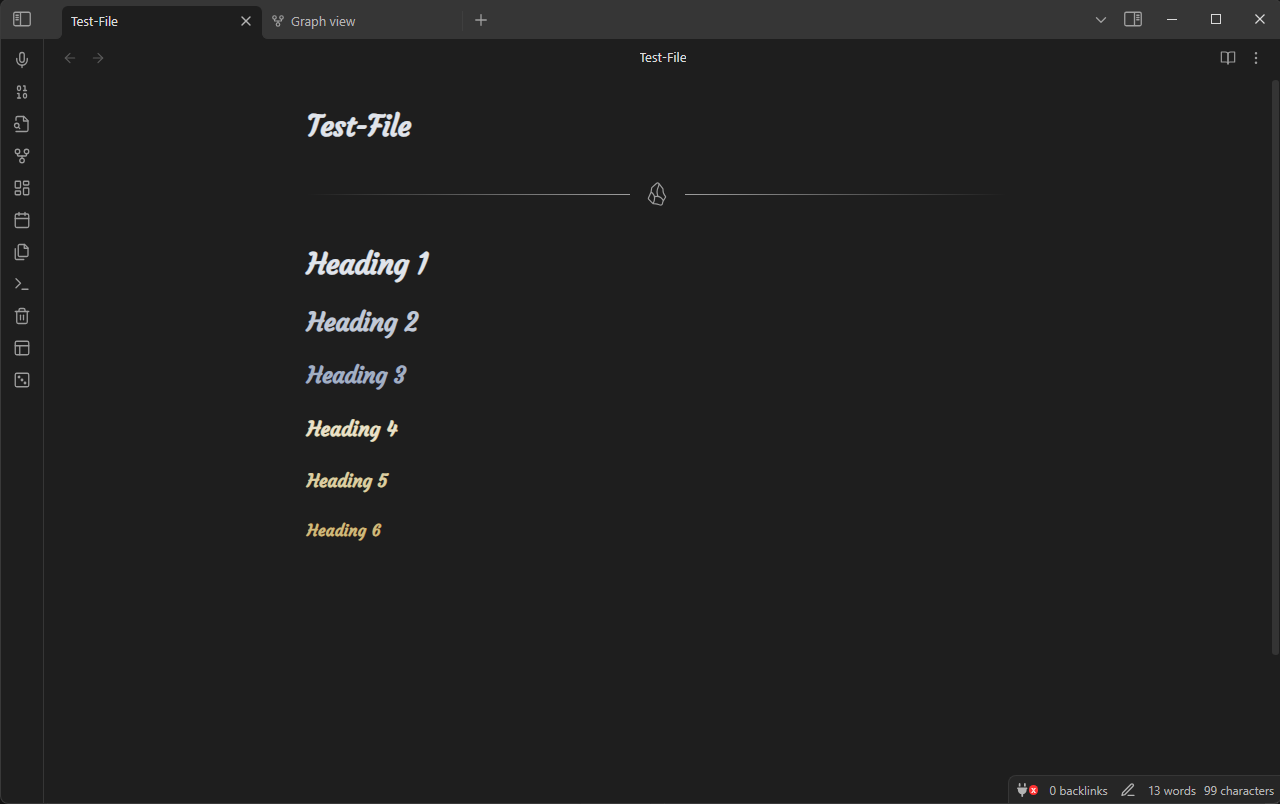
header-font.css
- Adds custom header font and header font colors.
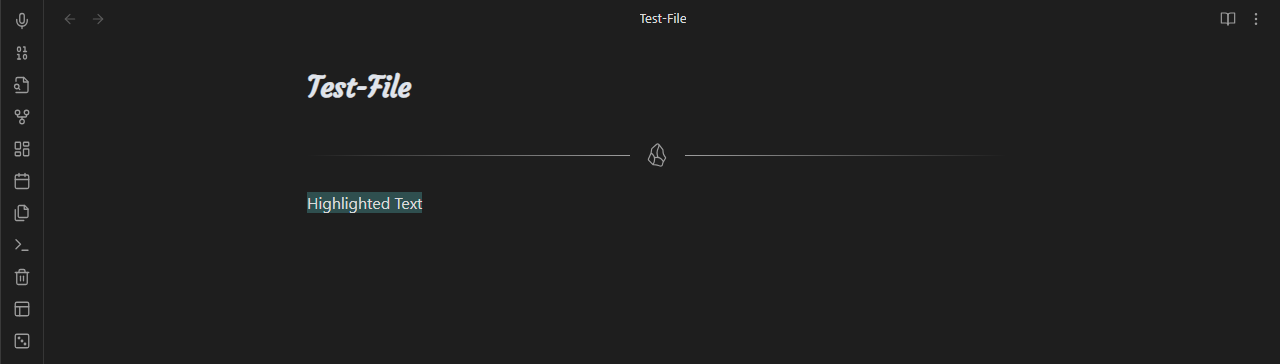
highlight-bg.css
- Modifies the highlighted text background color to match the graph-mod's theme.
lucide-buttons.css
- Modifies the titlebar buttons.

new-tab-mod.css
- Adds an 🪨 obsidian logo in the empty tab.
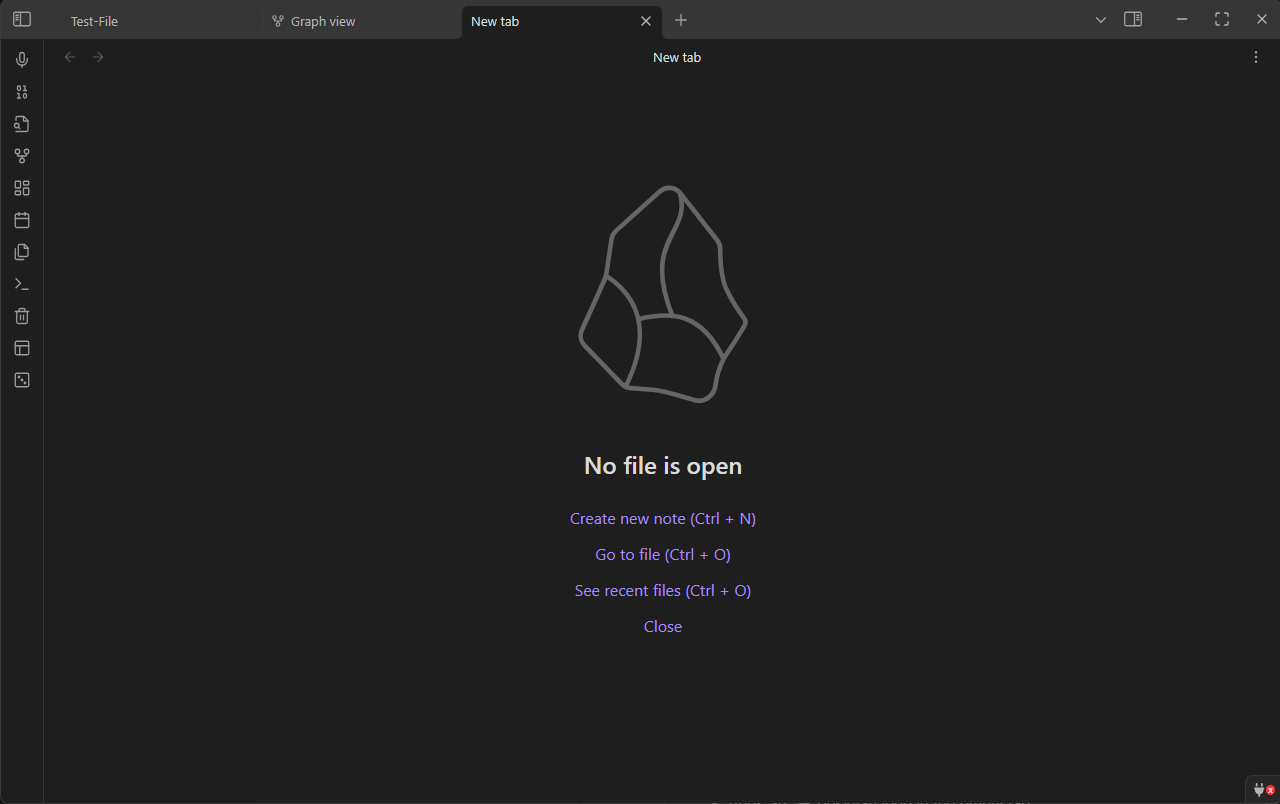
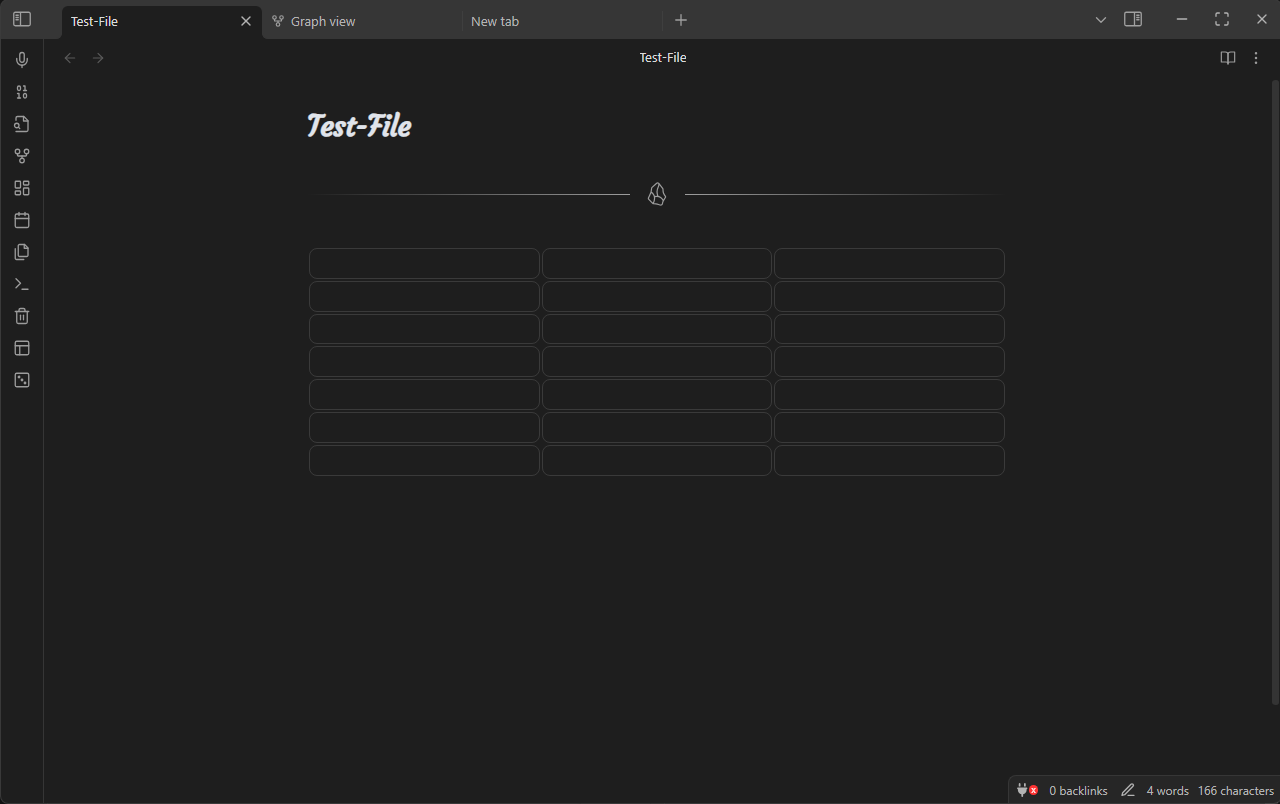
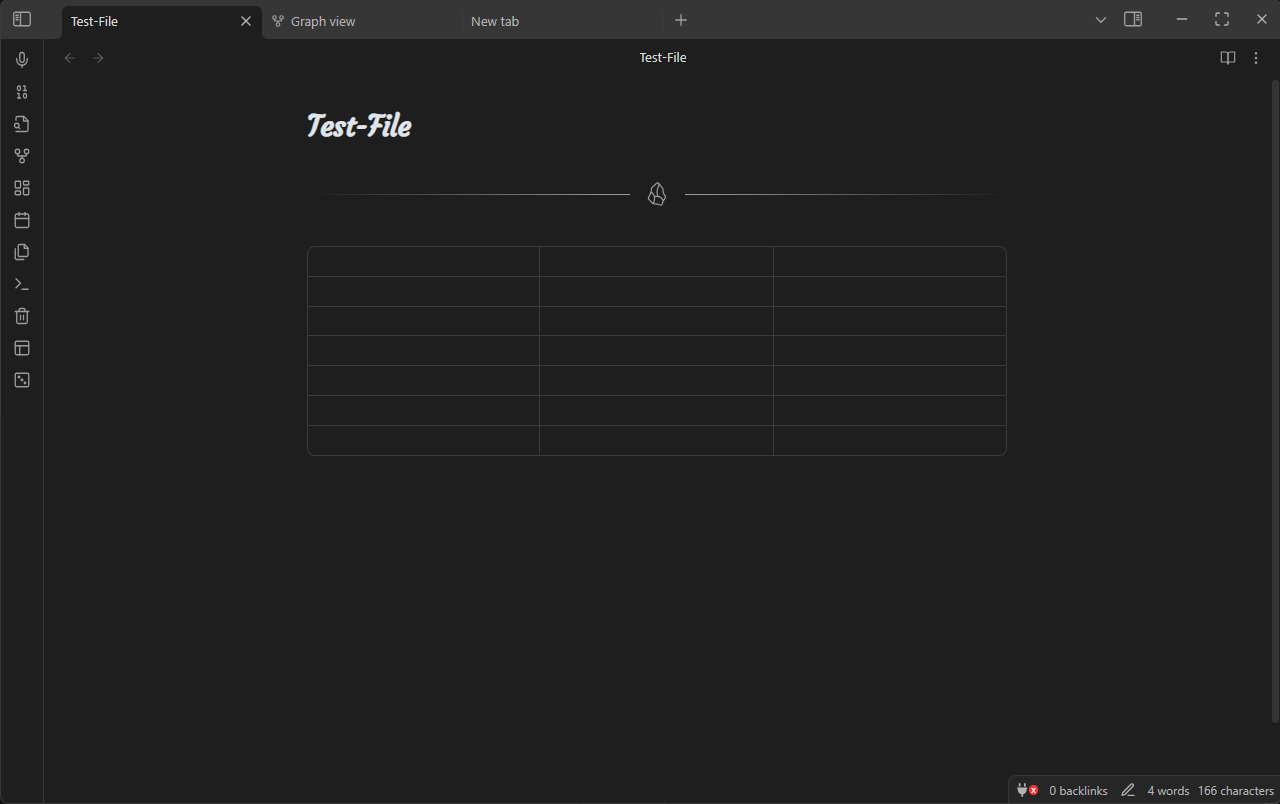
table-mod.css
- The table takes up 100% of the width even if there is only a single column.
- Adds border radius to every table cell and adds a 2px spacing between them (optional).
- The spacing can be easily removed by uncommenting the following part of the CSS snippet —
. . .

/* Uncomment the lines below to remove border spacing and combine all table boxes together */

/* === erase this line to uncomment === //

:root table {border-spacing: 0;}
tr td, tr th {border-radius: 0;}
th:first-child {border-top-left-radius: var(--table-border-radius);}
th:last-child {border-top-right-radius: var(--table-border-radius);}
tr:last-child td:first-child {border-bottom-left-radius: var(--table-border-radius);}
tr:last-child td:last-child {border-bottom-right-radius: var(--table-border-radius);}
:root :is(td, th) {border-width: 0 var(--table-border-width) var(--table-border-width) 0;}

/* */
- Now the table will look like this —
How to Install
- Download the repository ZIP below
- Unzip it and find the CSS snippet file
- Move the CSS file into your vault's
.obsidian/snippets/folder - Open Obsidian → Settings → Appearance → CSS Snippets → Enable it
Stats
Stars
18
Forks
0
License
Unlicense
Last updated 11mo ago
Categories
Tags
obsidian