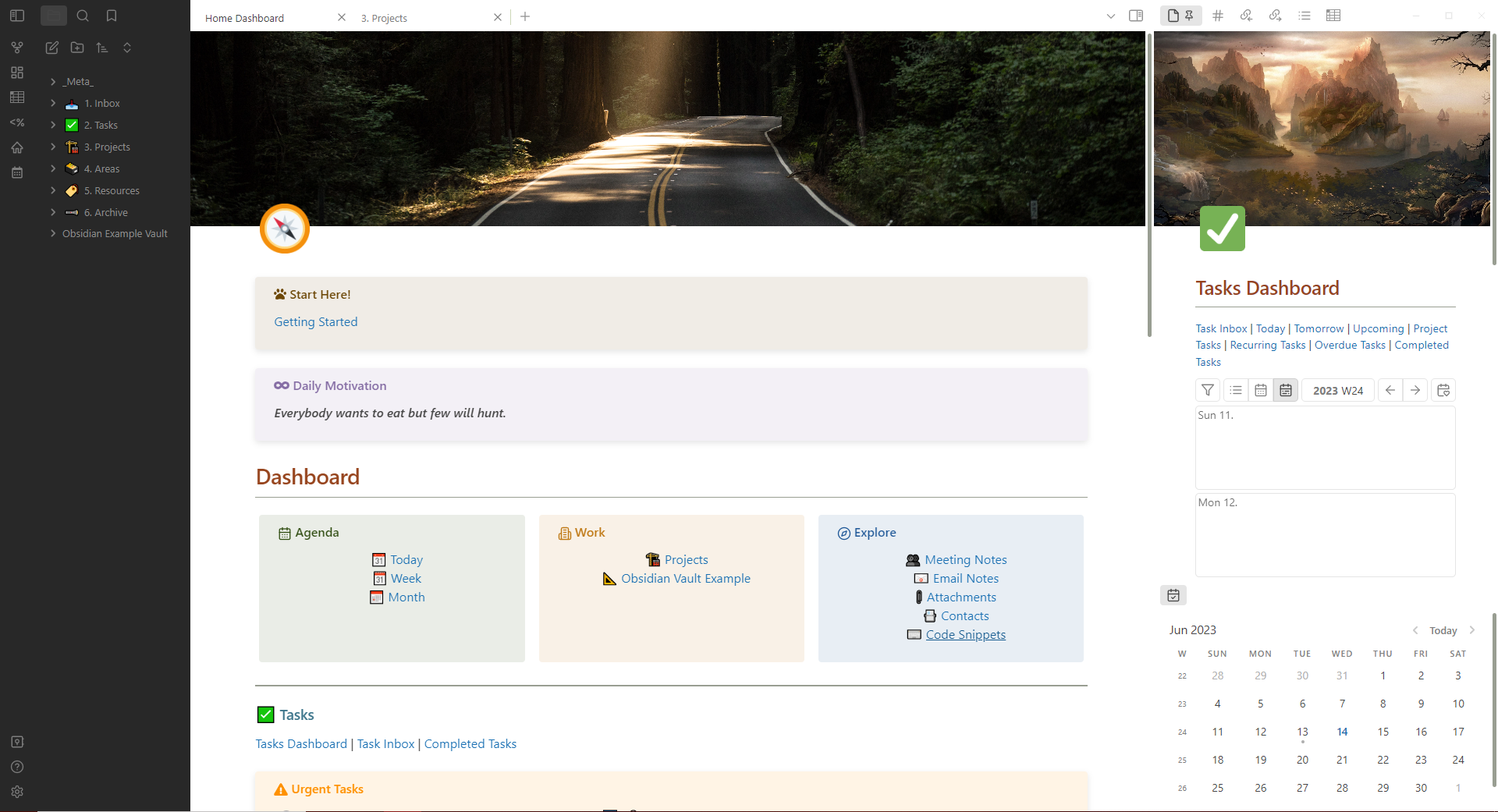
Example Vault
An example of how I'm using Obsidian for personal knowledge management.
Getting Started
In order to stay organized, I use Obsidian to track my personal knowledge management (PKM), tasks, projects and activities.
What is Personal Knowledge Management (PKM)?
Personal knowledge management (PKM) is the process of collecting all information relevant to our daily activities and jobs. PKM allows us to free up space in our brains and builds a reliable system of tracking and recalling knowledge when it's needed.
Why Obsidian?
There are several benefits of using Obsidian over other notetaking applications, especially in reference to PKM
Flexibility
- Obsidian gives us the flexibility to take notes how we want, to lay them out in ways that we design and find meaningful and to personalize the notebook structure in ways that maximize our efficiency
- This example vault is set up in the way that I find to be most efficient, but everything can be changed as you see fit!
- The theme, colors, hotkeys and side panels can all be changed
- Since there are hundreds of extensions and plug-ins available, almost any functionality you need can be added to the application
Backlinks
- Backlinks in Obsidian are connections made to files, notes or even sections of notes to quickly see how information is related. It also creates a quick and easy way to navigate through the notebook
- While other notetaking applications have the ability to link to individual notes, backlinks make it easier to do
Local Storage
- Every note and file within Obsidian is stored locally on your computer. The entire notebook is a folder in your documents folder, with all of the subfolders you create.
- If you want to share a note with someone else, that note can be emailed or copied from that folder without even needing to open Obsidian.
- Since everything is written in Markdown, the person you are sending can open and read your notes without even needing Obsidian (though, notes can also be exported as PDFs!). If they do have Obsidian, the person you send your notes to will be able to open the note with all of your editing in place
- If Obsidian ever stopped working for any reason, all of your information will still be available outside of the application
- This is also why entire vaults can be exported and replicated without issue!
Metadata and Querying
- You can give every note and file any metadata you would like and change it whenever you need to
- This allows you to query the information from anywhere within your vault to pull into tables and graphs elsewhere within the same vault
- Some examples of this, as you will see in my "Home Dashboard", are the tasks and upcoming meetings
- I've written a query that pulls all tasks from across the vault and displays it on my dashboard, I've also written a query which gives me a list of upcoming meetings, the time of the meeting and the purpose of the meeting
Templates
- Obsidian allows you to create custom templates for notes and note types
- You can then map these template to specific hotkeys and have them automatically saved in specific places within your vault
- These templates can include specific layouts, specific names and metadata
- For example, I have a "Meeting Notes" template, which automatically saves my note in the meeting notes folder. If gives it a specific layout that I use for all of my meeting notes and assigns it metadata and tags for querying later (including the date, purpose and related project)
JavaScript and HTML
- While the application itself is Electron based, you can create custom functions within using JavaScript
- This is how I've been able to create columns and the Tasks Calendar you see in the right sidepanel
- This also allows you to write even more sophisticated queries for the information in your vault
- Since Obsidian relies on Markdown for its notes, you can also use HTML to format those even further
- Fortunately, neither JavaScript or HTML are necessary to use the application! They are just great additions if you're looking for more flexibility.
Community
- Obsidian is an incredibly popular platform. Because of that, there is an enormous community of users who all have different solutions for their PKM systems
- If there is something you are interested in doing with Obsidian, or aren't sure how to get started, there are tons of resources and answers available!
What is Markdown anyway?
- Markdown is a markup language for editing and formatting plain text
- Fortunately, Obsidian has mapped most of the common basic Hotkeys for things like bold and italics
- I've also included a Markdown Cheatsheet for reference!
How do I get Obsidian?
- Obsidian can be downloaded from here
- When you first open a new vault, you will be met with a plain white text editor and a left sidebar for navigation. However, you can replicate my vault to get you started with some basic plug-ins and theming.
- To do so:
- Download and install Obsidian
- Download this vault from GitHub and move the file into the Obsidian folder in Documents on your local drive
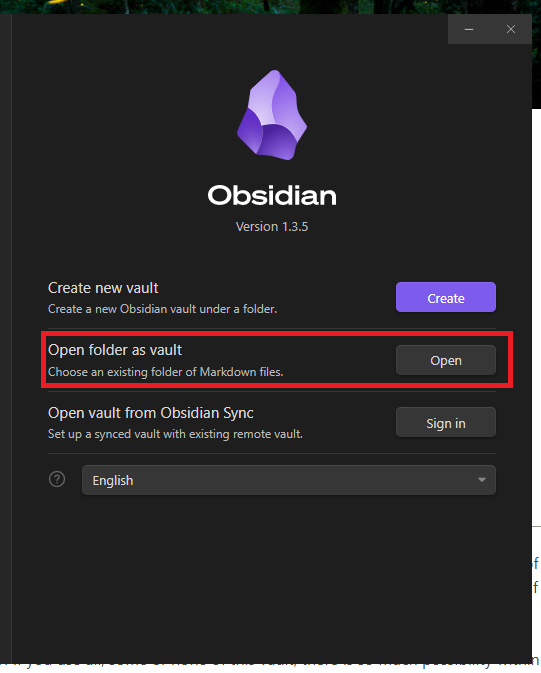
- Open Obsidian and select "Open folder as vault"
- Select the "Obsidian Example Vault" folder in your Obsidian folder
- The path will look something like: ""C:\Users\YourName\Documents\Obsidian\Obsidian Example Vault""
Using the Example Vault
By downloading this Obsidian vault, you are able to use it exactly as I have it setup in my own Obsidian. I'm providing a brief description of some of the over-arching themes and processes here. I hope that this helps give you ideas when building your own vault in Obsidian, or use it exactly as is if you think it fits your workflow!
Obsidian is an incredibly powerful and flexible application. Regardless of if you use all, some or none of this vault, there is so much possibility within Obsidian and I encourage you to take the time to explore those possibilities to improve your knowledge management system.
Layout and Navigation
Left Side Bar
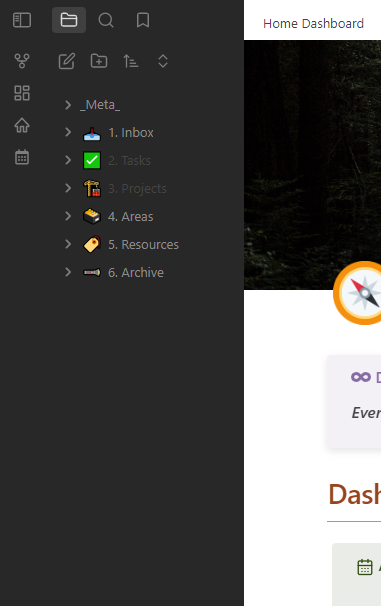
The left side bar contains all of your main navigation buttons as well as showing all of the folders within your vault.
The icons across the top of the side bar are:
- Collapse the side bar entirely
- Show the list of folders
- Search
- Bookmarks
Bookmarks can be used to save common searches and files that you use most.
Beneath those icons, are:
- New note
- New folder
- Sort
- Collapse/expand all
Finally, the icons on the far left are:
- Graph view, which shows a graph of how all notes connect
- Canvas, which allows you to create groups of notes
- Advanced tables toolbar, which shows the controls for creating tables
- Templater, which shows controls for creating and using templates
- Home, which takes you to whichever page you've set as your home page
- Open today, which takes you to today's daily note
Tab Bar
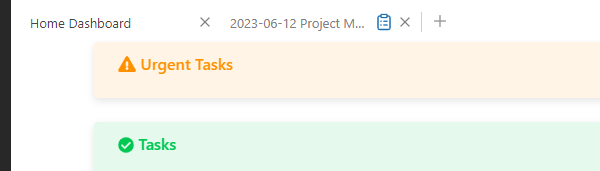
The tab bar is simply a group of tabs that house all of your open notes. You can drag tabs to open a new active window to either side of another window or above/below it.
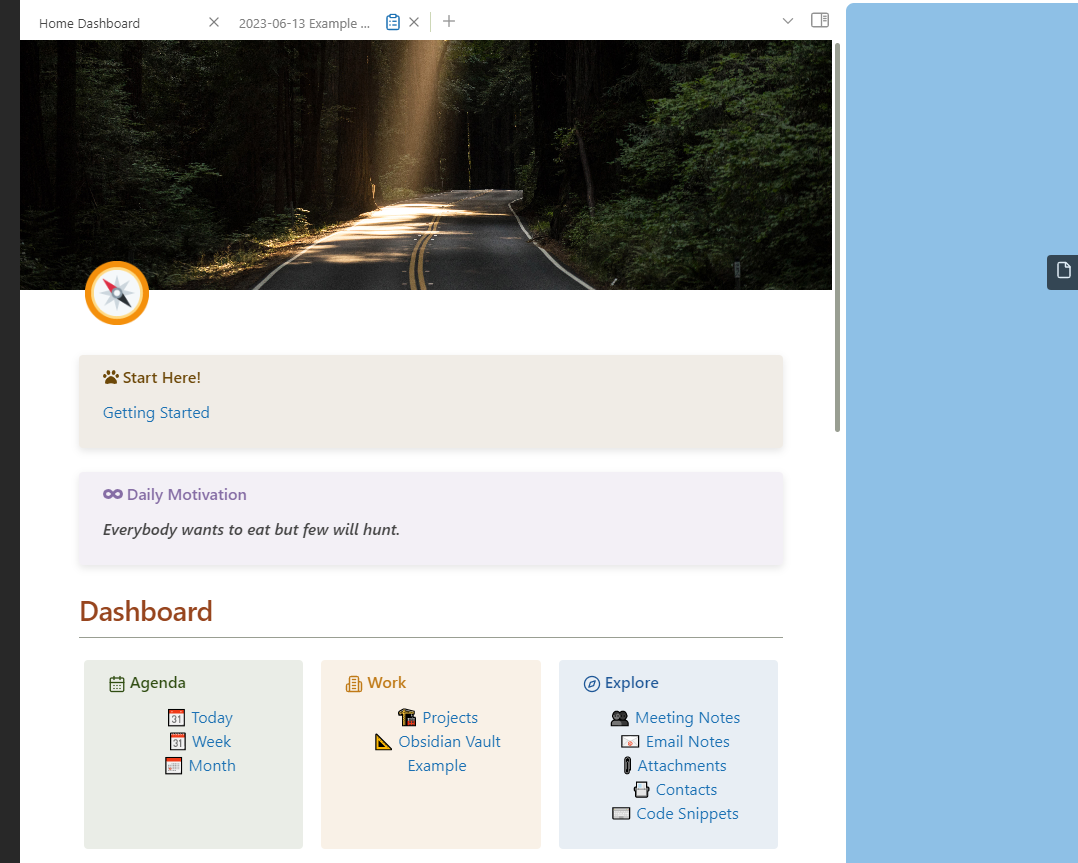
You can even move that tab to one of your side bars!
Right Side Bar
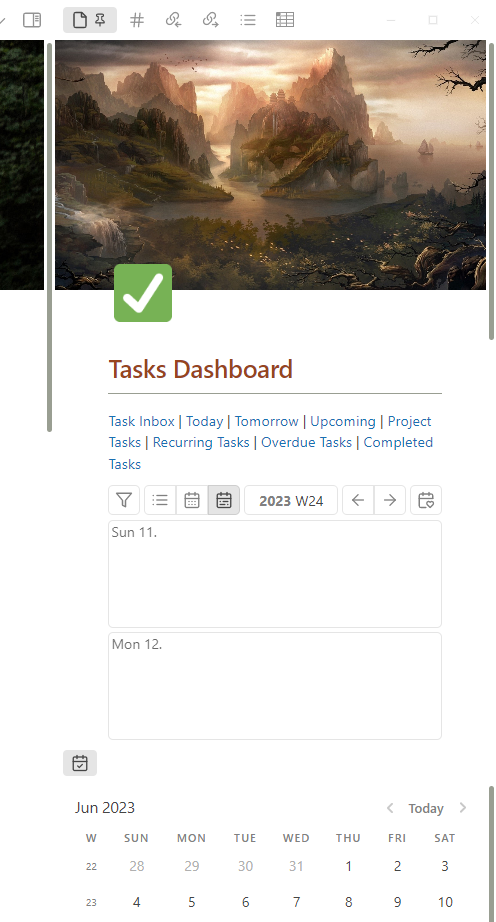
On the far right side of the tab bar, there is a button to hide/show the right side bar. I am currently using this side bar, primarily, to show my Tasks Dashboard and my calendar. I have pinned both of these there. I did this by opening a new tab containing the Tasks Dashboard and then dragging it into the right side bar. I then did the same with the Calendar, but dragged it below the Tasks Dashboard so I can see both at once.
I also have a few other items listed in the right side bar:
- A page which shows all of my tags and allows me to see a list of all notes with a particular tag
- A list of all backlinks related to the current page in the active window
- A list of forward links listed in the current window
Folder Structure
Here is a breakdown of all the folders within the vault and how I'm using them.
Meta
This folder houses all of the information either about or used for the vault itself. Some of the things I house in there are:
- The JavaScript calendar I'm using to power my Task Dashboard
- A list of dashboards that are used for plugins and don't fit under another folder category
- Currently, only my Home Dashboard falls into this category
- File Classes, which is how I am assigning metadata to my notes
- Tempaltes I have created for my various note types
- The Tasks Inbox, since this is less of a note and more of a catch-all for my random/loose tasks
Inbox
The inbox is where all of my new notes go before I've had a chance to sort them into where they need to stay. Once a week or so I go through and clear out my Inbox, either moving each note to the Permanent Notes folder, a project the note is pertaining to, or deleting it if I don't need the information anymore.
Tasks
The tasks folder is where I organize all of my tasks. When you first select the folder, it will automatically open my Tasks Dashboard. From there you can see all of the different views I've created to sort my tasks.
- I was able to create this dashboard by using a plugin called Folder Note. This plugin creates a note, with the same name as the folder, that opens everytime the folder is selected. I then built this note into a new dashboard for the corresponding folder.
The calendar in the tasks dashboard shows all the due dates for tasks. It can be changed to show a weekly, daily or monthly view.
My task views are:
- Task Inbox, where you can see the random and loose tasks I haven't finished yet.
- Today, for any tasks that are due today
- Tomorrow, for any tasks that are due tomorrow
- Upcoming, for all tasks that are due after tomorrow
- Project Tasks, for any tasks related to a project
- Recurring Tasks, to show all of the tasks I have that recur on a regular basis
- Overdue Tasks, to show uncompleted tasks that have a missed deadline
- Completed Tasks, to show all tasks that were completed over the last month
Projects
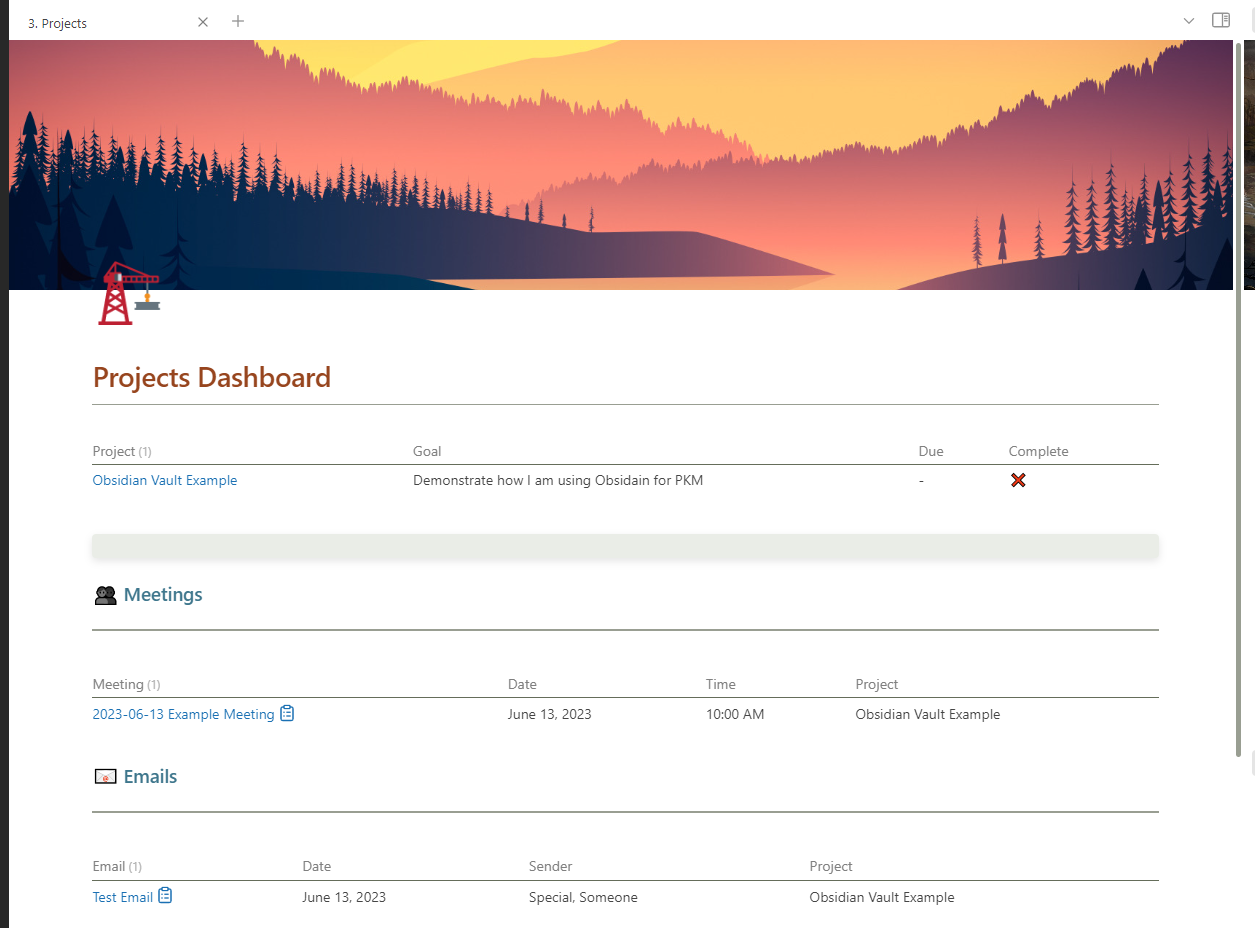
When you first select the Projects folder, it will show you a list of all open projects. This list includes the goal of the project, any hard deadline and whether the project is completed or not. Each of these projects is related to a folder, once the project is completed it can be moved to the Archive folder and will automatically be removed from the Projects Dashboard.
The process for creating these projects is:
- Use the action menu, CTRL + P, and select Quick Add: + Project
- A few prompts will pop-up to populate the basic information for the project
- If any of these prompts don't have a response, just click "Ok" or hit the enter button to skip passed it
- After the prompts have been answered, Obsidian will automatically create a folder in the Projects for. This will populate the project in the list above. This will also create a note for tasks specific to that project for when you use the Tasks to Project option in the action menu
- I also store all relevant project files within these folders so that it is all housed in one location
Beneath the projects list will be a list of meetings associated with projects, the date of the meeting, the time of the meeting and the project the meeting is associated with.
Areas of Responsibility
The Areas folder houses all of the areas of responsibility that I need to keep track of. A good way to describe the differences between these and projects are that projects have a goal and will eventually be completed. Areas of responsibility are ongoing with no specific goal.
The areas that I've setup here are:
- Contacts, to keep track of my coworkers
- Each contact has their own note. This note contains their information as well as: recent meetings we've been in together, projects we're working on together and emails this person has sent that I have notes on.
- Contacts have their own tempaltes to accomplish this
- All notes regarding emails I've received
- All notes regarding meetings I've attended
- Project specific notes
- Research specific notes
- Information regarding continuing education and training
Resources
The resources folder houses all of the files and notes related to things I will need or want to reference later. These are things like: attachments I've received, daily notes to review laters and code snippets I've saved.
Archive
The Archive is where completed projects and notes that are no longer needed go. Unless I am absolutely sure I will not need a note, notes don't get deleted immediately. Occasionally I will review the archive and delete things that are older and haven't been referenced.
Home Dashboard
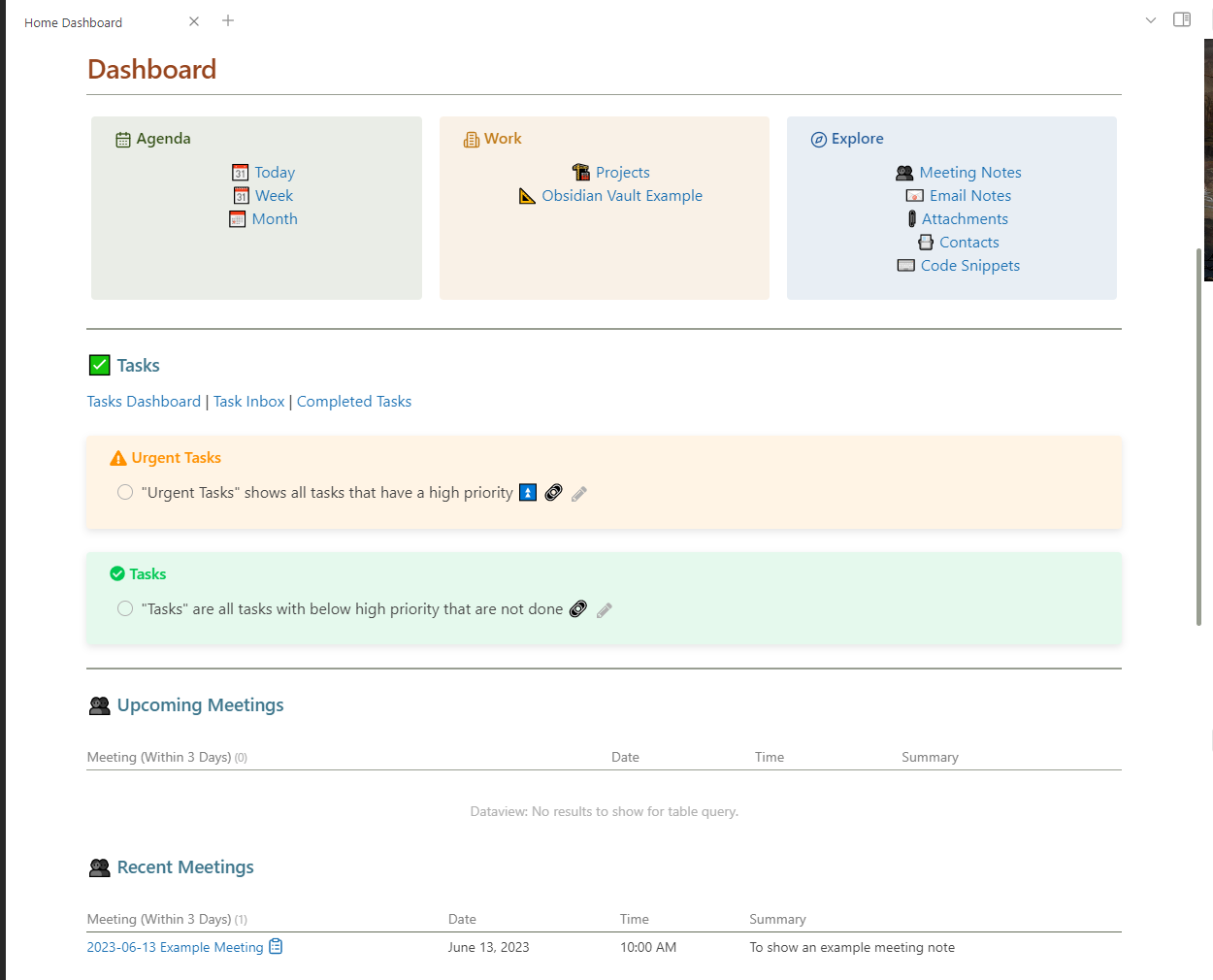
The Home Dashboard is designed to be a one-stop-shop for information that's needed at a glance. This includes quick links to the daily, weekly and monthly (which will be included in a future iteration) notes. I have a section for projects and various other resources. It also shows me a breakdown of Tasks I have due and meetings within the past or next three days.
Daily Review Workflow
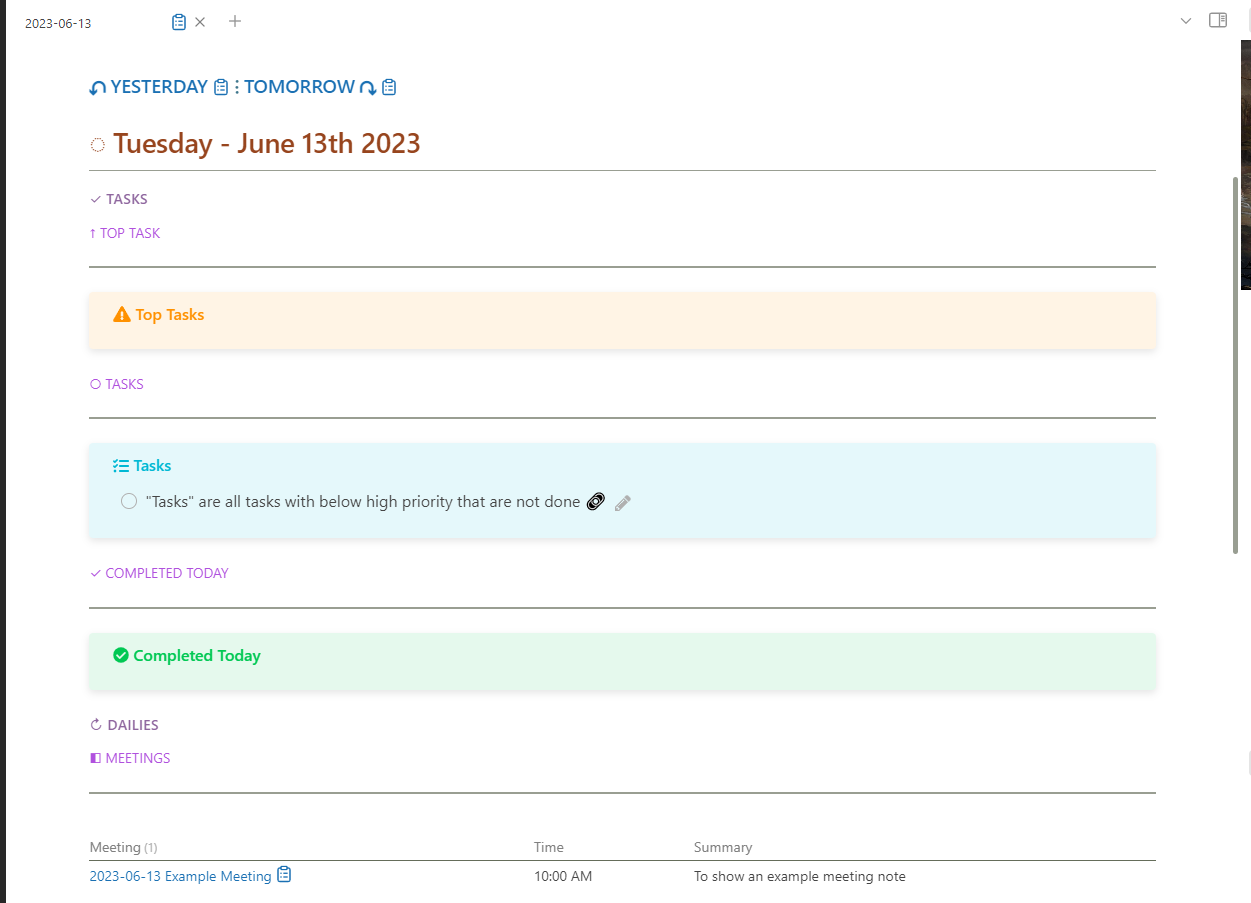
Each morning, I set aside time to set my notes up for the day. I start this by creating a new daily note, which I create by either selecting the "Today" button in the left side bar, or clicking on the date on the calendar in the right side bar. This automatically applies my daily note template to the note and moves it into the Journal in Resources.
After a new daily note is created, I create new meeting notes for all of my meetings that day. While it is quick and easy to create meeting notes using the hotkeys, I like having them set up ahead of time if possible.
Finally, at the end of the day, I use the metadata in my daily note to summarize the main activities I did for the day.
Weekly Note Workflow
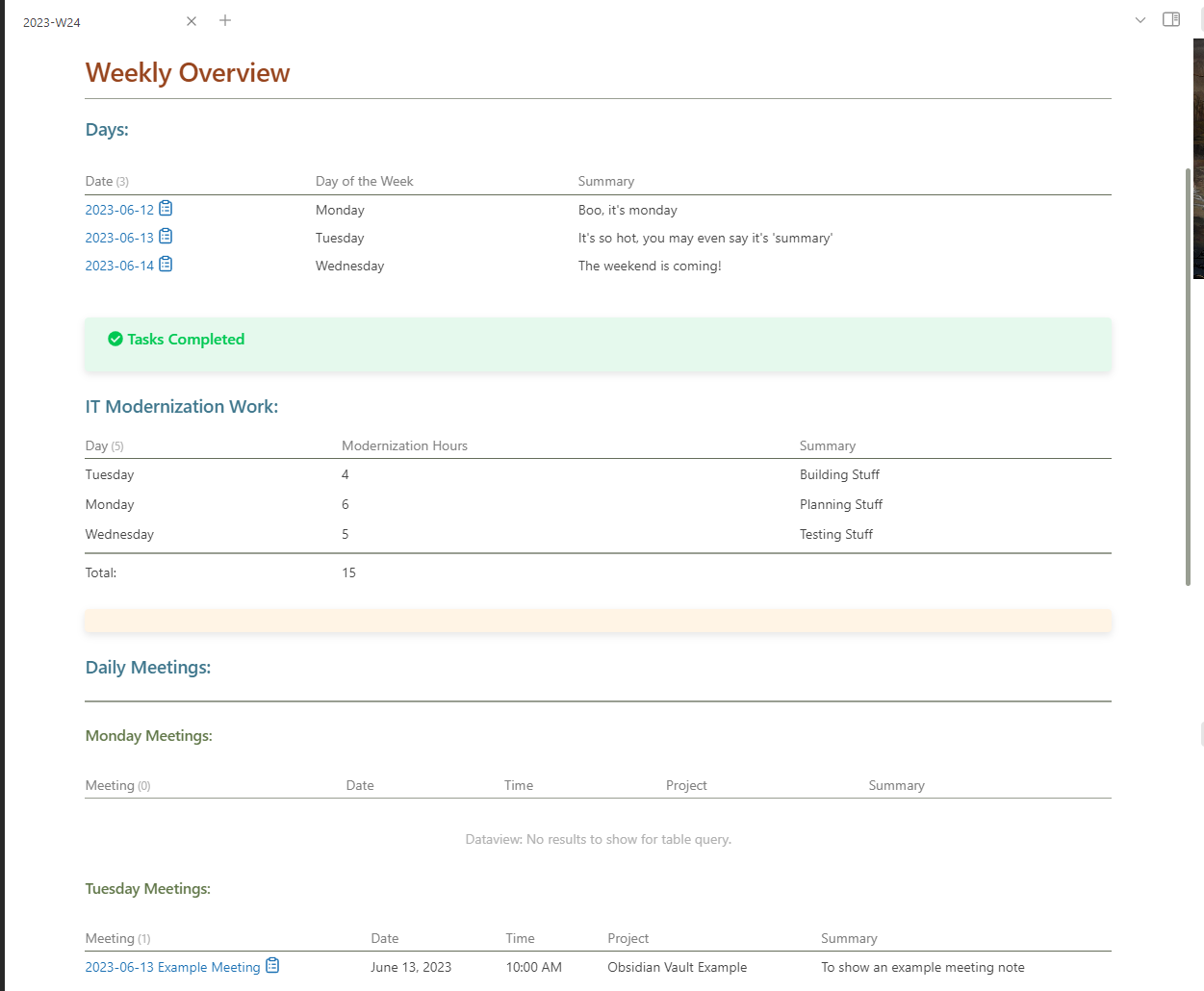
Thankfully, because everything else is so seamless, my weekly note is almost entirely automated. As soon as I create it, by selecting the weekly number on the calendar in the right side bar, it automatically populates with all of the daily summaries, tasks I've completed IT Modernization hours I've done and meetings I've had.
Each day contains a link to the daily note, which day of the week it was and then a summary of the day.
The IT Modernization hours shows me a total of the hours per day, what those hours were spent doing and then a weekly total at the bottom.
The meetings contain links to each note, the date, time, project (if any) and meeting summary.
Meeting Note Workflow
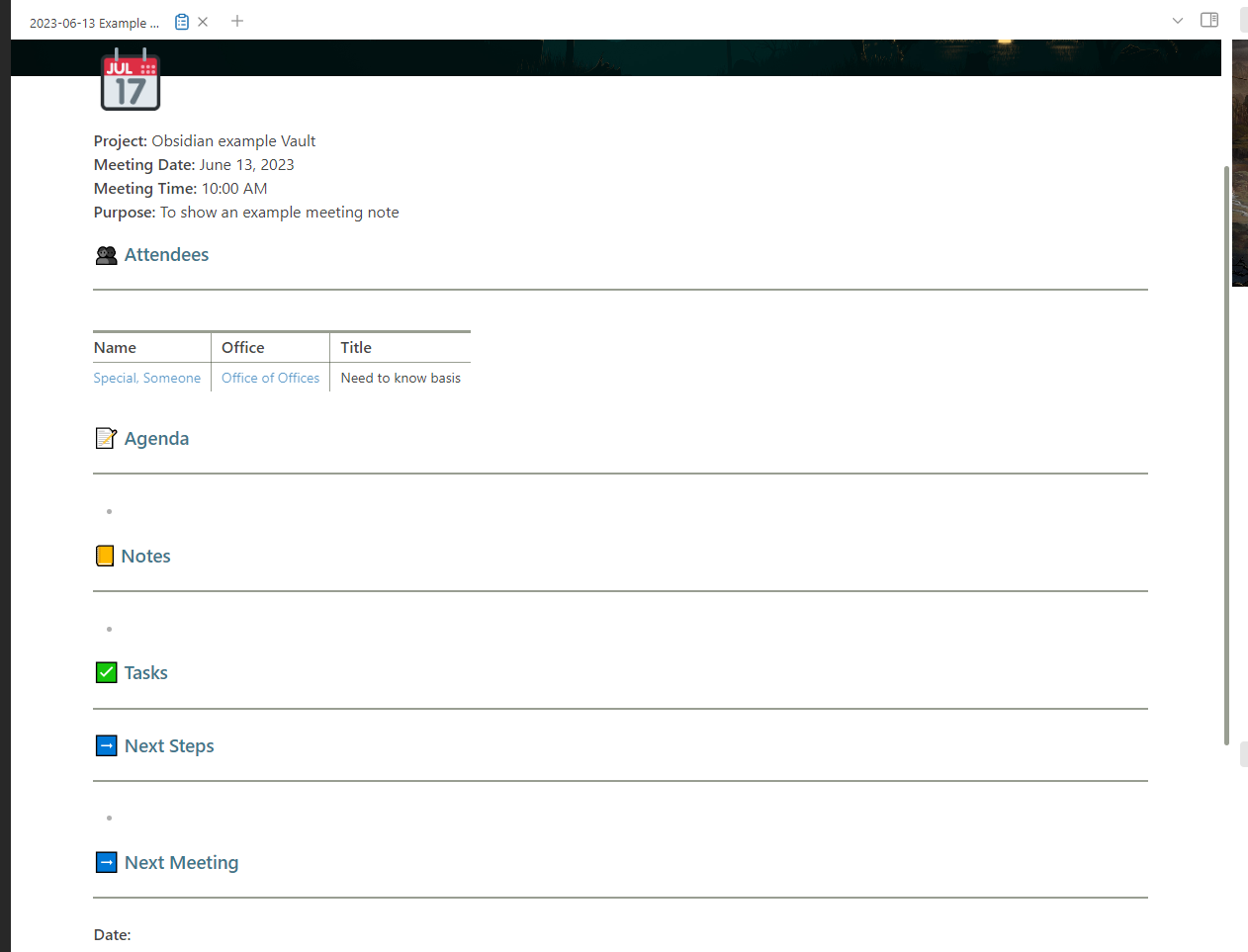
Each meeting note contains sections for attendees, an agenda of items that will or need to be discussed, actual notes related to what is discussed, tasks or action items that need to be taken and next steps or meetings that will take place.
Email Note Workflow
Whenever I receive an email, one of four things will take place:
- Either it's something I need to respond to
- I take a note on something that's brought up in the email
- The email contains a task I need to complete, which I list as a task in Obsidian
- The email is archived
If the email needs to be responded to, I do so and then archive afterwards.
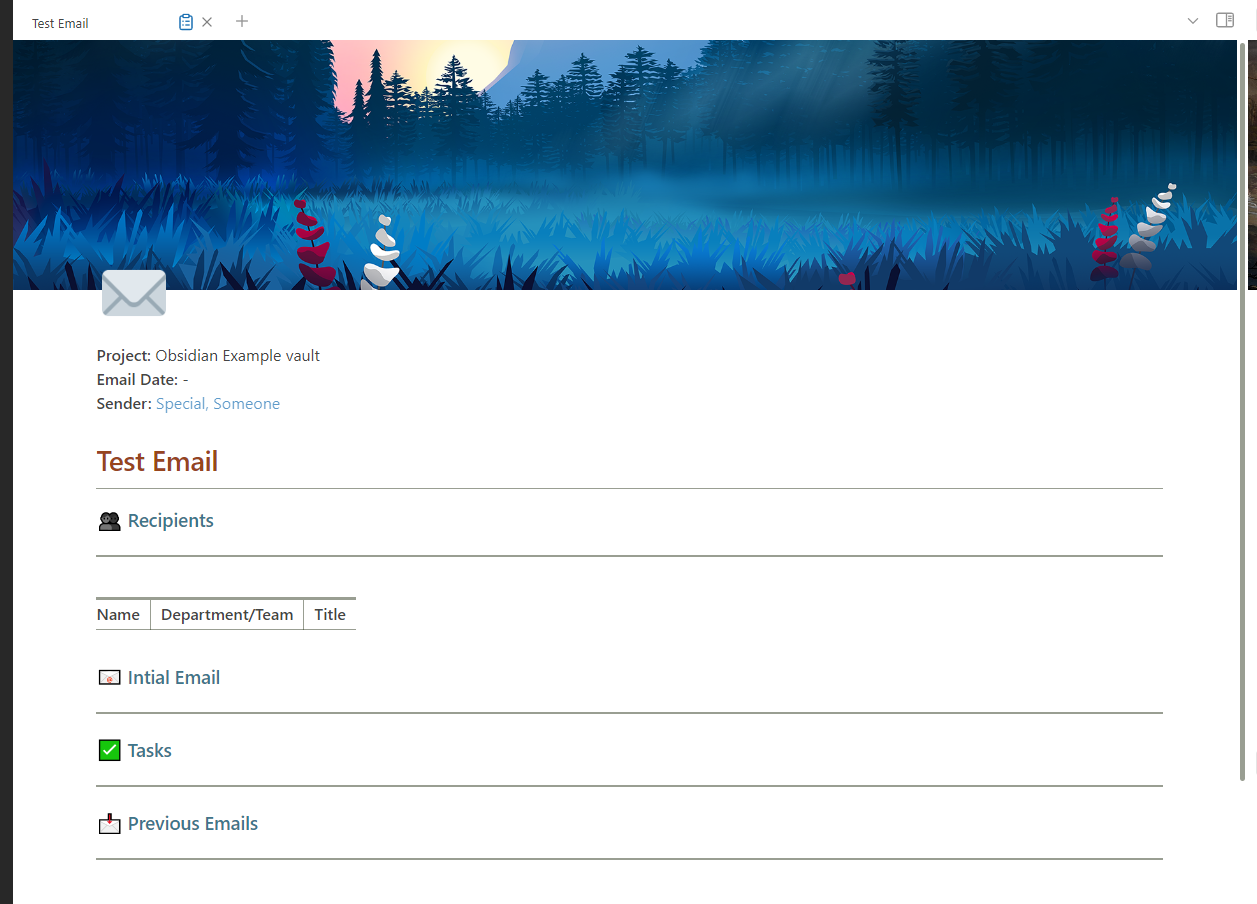
If the email needs to become a note in Obsidian, I create a new email note and then archive the email. Each email note contains:
- The sender
- All recipients on the email
- A summary or quote of the text of the email
- Any tasks that come from the information in the email
- Previous emails regarding this one as backlinks
Tasks Workflow
There are several ways I create tasks in Obsidian. The first is to just add a task to my "Task Inbox". Just like my Inbox folder, this serves as my general, catch-all location for tasks that aren't related to something else I'm working on.
To create an Inbox Task:
- Use the hotkey ALT + I
- Once the task is created, I can edit it if necessary from either the tasks dashboard or Home Dashboard
- I can edit it to add things like recurrence, due dates, start dates, etc.
The other main type of tasks I have assigned in Obsidian are project tasks. These can be added in several different ways. Anytime a task is added to a meeting or email, that task is listed as being for whatever project that meeting or email is for. If the project or email has no project associated with it, Obsidian will treat the task as an Inbox Task.
If a there is a task outside of a meeting or email, it can still be added to a project by:
- Opening the action menu with CTRL + P
- Searching for Quick Add: Task to Project (the action menu searches for keywords, so just typing tasks will bring it up)
- Typing in the project name
- The task is then added to that project's task page
Important Plugins
Having an incredible library of plugins is part of what makes Obsidian so powerful. These plugins can add an incredible amount of functionality to the base application, such as adding in better tables, callouts, queries. You can even add plugins for creating Kanban boards!
In this example vault, I've included 18 different plugins that add a ton of function and feeling to Obsidian. Here are a few of the more important ones:
Dataview
Dataview is one of the "must have" plugins for Obsidian. It enables an incredibly robust querying toolset that can be used across the entire application. The documentation for the plugin can be found here.
To start creating a dataview query, you type three backticks followed by the word dataview. On any of my pages, you can select the code block button (</>) to view the query I've written and get a sense of what dataview is all about.
Tasks
Tasks adds a powerful set of task management tools to Obsidian. The documentation for it can be found here.
Tasks also includes its own way of querying these items.
Admonition
Admonition allows you to create callouts within notes. It also allows you to create custom callouts. The documentation for the plugin can be found here.
Calendar
This plugin replaces the daily note plugin that's native to Obsidian. It allows you to create a calendar in a tab and use that to navigate daily and weekly notes.
Metadata Menu
This plugin helps you better manage the metadata in notes. It does this by having things labeled as File Classes and then giving you a new button on each note with a designated file class. This new button, which for this vault is set to a clipboard icon, allows you to change any metadata in that note.
Templater
This plugin replaces the native templates plugin
What's next for this vault?
While I feel like I have this vault at a place where it is working really well for me and my workflow, there are still a few things I would like to fix or add later. These include:
- Getting the Monthly View setup and automated
- Having new projects be automatically added as an option in the meeting and email file classes
How to Install
- Download the ZIP or clone the repository
- Open the folder as a vault in Obsidian (File → Open Vault)
- Obsidian will prompt you to install required plugins
Stats
Stars
2
Forks
1
Last updated 40mo ago
Categories