SNIPPETppeirce
Heatmap Bases View
CSSAny theme
# Heatmap Bases View
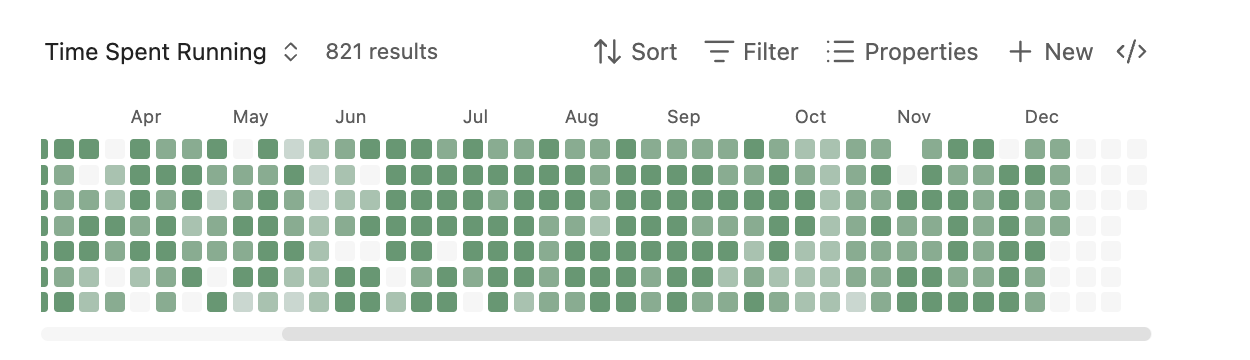
A GitHub-contributions-style heatmap view for [Obsidian Bases](https://help.obsidian.md/bases). Visualize boolean or numeric properties from your daily notes over time.
**Requires Obsidian 1.10.0 or later** (Bases feature)

## Features
- Calendar heatmap visualization of note properties
- Support for boolean (checkbox) and numeric properties
- Parse dates from filenames (daily notes) or date properties
- Customizable color schemes (5 built-in, add your own in Settings)
- Light and dark theme support
- Configurable date ranges
- Layout direction (horizontal or vertical)
- Cell size presets (small, medium, large)
- Click cells to open corresponding notes
- Keyboard navigation support
## Installation
### Manual Installation
1. Build the plugin (or download release files):
```bash
npm install
npm run build
```
2. Create a folder for the plugin in your vault:
```
<YourVault>/.obsidian/plugins/heatmap-bases-view/
```
3. Copy these files to the plugin folder:
- `main.js`
- `styles.css`
- `manifest.json`
4. Reload Obsidian (Ctrl/Cmd + R)
5. Enable the plugin in Settings > Community Plugins
## Usage
### Setting Up a Base with Heatmap View
1. **Create some daily notes** with a boolean or numeric property. For example, create notes named `2025-01-01.md`, `2025-01-02.md`, etc. with frontmatter:
```yaml
---
exercise: true
---
```
Or with numeric values:
```yaml
---
mood: 7
---
```
2. **Create a new Base**:
- Open the command palette (Ctrl/Cmd + P)
- Search for "Create new base"
- Give it a name like "Exercise Tracker"
3. **Configure the Base source**:
- In the Base, click the filter icon or settings
- Set the source folder to where your daily notes are stored (e.g., `Daily Notes/`)
4. **Switch to Heatmap view**:
- Click the view switcher (usually shows "Table" by default)
- Select "Heatmap" from the dropdown
5. **Configure the Heatmap**:
- Click the settings/options for the view
- **Date property**: Leave empty to parse dates from filenames, or select a date property
- **Value property**: Select the property to visualize (e.g., `exercise` or `mood`)
- Optionally configure color scheme, date range, and label visibility
### Example: Habit Tracker
Create daily notes with this frontmatter structure:
```yaml
---
meditated: true
exercise: false
water_glasses: 8
mood: 7
---
```
Then create separate Bases for each habit:
- "Meditation Tracker" → Value property: `meditated`
- "Exercise Tracker" → Value property: `exercise`
- "Hydration" → Value property: `water_glasses`
- "Mood" → Value property: `mood`
### Example: Using a Date Property
If your notes aren't named with dates, you can use a date property instead:
```yaml
---
date: 2025-01-15
completed: true
---
```
In the Heatmap settings:
- **Date property**: Select `date`
- **Value property**: Select `completed`
## Configuration Options
| Option | Description |
|--------|-------------|
| Date property | Property containing the date, or leave empty to parse from filename |
| Value property | Boolean or number property to visualize |
| Start date | Beginning of date range (YYYY-MM-DD), or leave empty for auto |
| End date | End of date range (YYYY-MM-DD), or leave empty for today |
| Color scheme | Select from available schemes (customize in Settings) |
| Week starts on | Sunday or Monday |
| Show weekday labels | Toggle Mon/Wed/Fri labels |
| Show month labels | Toggle month labels at top |
| Layout direction | Horizontal (GitHub-style) or vertical (calendar-style) |
| Cell size | Small (11px), medium (16px), or large (24px) |
## Color Interpretation
- **Empty (hollow)**: No note exists for this date
- **Dim filled**: Note exists but value is false/0/missing
- **Colored intensity**: Note exists with positive value
- For booleans: full intensity when true
- For numbers: intensity scaled between min and max values
## Development
```bash
# Install dependencies
npm install
# Development build with watch mode
npm run dev
# Production build
npm run build
# Lint code
npm run lint
# Lint and auto-fix
npm run lint:fix
```
Linting runs automatically on staged files before each commit via husky pre-commit hooks.
### Releasing
See [RELEASING.md](RELEASING.md) for the complete release process and version management.
How to Install
- Download the CSS file below
- Move it to your vault's
.obsidian/snippets/folder - Open Obsidian → Settings → Appearance → CSS Snippets → Enable it
Stats
Stars
11
Forks
1
License
0BSD
Last updated 3mo ago