vscode-obsidian-notes
VS Code extension bringing Obsidian's Daily Note and Insert Template workflows directly into your editor. Perfect for Quartz, digital gardens, and markdown journaling.
MarkGarden VS Code Extension
An elegant and high-performance VS Code extension that brings Obsidian's premium note-taking workflows directly into your editor: Interactive Graph View, Wikilinks Navigation ([[ ]]), Tag & Category Management, Daily Notes, and Smart Template Insertion. Perfect for Quartz users, markdown journalers, and digital gardeners.
Features
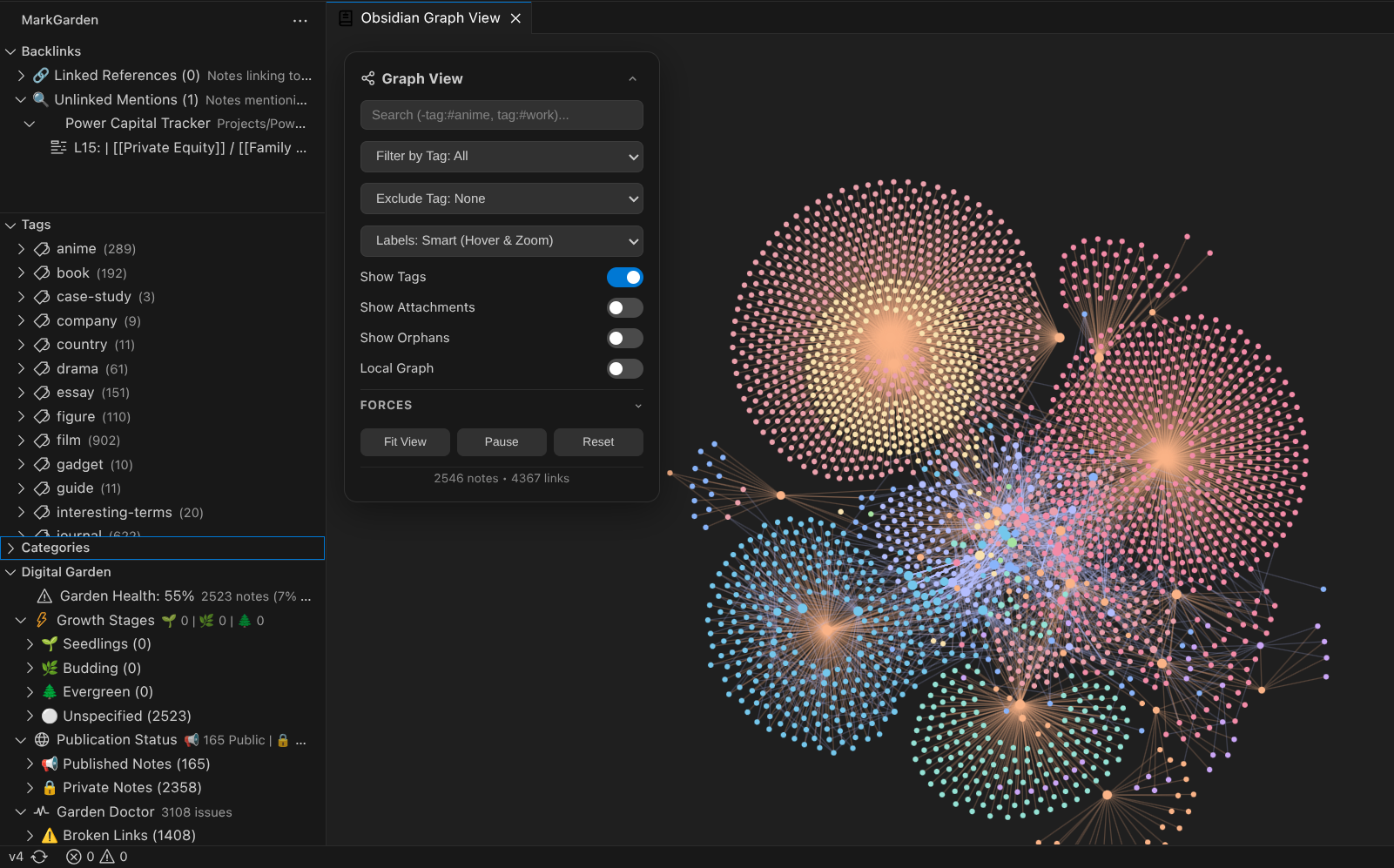
🕸️ Interactive Graph View & Local Graph
Visualize your knowledge network with a stunning, physics-driven force-directed graph:
- Global Graph: Explore the full landscape of your digital garden, note relationships, and clusters.
- Local Graph Mode: Focus directly on your active note and dynamically filter to immediate neighbors (customizable depth: 1-hop, 2-hop, 3-hop, 4-hop).
- Live Synchronization: Updates in real-time as notes and wikilinks are created, edited, or deleted.
- Search & Filters:
- Live search by note title.
- Filter and highlight nodes by tag or category.
- Toggle orphan notes (notes with zero links).
- Interactive Physics & Controls:
- Smooth pan, zoom, and node dragging.
- Node hover highlights connected notes and displays rich metadata tooltips (Title, Path, Tags, Categories, and Inbound/Outbound link counts).
- Single click on any node opens the markdown note in the editor.
- Fit-to-screen view and simulation pause/resume.
- Commands & Shortcuts:
MarkGarden: Open Graph View(Ctrl+Alt+G/Cmd+Alt+Gor click the graph icon in the editor title bar).MarkGarden: Open Local Graph View.
🔗 Wikilink Navigation & Auto-Creation ([[ ]])
Experience seamless cross-note hyperlinking just like in Obsidian:
- Interactive Jumping:
Ctrl/Cmd+ClickorF12(Go to Definition) on any[[Note Name]]to jump straight to the target note. - Heading Anchors: Link directly to section headers with
[[Note#Section]]or within the current file[[#Section]]. The editor scrolls directly to the heading line. - Display Aliases: Support for pipe syntax
[[Target Note|Custom Display Text]]. - Automatic Note Creation: Clicking a non-existent note link prompts/creates it automatically at your preferred location with initial title metadata and opens it in the editor.
- Follow Link Shortcut: Press
Alt+Enteron any link to navigate instantly. - IntelliSense Autocompletion: Typing
[[suggests note titles and note headings across the workspace.
🏷️ Tag & Category Management
Organize your second brain with full hybrid tag and category support:
- Hybrid Tag Detection: Automatically indexes YAML frontmatter (
tags: [...]or multi-line list) and inline hashtags (#productivity,#project/alpha/v1). - Category Support: Automatically indexes YAML frontmatter (
categories: [...]orcategory: ...). - Sidebar Activity Bar Views:
- Tags Explorer: Displays all workspace tags with note count badges (e.g.
🏷️ project (5)). Expand to view matching notes and click to open. - Categories Explorer: Displays all workspace categories with note counts and note drill-downs.
- Tags Explorer: Displays all workspace tags with note count badges (e.g.
- Command Palette Actions:
MarkGarden: Add Tag to Current Note(adds to YAML frontmatter or inline)MarkGarden: Remove Tag from Current NoteMarkGarden: Add Category to Current NoteMarkGarden: Remove Category from Current NoteMarkGarden: Find Notes by Tag(QuickPick search)MarkGarden: Find Notes by Category(QuickPick search)MarkGarden: Rename Tag Across Workspace(batch updates frontmatter and inline hashtags across all markdown notes)MarkGarden: Rename Category Across Workspace(batch updates frontmatter across all markdown notes)
- Tag IntelliSense: Typing
#provides autocompletion of existing workspace tags (smartly filtered to ignore markdown# Headingsyntax, code blocks, and URLs).
🔍 Hover Note Previews & Transclusion (![[ ]])
Inspect connected thoughts without losing your place:
- Rich Hover Tooltips: Hover over any
[[Note Name]],[[Note#Section]],[[Note#^block-id]], or![[Embed]]in the editor to view an instant markdown tooltip showing note title, tags, category badges, and clean note preview. - Anchor-Specific Peeking: Hovering over a
#headingor^block-idlink isolates and previews only that specific subsection or paragraph. - Missing Note Indicator: Hovering over an uncreated note link displays a one-click "Create Note" quick action.
✂️ Note Refactor & Zettelkasten Extraction
Effortlessly distill brain dumps and daily journals into atomic concept notes:
- Extract Selection to Note: Select any markdown text and press
Ctrl+Alt+E/Cmd+Alt+E(or right-click -> Extract Selection to Note). - Smart Title Suggestion: Automatically infers a clean note title from the selection's top heading or opening sentence.
- Flexible Replacement Modes:
- Replace with
[[New Note]]wikilink (default). - Replace with
![[New Note]]transclusion embed. - Replace with
[[New Note|Custom Alias]]. - Create note without modifying the selection in source note.
- Replace with
- Automatic Frontmatter & Source Backlinks: Generated notes automatically include YAML frontmatter with date and a bidirectional backlink
source: "[[Source Note]]".
📌 Block References (^block-id)
Link to granular paragraphs, quotes, and list items across your workspace:
- Block Anchors: End any paragraph or bullet item with
^my-block-id. - Block Autocompletion: Typing
[[Note#^or[[#^suggests all indexed block IDs in the note with preview snippets. - Block Navigation & Definition:
Ctrl/Cmd+ClickorF12on[[Note#^my-block-id]]jumps and centers directly on that block's line.
📅 Daily Note
Create or open today's daily log file instantly.
- Command:
MarkGarden: Create Daily Note - Keyboard Shortcut:
Ctrl+Alt+D(Windows/Linux) orCmd+Alt+D(macOS) - Smart Templating: If today's daily note doesn't exist, it's automatically created. If a template is configured (e.g.
templates/daily.md), it is read, parsed, and populated with resolved timestamps and filename values. - Auto-Open: Optionally open or create your daily note automatically on editor startup.
📋 Insert Template
Quickly insert processed markdown templates into your active markdown file at the cursor position.
- Command:
MarkGarden: Insert Template - Keyboard Shortcut:
Ctrl+Alt+T(Windows/Linux) orCmd+Alt+T(macOS) - Metadata-Rich Dropdown: Scans your templates folder and reads the YAML frontmatter of each template to display Title, Filepath, Description, and Tags in an elegant, search-filterable VS Code QuickPick selector.
📝 Obsidian Properties & Frontmatter Suite
Supercharge frontmatter authoring with full Obsidian-like context-aware editing, auto-maintenance, and refactoring:
- Context-Aware YAML IntelliSense:
- Property Key Completion: Suggests built-in Obsidian keys (
title,date,updated,modified,tags,categories,aliases,author,status,summary,draft,publish,banner,up,related,type, etc.) and all custom property keys across your workspace. - Tag & Category Suggestions: Typing under
tags:orcategories:(inline or list- item) suggests workspace-indexed tags and categories. - Wikilink Completion: Typing
[[inside frontmatter fields (e.g.up:,related:,source:) completes note names. - Date & Timestamp Snippets: Autocompletes
today,now,YYYY-MM-DD, and full timestamps under date properties. - Workspace Enum Value Suggestions: Suggests distinct previously used values for custom properties (e.g.
status:suggestsdraft,in-progress,completed).
- Property Key Completion: Suggests built-in Obsidian keys (
- Auto-Update Modified Date on Save:
- Automatically updates the
updated:ormodified:timestamp in frontmatter on save without breaking formatting.
- Automatically updates the
- Frontmatter Management Commands:
MarkGarden: Add / Set Frontmatter Property: QuickPick to select or create a property key and set its value.MarkGarden: Format Frontmatter: Normalizes YAML indentation, key order, and list syntax.MarkGarden: Rename Property Across Workspace: Batch-renames a frontmatter property key across all notes in the vault.MarkGarden: Convert Inline Tags to Frontmatter: Extracts inline#tagsand moves/merges them into frontmattertags:.MarkGarden: Sync Note Title with Filename: Synchronizestitle:property with filename or H1 header.
🌱 Digital Garden Suite & Growth Stages
Transform your vault into a well-tended digital garden with full Quartz & Obsidian Publish compatibility:
- Dedicated Digital Garden Sidebar View:
- Garden Health & Overview: Real-time health score, total note count, and publication ratio (
% public). - Growth Stages Explorer: Organize notes into 🌱 Seedlings (raw sparks/drafts), 🌿 Budding (developing structures), and 🌲 Evergreen (mature, high-value assets) with expandable trees.
- Publication Status Explorer: Group notes into 📢 Published vs 🔒 Private.
- Garden Doctor: Automated audits surfacing ⚠️ Broken Wikilinks, 🛡️ Privacy Leaks (public notes linking to private/unreleased notes), 🏝️ Orphan Notes, and 🚪 Dead Ends.
- Garden Health & Overview: Real-time health score, total note count, and publication ratio (
- Interactive Status Bar Controls:
- Clickable status bar pills for instantaneous Growth Stage cycling (
🌱 Seedling/🌿 Budding/🌲 Evergreen) and Publish Status toggling (📢 Published/🔒 Private).
- Clickable status bar pills for instantaneous Growth Stage cycling (
- Live In-Editor Diagnostics:
- Non-blocking editor squiggles and warnings on broken links and privacy leaks in publishable notes.
- Commands:
MarkGarden: Toggle Publish Status(Ctrl+Alt+P/Cmd+Alt+P)MarkGarden: Set Growth StageMarkGarden: Run Digital Garden AuditMarkGarden: Refresh Digital Garden
💡 Obsidian Callouts & Admonitions (> [!note])
Author expressive, beautiful callout blocks with standard Obsidian syntax:
- Supported Callout Types:
note,abstract,summary,tldr,info,todo,tip,hint,important,success,check,done,question,help,faq,warning,caution,attention,failure,fail,missing,danger,error,bug,example,quote,cite. - Quick Inserter Command:
MarkGarden: Insert Obsidian Callout / Admonition(Ctrl+Alt+C/Cmd+Alt+C). Interactive QuickPick to choose callout category, custom title, and foldability (+expanded,-collapsed, or normal). - Editor Styling & Decorations: Subtle tinted background and accent borders in the markdown editor.
- Markdown Preview Rendering: Full markdown-it integration converting callouts into theme-styled HTML blocks and interactive collapsible
<details><summary>elements.
Supported Template Variables
Placeholders are resolved at the moment of file creation or insertion relative to the target document:
{{title}}- The name of the file being edited or created (without the.mdextension).{{date}}- Today's date (defaults toYYYY-MM-DD).{{date:FORMAT}}- Today's date formatted using customized tokens.{{time}}- Current time (defaults toHH:mm).{{time:FORMAT}}- Current time formatted using customized tokens.
Date/Time Format Tokens
YYYY- 4-digit Year (e.g.,2026)MM- 2-digit Month (e.g.,05)DD- 2-digit Day (e.g.,20)HH- 2-digit Hour (e.g.,18)mm- 2-digit Minute (e.g.,55)ss- 2-digit Second (e.g.,30)Z- Timezone offset formatted precisely (e.g.,+07:00,-05:00, orZ)
Example: {{date:YYYY-MM-DDTHH:mm:ssZ}} yields 2026-05-20T18:55:30+07:00.
Keyboard Shortcuts
| Shortcut | Command | When |
|---|---|---|
Ctrl+Alt+G / Cmd+Alt+G | Open Graph View | Global |
Alt+Enter | Follow Wikilink Under Cursor | Active Markdown Document |
Ctrl+Alt+E / Cmd+Alt+E | Extract Selection to Note (Zettelkasten) | Active Selection in Markdown |
Ctrl+Alt+C / Cmd+Alt+C | Insert Obsidian Callout / Admonition | Active Editor in Markdown |
Ctrl+Alt+P / Cmd+Alt+P | Toggle Note Publish Status | Active Editor in Markdown |
Ctrl+Alt+D / Cmd+Alt+D | Create / Open Today's Daily Note | Global |
Ctrl+Alt+T / Cmd+Alt+T | Insert Markdown Template | Active Editor |
Extension Settings
Customize settings inside your settings.json (Workspace or User) under the markgarden prefix:
| Setting | Type | Default | Description |
|---|---|---|---|
markgarden.digitalGarden.publishProperty | string | "publish_external" | Frontmatter property key used to determine publish status. |
markgarden.digitalGarden.growthProperty | string | "growth" | Frontmatter property key used for note growth stages (seedling 🌱, budding 🌿, evergreen 🌲). |
markgarden.digitalGarden.enableDiagnostics | boolean | true | Enable editor squiggles and warnings for broken wikilinks and privacy leaks. |
markgarden.digitalGarden.showStatusBar | boolean | true | Show interactive Growth Stage and Publish Status indicators in the status bar. |
markgarden.callouts.enableDecorations | boolean | true | Highlight Obsidian Callouts in the editor with custom background tint and border accents. |
markgarden.frontmatter.enableCompletions | boolean | true | Enable context-aware IntelliSense completions in YAML frontmatter. |
markgarden.frontmatter.autoUpdateModifiedDate | boolean | true | Automatically update last modified timestamp in YAML frontmatter on saving markdown notes. |
markgarden.frontmatter.modifiedDateKey | string | "updated" | Frontmatter property key used for auto-updating modified timestamps. |
markgarden.frontmatter.dateFormat | string | "YYYY-MM-DD HH:mm:ss" | Date/time format string used when writing timestamps in frontmatter. |
markgarden.frontmatter.defaultProperties | array | ["title", "date", ...] | Default property keys suggested in frontmatter completion. |
markgarden.hoverPreviewEnabled | boolean | true | Show rich markdown preview tooltip when hovering over [[links]], ![[embeds]], headings, and blocks. |
markgarden.hoverPreviewMaxLength | number | 1200 | Maximum character length for hover preview body before truncation. |
markgarden.newNoteFolderStrategy | string | "root" | Where to create new notes when following a non-existent [[link]]: "root", "sameAsCurrent", or "custom". |
markgarden.notesFolder | string | "" | Destination folder path for new notes when strategy is "custom". |
markgarden.tagPrefix | string | "frontmatter" | Default insertion style when adding tags: "frontmatter" (YAML frontmatter) or "inline" (#tag at end of file). |
markgarden.templatesFolder | string | "templates" | Path to the templates directory relative to workspace root. |
markgarden.dailyNotesFolder | string | "" | Path to daily notes folder relative to workspace root. |
markgarden.dailyNoteTemplate | string | "daily.md" | Name of the daily note template file. |
markgarden.dateFormat | string | "YYYY-MM-DD" | Format for today's daily note filename. |
markgarden.openDailyNoteOnStartup | boolean | false | Automatically open or create today's daily note on startup. |
markgarden.excludedFolders | array | ["**/node_modules/**", "**/.git/**", ...] | Glob patterns to exclude from metadata and tag indexing. |
Installation & Setup
Option 1: Install from VSIX
- Download the latest
.vsixpackage from the Releases page. - Install it in VS Code:
Or open Extensions view (code --install-extension markgarden-1.2.0.vsixCtrl+Shift+X), click...(Views and More Actions) > Install from VSIX....
Option 2: Build from Source
git clone https://github.com/nichsedge/vscode-markgarden.git
cd vscode-markgarden
npm install
npm test
npm run package
code --install-extension markgarden-1.2.0.vsix
How to Install
- Download the template file from GitHub
- Move it anywhere in your vault (or your sidebar notes)
- Open it in Obsidian — done!
Stats
Stars
0
Forks
0
License
MIT
Last updated 1mo ago
Categories
Tags