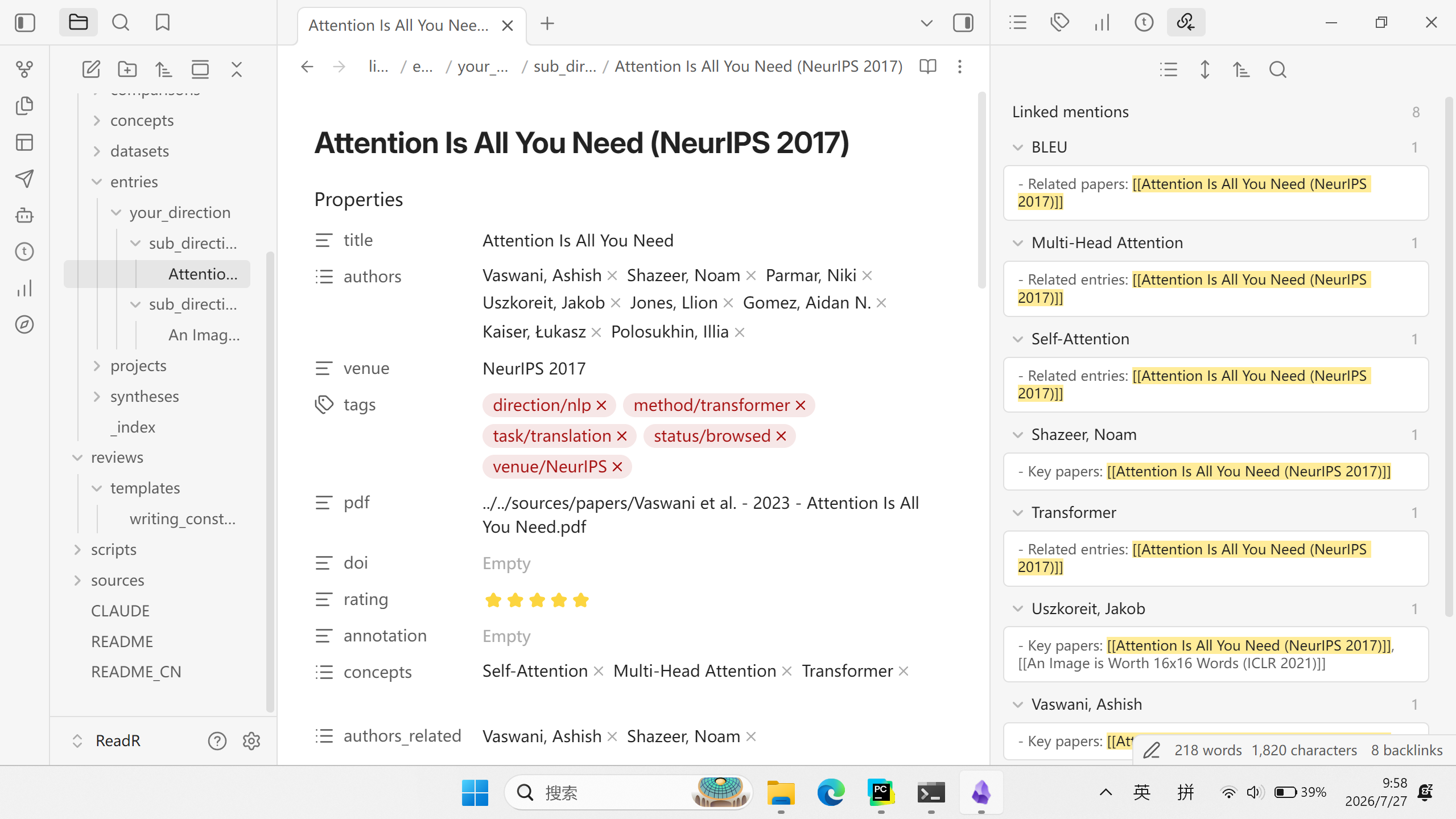
ReadR
ReadR is an Obsidian vault template that organizes academic papers through a four-layer architecture: sources → library → annotations → reviews. Built for Obsidian, inspired by Karpathy's llm-wiki.
ReadR

AI-Assisted Academic Knowledge Base Designed for Human Researchers
sources → library → annotations → reviews
to-read →browse →close-read →review
Architecture • Workflow • Comparison • Quick Start • Acknowledgments
Obsidian • Claude • NotebookLM • RSS • Column
English | 中文
ReadR is an Obsidian template vault built for academic paper management, inspired by the paradigm of Karpathy's LLM Wiki and the llm-wiki project — but designed to serve human researchers rather than AI agents. The vault organizes a paper's full lifecycle into a clear four-layer structure, where AI is an optional assistant, not the primary author.
Architecture
┌──────────────────────────────────────────────────────────┐
│                     SCHEMA LAYER                         │
│          CLAUDE.md — operating rules, naming, workflow   │
├─────────────┬─────────────┬───────────────┬──────────────┤
│             │             │               │              │
│  sources/   │  library/   │ annotations/  │   reviews/   │
│  raw source │  catalog    │  close reading│   surveys    │
│  (read-only)│ + distilled │  notes        │   (output)   │
│             │  knowledge  │               │              │
│  immutable  │  you curate │  you write    │  you author  │
│             │             │               │              │
└─────────────┴─────────────┴───────────────┴──────────────┘
       ↑             ↑              ↑
       └─────────────┴──────────────┘
              linked via wiki-links
Design Principles
- sources/ is immutable — once a PDF or clipping is placed here, it is never modified
- One source, one entry — each paper has exactly one entry in library/entries/
- Annotations only after close reading — annotations/ is the output of close reading, not casual browsing notes
- Knowledge distillation happens alongside browsing — concepts/, authors/, datasets/ (incl. benchmarks via
type), etc. are distilled while you browse - Synthesis bridges to review — syntheses/ is the intermediate state between "reading papers" and "writing a review"
Directory Structure
├── sources/                        Raw material (read-only)
│   ├── papers/                     Academic paper PDFs
│   ├── web/                        Web articles, blog posts
│   ├── books/                      Book/monograph chapters
│   ├── talks/                      Talks, lectures
│   └── misc/                       Other
│
├── library/                        Paper catalog + distilled knowledge
│   ├── _template/                  Entry templates
│   ├── entries/                    Paper entries (organized by research direction)
│   │   ├── nlp/                    e.g., Natural Language Processing
│   │   ├── cv/                     e.g., Computer Vision
│   │   └── your_direction/         Replace with your own direction
│   ├── concepts/                   Core concepts
│   ├── authors/                    Researchers
│   ├── datasets/                   Datasets and benchmarks (use `type` field to distinguish)
│   ├── comparisons/                Method comparisons
│   ├── syntheses/                  Synthesized overviews
│   └── projects/                   Ongoing projects
│
├── annotations/                    Close-reading notes
│   ├── _template/                  Close-reading note template
│   ├── cv/                         CV paper notes
│   ├── nlp/                        NLP paper notes
│   └── your_direction/             Replace with your own direction
│
├── reviews/                        Literature reviews
│   └── templates/                  Review templates
│
├── docs/                           Project documentation
│   ├── column/                     ReadR column series
│   └── *                           Other docs
│
├── scripts/                        Automation tools
│
├── CLAUDE.md                       AI assistance contract
└── .gitignore
The Four Layers in Detail
sources/ — Raw Material Layer (read-only)
Rule: Read-only. AI must not modify it. Holds all original material.
This is the paper's "archive" — all PDFs, web clippings, book chapters, and other raw material are never modified once placed here. Pair it with the RSS Dashboard plugin to auto-fetch the latest papers, and after import you can also push them to NotebookLM for further analysis (see below).
sources/
├── papers/         ← Academic paper PDFs
├── web/             ← Web articles, blog posts
├── books/           ← Book chapters
├── talks/           ← Talks, lectures
└── misc/            ← Other
library/ — Browse Layer (knowledge distillation)
This is the paper's "library" — every paper has a corresponding markdown entry in entries/, while knowledge distilled during browsing is written to separate subdirectories and cross-linked via wiki-links.
library/
├── _index.md                          ← Master index (auto-generated)
├── _template/                          ← Entry templates
│   ├── library-entry.md              Paper entry
│   ├── concept.md                    Concept note
│   ├── author.md                     Researcher profile
│   ├── dataset.md                    Dataset
│   ├── benchmark.md                  Benchmark
│   ├── comparison.md                 Method comparison
│   ├── synthesis.md                  Synthesized overview
│   └── project.md                    Project progress
├── entries/                             ← Paper entries (organized by research direction)
│   ├── nlp/                             e.g., Natural Language Processing
│   ├── cv/                              e.g., Computer Vision
│   └── your_direction/                  Replace with your own direction
├── concepts/                           ← Core concepts
├── authors/                            ← Researcher profiles
├── datasets/                           ← Dataset and benchmark descriptions (use `type` field)
├── comparisons/                        ← Method comparisons
├── syntheses/                          ← Synthesized overviews (written after 3+ papers)
└── projects/                           ← Ongoing projects
annotations/ — Close-Reading Layer
Rule: Only create a close-reading note for papers with status: close-read. One folder per paper.
This is the paper's "reading notes" — after a line-by-line close read, the paper's argument logic, experimental design, formula derivations, and figure/table interpretations are recorded as structured notes.
annotations/
├── _template/                          ← Close-reading note template
│   └── reading-note.md                ← Figure/table/formula embedding conventions
├── cv/                                 ← CV paper notes (same directions as library)
├── nlp/                                ← NLP paper notes
└── your_direction/                     ← Replace with your own direction
reviews/ — Review Layer
This is the final output of the entire workflow. It aggregates all papers within a sub-direction, combines knowledge from concepts/, syntheses/, and comparisons/, and produces a formal literature review.
reviews/
├──  templates/                        ← Review templates
│   └── writing_constraints_template.md  ← Writing constraints
└── your_survey/                       ← Your review article
docs/ — Project Documentation
Holds supporting documents for the vault's methodology, including the column series and literature review write-ups.
docs/
├── column/                             ← "Four-Layer Architecture" column series (Chinese)
│   ├── 00-开篇词-为什么你的文献库读完就是坟场.md    ← Pain-point analysis
│   ├── 01-四层架构-给论文管理设计一套读写权限.md    ← Four-layer permission design
│   ├── 02-元数据设计-YAML与wiki-link拓扑.md       ← Metadata and link topology
│   ├── 03-人机分工-AI能做什么不能做什么.md         ← Human-AI division of labor
│   ├── 04-知识沉淀的最小动作-从浏览到精读.md        ← Minimal knowledge-distillation actions
│   ├── 05-工具化-封装成可复用的AgentSkill.md       ← Packaging as a reusable Agent Skill
│   ├── 加餐-.md
│   ├── 加餐-ReadR三次迭代都做了什么.md
│   └── 专栏细纲-AI时代的科研文献管理实战.md         ← Column outline
└── images/                             ← Column illustrations
scripts/ — Automation Tools
scripts/
└── ReadR.ps1                           ← Validation (-Validate) and index update (-UpdateIndex)
Workflow
sources/     library/      annotations/    reviews/
  │             │              │              │
  ▼             ▼              ▼              ▼
┌──────┐   ┌──────────┐   ┌─────────┐   ┌──────────┐
│Ingest│──▶│  Browse  │──▶│CloseRead│──▶│  Review   │
└──────┘   └─────┬────┘   └─────────┘   └──────────┘
                 │
                 ▼
             concepts/         ← distilled alongside browsing
             authors/
             datasets/     (datasets + benchmarks, use `type` to distinguish)
             comparisons/
             syntheses/        ← written after 3+ papers accumulate in a sub-direction
             projects/
Core principle: A paper's full lifecycle proceeds strictly through these stages, with no skipping. Each stage has a clear input, action, and output.
1️⃣ INGEST
Input: A paper you want to read (can be imported via the Obsidian RSS plugin)
Actions:
- Download the paper PDF into
sources/papers/ - Create a paper entry in the corresponding sub-direction under
library/entries/, using thelibrary/_template/template as a reference - Fill in the YAML frontmatter (title, authors, venue, DOI, tags) and set
status: to-read - (Optional) Sync-import into NotebookLM for AI-assisted analysis later
Output: A PDF in sources/papers/; an entry in library/entries/ with status to-read
2️⃣ BROWSE (with knowledge distillation)
While browsing a paper, distill the knowledge you gain into the relevant library subdirectories.
Actions:
-
Read the title, abstract, introduction, and conclusion
-
Add a summary to the paper entry, tag it, and set
status: browsed -
Distill knowledge into the following subdirectories, linked to the entry via wiki-links:
Knowledge type Location Notes Core concepts library/concepts/Definitions, explanations, relations to existing concepts Researchers library/authors/Name, affiliation, research direction, representative works Datasets library/datasets/Name, scale, source, use case, type: datasetBenchmarks library/datasets/Metrics, comparison methods, results, type: benchmarkComparable methods library/comparisons/Comparison tables, filled in as more papers accumulate Synthesized overview library/syntheses/Written after 3+ papers accumulate in the same sub-direction Project relevance library/projects/Note the paper's relevance to your current research project
AI can help with: extracting concepts, researchers, datasets and benchmarks (via
typefield); generating method-comparison tables; drafting synthesized overviews; setting trust signals (generated: ai,verified: unverified).
Output: Paper entry status set to browsed; related knowledge written into concepts/, authors/, datasets/ (with type field), etc. Entry YAML updated with concepts, datasets, github, generated: ai, verified: unverified.
Trust Signals (OKF-inspired)
All knowledge distillation notes carry two trust signal fields in their YAML frontmatter:
| Field | Values | Meaning |
|---|---|---|
generated | human / ai / agent | Who produced the content |
verified | unverified / machine-confirmed / human-reviewed | Whether it has been reviewed |
Gate vs Label: Different layers of the vault use different defenses against AI errors:
- Pre-gate (hard block): Annotations (personal evaluation) and reviews (arguments, conclusions) — AI never writes these alone; only a skeleton is generated. This is a pre-emptive control: the content never exists as an unreviewed AI draft.
- Label (soft signal): BROWSE-stage knowledge notes (concepts, authors, datasets, comparisons, syntheses, projects) — AI writes them, labels them
generated: ai/verified: unverified. After you review a note, upgradeverifiedtohuman-reviewed. This is a post-hoc control: content exists first, then gets a trust label that downstream consumers can query.
Why this matters: Without trust signals, every note looks equally trustworthy — including the ones AI drafted during BROWSE. With them, you can filter your knowledge base by confidence level before writing a review. The criterion for choosing gate vs label is whether you can enumerate in advance the types that must be human-authored: if you can ("personal evaluation", "review conclusions" — only a few), use a gate; if you can't (thousands of concept notes from diverse sources), use labels.
Upgrade path: After reviewing a note, manually change verified: unverified → verified: human-reviewed in that note's YAML frontmatter.
3️⃣ CLOSE-READ
Input: A paper that has been browsed (status: browsed) and is worth a close read
Actions:
- Create a close-reading folder for the paper under the appropriate sub-direction in
annotations/ - Write the close-reading note following the
annotations/_template/reading-note.mdtemplate. AI builds the skeleton (sections 1–4, placeholders); humans fill content (section 5, figures/tables/formulas):- Research motivation and problem definition
- Method details (including formula derivations)
- Experimental setup and results analysis (including figure/table interpretation)
- Core conclusions and limitations
- Personal assessment and reflection
- Update the
annotation:field in the library entry to point to the close-reading note - Set
status: close-read
AI can help with: generating a first draft of the close-reading note from the template, though embedding and explaining figures/tables/formulas still requires manual work.
Output: A close-reading note under annotations/; paper entry status set to close-read
4️⃣ REVIEW
Input: Multiple papers (both browsed and closely read) accumulated in the same sub-direction
Actions:
- Review the distilled knowledge in
concepts/,syntheses/, andcomparisons/ - Create a review folder under
reviews/and plan an outline - Synthesize all the papers into a formal review
AI can help with: generating a report draft via NotebookLM (
notebooklm generate report), which you download as Markdown and polish by hand.
Output: A review article under reviews/ (survey.md / survey.pdf / survey.tex)
library/entries/paper.md ──→ annotations/paper/index.md
         │                          │
         ├──→ library/concepts/     │
         ├──→ library/authors/      │
         ├──→ library/datasets/     │  (datasets + benchmarks, use `type`)
         └──→ library/comparisons/  │
                                    │
                ┌───────────────────┘
                ▼
         reviews/review.md ──→ library/syntheses/
- Paper entry → concepts/authors/datasets/comparisons: one paper links to multiple knowledge nodes; datasets/ contains both datasets and benchmarks (distinguished by
type) - Concepts ↔ Authors: who proposed this concept? bidirectional link
- Close-reading note → Paper entry: close reading deepens the entry, linked via the
annotation:field - Review → Synthesis: reviews cite syntheses/, and syntheses/ cite entries/
Comparison with llm-wiki
| Dimension | llm-wiki (Karpathy) | ReadR |
|---|---|---|
| Target user | AI agent (human-reviewed) | Human researcher (AI-assisted) |
| Knowledge unit | Articles, videos, notes, documents | Academic papers (primarily) |
| Layer architecture | raw/ → wiki/ → schema | sources/ → library/ + annotations/ → reviews/ |
| Immutable layer | raw/ (full text/video/notes) | sources/ (PDFs/clippings) |
| Knowledge layer | wiki/ (concepts/entities/synthesis maintained by AI) | library/ (entries/concepts/entities curated by humans) |
| Close-reading layer | None (wiki/sources include summaries) | annotations/ (dedicated close-reading notes) |
| Output layer | None (wiki itself is the output) | reviews/ (publishable literature reviews) |
| Primary author | AI agent | Human |
| Status management | active / stale / archived | to-read / browsed / close-read |
| Metadata | Generic frontmatter | Academic-specific (authors/venue/DOI/rating) |
| Synthesis mechanism | AI auto-updates overviews | Humans write syntheses/ → reviews/ |
| Ultimate goal | Knowledge accumulation (the wiki is the endpoint) | Knowledge accumulation → review output |
Key Design Differences
llm-wiki treats the LLM as a "knowledge compiler" — you feed it raw material and the AI automatically maintains the wiki. Its innovation is turning the LLM from "re-retrieving every time" into "incremental compilation," letting knowledge compound over time.
ReadR puts the human at the center. AI is an assistant, not the owner. The differences show up in:
- The close-reading layer — llm-wiki has no equivalent. Machines can summarize, but a paper's formula derivations, experimental analysis, and ablation studies require a human to read and write line by line
- The review layer — llm-wiki's wiki is itself the endpoint. In research, the endpoint is a publishable survey, which requires a human to synthesize dozens of papers into a point of view
- Entity separation — llm-wiki uses a unified entities/ folder for people/organizations/products. In a research context, researchers and datasets/benchmarks are distinct entity types, each with different query dimensions
Borrowed Ideas
- Layer separation — sources/ (immutable) is strictly separated from library/ (your understanding)
- Incremental compilation — each paper is browsed only once; concepts/entities/comparisons accumulate continuously
- Wiki-link topology — bidirectional links between concepts/ ↔ authors/ ↔ comparisons/
- The CLAUDE.md contract — encoding all rules so AI behavior stays consistent
- Convention over configuration — YAML schema, tagging system, naming conventions
Quick Start
Prerequisites
- Obsidian or any Markdown editor
- (Optional) Claude Code for AI assistance
- (Optional) NotebookLM for AI analysis (see NotebookLM Integration)
Three Steps to Get Started
Step 1: Clone and open the vault
git clone https://github.com/elonwoo-02/ReadR.git
cd ReadR
# Open Obsidian → "Open folder as vault" → select ReadR/
Step 2: Complete the full lifecycle of one paper
# 1. INGEST — add the PDF, create the entry
cp sources/papers/example.pdf library/entries/your-direction/
cp library/_template/library-entry.md library/entries/your-direction/my-paper.md
# Edit title/authors/venue/tags in the YAML, set status: to-read

# 2. BROWSE — read the abstract, distill knowledge
# Write a summary in the entry, create notes in concepts/authors/datasets/ (use `type` for datasets/benchmarks)
# Set status: browsed

# 3. CLOSE-READ — close reading (optional)
# Create a close-reading note folder under annotations/your-direction/
# Set status: close-read

# 4. REVIEW — write a review (after 3+ papers accumulate)
# Create a review folder under reviews/ and start writing
Step 3: Enable the plugins
Open Obsidian → Settings → Community plugins, and enable the five bundled plugins (see Obsidian Guide → Built-in Plugins).
# ReadR Dashboard requires an extra build step
cd .obsidian/plugins/readr-dashboard/
npm install && npm run build
Routine Maintenance
# Validate vault integrity (checks YAML, required fields, wiki-links)
pwsh scripts/ReadR.ps1 -Validate

# Auto-generate the library master index
pwsh scripts/ReadR.ps1 -UpdateIndex
AI Assistance (optional)
ReadR's CLAUDE.md already encodes the full project structure and rules, which AI tools will automatically follow. Pairing it with Claude Code or NotebookLM can speed up the following stages:
| Stage | What AI can help with |
|---|---|
| BROWSE — knowledge distillation | Extracting concepts, researchers, datasets and benchmarks (via type); generating method-comparison tables; drafting synthesized overviews; setting trust signals (generated: ai, verified: unverified) |
| CLOSE-READ — close-reading notes | Generating a first draft from the template (figures/tables/formulas still require manual work) |
| REVIEW — review writing | Generating a report draft via NotebookLM, downloaded as Markdown and polished by hand |
Usage Guide
Obsidian Guide
Recommended Panel Layout
┌─────────────────────────────────────────────────┐
│  Left sidebar      │  Editor     │ Right sidebar│
│                    │             │              │
│  ├ File list       │  Note being │  ├ Backlinks │
│  ├ Favorites       │  edited     │  ├ Outline   │
│  └ (collapsible)   │             │  └ Graph     │
│                    │             │              │
└─────────────────────────────────────────────────┘
- Left sidebar: file list (browse by the four-layer directory structure), favorites (frequently used folders)
- Right sidebar: Backlinks panel to view backward links, Outline panel to view heading structure
- Tabs: multiple notes can be open at once; drag to split the window
Creating Links in Obsidian
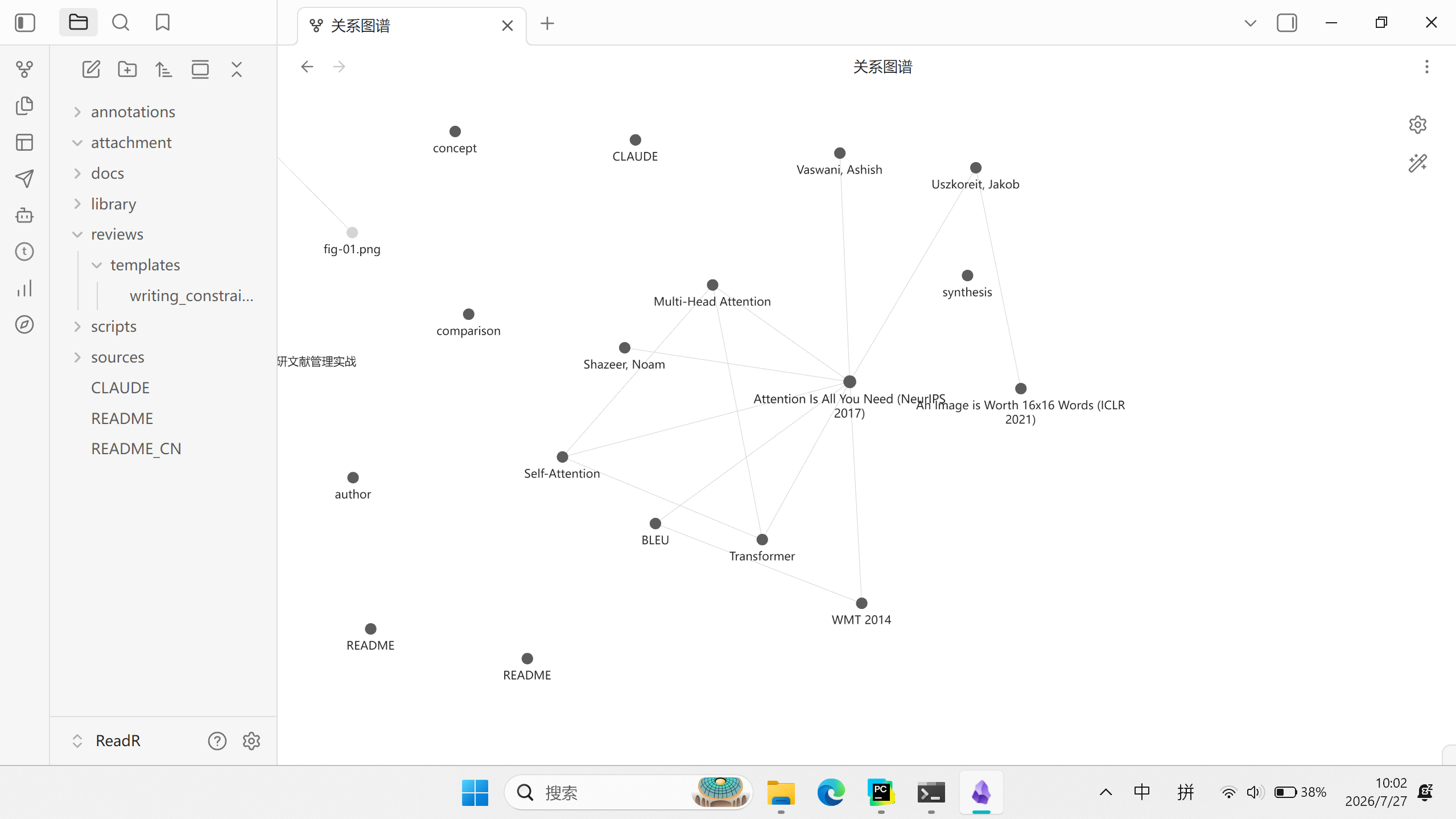
Obsidian uses [[wiki-link]] syntax to create bidirectional links between notes. Combined with the Backlinks panel in the sidebar, you can see in real time which notes reference the current page.
Common operations:
| Scenario | Action | Effect |
|---|---|---|
| Entry references a concept | Write [[Self-Attention]] in the entry's YAML concepts: field | The entry is tagged as referencing that concept; the concept page's Backlinks show this paper |
| Entry references an author | Write [[Ashish Vaswani]] in the YAML authors_related: field | Click to jump directly to the author profile |
| Entry references a dataset/benchmark | Write [[WMT 2014]] in the YAML datasets: field; use type in the asset note to distinguish dataset vs benchmark | The asset page automatically lists papers that use it |
| Concept note links an author | Write [[Ashish Vaswani]] in the concept's body text | Establishes a bidirectional "who proposed this concept" link |
| Review references a synthesis | Write [[Transformer Synthesis]] in the review's body text | One click jumps to the corresponding synthesis note |
| Close-reading note links a paper entry | Write ← See [[Attention Is All You Need (NeurIPS 2017)]] above the close-reading note | Links the close reading and the entry together |
Handy tips:
- Typing
[[pops up a file search box that autocompletes by filename - The Backlinks panel in the right sidebar (enable it under Settings → Core plugins) shows all backward links; click to jump
- The Graph view (enable it under Settings → Core plugins) gives a visual map of all note links
Tips for Working with ReadR
- Create a new paper entry: press
Ctrl+Nunder the appropriate sub-direction inlibrary/entries/, then fill in using a template - Quick navigation: reference concepts/authors/datasets (incl. benchmarks) with
[[in a paper entry for one-click jumps - Trace via backlinks: on a concept page, check the right sidebar to see which papers cite that concept
- Graph view: press
Ctrl+Gto see the paper-concept-author network for an entire direction - Insert templates: use the command palette or the Templater plugin to quickly insert template content
Built-in Plugins ⭐
ReadR bundles 5 Obsidian plugins located in .obsidian/plugins/. Open Obsidian → Settings → Community plugins to enable them.
| Plugin | Purpose | Works out of the box? |
|---|---|---|
| 📊 ReadR Dashboard | Statistics dashboard: paper distribution, reading progress, knowledge-gap detection, activity tracking | Requires build |
| 📋 Dataview | Metadata query engine; the dashboard relies on it for data aggregation | ✅ Yes |
| 🤖 RealClaudian | Claude AI integrated inside Obsidian to assist with notes and knowledge distillation | ✅ Yes |
| 💻 OTerm | Embedded terminal for running scripts and git commands inside the editor | ✅ Yes |
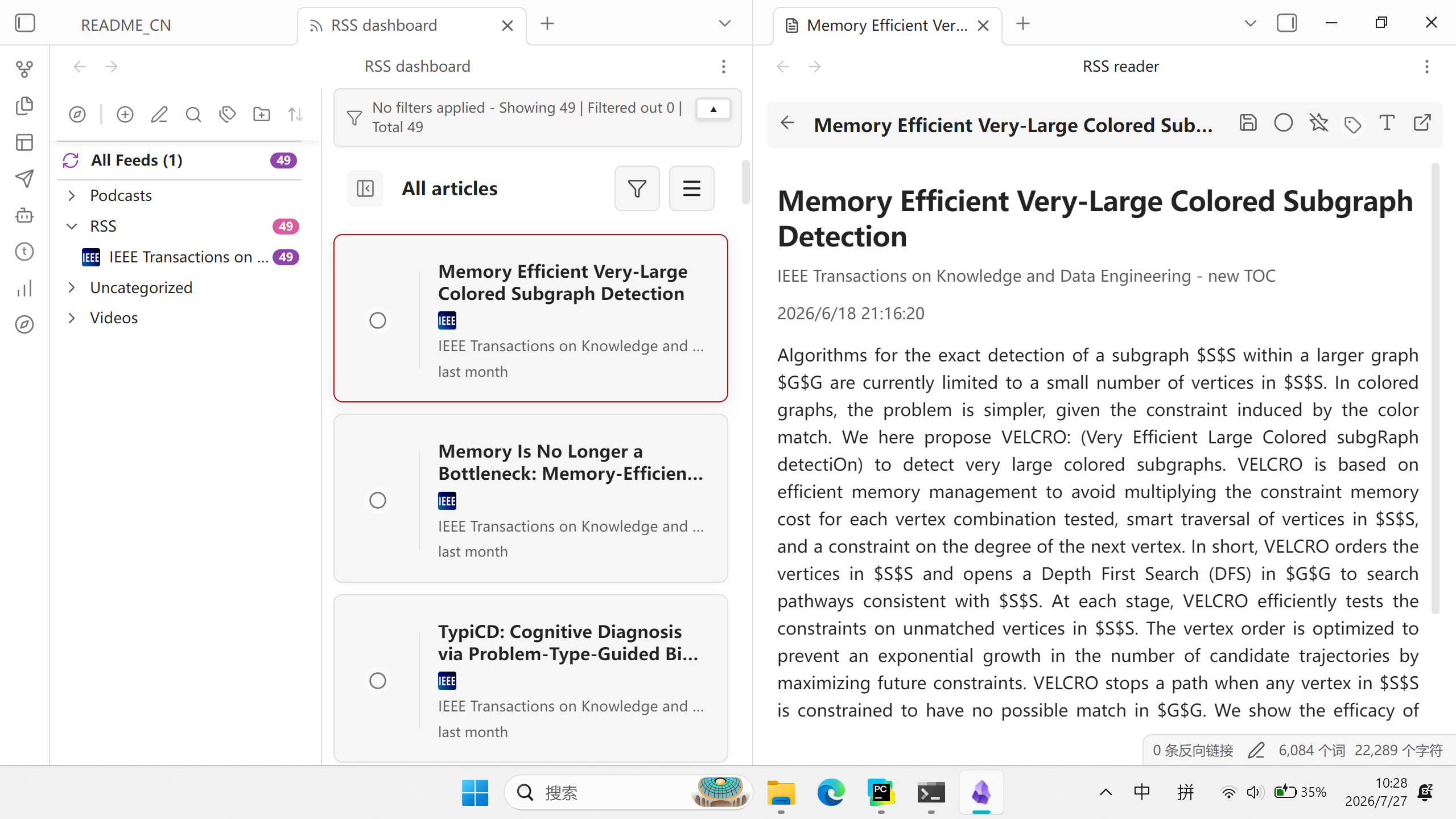
| 📰 RSS Dashboard | Embedded RSS reader to track academic paper updates | ✅ Yes |
# ReadR Dashboard requires an extra build step
cd .obsidian/plugins/readr-dashboard/
npm install && npm run build
Plugin usage tips:
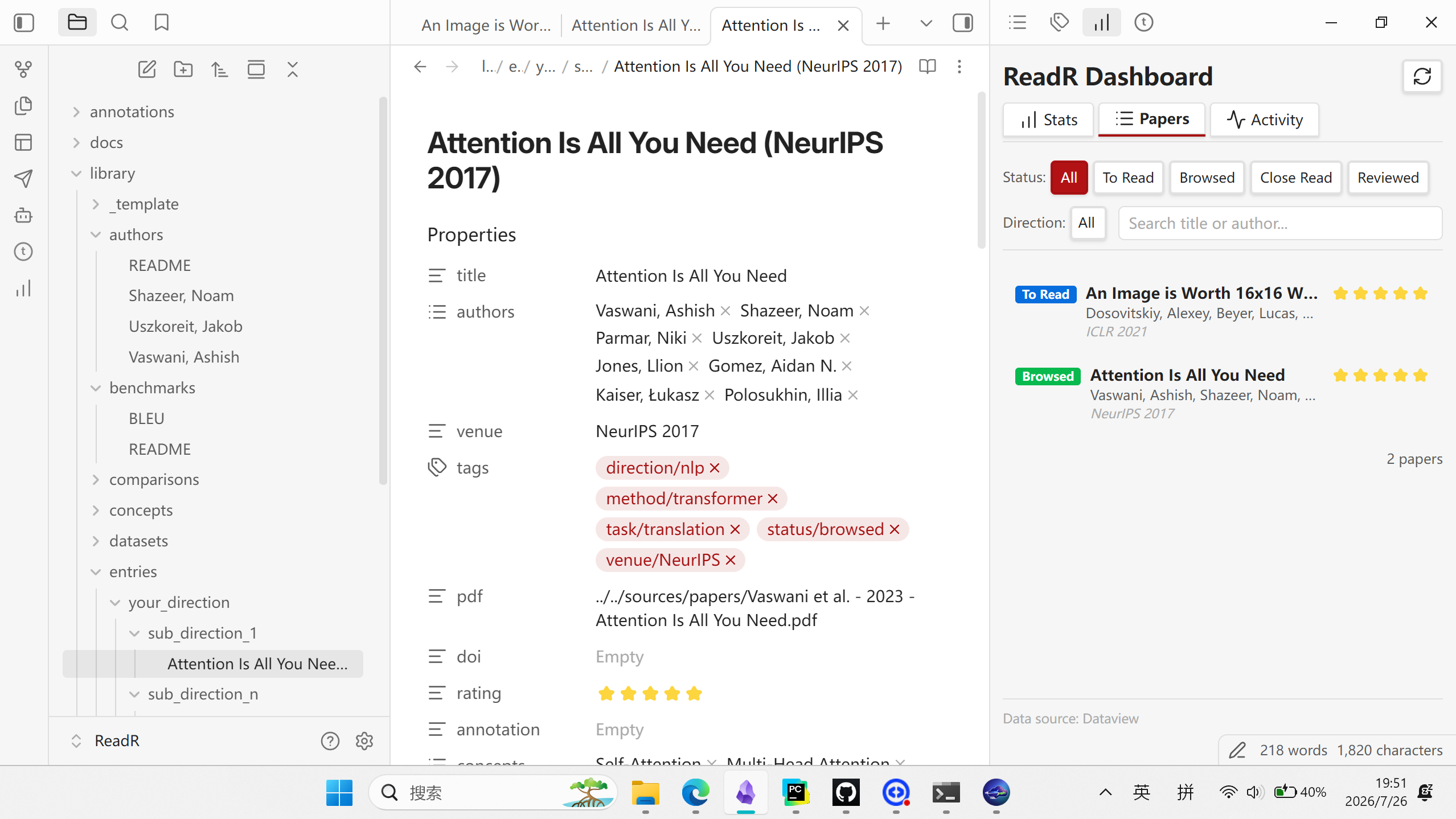
- ReadR Dashboard: for daily checks on reading progress and an overview of statistics; open via the sidebar icon or the command palette
- Dataview: runs automatically, no manual action needed; the dashboard and other queries depend on it
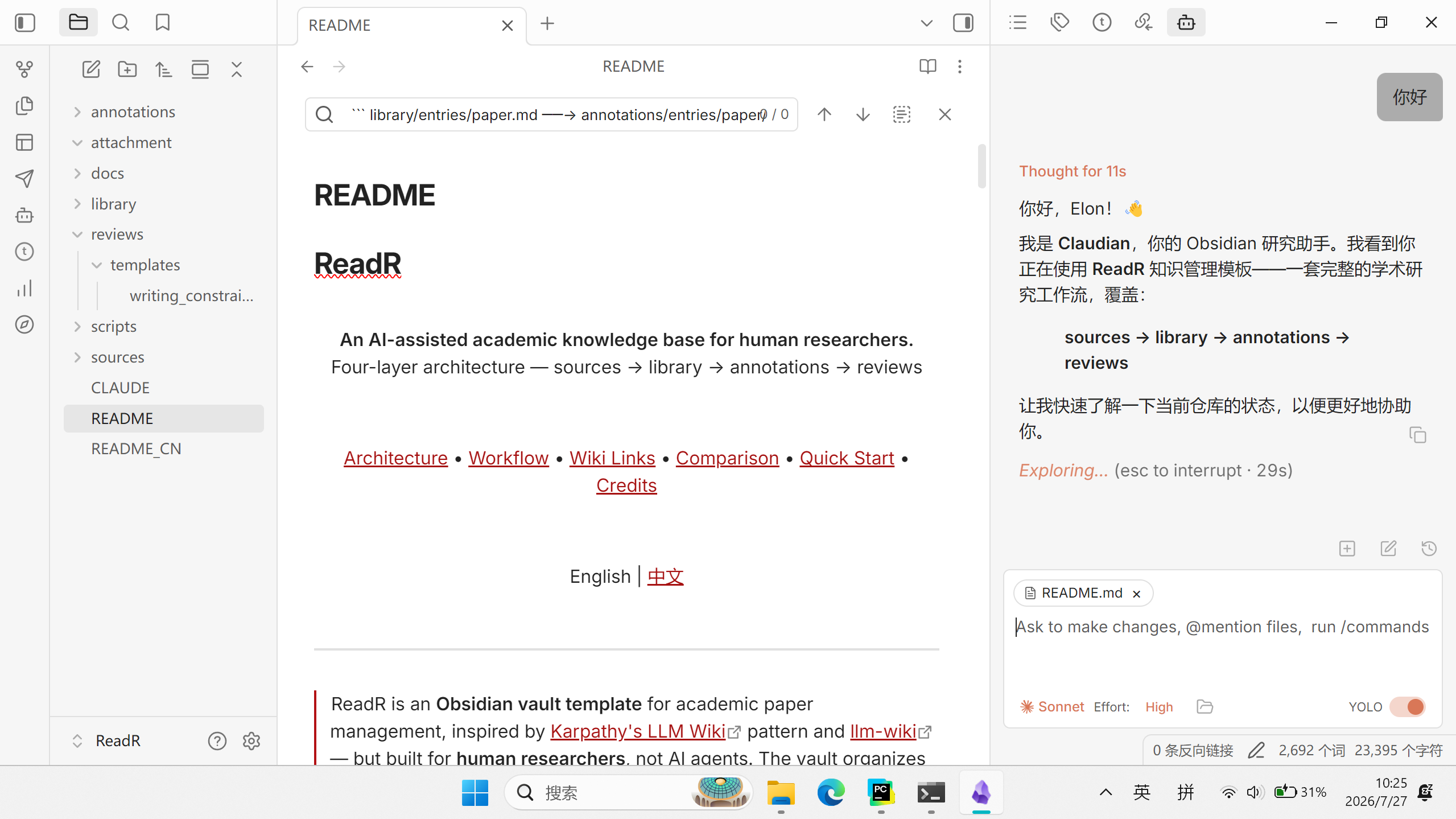
- RealClaudian: ask Claude questions directly while browsing to assist with knowledge extraction
- OTerm: an embedded command-line tool inside Obsidian, no need to switch windows (you can run
pwsh scripts/ReadR.ps1 -Validatedirectly inside Obsidian) - RSS Dashboard: subscribe to arXiv and IEEE RSS feeds; new papers are pushed into the vault automatically
Claude Code Guide (also works for other agent application)
Prerequisites
# 1. Install Claude Code (install and configure it yourself)

# 2. Launch it inside the project directory
cd ReadR
claude

# 3. CLAUDE.md loads automatically
# ReadR's CLAUDE.md already contains the full rule set, which Claude follows automatically
Typical Usage Inside ReadR
INGEST stage — assist with creating paper entries
"Create an entry from this paper's PDF, using the library/_template/library-entry.md template"
→ Claude reads the PDF and generates the YAML frontmatter and summary
BROWSE stage — knowledge distillation
"Extract the core concepts from this paper and write them into library/concepts/"
"Extract author information and write it into library/authors/"
"Generate a method-comparison table and write it into library/comparisons/"
→ Claude fills in the corresponding templates automatically
CLOSE-READ stage — draft close-reading notes
"Generate a draft close-reading note for this paper following the annotations/_template/reading-note.md template"
→ Claude generates a structured note, leaving figure/table/formula placements empty for manual completion
REVIEW stage — assist with reviews
"Summarize all the papers in this sub-direction and write a synthesized overview"
→ Claude reviews the relevant entries and generates a draft synthesis
Notes
- sources/ cannot be modified — Claude will never modify any file in sources/
- All edits require user confirmation — Claude will not write to files without confirmation
- AI output is a draft — concept definitions, method comparisons, close-reading notes, etc. all require human review
- Figures/tables/formulas — figures, tables, and formulas in close-reading notes need to be embedded manually; AI cannot handle this automatically
NotebookLM Integration (optional)
ReadR integrates deeply with Google NotebookLM via the notebooklm-py CLI — providing programmatic access to the full range of NotebookLM's capabilities, including some not exposed in the web UI.
Quick Start (making a slide deck for a group meeting)
# 1. Install notebooklm-py
pip install "notebooklm-py[browser]"
playwright install chromium
notebooklm login

# 2. Create a notebook and add papers
notebooklm create "My Research Direction"
notebooklm use <notebook-id>
notebooklm source add path/to/paper.pdf

# 3. Generate slides
notebooklm generate slide-deck "Overview of this paper's core method" --wait
notebooklm download slide-deck <artifact-id>     # → PDF or PPTX
Claude Code Integration
The NotebookLM skill can be pre-installed into Claude Code:
notebooklm skill install --scope user --target claude
Once installed, you can invoke NotebookLM commands directly inside Claude Code via /notebooklm or natural language (e.g. "turn this paper into a podcast").
Feature List
| Category | Command | Function |
|---|---|---|
| Source management | source add | Add a source (URL / text / file / YouTube) |
source add-drive | Add a document from Google Drive | |
source add-research | Search the web and auto-import related sources | |
source list | List all sources in the notebook | |
source get | View source details | |
source fulltext | Get the full-text index of a source | |
source guide | AI-generated source summary, keywords, and topic tags | |
source refresh | Refresh content for URL/Drive sources | |
source stale | Check whether a source needs refreshing | |
source wait | Wait for source processing to complete | |
source clean | Automatically remove duplicate/erroneous/unauthorized sources | |
source rename / source delete / source delete-by-title | Rename/delete sources | |
| Content generation | generate audio | Generate a podcast (deep-dive / brief / critique / debate) |
generate video | Generate a video overview | |
generate cinematic-video | Generate a cinematic-style video overview | |
generate slide-deck | Generate slides (downloadable as PDF or PPTX) | |
generate report | Generate a report (briefing-doc / study-guide / blog-post / custom) | |
generate data-table | Generate a data table (downloadable as CSV) | |
generate mind-map | Generate a mind map (downloadable as JSON) | |
generate infographic | Generate an infographic (multiple styles/orientations) | |
generate quiz | Generate quiz questions (easy / medium / hard) | |
generate flashcards | Generate flashcards | |
generate revise-slide | Revise a specific slide | |
| Content management | artifact list | List all generated content |
artifact get | View content details | |
artifact suggestions | AI-suggested topics to generate | |
artifact rename / artifact delete | Rename/delete generated content | |
artifact retry | Retry failed generations | |
artifact export | Export to Google Docs/Sheets | |
artifact poll / artifact wait | Poll/wait for generation to finish | |
| Downloads | download audio | Download the audio file |
download video / download cinematic-video | Download video | |
download slide-deck | Download slides (PDF or PPTX) | |
download report | Download report (Markdown) | |
download data-table | Download data table (CSV) | |
download mind-map | Download mind map (JSON) | |
download infographic | Download infographic (image) | |
download quiz / download flashcards | Download quiz/flashcards | |
| Conversation | ask | Ask the notebook a question, answered based on all sources |
configure | Configure chat persona and response style | |
history | View conversation history, save as notes | |
| Note management | note create / note list / note get | Create/view notes |
note save / note rename / note delete | Save/rename/delete notes | |
| Notebook management | create / list / delete / rename | Create/list/delete/rename notebooks |
summary | Get an AI summary of the notebook | |
metadata | Export notebook metadata and source list | |
| Collaboration | share add / share remove | Add/remove collaborators |
share public | Enable or disable public link sharing | |
share status | View sharing status and user list | |
share update / share view-level | Change permissions / set visibility level | |
| Language settings | language get / language list / language set | View/set the language of generated content (Chinese supported) |
Known Limitations
- NotebookLM sources are read-only — inline annotation on source files is not possible
- A NotebookLM notebook can hold at most 50 sources, with size limits
- Requires an internet connection; all processing happens on Google's servers
- Output quality depends on PDF quality — OCR'd scans perform worse
- Generated reports are drafts — always review and polish before publishing
More
Column Series ⭐
The docs/column/ directory contains a full Chinese-language column series that goes in depth on the four-layer architecture methodology:
| # | Title | Topic |
|---|---|---|
| 00 | Why Your Literature Library Becomes a Graveyard Once You've Read It | Pain points in literature management |
| 01 | Four-Layer Architecture: Designing Read/Write Permissions for Paper Management | Four-layer permission design |
| 02 | Metadata Design: YAML and Wiki-Link Topology | Metadata and link topology |
| 03 | Human-AI Division of Labor: What AI Can and Cannot Do | Human-AI boundaries |
| 04 | The Minimal Action for Knowledge Distillation: From Browsing to Close Reading | Minimal knowledge-distillation actions |
| 05 | Tooling: Packaging into a Reusable Agent Skill | Tooling and Agent Skill packaging |
RSS Feeds (for CS researchers) ⭐
ReadR bundles the RSS Dashboard plugin. Below are recommended feeds for your research direction:
IEEE Transactions (top journals)
IEEE RSS URLs follow the format https://ieeexplore.ieee.org/rss/TOC{punumber}.XML. These work in RSS readers (Feedly, RSS Dashboard, etc.), but direct browser access may be blocked by IEEE's anti-scraping mechanism.
| Direction | Journal | punumber | RSS |
|---|---|---|---|
| Vision + pattern recognition | IEEE TPAMI | 34 | https://ieeexplore.ieee.org/rss/TOC34.XML |
| Computer vision | IEEE TIP | 83 | https://ieeexplore.ieee.org/rss/TOC83.XML |
| Recommender systems + data mining | IEEE TKDE | 69 | https://ieeexplore.ieee.org/rss/TOC69.XML |
| Neural networks | IEEE TNNLS | 5962385 | https://ieeexplore.ieee.org/rss/TOC5962385.XML |
| Multimedia | IEEE TMM | 6046 | https://ieeexplore.ieee.org/rss/TOC6046.XML |
| Video processing | IEEE TCSVT | 76 | https://ieeexplore.ieee.org/rss/TOC76.XML |
ArXiv (preprints)
| Direction | Category | RSS |
|---|---|---|
| Computer vision | cs.CV | http://export.arxiv.org/rss/cs.CV |
| Recommender systems | cs.IR | http://export.arxiv.org/rss/cs.IR |
| Machine learning | cs.LG | http://export.arxiv.org/rss/cs.LG |
| Artificial intelligence | cs.AI | http://export.arxiv.org/rss/cs.AI |
| Multimedia | cs.MM | http://export.arxiv.org/rss/cs.MM |
Curated Sources
| Source | RSS | Highlights |
|---|---|---|
| Papers With Code | https://paperswithcode.com/.rss | Papers with code implementations and benchmark results |
| Google AI Blog | https://blog.google/technology/ai/rss/ | Google DeepMind research updates |
Recommended Subscription Plans
| Goal | Subscribe to |
|---|---|
| Daily skim (core direction) | TPAMI + TIP + TKDE (IEEE) + cs.CV + cs.IR (ArXiv) |
| Only code-backed papers | Papers With Code |
| Extra coverage during conference season | Add cs.LG + cs.AI for broader coverage |
💡 Tip: IEEE RSS feeds are, by default, all top-journal papers. To check whether code is available, cross-reference with Papers With Code.
Acknowledgments
Design Inspiration
- Karpathy's LLM Wiki — inspiration for layer separation and incremental compilation
- llm-wiki — practical reference for AI-assisted knowledge base management
Core Tools
- Obsidian — knowledge base platform underpinning the vault's wiki-link topology and plugin ecosystem
- Claude Code — AI-assisted coding and knowledge distillation
- NotebookLM / notebooklm-py — AI-driven paper analysis and report generation
- Git / GitHub — version control and project hosting
Obsidian Plugins
- Dataview — metadata query engine
- RealClaudian — Claude AI integration inside Obsidian
- OTerm — embedded terminal
- RSS Dashboard — embedded RSS reader
Other
- PowerShell — scripting automation
- All contributors and users — feedback and suggestions that keep driving the project forward
License
MIT © 2026 Elon Woo — see LICENSE for details
How to Install
- Download the ZIP or clone the repository
- Open the folder as a vault in Obsidian (File → Open Vault)
- Obsidian will prompt you to install required plugins
Stats
Stars
9
Forks
0
License
MIT
Last updated 1mo ago