SNIPPETaqcohen
Slides Plus
CSSAny theme
# Slides Plus
Beautiful presentations from your Obsidian notes. Write your slides in Markdown, preview them live, and present directly from your vault.
## Features
- **Markdown slides** — Use `---` separators to split your notes into slides. Add `slides: true` to your frontmatter to activate.
- **6 themes** — Obsidian, Midnight, Paper, Boardroom, Academic, and Studio. Set via frontmatter or settings.
- **Layouts** — Cover, center, two-cols, image-right, image-left, section, quote, and full bleed.
- **Transitions** — Slide, fade, slide-up, or none. Configurable per-slide.
- **Presenter view** — Current slide, next slide preview, speaker notes, and a timer.
- **Slide navigator** — Thumbnail grid for quick navigation.
- **PDF export** — Export to self-contained HTML, open in browser, and print/save as PDF. Supports dark mode, LaTeX, and Mermaid.
- **Live preview** — Sidebar panel updates as you type.
- **Per-slide styling** — Override any design token via frontmatter (`sp-slide-bg`, `sp-slide-accent`, `sp-font-heading`, etc.).
## Screenshots
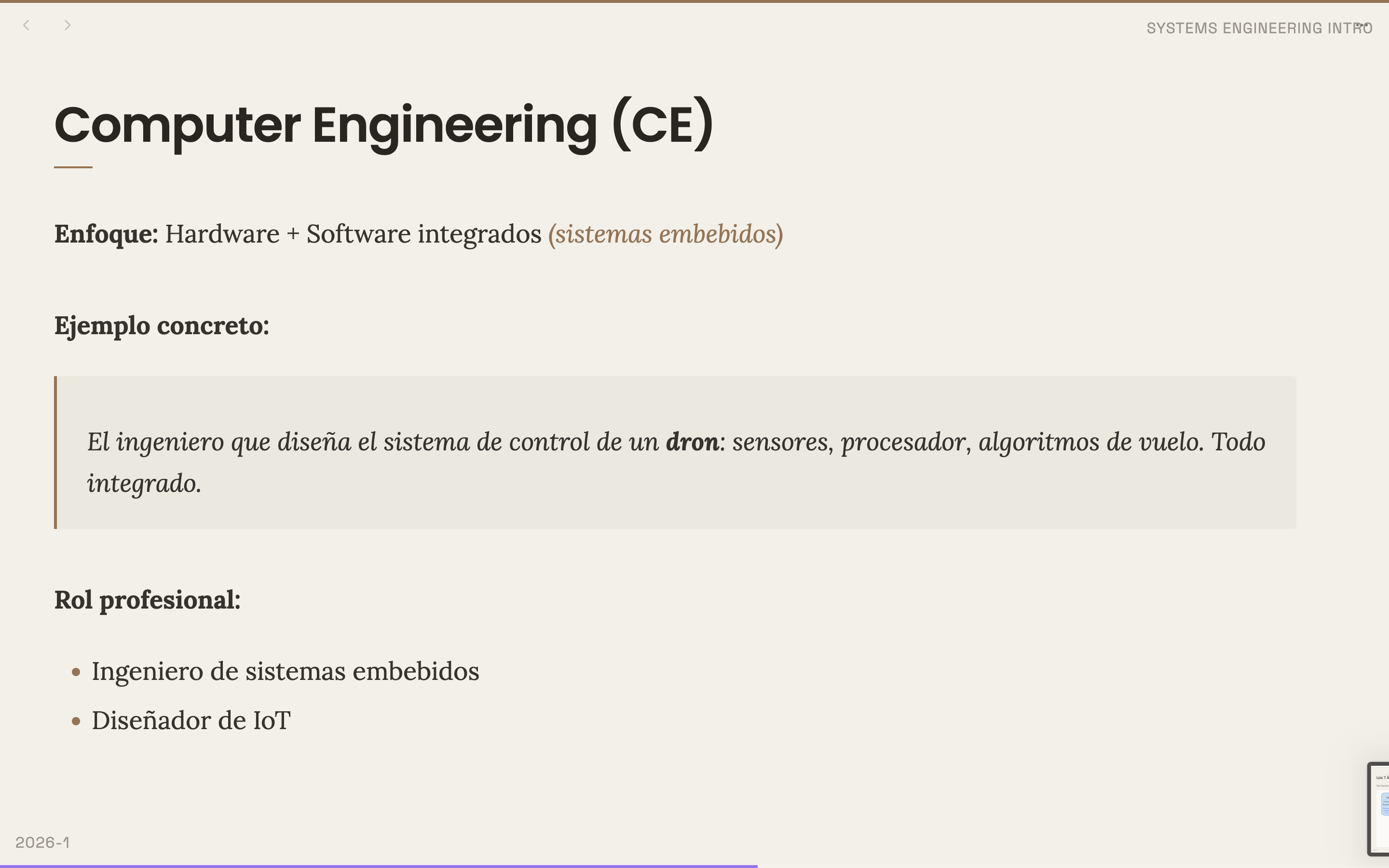
### Academic Theme (Light)
| | |
|---|---|
|  |  |
|  |  |
|  | |
### Academic Theme (Dark)
| | |
|---|---|
|  |  |
|  |  |
|  |  |
|  |  |
|  |  |
|  | |
## Integrations
- **LaTeX** — Math equations rendered with MathJax.
- **Mermaid** — Diagrams rendered inline.
- **Excalidraw** — Embed `.excalidraw` drawings in your slides.
## Quick Start
1. Create a new note and add this frontmatter:
```yaml
---
slides: true
theme: academic
---
```
1. Write your slides separated by `---`:
```markdown
---
layout: cover
---
# My Presentation
## Subtitle here
---
## Slide 2
- Point one
- Point two
- Point three
---
layout: quote
---
> A great quote goes here.
```
1. Open the **Slide Preview** panel from the command palette or the ribbon icon.
2. Press the **Present** button to go fullscreen.
## Themes
| Theme | Description |
|-------|-------------|
| `obsidian` | Adapts to Obsidian's light/dark mode |
| `midnight` | Deep blue, fixed dark palette |
| `paper` | Paper-and-ink, weight-based hierarchy |
| `boardroom` | Professional, projection-optimized |
| `academic` | Warm academic, Poppins + Lora |
| `studio` | Bold artist's palette on black |
Set a theme globally in **Settings → Slides Plus**, or per-deck in frontmatter:
```yaml
---
slides: true
theme: boardroom
---
```
## Per-Slide Styling
Use simple, Markdown-friendly properties instead of CSS:
```yaml
---
background: sunset # Preset gradient (sunset, ocean, forest, fire, etc.)
accent-color: purple # Named color or hex code
text-size: large # small | normal | large | huge
text-align: center # left | center | right
heading-font: serif # serif | sans | mono (or specific font names)
padding: large # none | small | normal | large
---
```
**Available background presets**: `sunset`, `ocean`, `forest`, `fire`, `night`, `aurora`, `cosmic`
**Available color presets**: `blue`, `red`, `green`, `purple`, `orange`, `pink`, `yellow`, `teal`
For advanced users, custom CSS is still available via `custom-css:` frontmatter.
See [Frontmatter Reference](docs/frontmatter-reference.md) for all options.
## Speaker Notes
Add speaker notes as HTML comments:
```markdown
## My Slide
Content here.
<!-- These are speaker notes visible only in presenter view -->
```
## License
[MIT](LICENSE) — aqcohen
How to Install
- Download the CSS file below
- Move it to your vault's
.obsidian/snippets/folder - Open Obsidian → Settings → Appearance → CSS Snippets → Enable it
Stats
Stars
11
Forks
1
License
MIT
Last updated 1mo ago
Categories