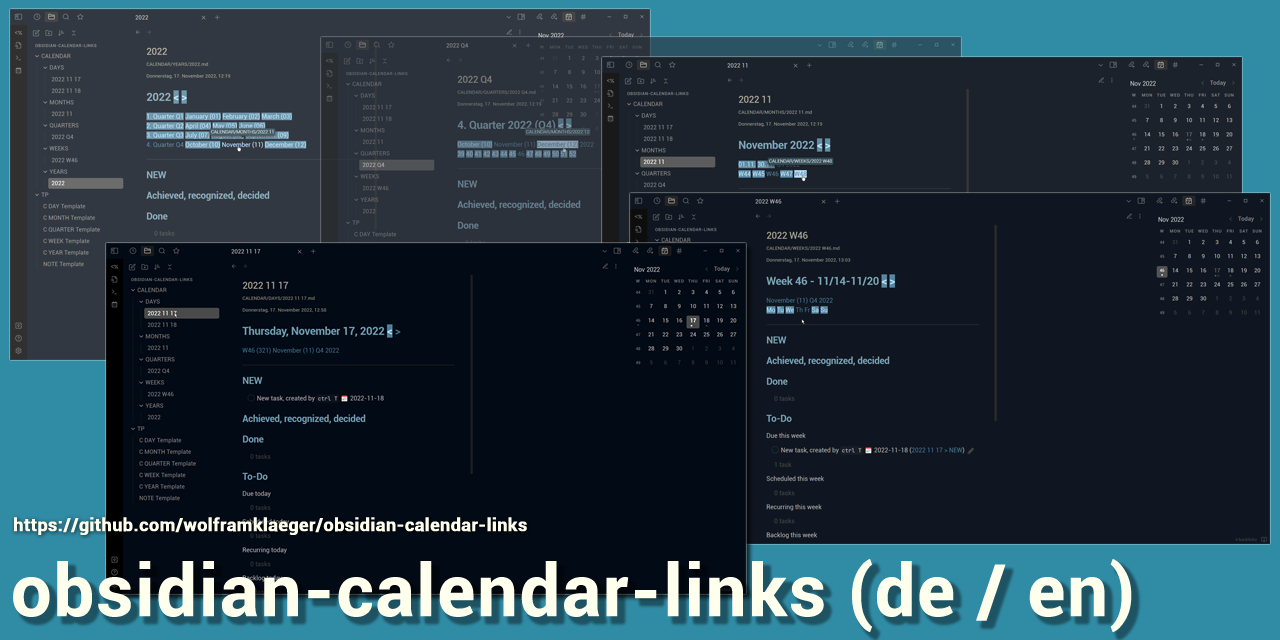
obsidian-calendar-links
obsidian-calendar-links is a vault (data folder) for the note-taking app Obsidian (Obsidian.md), including all required plugins, settings, and templates - as documented in my blogpost: To-Do List Calendar Links in Obsidian
For each day, week, month, quarter, year, a calendar-note can be created, that is automatically linked within your entire calendar.
Each such calendar-note includes a to-do list, divided into sections
- due (today, this week, ... year)
- scheduled (...)
- recurring (...)
- Backlog
- Someday
Any task, that you set anywhere in your vault, by using the standard Markdown-format e.g.
- description due-date done-date
is captured by these to-do lists and will reappear in the corresponding calendar-notes and sections. Moreover, all your to-do lists are automatically aggregated from day, week, ... to year.
The task management functionality is provided by the Obsidian Community-Plugin Obsidian-Tasks .
English (US) or German version
This is obsidian-calendar-links, the English (US) version.
Es gibt auch eine deutsche Version (obsidian-calendar-links-DE)
Though, both versions can easily be translated and customized to any language or date format.
Required Obsidian-Plugins (pre-installed)
- Calendar
- Dataview
- Periodic Notes
- Tasks
- Templater
Additionally installed Plugins (not required)
- Minimal Theme
- Minimal Theme Settings
- Recent Files
The obsidian-calendar-links vault is fine with any Obsidian-Theme.
Minimal-Theme is pre-installed, customized by the included CSS Snippets. Both is easily deinstalled and replaced by any other theme or snippets.
Setup and launch
- [Code] > Download ZIP
- Download and unpack the .zip file
- If desired
- rename the included Obsidian vault folder
- move it to its final location on your system
- Launch Obsidian
- Bottom left: [Open another vault]
- Open folder as vault: [Open]
- Chose your Obsidian-Calendar-Links folder
- trust me: yes, and go for it!
Assuming, Obsidian.md is already installed on your current device - Windows, Mac, Linux, IOS or Android.
How to Install
- Download the repository ZIP below
- Unzip it and find the CSS snippet file
- Move the CSS file into your vault's
.obsidian/snippets/folder - Open Obsidian → Settings → Appearance → CSS Snippets → Enable it
Stats
Stars
7
Forks
0
License
GPL-3.0
Last updated 47mo ago
Categories