Ii Quicker Full
Obsidian-II-Quicker
Introduction
The main features of this plugin are quick insertion of Markdown code, Zen mode, browser search, status bar displaying current document size, user-defined commands, JavaScript and CSS code snippets, draggable status bar, minimize button added to the settings panel, and so on.
Features
-
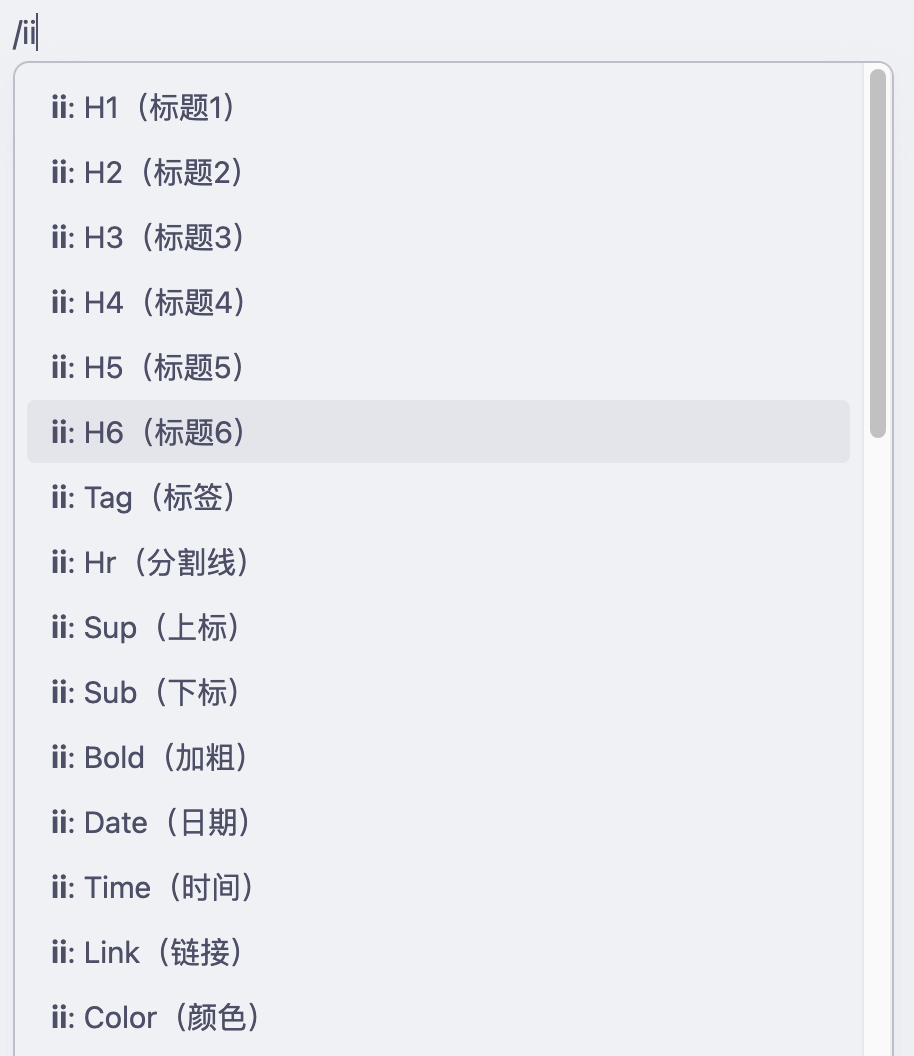
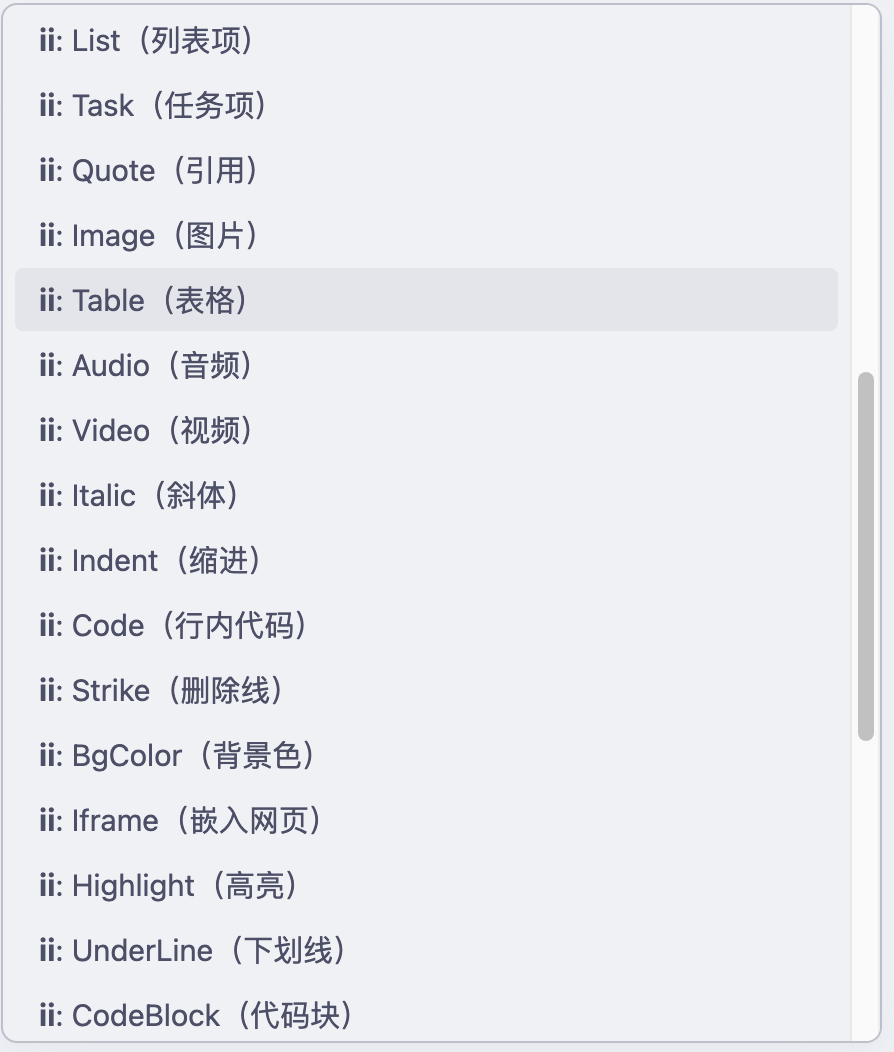
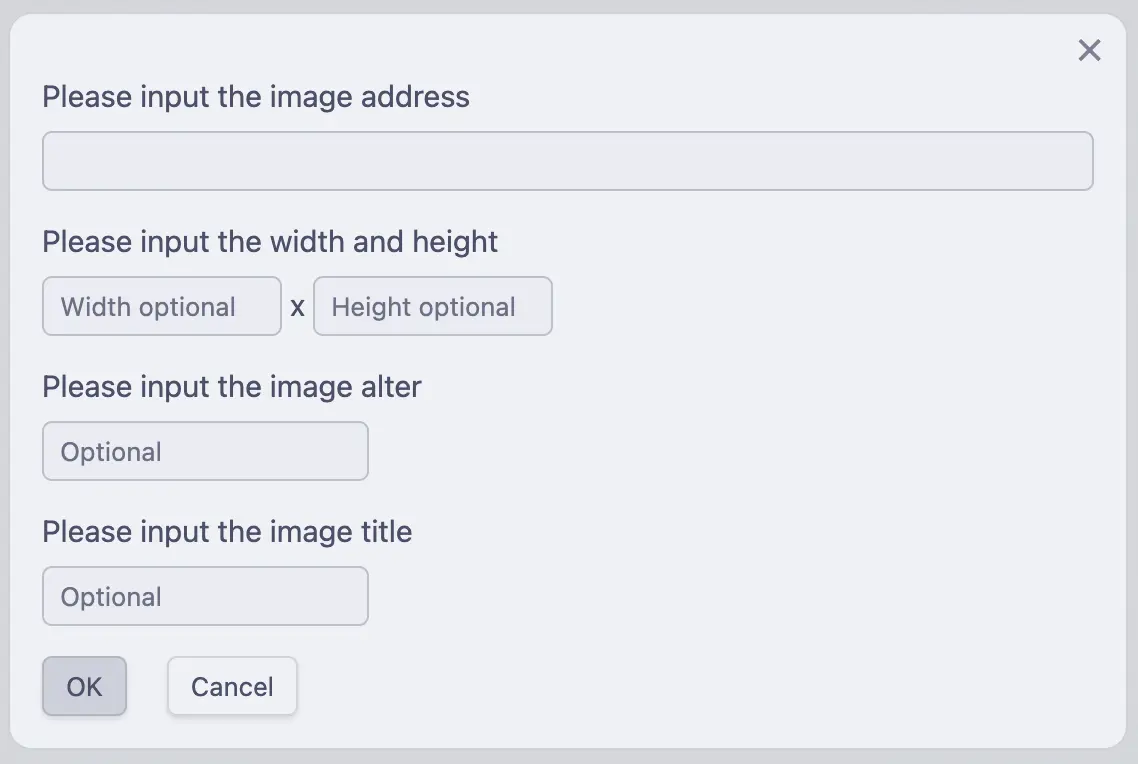
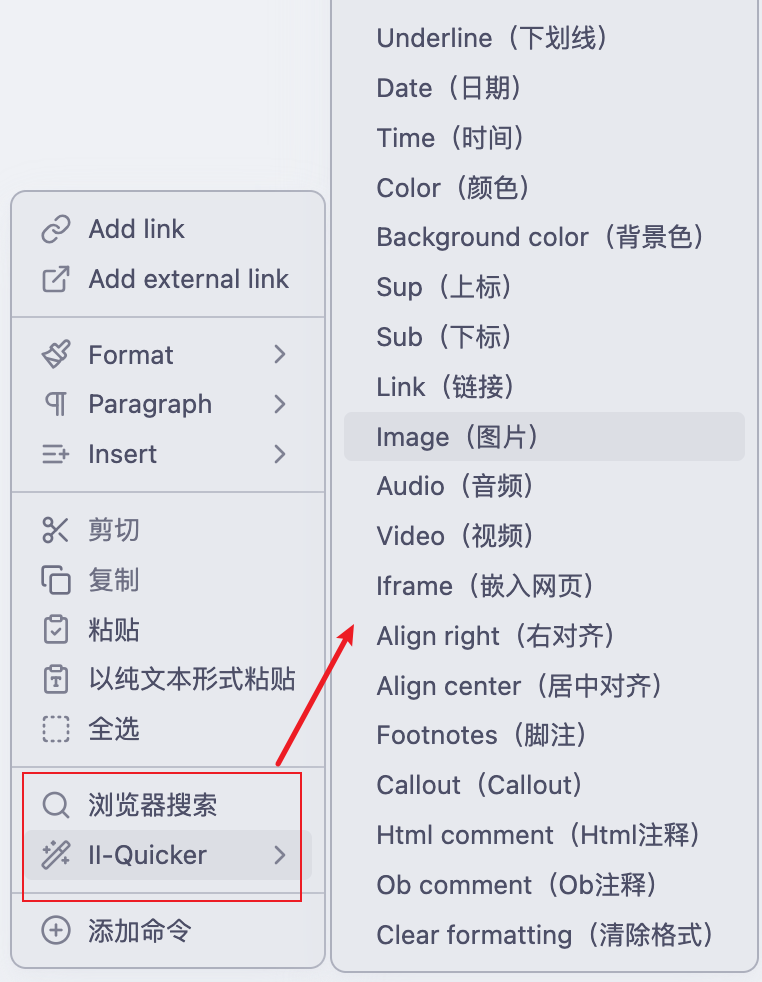
Quickly insert common Markdown generation and some HTML codes, including Sup, Sub, Audio, Video, Iframe, Left-Center-Right Alignment, Variables, Footnote, Callout, Anchor Points, HTML Comments and so on.
-
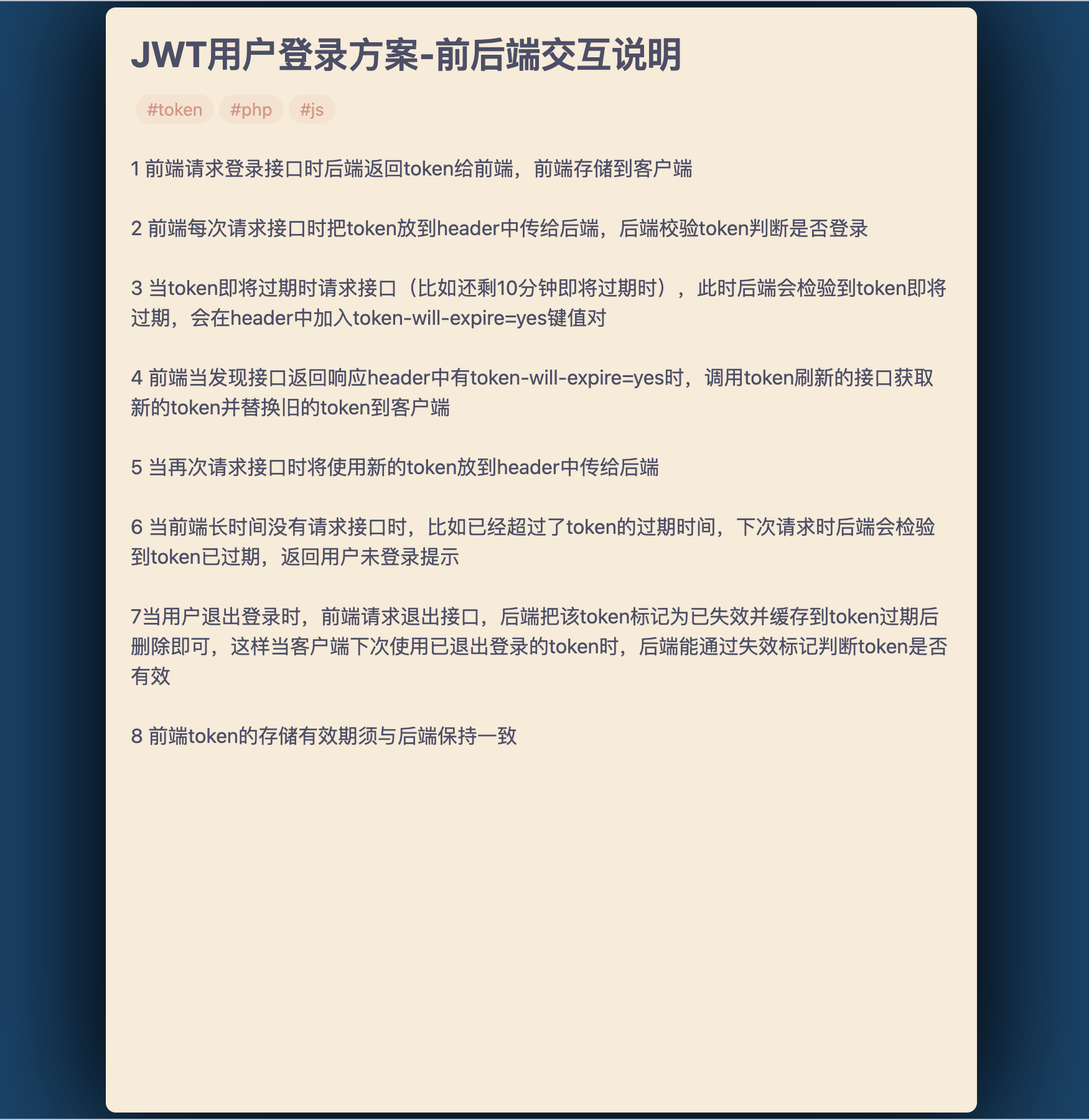
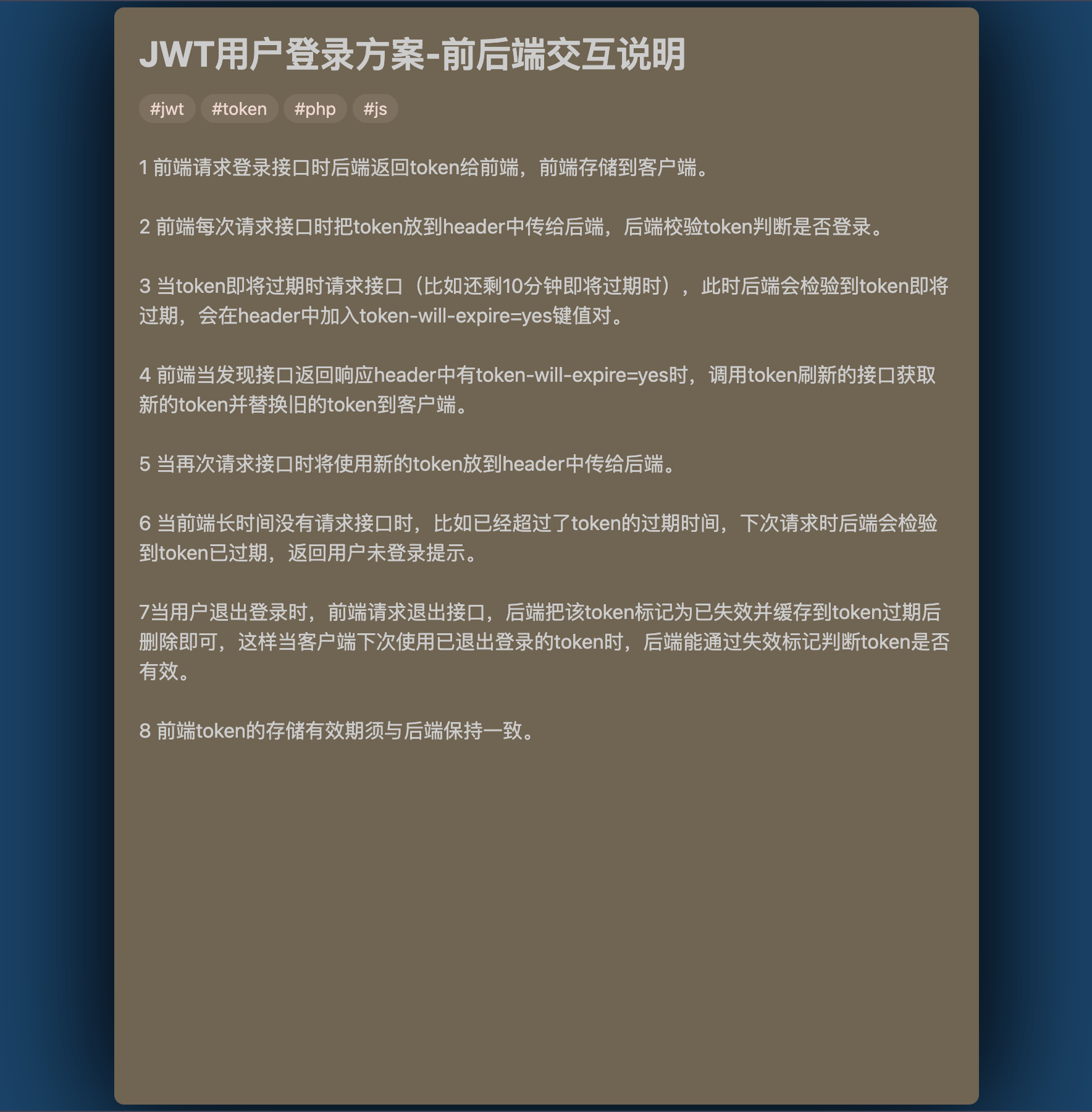
3 Zen modes, including Deep Zen mode, Light Zen mode, Slight Zen mode, and you can customize their styles.
-
You can search the selected text with the browser.
-
Status bar shows the current document size.
-
In addition to common Markdown code and common HTML code, you can also customize your own code by customizing the command input box to generate your code into commands.
-
If you want to make minor adjustments to a certain function of the note you can use CSS code snippets, and when CSS is not enough, you can make further adjustments through JavaScript code snippets.
-
The status bar can be dragged around, this is useful if your status bar sometimes obscures important content.
-
Minimize Settings Panel, this feature allows you to temporarily hide your settings panel, unlike closing it will keep the state of the information before you minimize it, such as the state of your input, the position of the scrollbar and so on.
-
The common color blocks in the Color panel of the Color command are selected from the 22 most recognizable human colors. See also the article 20种不同的颜色 or A Colour Alphabet and the Limits of Colour Coding
Installation
Download [Release obsidian-ii-quicker] (https://github.com/wish5115/obsidian-ii-quicker-full/releases/) here
After downloading, unzip the obsidian-ii-quicker.zip, put it in the plugin directory, restart obsidian, and then don't forget to open the plugin in the settings.
Usage
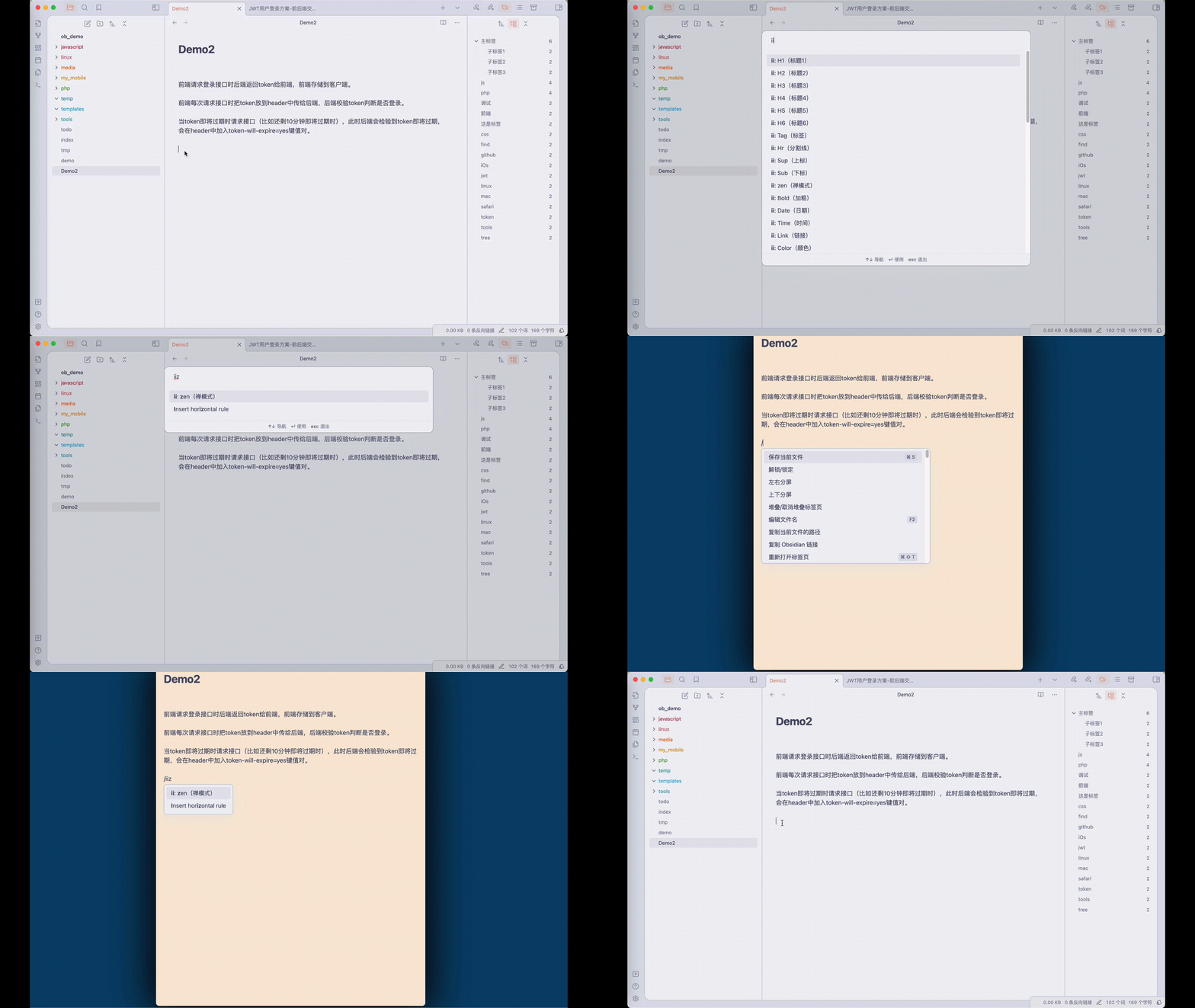
/ii, generally used for inserting code, and ctrl+p + ii or the right-click menu, generally used for wrapping code around selected text. Other shortcuts, such as /iib if you want to select a bold command, etc.
/iiz or ctrl+p iiz displays the Zen mode, you can also set your own shortcuts.
Zen mode can be triggered via the command panel ctrl+p + iiz or you can set your own shortcuts.
Browser search can be done via the command panel and the context menu, which is usually more convenient to use.
Time and date formatting, use the same time formatting code as the official one, see for more formatting: String + Format
Preview
Quick Input Screenshot
Zen Mode Screenshots
Animation
Issues and feedback
You can go to obsidian-ii-quicker/issues for feedback if you have any questions.
Development and Improvement
git clone https://github.com/wish5115/obsidian-ii-quicker-full.git
cd obsidian-ii-quicker-full
npm install
npm run dev
How to Install
- Download the template file from GitHub
- Move it anywhere in your vault
- Open it in Obsidian — done!
Stats
Stars
5
Forks
0
License
MIT
Last updated 24mo ago
Categories