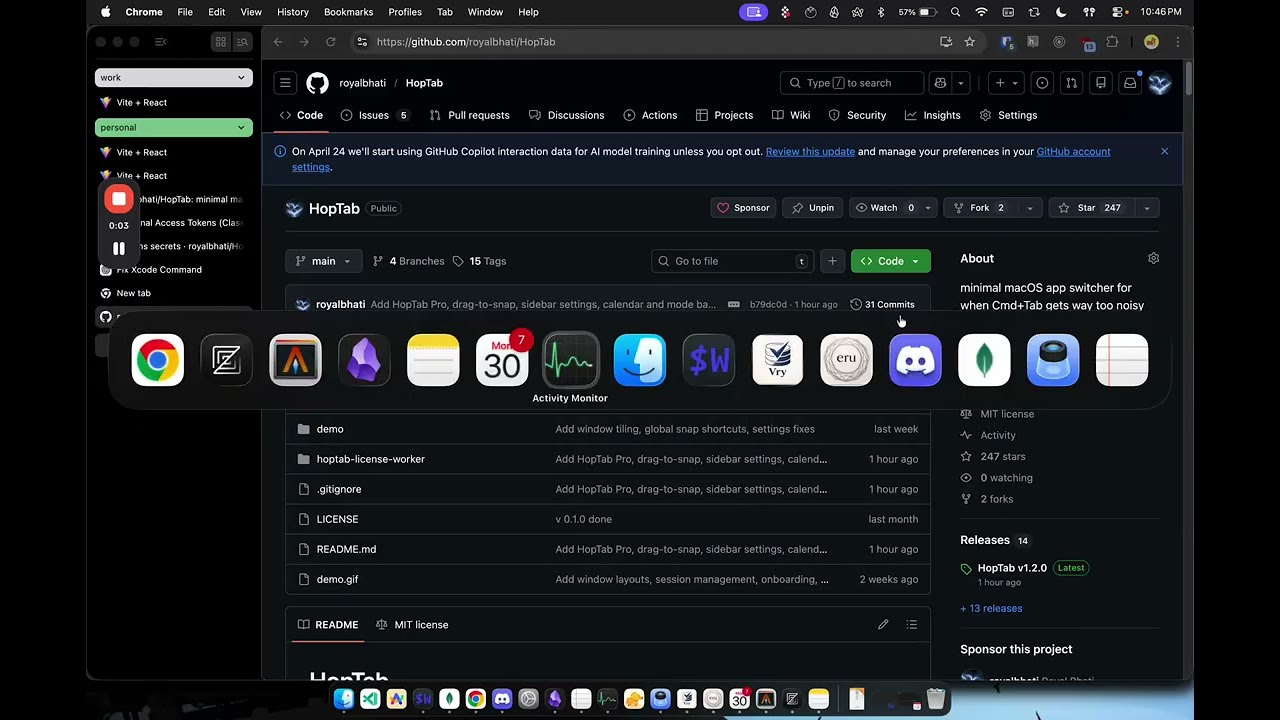
HopTab
The workspace manager macOS should've shipped with.
Pin apps. Tile windows to halves, thirds, quarters. Switch profiles per desktop. Save and restore sessions. All from keyboard shortcuts. Free tier covers everything you need — HopTab Pro adds automation for $5 one-time.


Click the image to watch the full demo on YouTube
Install
Homebrew (recommended)
brew tap royalbhati/tap
brew install --cask hoptab
Manual
curl -sL "$(curl -s https://api.github.com/repos/royalbhati/HopTab/releases/latest \
  | grep -o '"browser_download_url": *"[^"]*"' \
  | head -1 | cut -d '"' -f 4)" -o /tmp/HopTab.zip \
  && unzip -o /tmp/HopTab.zip -d /Applications \
  && xattr -c /Applications/HopTab.app
Or download from Releases, unzip, drag to /Applications, and run:
xattr -c /Applications/HopTab.app
Why xattr? HopTab is ad-hoc signed (not notarized). The command clears macOS's quarantine flag so it opens normally.
First Launch
- Grant Accessibility permission when prompted
- Pin your apps in Settings
- Press Option+Tab to start hopping
Features
Focused App Switching
Pin 2-5 apps per workflow (up to 3 profiles free, unlimited with Pro). Option+Tab cycles through only your pinned apps — not the 20 random apps macOS shows. Release to switch. Click to switch works too.
Cmd+Q / Cmd+H / Cmd+M while the switcher is open to quit, hide, or minimize the highlighted app.

Window Tiling
Global keyboard shortcuts snap any window to halves, thirds, quarters, or fullscreen. Works anytime — no switcher needed.
Press the same direction again to cycle sizes: 1/2 → 1/3 → 2/3. Undo any snap with one shortcut.

Drag-to-Snap
Drag any window to a screen edge or corner and a translucent preview overlay shows where it will land. Release to snap.
- Edges: left/right half, top to maximize, bottom for bottom half
- Corners: quarter snap (top-left, top-right, bottom-left, bottom-right)
- Works with all apps. Toggle on/off in Settings → Snapping. Enabled by default.
Layout Templates
Five built-in layouts: 50/50 split, IDE 60/40, three columns, 2×2 grid, and fullscreen. Assign apps to zones and apply with one click.
Works with stubborn apps — Chrome, Zed, Wezterm, Electron. Multi-retry positioning with dual strategies for GPU-rendered windows.

Profiles
Create profiles for different workflows — Coding, Design, Research. Each has its own pinned apps, layout, hotkey, and sticky note.
Assign profiles to macOS Spaces. Swipe between desktops and HopTab auto-switches the active profile. Profile switcher shows each profile's actual app icons.

Session Management
Save every window's position, size, and z-order per profile. Restore it instantly. Close everything, come back tomorrow, pick up exactly where you left off.
Window Rules
Define rules like "Chrome always snaps to left half on launch." Free tier includes 2 window rules; Pro unlocks unlimited.

Fully Customizable
Every shortcut is configurable. The app switcher hotkey, profile switcher, all 17 snap directions, per-profile hotkeys — record whatever combo you want.

HopTab Pro
Everything above is free. HopTab Pro ($5 one-time via Polar) adds automation features that let HopTab manage your workspace without you thinking about it. You can also purchase via GitHub Sponsors.

Time Tracking
Zero-effort time tracking — HopTab tracks time spent in each profile automatically. See exactly how long you spend coding, designing, or researching each day.
Calendar Auto-Switch
Maps calendar events to profiles. HopTab reads your calendar, detects Zoom/Teams/Meet links, and switches to the right profile when a meeting starts. Fullscreen meeting reminder with a one-click Join button.
Time-Based Scheduling
Schedule profile switches: "At 7 PM switch to Entertainment." Supports day-of-week filters so your weekday and weekend routines can differ.
Focus Mode Integration
Maps macOS Focus modes to profiles. Turn on "Do Not Disturb" and HopTab switches to your deep work profile. Supports multiple profiles per Focus mode.
Display Auto-Profiles
Automatically switch profiles when monitors connect or disconnect. Dock your laptop at work and your work profile activates; undock and your laptop profile takes over.
Unlimited Window Rules
Free tier includes 2 window rules. Pro removes the limit — define as many as you need.
Custom Layouts with Exact Percentages
Build layouts with precise zone percentages. Perfect for ultrawide monitors, rotated displays, and non-standard setups.
Unlimited Profiles
Free tier includes 3 profiles. Pro removes the limit.
Student or can't afford it? Email rawyelll@gmail.com for a free Pro key. No questions asked.
Pricing
| Free | Pro | |
|---|---|---|
| Price | Free & open source | $5 one-time via Polar or GitHub Sponsors |
| App switching (Option+Tab) | Yes | Yes |
| Window tiling (17 snap directions) | Yes | Yes |
| Drag-to-snap (edges & corners) | Yes | Yes |
| Snap size cycling | Yes | Yes |
| Undo snap | Yes | Yes |
| Move between monitors | Yes | Yes |
| Layout templates (5 built-in) | Yes | Yes |
| Session save/restore | Yes | Yes |
| Configurable gaps | Yes | Yes |
| Profiles | 3 | Unlimited |
| Window rules | 2 | Unlimited |
| Custom layouts (exact %) | — | Yes |
| Time tracking | — | Yes |
| Calendar auto-switch | — | Yes |
| Time-based scheduling | — | Yes |
| Focus mode integration | — | Yes |
| Display auto-profiles | — | Yes |
Keyboard Shortcuts
App Switcher
| Action | Shortcut |
|---|---|
| Cycle forward | Option + Tab |
| Cycle backward | Shift + Option + Tab |
| Switch to selected | Release Option |
| Quit / Hide / Minimize | Cmd+Q / Cmd+H / Cmd+M |
| Cancel | Escape |
While Switcher Open
| Action | Shortcut |
|---|---|
| Snap left / right / top / bottom | ← → ↑ ↓ |
Global Window Tiling
| Action | Shortcut |
|---|---|
| Left / Right / Top / Bottom half | Ctrl+Opt + ← → ↑ ↓ |
| Quarters (TL / TR / BL / BR) | Ctrl+Opt + U I J K |
| First / Center / Last third | Ctrl+Opt + D F G |
| First / Last two-thirds | Ctrl+Opt + E T |
| Maximize | Ctrl+Opt + Return |
| Center | Ctrl+Opt + C |
| Undo snap | Ctrl+Opt + Z |
Drag-to-Snap (Mouse)
| Action | Gesture |
|---|---|
| Left / Right half | Drag to left / right edge |
| Maximize | Drag to top edge |
| Bottom half | Drag to bottom edge |
| Quarter snap | Drag to any corner |
A translucent preview overlay appears at the target zone. Toggle in Settings → Snapping.
Monitors
| Action | Shortcut |
|---|---|
| Next monitor | Ctrl+Opt+Cmd + → |
| Previous monitor | Ctrl+Opt+Cmd + ← |
Profiles
| Action | Shortcut |
|---|---|
| Switch profile | Option + ` |
| Cycle backward | Shift + Option + ` |
All shortcuts are fully configurable in Settings → Windows tab.
Example Workflow
| Profile | Pinned Apps | Desktop | Hotkey |
|---|---|---|---|
| Coding | Zed, Wezterm, Chrome, TablePlus | Desktop 1 | Ctrl+1 |
| Design | Figma, Safari, Preview | Desktop 2 | Ctrl+2 |
| Research | Chrome, Notion, Obsidian | Desktop 3 | Ctrl+3 |
Swipe to Desktop 1 → profile auto-switches → Option+Tab hops between Zed, Wezterm, Chrome, TablePlus.
Press Ctrl+3 → session saved, Research profile restored with all windows back in position.
Build from Source
Requires Xcode 15+ and macOS 14+.
git clone https://github.com/royalbhati/HopTab.git
cd HopTab
open HopTab.xcodeproj
# Cmd+R to build and run
Technical Notes
- CGEvent tap to intercept global shortcuts (session-level, head-insert)
- AXUIElement API for window positioning with multi-retry and dual strategies
- AXEnhancedUserInterface enabled before window queries (fixes Chrome, Electron, Zed)
- NSPanel non-activating overlay at
.screenSaverlevel - Sidebar settings with NavigationSplitView for preferences
- No App Sandbox — required for
CGEvent.tapCreate - CGSGetActiveSpace private API for desktop-to-profile mapping
- Cycle tracker — same-direction snaps within 1.5s cycle through sizes
- Undo stack — per-window frame saved before each snap
Community
- Discord — feature requests, support, feedback
- GitHub Issues — bug reports
- Website — docs and download
License
MIT. See LICENSE.
How to Install
- Download the template file from GitHub
- Move it anywhere in your vault
- Open it in Obsidian — done!
Stats
Stars
261
Forks
3
License
MIT
Last updated 17h ago