11 Stars
GitHubCSSAny theme




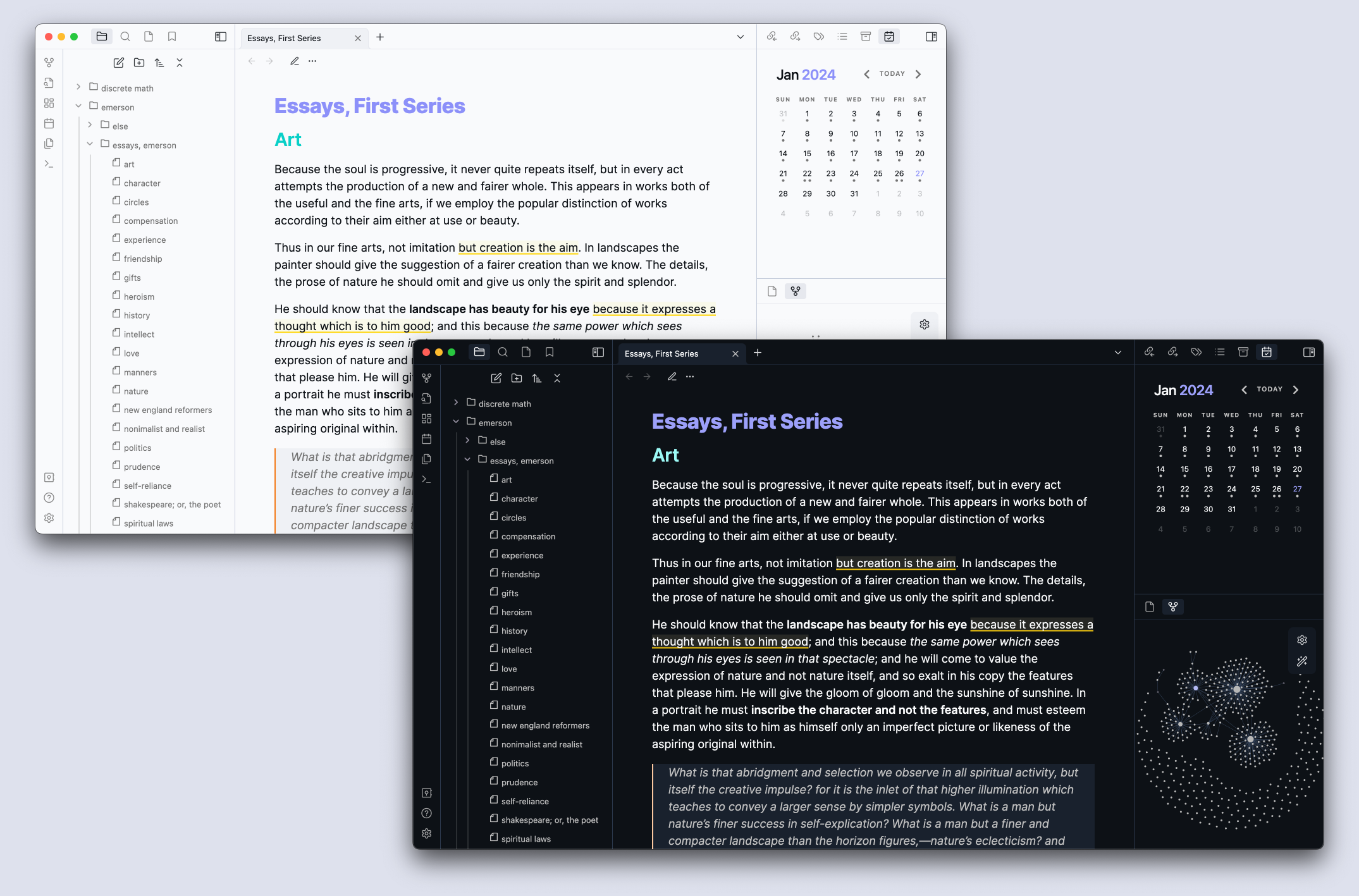
Prime is a simple theme for Obsidian that is customizable and has some neat features.

The motivation behind creating this theme was that I wanted a simple theme that only adds some color tweaks instead of introducing huge changes that modify the positioning of elements, font styles, etc. It started as an experiment, and I added some features that I'd like to use, such as syntax highlighting themes for code blocks, emojis as callout icons, and gradient frames (inspired by [Anuppuccin's Colorful Frames](https://github.com/AnubisNekhet/anuppuccin#colorful-frames) — which is adapted from the [Minimal theme](https://github.com/kepano/obsidian-minimal).)
This theme uses [Style Settings](https://github.com/mgmeyers/obsidian-style-settings) for easier customization.
## Screenshots


## Installation
### Obsidian Themes
1. In Obsidian, go to **Settings**
2. Open the **Appearance** tab
3. Click **Manage** in **Themes**
4. Search for "Prime"
5. Click `Install and use` 🎉
### Manual
1. Clone this repository:
```
git clone git@github.com:rivea0/obsidian-prime.git
```
2. Create a folder named `Prime` inside the `.obsidian/themes` directory in your vault:
```
mkdir -p <path/to/your/vault>/.obsidian/themes/Prime
```
3. Copy `theme.css` and `manifest.json` to the `Prime` directory:
```
cp theme.css manifest.json <path/to/your/vault>/.obsidian/themes/Prime
```
4. Choose Prime from the **Themes** section under **Appearance** in Obsidian Settings 🎉
## Features
### Syntax Highlighting Themes
Sometimes you want to use different themes for code blocks depending on your mood. (Right? 😐)
https://github.com/rivea0/obsidian-prime/assets/58330360/16ada5ef-30dd-487d-98d9-c53b3985f8c3
There are several theme options with dark and light variations. The default for the dark theme is [Dracula](https://github.com/dracula/dracula-theme), and for the light theme, an adaptation of [Material Theme Lighter](https://www.material-theme.dev).
#### Dark Theme Options
<details open>
<summary>Dracula (Default)</summary>
<img src="./assets/prime-syntax-highlighting/dark-dracula.png" />
</details>
<details>
<summary>One Dark</summary>
<img src="./assets/prime-syntax-highlighting/dark-one-dark.png" />
</details>
<details>
<summary>Catppuccin Frappé</summary>
<img src="./assets/prime-syntax-highlighting/dark-ctp-frappe.png" />
</details>
<details>
<summary>Catppuccin Macchiato</summary>
<img src="./assets/prime-syntax-highlighting/dark-ctp-macchiato.png" />
</details>
<details>
<summary>Catppuccin Mocha</summary>
<img src="./assets/prime-syntax-highlighting/dark-ctp-mocha.png" />
</details>
<details>
<summary>Halcyon</summary>
<img src="./assets/prime-syntax-highlighting/dark-halcyon.png" />
</details>
<details>
<summary>GitHub Dark</summary>
<img src="./assets/prime-syntax-highlighting/dark-github-dark.png" />
</details>
<details>
<summary>Tokyo Night</summary>
<img src="./assets/prime-syntax-highlighting/dark-tokyo-night.png" />
</details>
#### Light Theme Options
<details open>
<summary>Material Lighter (Default)</summary>
<img src="./assets/prime-syntax-highlighting/light-material-light.png" />
</details>
<details>
<summary>One Dark (Light Variation)</summary>
<img src="./assets/prime-syntax-highlighting/light-one-dark-light.png" />
</details>
<details>
<summary>Catppuccin Frappé</summary>
<img src="./assets/prime-syntax-highlighting/light-ctp-frappe.png" />
</details>
<details>
<summary>Catppuccin Latte</summary>
<img src="./assets/prime-syntax-highlighting/light-ctp-latte.png" />
</details>
<details>
<summary>GitHub Light</summary>
<img src="./assets/prime-syntax-highlighting/light-github-light.png" />
</details>
<details>
<summary>Tokyo Night Light</summary>
<img src="./assets/prime-syntax-highlighting/light-tokyo-night-light.png" />
</details>
### Custom Checkbox Styling
#### Basic
```
- [ ] to do
- [/] incomplete
- [x] done
- [-] cancelled
- [>] forwarded
- [<] scheduling
```
<img src="./assets/custom-checkboxes-1.png" width="40%" />
#### Extras 2
```
- [?] question
- [!] important
- [*] star
- ["] quote
- [l] location
- [b] bookmark
- [i] information
- [S] savings
- [I] idea
- [p] pros
- [c] cons
- [f] fire
- [k] key
- [w] win
- [u] up
- [d] down
- [D] draft pull request
- [P] open pull request
- [M] merged pull request
```
<img src="./assets/custom-checkboxes-2.png" width="40%" />
#### Extras 3
```
- [m] mail
- [h] heart
- [a] archive
- [e] eye
- [s] search
- [r] rocket
- [8] infinity
- [g] goal
- [+] positive
- [n] negative
```
<img src="./assets/custom-checkboxes-3.png" width="40%" />
### Snippets
#### Callout Emojis (with skin tones!)

You can add emojis as icons for your callouts just like usual type identifiers. For example, adding `[!cake]` inside a blockquote like this:
```markdown
> [!cake] Delicious custom title
> Here is a callout block
```
Will display:

You can also choose skin tones for the emojis that support them.

##### Usage:
You can easily navigate to the link using Style Settings:
1. In Obsidian Settings, go to **Style Settings** under **Community Plugins**
2. Select **Prime**
3. Click the link under the heading **Callouts with Emoji Support ✨**
4. Download the `callout-emojis.css` file that is opened
5. Add it to the `snippets` directory in `.obsidian` inside your vault
6. Go to **Appearance** tab, and enable `callout-emojis` under **CSS Snippets**
Or:
1. Download https://github.com/rivea0/obsidian-prime-snippets/blob/main/callout-emojis.css
2. Add it to the `snippets` directory in `.obsidian` inside your vault.
3. Go to **Appearance** tab, and enable `callout-emojis` under **CSS Snippets**
_Note: You can use the [Style Settings](https://github.com/mgmeyers/obsidian-style-settings) plugin to easily switch between skin tones._
Emojis are chosen from [OpenMoji](https://openmoji.org).
**See the list of all the emojis, examples, and how to extend them here: https://github.com/rivea0/obsidian-prime-snippets#callout-emojis**
#### Gradient Frames

You can add some color to your vault with gradient frames. This feature is pretty much inspired by [Anuppuccin's Colorful Frames](https://github.com/AnubisNekhet/anuppuccin#colorful-frames) — which is adapted from the [Minimal theme](https://github.com/kepano/obsidian-minimal).
You can also easily choose the linear gradient direction (`top` or `bottom`) using [Style Settings](https://github.com/mgmeyers/obsidian-style-settings).
##### Usage:
You can easily navigate to the link using Style Settings:
1. In Obsidian Settings, go to **Style Settings** under **Community Plugins**
2. Select **Prime**
3. Click the link under the heading **Gradient Frames ✨**
4. Download the `gradient-frames.css` file that is opened
5. Add it to the `snippets` directory in `.obsidian` inside your vault.
6. Go to **Appearance** tab, and enable `gradient-frames` under **CSS Snippets**
Or:
1. Download https://github.com/rivea0/obsidian-prime-snippets/blob/main/gradient-frames.css
2. Add it to the `snippets` directory in `.obsidian` inside your vault
3. Go to **Appearance** tab, and enable `gradient-frames` under **CSS Snippets**
There are 42 gradients chosen from [WebGradients](https://webgradients.com).
**See the list of all the gradients, examples, and how to extend them here: https://github.com/rivea0/obsidian-prime-snippets#gradient-frames**
### Credits
- Thanks [Anuppuccin](https://github.com/AnubisNekhet/anuppuccin) by [@AnubisNekhet](https://github.com/AnubisNekhet) for the amazing use of Style Settings — which I learned from — and of course, for the gradient frames inspiration.
Both of these were eventually adapted from the [Minimal](https://github.com/kepano/obsidian-minimal) theme by [@kepano](https://github.com/kepano).
_You can [buy @AnubisNekhet a coffee](https://www.buymeacoffee.com/anubisnekhet)._
_You can [buy @kepano a coffee](https://www.buymeacoffee.com/kepano)._
- Fancy highlighting is adapted from the [Things](https://github.com/colineckert/obsidian-things) theme. The syntax colors for the One Dark theme, and custom checkbox styling are also mainly from Things.
- Custom checkbox styling is credited to the Minimal Theme.
_You can buy [@colineckert (creator of the Things theme) a coffee](https://www.buymeacoffee.com/colineckert)._
- Dracula theme syntax colors from [Dracula Gemini](https://github.com/clbn/dracula-gemini).
- Catppuccin themes syntax colors from [Catppuccin Obsidian](https://github.com/catppuccin/obsidian).
- Halcyon syntax colors adapted from [Halcyon Obsidian](https://github.com/dbarenholz/halcyon-obsidian).
- GitHub theme syntax colors from [GitHub theme](https://github.com/krios2146/obsidian-theme-github).
- Syntax coloring for Material Lighter adapted from https://material-theme.com/docs/configuration/color-schemes.
- Tokyo Night syntax colors from [Obsidian Tokyo Night](https://github.com/tcmmichaelb139/obsidian-tokyonight).
### License
GPLv3
How to Install
- Download the CSS file below
- Move it to your vault's
.obsidian/snippets/folder - Open Obsidian → Settings → Appearance → CSS Snippets → Enable it
Stats
Stars
11
Forks
0
License
GPL-3.0
Last updated 11mo ago
Tags
dark-themelight-themeobsidiantheme