Obsidian-Smart-Daily-Notes-Template
Smart daily notes for Obsidian that auto-links your previous daily notes items.
Obsidian Smart Daily Notes Template



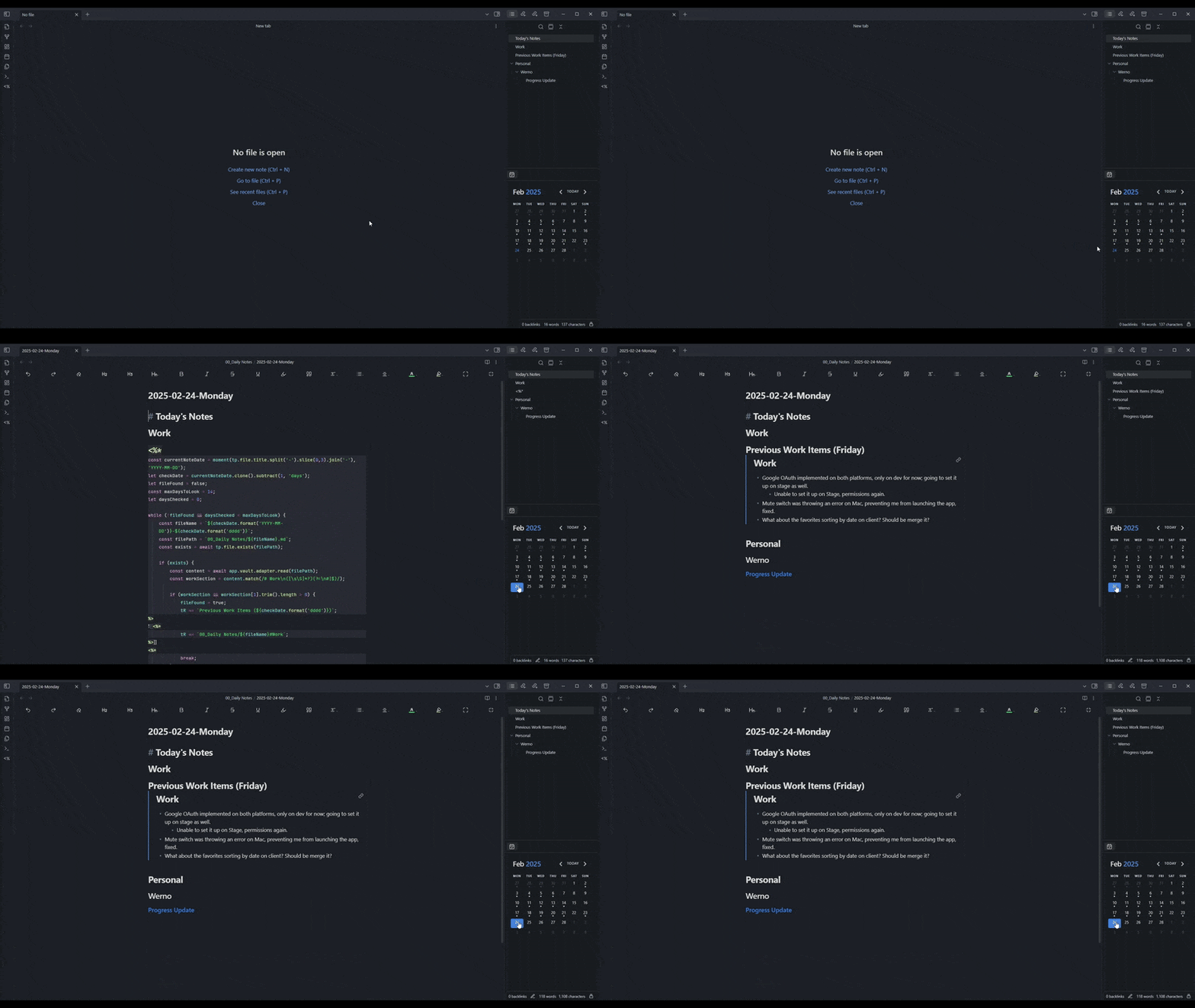
An Obsidian Daily Notes template powered by Templater that finds and embeds the most recent non-empty work section from your previous notes.
It skips missing notes and empty workdays, so Monday morning does not send you digging through Friday, Thursday, and that mysteriously blank Wednesday note. No Dataview required.
Use the template · Read the guide · View the changelog
Preview
What it does
This template searches backward until it finds the latest daily note with content inside a configured top-level section, then embeds that section in today’s note:
# Today's Notes

# Previous Work
![[Daily Notes/2026-08-03-Monday#Work]]

# Work
Your notes for today go here.
The generated embed lives outside # Work. Otherwise, the template could mistake its own output for new work and create a tiny Markdown ouroboros.
It supports:
- custom daily note folders, including nested folders
- custom section names and filename formats
- missing, empty, weekend, and holiday notes
- bounded lookback periods
- Obsidian Vault APIs instead of Dataview
Requirements
- Obsidian 1.8.7 or newer
- Templater
Quick start
- Install and enable Templater.
- Copy
template.mdinto your Obsidian templates folder. - Select it as your daily note template.
- Update the configuration block to match your vault.
- Create or open today's daily note.
const SECTION_NAME = "Work";
const DAILY_NOTES_FOLDER = "";
const FILENAME_FORMAT = "YYYY-MM-DD-dddd";
const DISPLAY_DATE_FORMAT = "YYYY-MM-DD";
const MAX_DAYS_TO_LOOK = 14;
That is the only part you should need to edit.
Configuration
Daily notes folder
Use an empty string when daily notes live in the vault root:
const DAILY_NOTES_FOLDER = "";
Otherwise, use a vault-relative folder path:
const DAILY_NOTES_FOLDER = "Daily Notes";
const DAILY_NOTES_FOLDER = "Journal/2026";
A trailing slash is optional.
Filename format
FILENAME_FORMAT must exactly match the current note's filename.
const FILENAME_FORMAT = "YYYY-MM-DD-dddd";
With that format, 2026-08-04-Tuesday works. 2026-08-04 and Tuesday-2026-08-04 do not.
The template uses strict date parsing and shows a warning when the filename does not match. For notes named only by date, use:
const FILENAME_FORMAT = "YYYY-MM-DD";
Section name
Change SECTION_NAME to track a different top-level section:
const SECTION_NAME = "Tasks";
const SECTION_NAME = "Work (Team A)";
Only top-level headings mark the end of a section. Subheadings such as ## Tickets remain part of it.
Lookback and display formats
const MAX_DAYS_TO_LOOK = 14;
const DISPLAY_DATE_FORMAT = "YYYY-MM-DD";
MAX_DAYS_TO_LOOK must be a positive integer. Increase it if you regularly take longer breaks, but keep it bounded so a configuration mistake does not send the template on an archaeological expedition through your vault.
DISPLAY_DATE_FORMAT controls dates shown in warnings and empty-result messages. Moment.js-compatible formats such as DD/MM/YYYY and MMMM Do, YYYY are supported.
How the lookup works
Starting with the day before the current note, the template:
- Parses the current note date using
FILENAME_FORMAT. - Builds the expected vault-relative path for the previous day.
- Checks whether the Markdown file exists.
- Reads the configured top-level section.
- Skips missing or empty sections.
- Embeds the first populated section it finds.
- Stops after
MAX_DAYS_TO_LOOKdays.
For example, this note:
Journal/2026/2026-08-03-Monday.md
produces:
![[Journal/2026/2026-08-03-Monday#Work]]
Troubleshooting
The template shows a configuration warning
Check that SECTION_NAME is not empty, MAX_DAYS_TO_LOOK is a positive integer, and FILENAME_FORMAT exactly matches a valid date in the current note title.
No previous work appears
Make sure the previous notes exist in the configured folder, use the expected filename format, contain the target top-level section, and fall within the lookback period.
The wrong folder is being searched
DAILY_NOTES_FOLDER is vault-relative. Notes with the same filename elsewhere in the vault are ignored.
The section ends too early
Use top-level headings for major sections. Lower-level headings such as ## Tickets can stay inside # Work without interrupting the match.
Migrating from v1.1.0
Version 1.2.0 moves generated lookup output from # Work to # Previous Work. This prevents empty-day detection from treating the generated embed as new content.
Existing notes remain compatible, but you should copy the new template.md and reapply your configuration values. See CHANGELOG.md for the full version history.
Development
Run the automated tests with Node.js 18 or newer:
node --test test/template.test.js
The test suite covers section extraction, path construction, regex escaping, and configuration validation. Obsidian and Templater integration still needs to be verified manually.
Contributing
Bug reports, feature suggestions, and pull requests are welcome.
For larger changes, please open an issue first so nobody lovingly builds the wrong thing.
Related guide
The companion article, Smart Daily Notes in Obsidian: A Developer’s Approach to Meeting Prep, covers the original problem, workflow, and motivation behind the template.
The repository remains the source of truth for the latest code and configuration options.
License
Released under the MIT License.
How to Install
- Download the template file from GitHub
- Move it anywhere in your vault (or your sidebar notes)
- Open it in Obsidian — done!
Stats
Stars
2
Forks
0
License
MIT
Last updated 2mo ago