obsidian-student-vault
A comprehensive and well documented template for students looking for an easy and organized way to sort and store all of their assignments, classes, notes, and much more!
Obsidian Student Vault






The Obsidian Student Vault (OSV) is a comprehensive and well documented template for students looking for an easy and organized way to sort and store all of their assignments, classes, notes, and much more!
Overview
Features
- Automatic grade calculation from completed assignments
- Integrated homework tracking with due dates
- Class overview pages with teacher info and current grades
- Assignment and note templates with metadata
- Flexible manual or file-based assignment entry
Table of Contents
- 📥 Installation
- 🔔 Updates
- ⚙️ Setup
- 🔧 Configuration
- 🤝 Contributing
- 🗺️ Roadmap
- ❤️ Special Thanks
- ℹ️ Additional information
📥 Installation
First, create the folder which you'd like the vault to be stored in. Where you store your vaults is completely up to you. For example, I stored mine in: $HOME/Documents/Obsidian/School
On linux, this would be done with:
mkdir -p $HOME/Documents/Obsidian/School
On windows, you can use your file manager to manually do this.
It is recommended that you store your vaults in the same parent directory, such as $HOME/Documents/Obsidian for me.
After you've created the folder you'd like to store your vault in, you can either, download the latest Release and extract its contents into your folder, or manually clone the repository into the folder as such:
git clone "https://github.com/krisfinga/obsidian-student-vault" $HOME/Your/Vault/Directory
After, you can boot up obsidian, and open the vault!
🔔 Updates
During updates, the only files changed are:
- Homepage
- Templates
Updates do not affect any user data files such as as assignments, classes, or notes.
If you have not yet ran the Setup script, you will be unable to update osv, if you are using windows, you do not have to worry.
To update your OSV, simply run the Update script!
Windows update script coming soon!
⚙️ Setup
Adding Classes
If this is your first time using OSV, or are using a clean installation, just run the Setup script to quickly and easily add your classes!
./setup.sh
If this is your first installation, please use the Setup script. Otherwise you will be locked out of future updates
More classes can be added later by using these steps:
- First, Create a new file inside the Classes directory and title it the name of your class, such as: English.
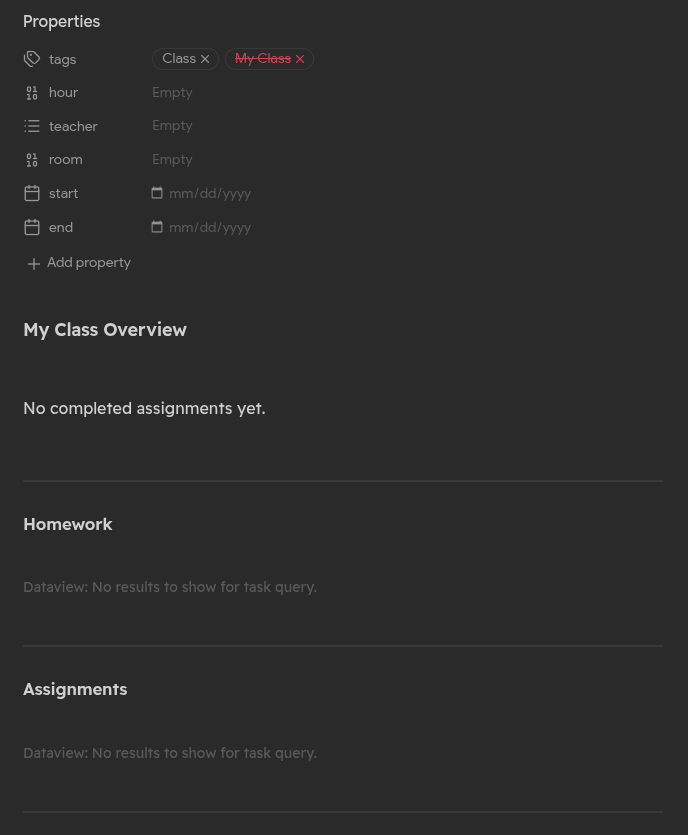
- Next, apply the Class template found within the Templates directory using the Templater community plugin. You should see something like this:
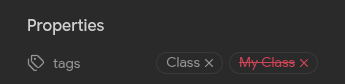
If your class name has a space, you will have to manually set the tag something else, such as an abbreviation! Otherwise it will give an invalid tag as seen bellow
- Lastly, create a folder in the Assignments, Notes, and Resources directories matching the exact name of your class.
It is recommended to use abbreviations for these folder names if your class name contains a space, otherwise the above warning will occur again.
After that, your class overview page is done and ready to use!
Creating Assignments and Notes
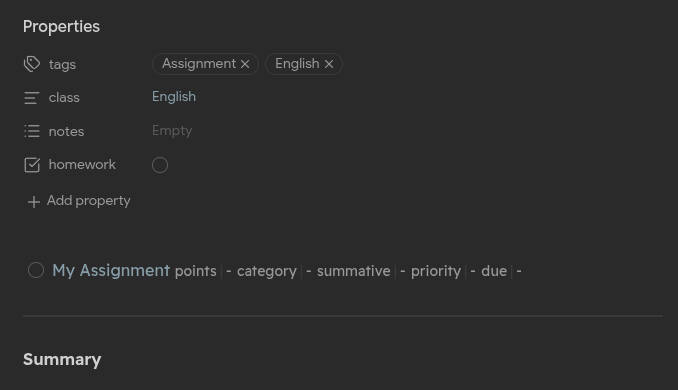
- First, navigate to the folder within the Assignments or Notes directory corresponding to the class you wish to make an assignment/note for, and create a new file with the name of your assignment/note, such as: My Assignment or My Note
- Apply the Assignment or Note template found within the Templates directory using the Templater community plugin. For assignments, you should see this:
 and for notes, you should see this: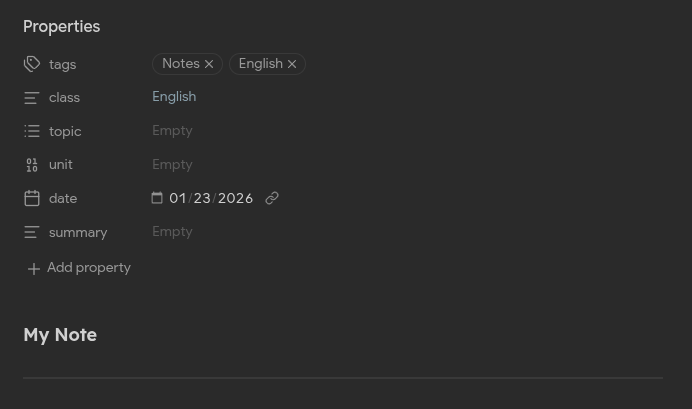
For tagging issues with class names, please see Adding Classes.
After that, your assignment/note is ready!
🔧 Configuration
Classes
Class files contain metadata about your courses and automatically calculate your current grade. They will automatically appear on your homepage including information on the room, teacher, and you current grade.
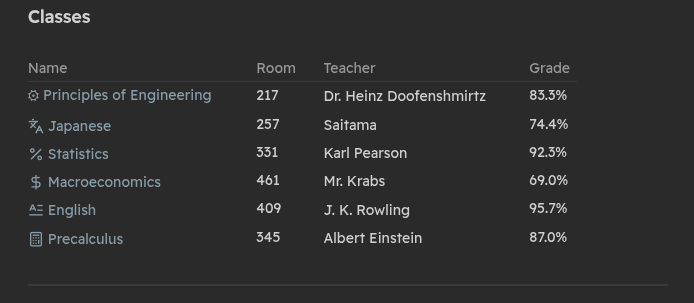
Class Properties
The main way to configure classes are by editing their properties. Each class has 6 properties:
tags- The primary way of separating files in obsidian. Most classes will have 2 tags:#Classand a tag for its name.hour- The hour of the class. Used to sort classes in the Homepage.teacher- The name of the teacher or professor of the class.room- The room or location number of the class.start- Reserved for future use.end- Reserved for future use.
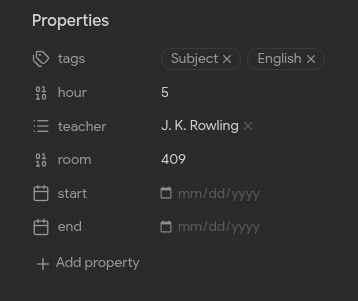
Class Layout
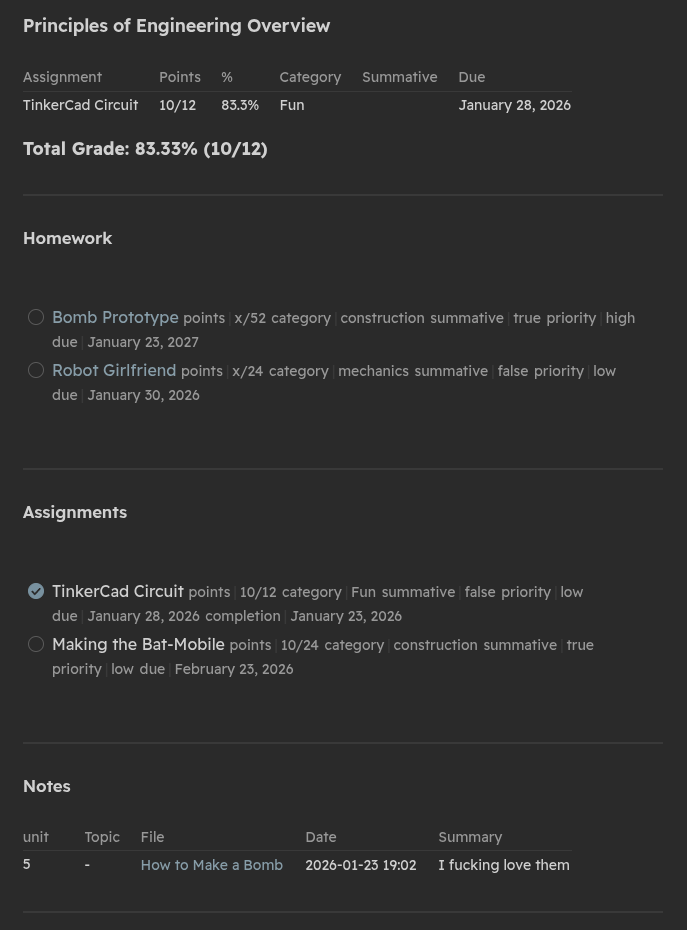
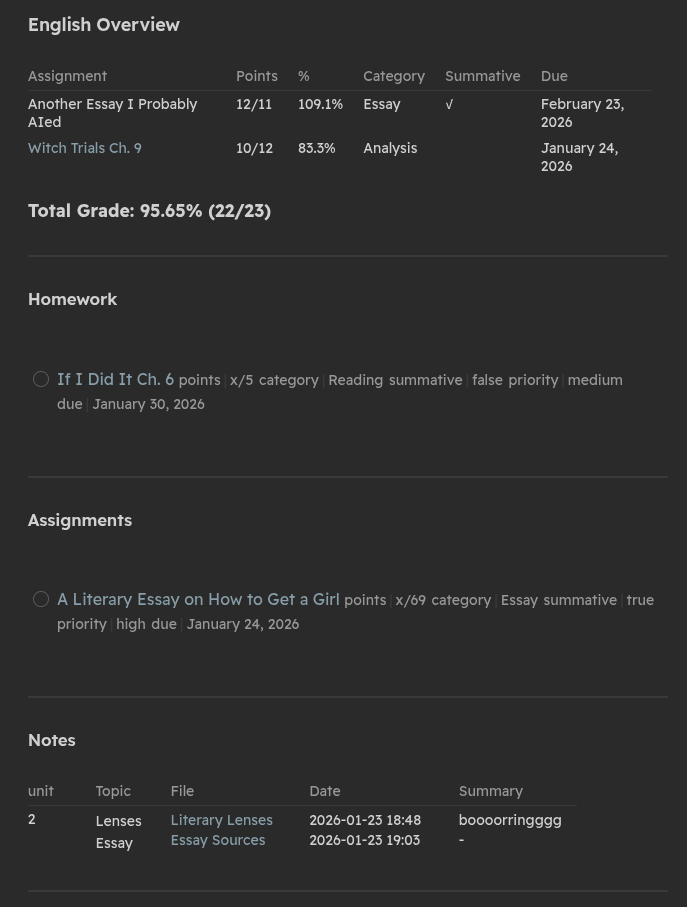
The Class file is separated into 6 distinct sections:
- Assignments table - Shows all completed assignments with grades
- Total Grade - Automatically calculated from completed assignments
- Homework - Lists uncompleted assignments marked as homework
- Assignments - Lists all assignments (completed and incomplete)
- Notes - Displays notes from the class's Notes folder
- Resources - Lists resources from the class's Resources folder
Assignments
Assignment files track individual homework, projects, tests, and other gradable work. They will appear on the Homepage and corresponding class overview.
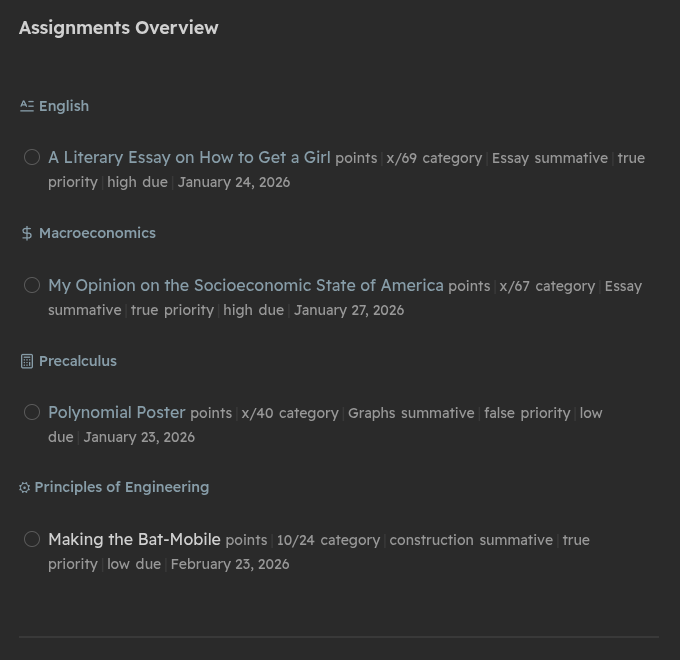
There are 2 ways to add assignments:
- File-based - Create a file in the Assignments/ClassName directory using the Assignment template
- Manual entry - Add a task within the Assignments/ClassName/Other Assignments file. To manually add homework instead, use the Assignments/ClassName/Other Homework file.
Assignment Properties
Assignment properties are the main way to configure where they are displayed and to which class they belong to.
tags- All assignments are tagged with #Assignment and their corresponding class.class- The name of the class the assignment belongs to.notes- Links to note files useful for the assignment, or general notes about the assignments.homework-truefor homework,falsefor school work. Determines whether the assignment is listed under the homework sections on the Homepage and corresponding class overview.
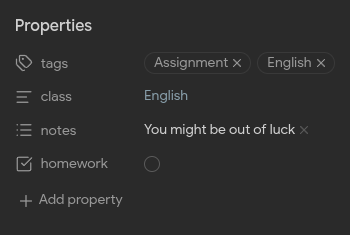
Assignment Layout
Currently assignments only have 2 sections: the task, and summary. See Task inline fields for further information on how to assignment properties.
Assignment layouts are subject to future change and will be reformatted in the future. Please expect changes to be made.Task inline fields
points- Formatted asearned/possible(e.g.,45/50)category- Assignment type (e.g., Essay, Quiz, Test, Homework)summative-truefor major assessments,falsefor formative workpriority-high,medium, orlowdue- Due date in formatYYYY-MM-DD
Reading View:  Source Mode:
Notes
Note files store class notes with structured metadata for easy organization.
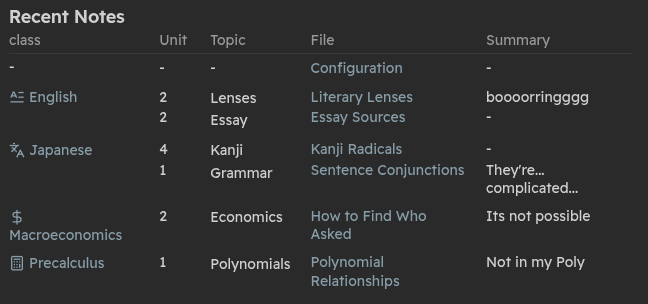
Note Properties
subject: The class this note belongs tounit: Unit number or chaptertopic: Specific topic covereddate: Date of note creationsummary: Brief description of content
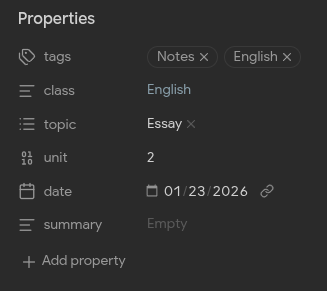
Notes appear under the Recent Notes section on the main page, and Notes section on the corresponding classes overview.
Note Layout
Note layouts are subject to future change and will be reformatted in the future. Please expect changes to be made.Resources
The Resources directory stores reference materials, study guides, links, and other helpful content organized by class.
Create folders matching your class names in the Resources directory and add any files or links you need. These will automatically appear in the Resources section of each class page.
🤝 Contributing
We welcome contributions from the community! Here's how you can help improve OSV.
Reporting Bugs
Found a bug? Open an issue with:
- A clear description of the problem
- Steps to reproduce the issue
- Expected vs actual behavior
- Screenshots if applicable
- Your Obsidian version and OS
Suggesting Features
Have an idea? Open a feature request and describe:
- What problem it solves
- How it would work
- Why it would be useful to students
Submitting Pull Requests
- Fork the repository
- Create a new branch (
git checkout -b feature/amazing-feature) - Make your changes
- Test thoroughly with real classes and assignments
- Commit your changes (
git commit -m 'Add amazing feature') - Push to your branch (
git push origin feature/amazing-feature) - Open a Pull Request with a clear description
Code Style
- Use clear, descriptive variable names in dataview queries
- Comment complex dataviewjs code
- Test with multiple classes and assignment types
- Ensure templates work with spaces in filenames
Questions? Email me at krisfinga@gmail.com
🗺️ Roadmap
Currently not in active development.
❤️ Special Thanks
- The creators of Obsidian
- Michael Brenan - For the Dataview plugin
- Clare Macrae, Ilyas Landikov, and Martin Schenck - For the Tasks plugin
- SilentVoid - For the Templater plugin
- Florian Woelki - For the Iconize plugin
- mirnovnov - For the Homepage plugin
ℹ️ Additional information
Obsidian Student Vault will forever be a free and open source project.
There will never be a paywall behind any content released for this project. Any distributions of content pretending to be OSV that have a paywall are fake and should be ignored or reported to me at krisfinga@gmail.com.
I cannot stress of how much importance community feedback is for project like these. It lets me create a better product for every one of this projects users. That being said, i'm still in high school and have a life outside of programming, so please be patient.
See LICENSE for copyright details
Made with ❤️ for you
Questions? Email me at krisfinga@gmail.com
How to Install
- Download the ZIP or clone the repository
- Open the folder as a vault in Obsidian (File → Open Vault)
- Obsidian will prompt you to install required plugins
Stats
Stars
0
Forks
0
License
GPL-3.0
Last updated 1mo ago