Obsidian Wiki Dashboard — Setup Guide
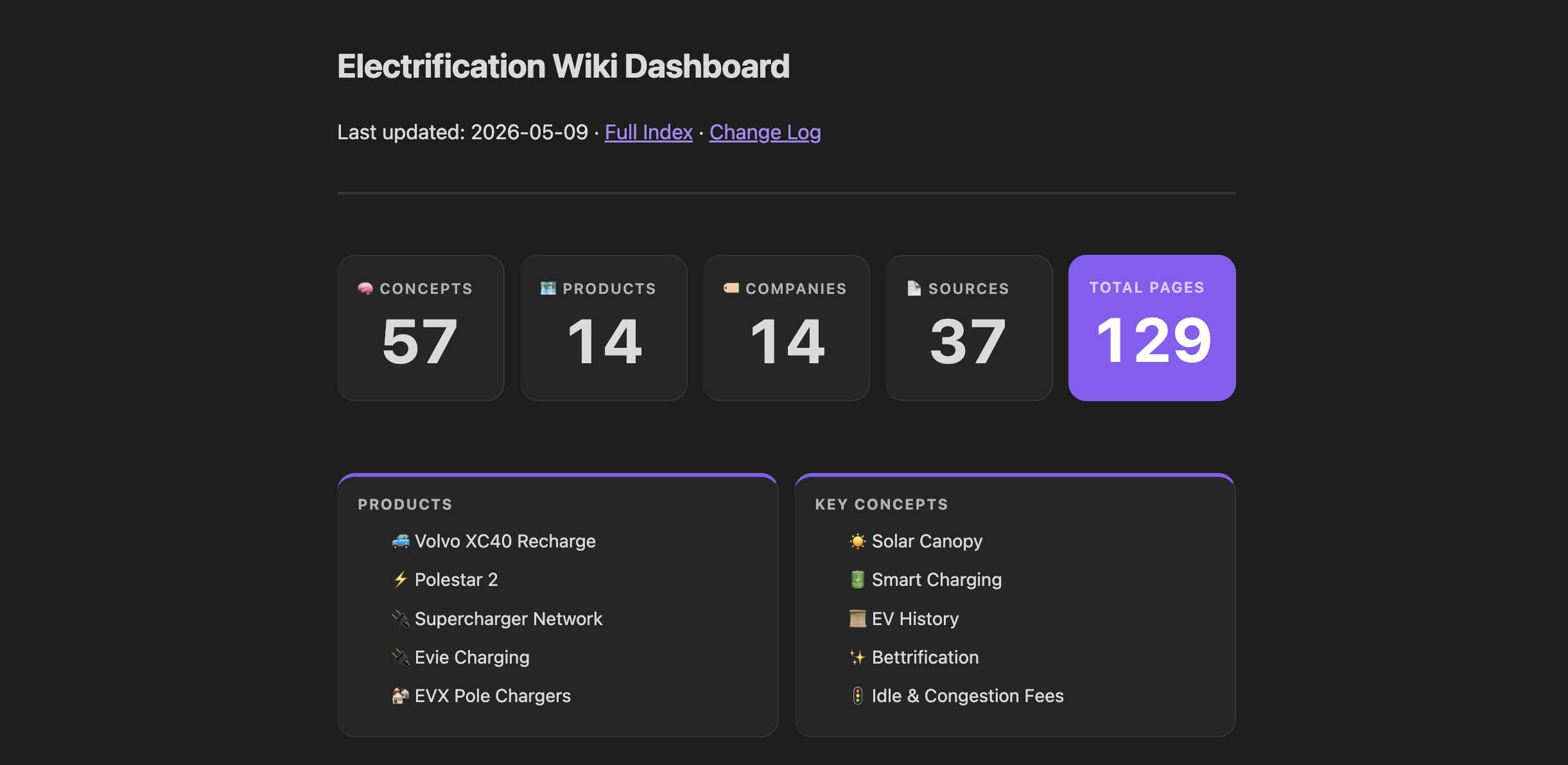
This bento-grid dashboard is a simple live overview of the wiki built from two files:
dashboard.md— the note you open in Obsidian; contains stat cards, nav links, and DataviewJS data blocks.obsidian/snippets/wiki-dashboard.css— the CSS snippet that styles all dashboard components
Requirements
1. Dataview plugin
Install Dataview from the Obsidian Community Plugins browser.
After installing, open its settings and enable both:
- Enable JavaScript Queries — required for the
dataviewjscode blocks - Enable Inline JavaScript Queries — required for the
`$= ...`expressions in the header line
Settings → Community Plugins → Dataview → toggle both options on
2. CSS snippet
- Copy
wiki-dashboard.cssinto your vault's.obsidian/snippets/folder (if not present, create thesnippetsfolder). - Open Settings → Appearance → CSS Snippets.
- Click the refresh icon if the snippet doesn't appear, then toggle wiki-dashboard on.
How it works
dashboard.md
The note's frontmatter applies the CSS hook:
cssclasses: [dashboard]
This adds a dashboard class to the rendered note, which the CSS uses to hide the inline title and the Properties panel — keeping the view clean.
The note is structured in three layers:
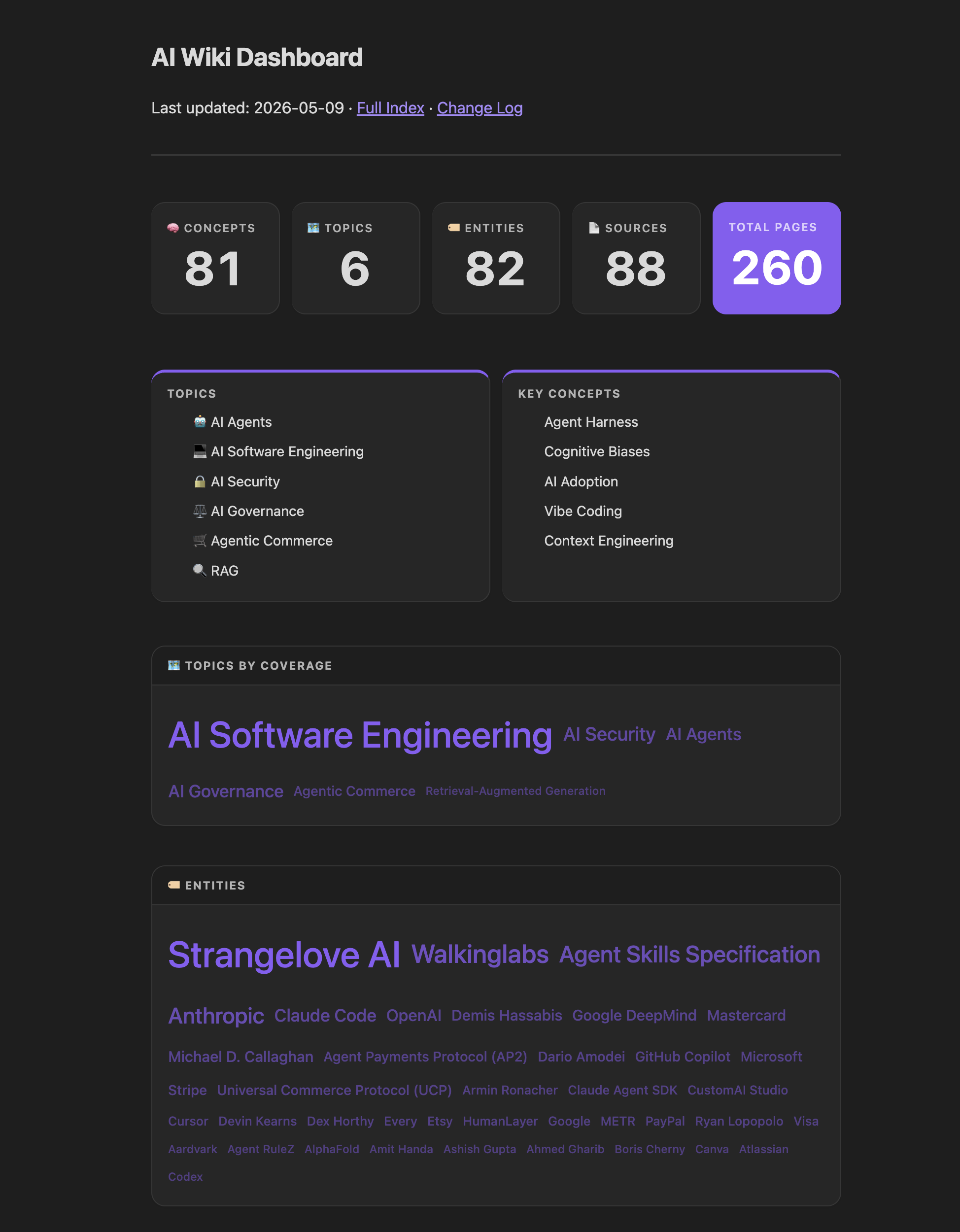
Stats row — five callout cards in a horizontal grid showing live counts pulled from the wiki/ folder tree:
| Card | Query |
|---|---|
| Concepts | dv.pages('"wiki/concepts"').length |
| Topics | dv.pages('"wiki/topics"').length |
| Entities | dv.pages('"wiki/entities"').length |
| Sources | dv.pages('"wiki/sources"').length |
| Total Pages (accent) | dv.pages('"wiki"').length |
You might not have all these categories set up — feel free to edit the queries or add/remove cards as needed. In stead of concepts, topics, entities, you could track any other categories (people, articles, projects) or tags in your vault. Topics and Key Concepts in the nav row below are also just examples — customize them to fit your wiki's structure and focus.
Nav row — two side-by-side callout cards with manual links to topics and key concepts.
DataviewJS blocks — five live data blocks rendered as bento cards:
- Topics by Coverage — word cloud sized and faded by
source_count - Entities — same word cloud treatment, top 40 by
source_count - Recently Updated — table of the 15 most recently modified wiki pages
- Top Concepts by Coverage — word cloud, top 40 concepts
- Recent Sources — table of the 20 most recently added source pages
Each DataviewJS block adds the CSS class bento-data-card to its container, which the snippet styles as a rounded card with a header stripe.
wiki-dashboard.css
The snippet defines four callout types and two DataviewJS card classes:
| Selector | Purpose |
|---|---|
[data-callout="stats"] | Transparent wrapper; turns children into a 5-column grid |
[data-callout="navrow"] | Transparent wrapper; turns children into a 2-column grid |
[data-callout="stat"] | Muted background stat card — label + large number |
[data-callout="stat-accent"] | Accent-color stat card for the total count |
[data-callout="nav"] | Navigation card with accent top border and clean link list |
.bento-data-card | Container card for DataviewJS blocks |
.bento-card-title | Header stripe inside each DataviewJS card |
.concept-cloud / .concept-tag | Wrapping flex container and link tags for word clouds |
Responsive breakpoints at 800px collapse the stats grid to 2 columns and the nav row to 1 column.
Updating nav links
The Topics and Key Concepts sections in the nav row are static — edit them directly in dashboard.md. Everything else (stats, word clouds, tables) is live and updates automatically when wiki pages change.
Troubleshooting
| Symptom | Fix |
|---|---|
Counts show 0 or null | Check that Dataview is installed and JavaScript queries are enabled |
Inline `$= ...` renders as raw text | Enable Inline JavaScript Queries in Dataview settings |
| Cards render as plain callouts | Confirm the CSS snippet is enabled in Settings → Appearance |
| Word clouds don't navigate on click | Expected in source/edit mode; open the note in Reading view |
| Word clouds don't show as a word cloud | Based on source count, multiple sources for a single concept/topic affects the visualization |
| Properties panel still visible | Confirm cssclasses: [dashboard] is in the note's frontmatter |
How to Install
- Download the dashboard markdown file from GitHub
- Drop it into your vault (anywhere)
- Install the Homepage plugin and point it at the file
- Enable any listed CSS snippets for the intended look
Stats
Stars
3
Forks
0
Last updated 5mo ago