343 Stars
GitHubCSSAny theme
# Claude Sidebar
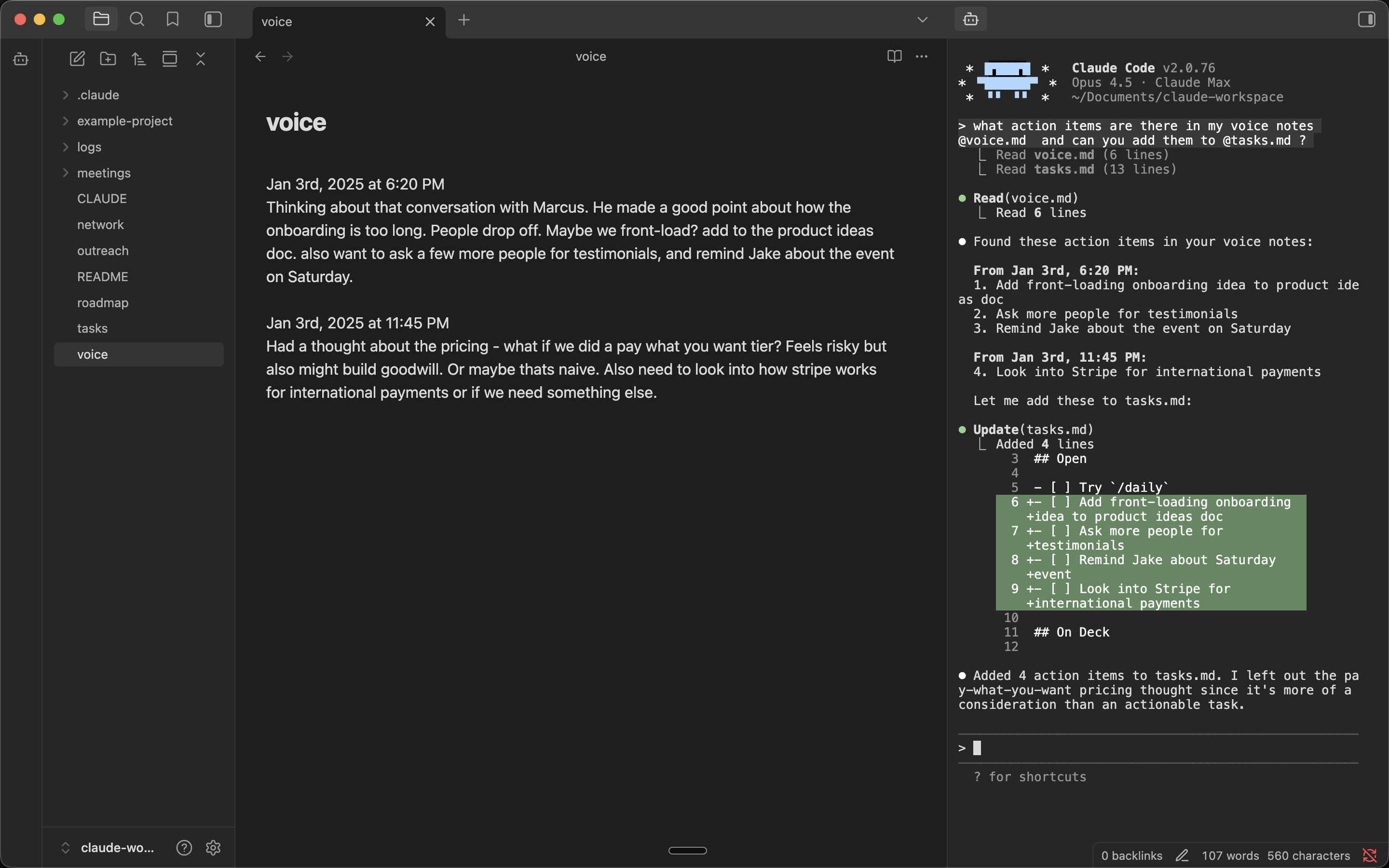
Run Claude Code in your Obsidian sidebar.
Built by [Derek Larson](https://dtlarson.com). [Pair with commands →](https://delegatewithclaude.com/commands)

## Features
- **Embedded terminal** - Full terminal in your Obsidian sidebar
- **Auto-launches Claude** - Claude Code starts automatically
- **Multiple tabs** - Run multiple Claude instances side by side
- **Folder context menu** - Right-click any folder to open Claude in that directory
- **YOLO mode** - Launch Claude with `--dangerously-skip-permissions` via right-click menus
- **Multi-backend** - Switch between Claude Code, Codex, OpenCode, and Gemini CLI in settings
## Requirements
- macOS, Linux, or Windows
- Python 3
- [Claude Code](https://claude.com/claude-code)
## Installation
### Quick Install (Mac/Linux)
In your vault folder, run:
```bash
curl -sL https://github.com/derek-larson14/obsidian-claude-sidebar/archive/refs/heads/main.tar.gz | tar -xz -C .obsidian/plugins && mv .obsidian/plugins/obsidian-claude-sidebar-main .obsidian/plugins/claude-sidebar
```
Then in Obsidian: Settings → Community Plugins → Refresh → Enable "Claude Sidebar"
**Windows:** See [Windows Setup](#windows-setup-experimental) below.
### Manual Installation
1. Download `main.js`, `manifest.json`, and `styles.css` from the [latest release](https://github.com/derek-larson14/obsidian-claude-sidebar/releases)
2. Create folder: `<your-vault>/.obsidian/plugins/claude-sidebar/`
3. Copy the downloaded files into that folder
4. Reload Obsidian and enable the plugin in Settings → Community Plugins
### BRAT (Auto-Updates)
1. Install [BRAT](https://github.com/TfTHacker/obsidian42-brat) from Community Plugins
2. In BRAT settings, click "Add Beta plugin"
3. Enter: `derek-larson14/obsidian-claude-sidebar`
4. Enable "Claude Sidebar" in Settings → Community Plugins
BRAT handles updates automatically when new releases are published.
### From Community Plugins
Once approved, you'll be able to search for "Claude Sidebar" in Community Plugins → Browse.
## Updating
Paste into a Claude Code session from your vault:
> Update the Claude Sidebar plugin. Download main.js, manifest.json, and styles.css from https://github.com/derek-larson14/obsidian-claude-sidebar/releases/latest/download/ into .obsidian/plugins/claude-sidebar/. Tell me the old and new version numbers.
### Manual
In your vault folder, run:
```bash
cd .obsidian/plugins/claude-sidebar
curl -LO https://github.com/derek-larson14/obsidian-claude-sidebar/releases/latest/download/main.js
curl -LO https://github.com/derek-larson14/obsidian-claude-sidebar/releases/latest/download/manifest.json
curl -LO https://github.com/derek-larson14/obsidian-claude-sidebar/releases/latest/download/styles.css
```
Then restart Obsidian or disable/re-enable the plugin.
## Usage
https://github.com/user-attachments/assets/de98439a-8a1f-4a8a-9d02-44027d756462
- Click the bot icon in the left ribbon to open Claude
- Right-click the bot icon for YOLO mode, folder targeting, or resuming a conversation
- Right-click any folder for "Open Claude here" or "Open Claude here (YOLO)"
- Use Command Palette (`Cmd+P`) for all commands:
- **Open Claude Code** / **New Claude Tab** / **Close Claude Tab**
- **Toggle Focus: Editor ↔ Claude** - Quick switch between editor and Claude
- **Run Claude from this folder** - Start Claude in the active file's directory
- **Resume last conversation** - Pick up where you left off (`--continue`)
- **Send File Path to Claude** / **Send Selection to Claude**
- Press `Shift+Enter` for multi-line input
- Set your own hotkeys in Settings → Hotkeys
## Platform Support
| Platform | Status |
|----------|--------|
| macOS | ✅ Supported |
| Linux | ✅ Supported |
| Windows | ⚠️ Experimental |
Want to use it on iOS or Android? See [Claude Anywhere](https://github.com/derek-larson14/claude-anywhere).
### Windows Setup (Experimental)
Windows requires additional dependencies:
1. Install Python 3 from [python.org](https://python.org)
2. Install pywinpty:
```bash
pip install pywinpty
```
3. Install the plugin (run from your vault folder in PowerShell):
```powershell
$u="https://github.com/derek-larson14/obsidian-claude-sidebar/archive/main.zip"; Invoke-WebRequest $u -OutFile s.zip; Expand-Archive s.zip .obsidian\plugins -Force; Move-Item ".obsidian\plugins\obsidian-claude-sidebar-main" ".obsidian\plugins\claude-sidebar" -Force; Remove-Item s.zip
```
4. Then in Obsidian: Settings → Community Plugins → Refresh → Enable "Claude Sidebar"
**Note:** Windows support is experimental. Performance may be slower than macOS/Linux due to ConPTY overhead.
## How It Works
- [xterm.js](https://xtermjs.org/) for terminal emulation
- Python's built-in `pty` module for pseudo-terminal support (macOS/Linux)
- [pywinpty](https://github.com/andfoy/pywinpty) for Windows PTY support
## Development
The PTY scripts (`terminal_pty.py` for Unix, `terminal_win.py` for Windows) are embedded as base64 in `main.js` for Obsidian plugin directory compatibility. To rebuild after modifying:
```bash
./build.sh
```
## Contributing
Issues and PRs welcome at [github.com/derek-larson14/obsidian-claude-sidebar](https://github.com/derek-larson14/obsidian-claude-sidebar)
## License
MIT
How to Install
- Download the CSS file below
- Move it to your vault's
.obsidian/snippets/folder - Open Obsidian → Settings → Appearance → CSS Snippets → Enable it
Stats
Stars
343
Forks
34
License
MIT
Last updated 3h ago