95 Stars
GitHubCSSAny theme
# Claude Anywhere
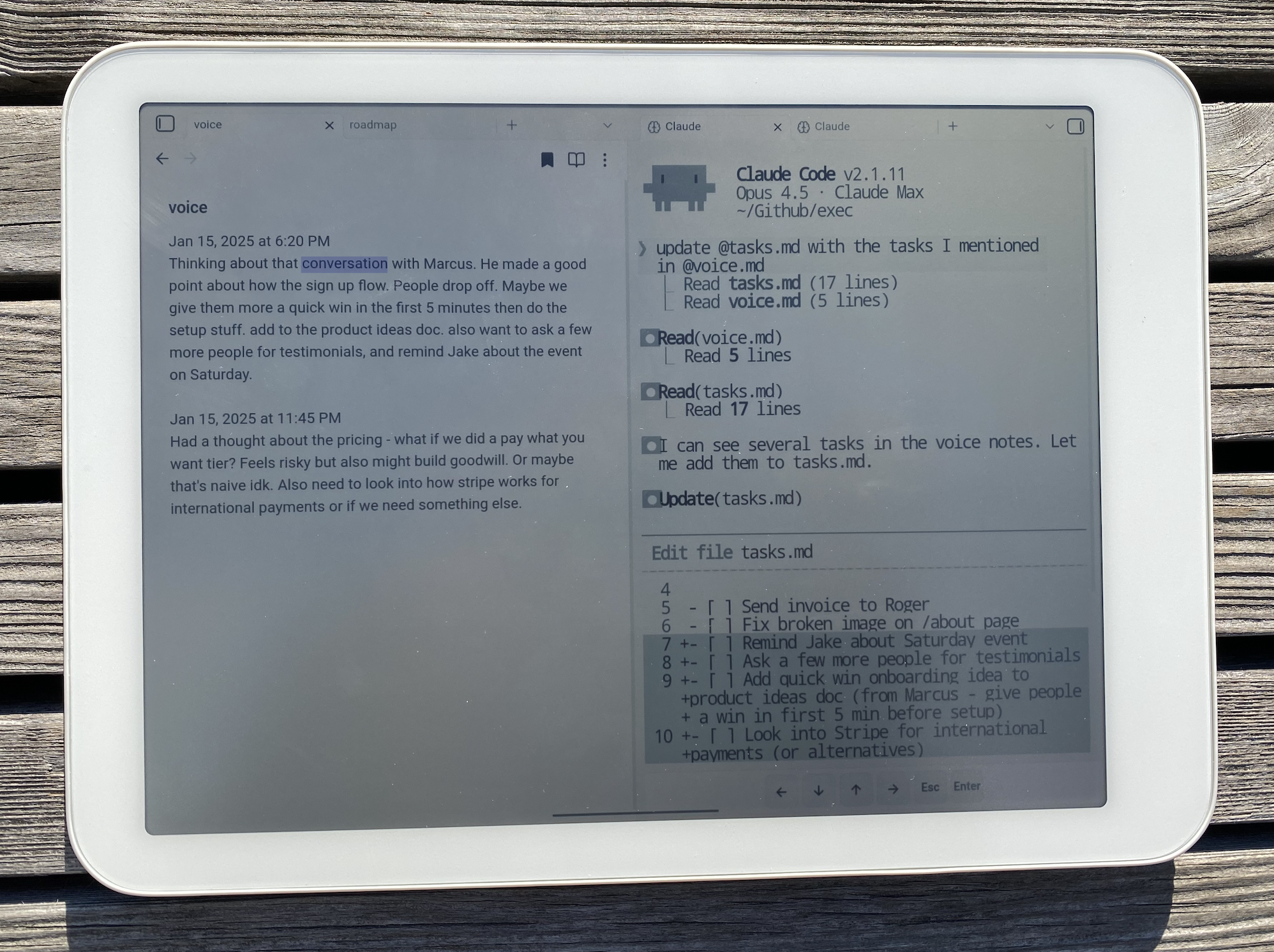
Your Mac's Claude Code, from your phone or tablet.
Built by [Derek Larson](https://dtlarson.com). [Pair with commands →](https://delegatewithclaude.com/commands)

- **Edit files across your Mac** - Notes in your vault, code in other repos, config files. Not limited to Obsidian.
- **Run your skills** - `/morning`, `/mail`, `/voice`, whatever you've built. Your workflow travels with you.
- **Full terminal access** - Git, npm, scripts. Anything Claude Code can do on desktop.
- **Resume on desktop** - Pick up conversations where you left off with `/resume`.
## Compatibility
- Android (phone, tablet)
- iOS (iPhone, iPad)
## Requirements
- Mac with [Claude Code](https://claude.ai/claude-code) installed
- [Tailscale](https://tailscale.com/download) on both devices (same account)
- File sync between Mac and mobile (Obsidian Sync, iCloud, Dropbox, etc.)
- External keyboard recommended
## Setup
### Mac (Server)
#### 1. Install Tailscale
Download from [tailscale.com/download](https://tailscale.com/download), open the app, and sign in.
#### 2. Install the Plugin
Open Terminal, navigate to your Obsidian vault, and run:
```bash
mkdir -p .obsidian/plugins/claude-anywhere && cd .obsidian/plugins/claude-anywhere && curl -LO https://github.com/derek-larson14/obsidian-claude-anywhere/raw/main/main.js && curl -LO https://github.com/derek-larson14/obsidian-claude-anywhere/raw/main/manifest.json && curl -LO https://github.com/derek-larson14/obsidian-claude-anywhere/raw/main/styles.css
```
#### 3. Enable the Plugin
1. Open Obsidian
2. Settings → Community plugins → Enable "Claude Anywhere"
3. Settings → Claude Anywhere → Enable **Remote Access**
#### 4. Keep Your Mac Awake
While using Claude remotely, prevent your Mac from sleeping.
**Option A: Amphetamine (Recommended)**
Install [Amphetamine](https://apps.apple.com/us/app/amphetamine/id937984704?mt=12) from the App Store. It provides a menu bar icon to easily toggle sleep prevention with options for timed sessions, triggers, and more.
**Option B: Terminal**
```bash
caffeinate -dis
```
This prevents sleep even when closing the lid (while plugged in). Close the Terminal window or press `Ctrl+C` to restore normal sleep behavior.
### Mobile Device (Client)
1. Install Tailscale and sign in (same account as Mac)
2. Get the plugin onto your device:
- **Obsidian Sync** (easiest): Settings → Sync → enable "Installed community plugins", restart Obsidian
- **Manual**: Download the plugin files (via cloud storage, email, etc.), then use a file manager to move them to your vault's `.obsidian/plugins/claude-anywhere/` folder
3. Enable the plugin: Settings → Community plugins → Enable "Claude Anywhere"
4. Open Claude from the command palette (swipe down): search "Claude"
**Files needed for manual install:** `main.js`, `manifest.json`, `styles.css`
## Updating
Paste into a Claude Code session from your vault:
> Update the Claude Anywhere plugin. Download main.js, manifest.json, and styles.css from https://github.com/derek-larson14/obsidian-claude-anywhere/releases/latest/download/ into .obsidian/plugins/claude-anywhere/. Tell me the old and new version numbers.
Then restart Obsidian or disable/re-enable the plugin.
## Usage
### Opening Claude
Use the command palette (swipe down or Cmd+P) and search "Claude":
- "Open Claude Code" - Opens or focuses existing terminal
- "New Claude Tab (Sidebar)" - Opens in right sidebar
- "New Claude Tab (Split View)" - Opens alongside current note
- "New Claude Tab (Full Width)" - Opens as full-screen tab
You can also tap the brain icon in the left ribbon.
### Mobile Controls
On-screen buttons appear at the bottom for keys missing from software keyboards:
- **← ↓ ↑ →** - Arrow keys
- **Esc** - Escape key
- **Enter** - Submit

### Multi-line Input
For multi-line prompts in Claude Code, press **Alt+Enter** or **Shift+Enter** on your external keyboard.
## How It Works
Streams your Mac's Claude Code session to mobile over Tailscale. File sync pushes Claude's edits back to your device.
```
Mobile Mac
┌─────────────────┐ ┌─────────────────┐
│ Obsidian │ Tailscale │ Obsidian │
│ + Plugin │◄───────────►│ + Plugin │
│ + xterm.js │ (secure) │ + relay_server │
│ │ │ + Claude Code │
└─────────────────┘ └─────────────────┘
Connection: ws://100.x.x.x:8765 (Tailscale IP)
```
## YOLO Mode
Skip all permission prompts. Claude acts without asking.
Settings → Claude Anywhere → Advanced → **YOLO Mode**
## Session Behavior
**On disconnect:** Claude session is killed
**To continue a conversation:** Use Claude's `/resume` command after reconnecting.
## Known Limitations
**Scrolling on mobile** - Dragging inside the terminal doesn't scroll well. Use the scrollbar on the right edge, or **Alt+↓** to jump to the bottom.
## Troubleshooting
**"Connection failed"**
- Check Obsidian is open on your Mac
- Check Tailscale is connected on both devices
- Check server is running: Settings → Claude Anywhere on Mac
- Toggle Remote Access off and back on
**Terminal looks garbled**
- Close the terminal tab and open a new one
## Files
- `main.js` - Obsidian plugin code (includes embedded relay server)
- `manifest.json` - Plugin metadata
- `styles.css` - Terminal styling
## Development
The relay server (`relay_server.py`) is embedded as base64 in `main.js` for Obsidian plugin directory compatibility. To rebuild after modifying:
```bash
./build.sh
```
## Contributing
Issues and PRs welcome at [github.com/derek-larson14/obsidian-claude-anywhere](https://github.com/derek-larson14/obsidian-claude-anywhere)
## License
MIT
## Related
- **[Claude Sidebar](https://github.com/derek-larson14/obsidian-claude-sidebar)** - Run Claude Code in your Obsidian sidebar (desktop)
How to Install
- Download the CSS file below
- Move it to your vault's
.obsidian/snippets/folder - Open Obsidian → Settings → Appearance → CSS Snippets → Enable it
Stats
Stars
95
Forks
6
License
MIT
Last updated 4d ago