Media Tracker Obsidian Template
An automated Obsidian vault for tracking movies, TV shows, and video games.
Media Tracker Obsidian Template

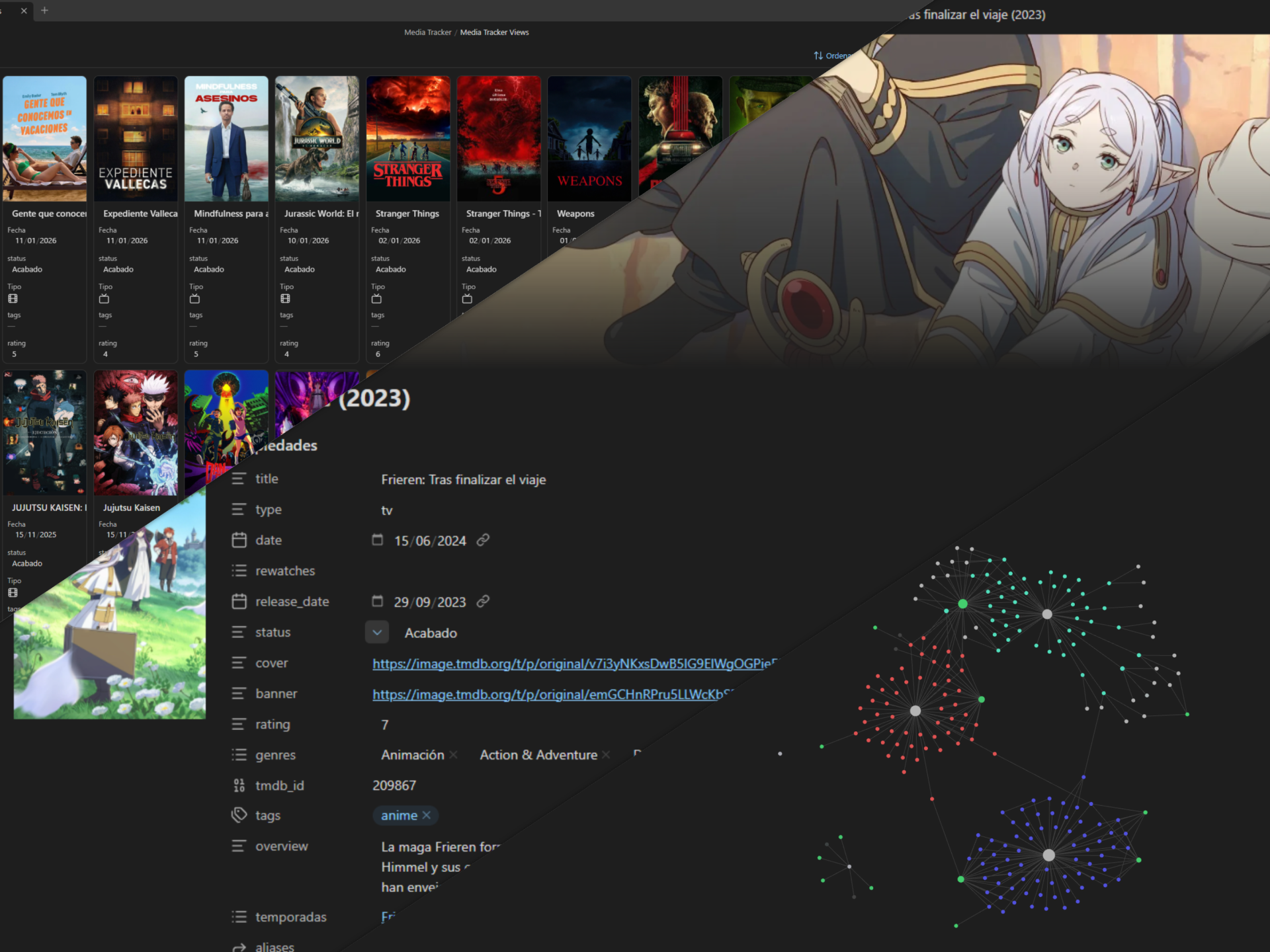
This is an example Obsidian vault featuring a media tracker for movies, TV shows and video games. The vault utilizes Movie Search, Templater, and QuickAdd plugins to automate media management and provide various functionalities. It also adds Pretty Properties plugin for better display covers and banners.
Media data is sourced from TMDB, IGDB and SteamGridDB, and a free API token for each service is required for the scripts to function.
[!WARNING] This is a personal project and can be difficult to set up. If you encounter any issues, please feel free to open an issue on the repository. If there is significant interest in a more user-friendly experience, I may consider condensing these features into a standalone plugin for Obsidian.
Features
- Hugo Integration: Generate a fully functional website from your vault using a custom-built Hugo theme designed specifically for this media tracker.
- Seamless Management: Add, modify, and visualize all your media entries without ever leaving Obsidian.
- Built-in Automation: Leverages powerful plugins like QuickAdd, Templater, and Movie Search to streamline your workflow.
- Custom Scripts: Includes tailor-made scripts specifically developed to extend functionality, such as automated Steam ID fetching and advanced image management.
- Rich Metadata: Automatically pulls detailed information for movies, TV shows, and games from professional databases.
Configuration Guide
To make the tracker fully functional, you must configure several API keys and settings.
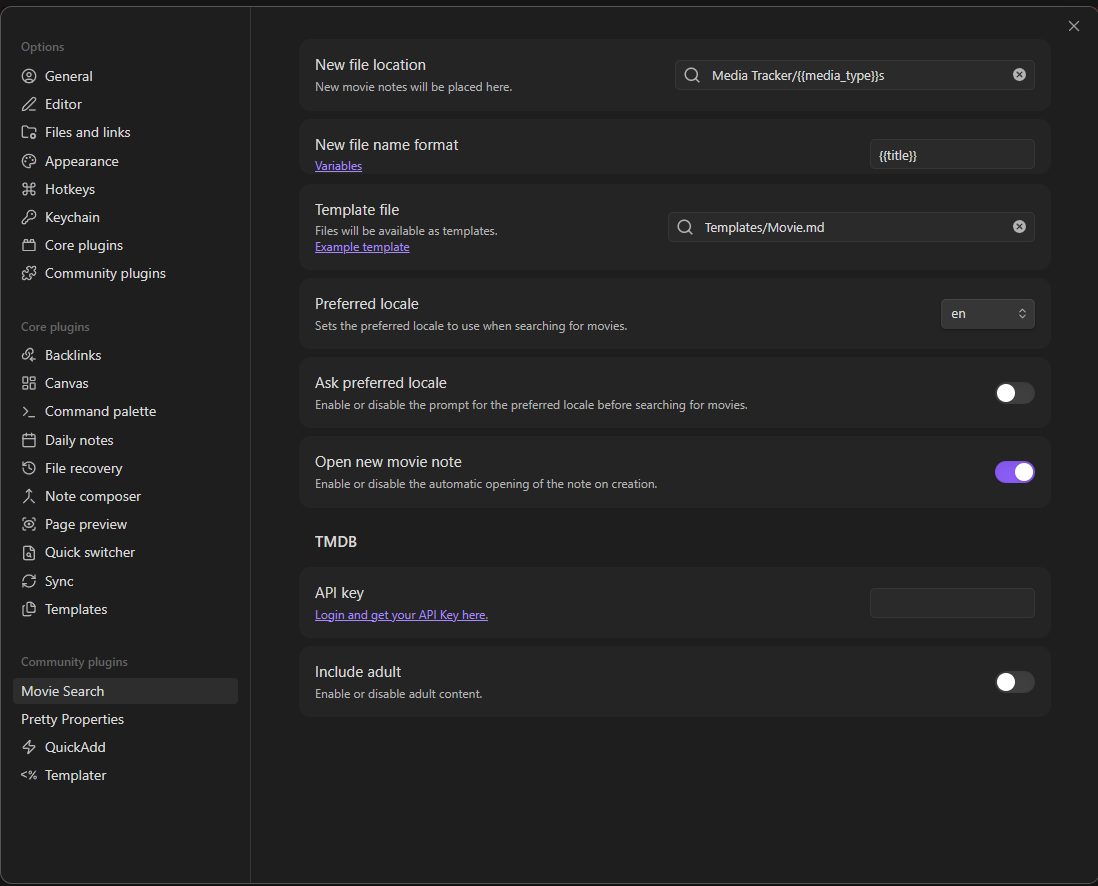
1. Movie Search (TMDB)
You need to add your TMDB (The Movie Database) token to the Movie Search plugin configuration. Create an account and get your token.
2. QuickAdd Configuration
Open the QuickAdd settings in Obsidian to configure the following macros:
Video Games (IGDB)
- Login in https://dev.twitch.tv/login.
- Go to "Applications" tab.
- Click on Register a new Application.
- Fill the data with following
- Name: whaterver you want
- URL:
http://localhost - Category: Application Integration
- Client Type: Confidential
- Go to manage. There you can now copy the Client ID and Client Secret.
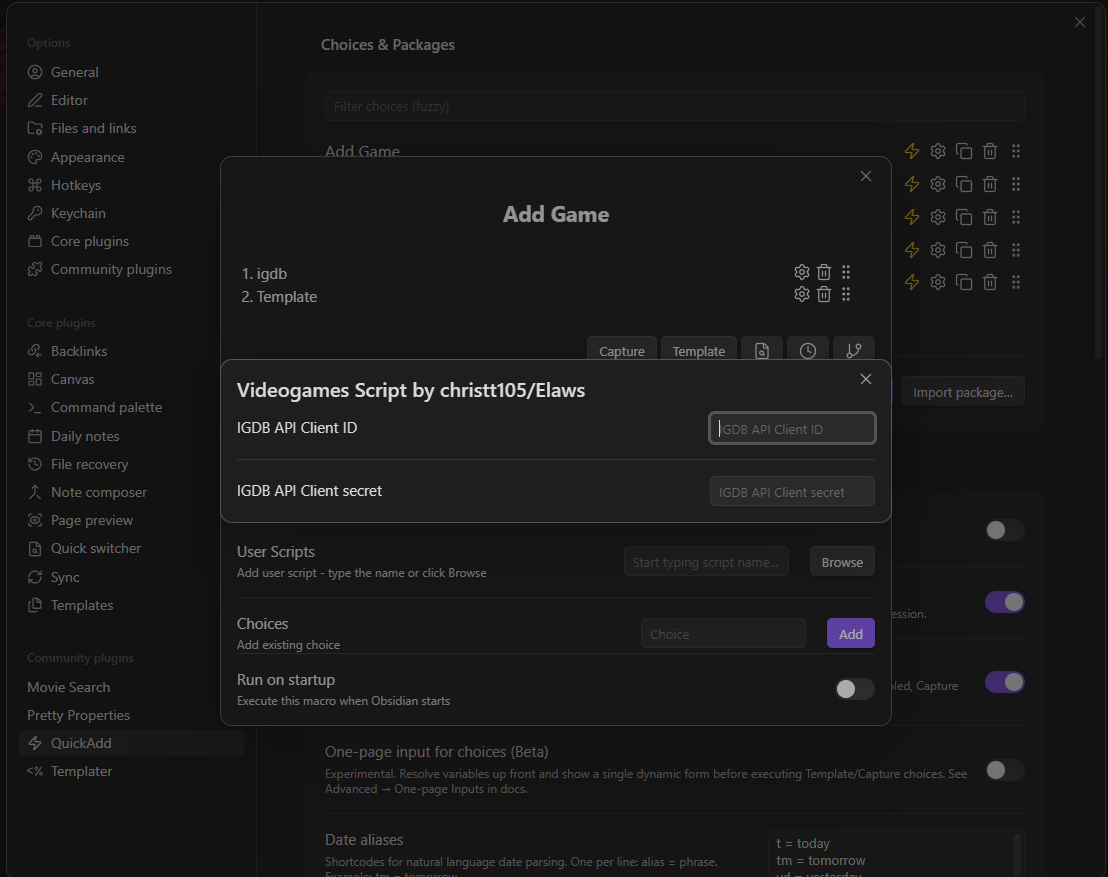
- Go to Obsidian -> QuickAdd Settings plugin and locate the "Add Game" macro and click the gear icon ⚙️ (Configuration).
- Inside the macro, find the igdb script step and click its gear icon ⚙️.
- Paste your IGDB API Client ID and API Client Secret.
Seasons
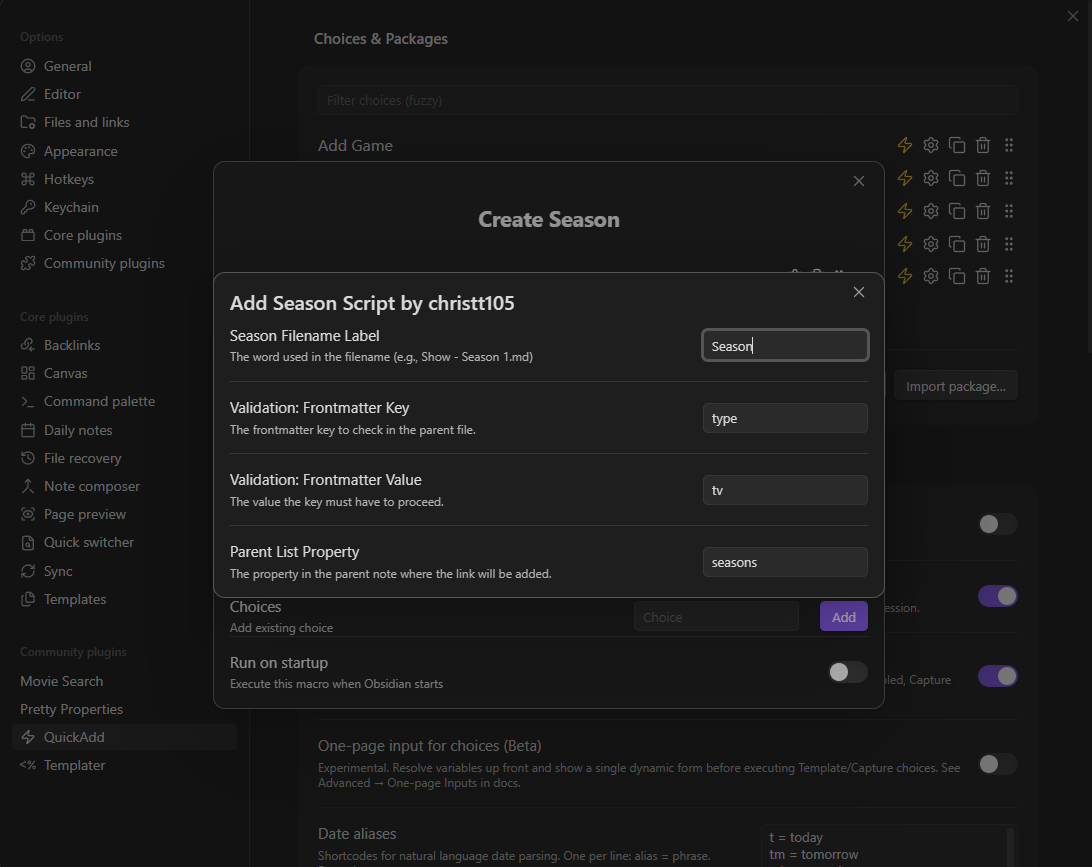
In the "Create Season" macro settings, you can modify the values to customize how TV show seasons are created regarding the Season Template.
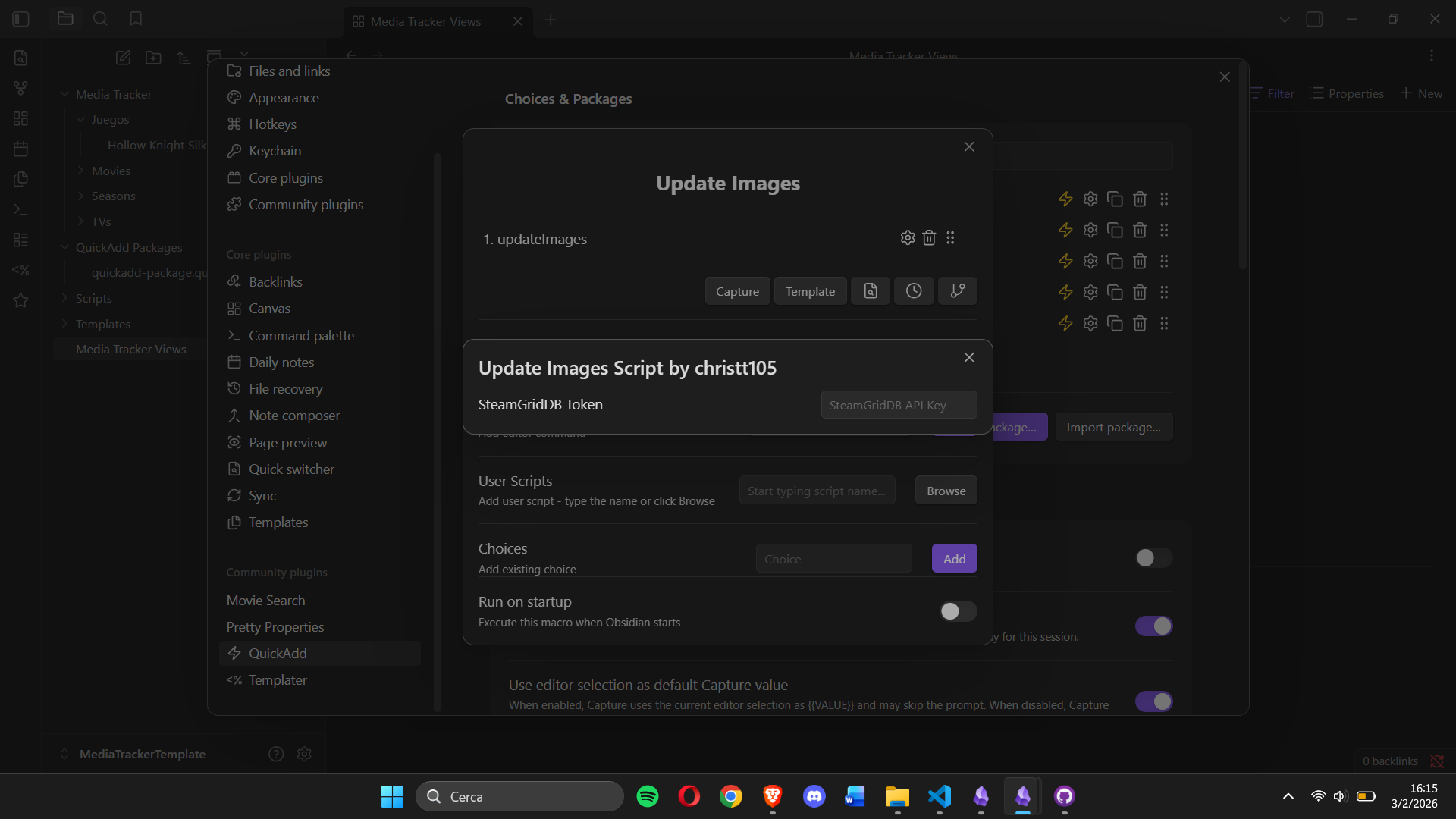
Update Images (SteamGridDB)
For the "Update Images" action:
- Go to its configuration settings.
- Enter your SteamGridDb token. You can generate it from here.
How to Use
Movies & TV Shows
To add a new movie or series, run the command Movie Search: Create new movie note or press Ctrl+Shift+M. Type the title and select the correct entry from the list.
TV Seasons
To create seasons, open a specific TV series note and run the command QuickAdd: Create Season. Enter the season number, and a new note linked to the series will be generated automatically.
Video Games
To add a video game, run the command QuickAdd: Create Game or press Ctrl+Shift+G. Search for the game and select it from the results.
- Missing Steam ID: If a Steam game is missing its Steam ID, run the command
QuickAdd: Search Steam Id, enter the name, and select the matching game to update the metadata.
Updating Images
To change the artwork, run the command QuickAdd: Update Images or press Ctrl+Shift+I. Choose between Cover or Backdrop and select your preferred image from the list.
Support & Donations
If you found this template useful, please consider giving it a ⭐ on GitHub to help others discover it!
If you would like to support the development and maintenance of this project economically, you can buy me a coffee on Ko-fi:
Project Links
- Repository: https://github.com/christt105/media-tracker-obsidian-template
- Report an Issue: Click here
Attribution
This project uses data and images from the following services:
How to Install
- Download the ZIP or clone the repository
- Open the folder as a vault in Obsidian (File → Open Vault)
- Obsidian will prompt you to install required plugins
Stats
Stars
1
Forks
0
License
MIT
Last updated 3mo ago
Categories
Tags