
Shimmering Obsidian
Alfred workflow with dozens of features for controlling your Obsidian vault.
Shimmering Obsidian 🎩



Alfred workflow with dozens of features for controlling your Obsidian vault.
⭐ Featured in the Alfred Gallery.
Table of contents
- Installation
- Alfred-based quick switcher
- Note-related features
- Screenshot features
- Utility features
- Plugins, themes, and settings
- Documentation searches
- Cheat sheet
- Credits
- About the developer
Installation
This workflow requires Alfred 5 with Powerpack.
- Install the Obsidian plugins Advanced URI & Metadata Extractor.
- Enable both plugins.
- Download the latest release at
GitHub.
Double-click the
.alfredworkflowfile to install it. - Set your vault path in the workflow configuration.
In the Obsidian plugin settings for the "Metadata Extractor"
- Enable
Write JSON files automatically when Obsidian launches. - Set
Configure frequency for writing the three JSON filesto how often you want the Metadata to be updated. A value like 30 minutes is reasonable. Do not change any of the other settings. - Restart Obsidian.
Alfred-based quick switcher
The Alfred-based Quick Switcher is basically an enhanced version of Obsidian's Quick Switcher Core Plugin.
How the search works
All the search features listed here do not directly search your vault, but rather use the metadata created by the Metadata Extractor Plugin on a regular basis. By default, this happens every 30 minutes, meaning recently created notes, recently renamed notes, or recent tag changes are not picked up at once. You can change the metadata refresh rate via the Metadata Extractor Plugin's settings.
Main search
o: Open files in your vault.
This keyword searches all your notes, aliases, folders, and headings combined.
Search for notes
This works similar to Obsidian's built-in Quick Switcher, but can be triggered without Obsidian running (in which case it opens Obsidian with the selected note).
⏎: Open the selected file in Obsidian.⌘ + ⏎: Open the file in a new tab. (Can be configured in the workflow settings to open in a new window or split instead.)⌥ + ⏎: Reveal the file in Finder.fn + ⏎: Append content to the selected note. (Prompt for text or clipboard content)⌃ + ⏎: Copy the Obsidian-URI to the selected file.⇧ + ⏎: Browse a list of all links of the selected note (outgoing links, backlinks, external links.) See at the section "Browse Links" below for further information.- Press
⇧or⌘ yto preview the selected note via macOS' Quick Look feature. Press it again to close the preview. This feature requires QLMarkdown or Peek to be installed. - 💡 The
o-search respects theExcluded filessetting from Obsidian and ignore files and folders added there. (Regex-filters do not work though.)
[!TIP] There are various settings for appending and opening notes, which can be found in the workflow configuration.
Smart queries
- Add
filenameortitleto your search query, to display only files and no aliases, folders, or headings. For example,o obsidian filenamedisplays only notes that have theobsidianin their filename. - Add
canvasto your search to only display canvases (Obsidian 1.1). - Similarly, you can also filter for starred or recent files by adding
starredorrecentto your query. - You can add
#tagto your search query to search only for files with a specific tag, for example,o foobar #moconly displays notes with the namefoobarthat are also tagged with#moc.
Search for aliases
This command also looks for aliases, when they are defined in the YAML-Header.
- Add
aliasto your search query, to only display aliases, for example,o obsidian aliasonly displays notes that have the aliasobsidian.
Search for folders
When selecting a folder, you can "browse" the selected folder—this means that you are now searching only for files and folders inside that folder.
- When browsing a folder, you also have the option to create a new note in that folder. Uses the template note defined in the workflow configuration.
- Furthermore, you can go up and browse the parent folder of the current folder. Basically, you can fully explore the folder structure of your vault via Alfred.
- Add
folderto your search query, to only display folders, for example,o foobar folderonly displays folders that havefoobarin their name. - When you are browsing inside a folder, use the query
..to go up to the parent folder ornewto create a new note in that folder, respectively.
Search for headings
Displayed alongside the other search results are all headings in your vault.
Selecting headings with ⏎ opens the file at the respective heading.
⌃ + ⏎: Copies either a Markdown link that uses the Obsidian URI or the wikilink to the selected file, depending on the setting. Also work with headings.- Add
headingto your search query, to only display headings, for example,o foobar headingonly displays headings that includefoobar. - Add
h1,h2, … to your search query, to only display headings of a certain level, for example,o obsidian h2only displays level 2 headings that includeobsidian. - You can ignore certain (or all) heading levels with the respective workflow configuration.
[!TIP] If the search results become too crowded, you can ignore certain heading levels in the workflow configuration.
Browse links of a note
Use ⇧ + ⏎ on any search result of the main o search to browse the links of
that note
- Displays a list of all links of the note: outgoing links, backlinks, and external links. (As of now, unresolved internal links are not displayed though.)
- Selecting an outgoing link or backlink opens the respective note.
- All the modifiers (
⌘/⌃/⌥/fn/⇧ + ⏎) apply the same way as with the mainosearch. - Yes, this means you can repeatedly use
⇧ + ⏎to basically traverse your graph via Alfred. 😎
- All the modifiers (
- for external links:
- Selecting an external link with
⏎opens the link in the default browser. - Press
⌥ + ⏎on an external link to copy the URL to the clipboard instead.
- Selecting an external link with
Search notes by their tags
ot: Search tags and subsequently files with that tag
- Display and search a full list of all tags in your vault.
- Select a tag with
⏎to display & search all notes with that tag. - In the following list of your notes, all the modifiers (
⌘/⌃/⌥/fn/⇧ + ⏎) apply the same way as they do with theosearch. - Press
⌘ + ⏎instead to open Obsidian's search pane and search for the tag there.
- Select a tag with
- Use the workflow configuration to set whether nested tags should be merged with their parent or not.
Search bookmarked files
ob: Search bookmarked Files and Searches
- When you select a starred file, all the modifiers (
⌘/⌃/⌥/fn/⇧ + ⏎) apply the same way as with the mainosearch. - If you select a starred search, Obsidian opens the search pane with the respective query.
- This feature requires the Bookmark core plugin being enabled.
Search recent files
or: Open recent Files
- All the modifiers (
⌘/⌃/⌥/fn/⇧ + ⏎) apply the same way as with the mainosearch. - Only the 10 most recent files are displayed.
Search for attachments
oa: attachments
- Searches only for attachments (non-Markdown files) in your vault.
⏎opens the selected files in your default app. (Obsidian itself is not opened.) - The modifiers
⌘/⌃/⌥ + ⏎and the previewing (⇧or⌘y) work the same way as with the mainosearch. ⇧ + ⏎, however, works differently: it opens the file in Obsidian, if Obsidian is able to open them. (If not, the file simply is opened in your default app.)
Search all external links in the entire vault
oe: Search all external links in your entire vault
⏎: Opens the link in the browser.cmd + ⏎: Reveal the link in Obsidian.alt + ⏎: Copies the URL to the clipboard.
Extra features
Vault search as Alfred fallback
The main search (o) can also be used as
Fallback Search for Alfred,
basically a search that shows up when any Alfred search has no result.
Previewing notes via QuickLook
To avoid accidentally triggering the Quick Look feature, it is suggested you
turn off activating QuickLook via shift and use ⌘ + Y instead. You can do so
in the Alfred Settings under Features → Previews:
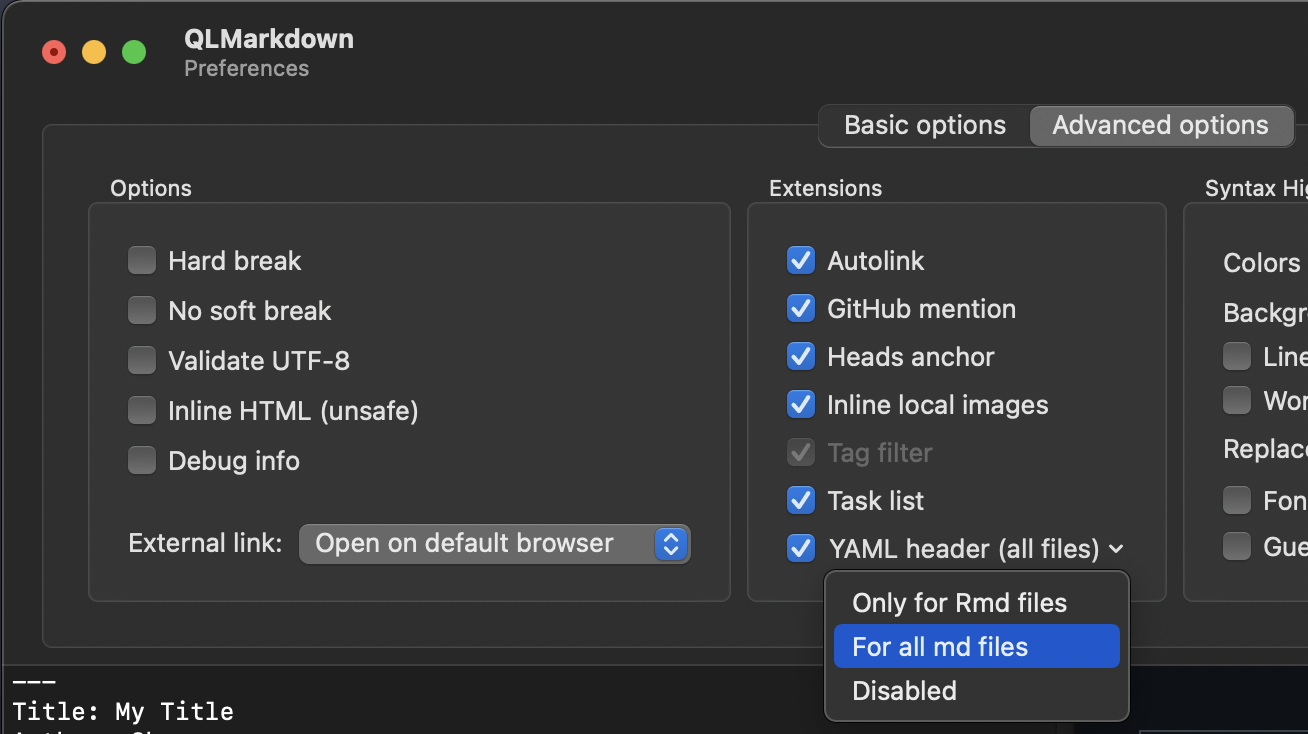
QLmarkdown and
Peek both
enable previewing of Markdown documents. Peek works with a wide range of other
filetypes than Markdown, but costs around €5. QLMarkdown is free, but only
works for Markdown and requires some minor setup.
Note-related features
Create a new note
on: Create a new note.
- File name: Anything you type after the keyword
on(for example,on foobar) becomes the filename of the new note (for example,foobar.md). (Note that the Filename Heading Sync Plugin may interfere with this.)- When triggered via
cmd + ⏎, the new note is created in a new tab.
- When triggered via
- Content: You can select a template note to use in the workflow
configuration. Only
{{title}}is supported as placeholder and is replaced with the filename. Be aware that the template might be overridden by Folder Templates from the Templater plugin. - Location: The new note is placed in the folder specified in the workflow configuration. If the configuration is empty, it is placed in your vault root.
- 💡 There are various settings for creating new notes in the workflow configuration.
Scratchpad
oo or triggered via hotkey: Append to your Scratchpad Note
Quickly add text to the note set in the workflow configuration. (This command is
basically a quicker version of the fn + ⏎ mode of the Alfred-based Quick
Switcher.)
- When using
oo foobar, appendsfoobarto the note. - Using just
oo, you can also directly open the Scratchpad. - Triggered via hotkey, appends the current selection.
- When you add
#foobarto path of the scratchpad file in the workflow configuration (for example,Inbox/Scratchpad-Note#Thoughts), the text is appended to the section with the heading "foobar."
[!TIP] There are various settings for the scratchpad in the workflow configuration. You can, for instance, use Alfred's Dynamic Placeholders to prefix the current date and time, or use a dynamic path to a daily note.
Screenshot features

OCR screenshots
Triggered via Hotkey: Take an OCR Screenshot.
- Similar to the default Mac Hotkey
⌘ ⇧ + 4, you are able to select part of your screen for a screenshot. However, instead of saving a screenshot, a new note is created which contains the OCR-ed content of the selection. - For best results, you should set the languages to be recognized in the
workflow settings, such as
eng+deufor English and German. You can find out the code for your languages in this list. - 💡 There are various settings in the workflow configurations for OCR-screenshots.
Requirement For the OCR-Screenshot Feature, you need to install Tesseract. If you use Homebrew, you can do so with the following command:
brew install tesseract tesseract-lang
[!TIP] The first time you use the OCR or image screenshot feature, you might have to give Alfred permission to record your screen. You can do so under the macOS system settings.
Image screenshot
Triggered via Hotkey: Take an image screenshot.
- Similar to the default Mac Hotkey
⌘ ⇧ + 4, you are able to select part of your screen for a screenshot. The image is directly saved in your vault with the filenameScreenshot {date} {time}.pngand the image is embedded (![[image_file_name.png]]) in the noteImages.mdin your vault root. - The images are saved in
{vault-path}/screenshots/by default. You can use the workflow configuration to specify a folder in your vault where to save the images instead. - If the file
Images.mdalready exists in your vault root, any subsequent screenshots are instead appended to this note. This is intended for taking screenshots in quick succession, for instance during a live lecture or presentation. - 💡 There are various settings in the workflow configurations for screenshots.
Utility features
Workspace switcher
ow: Switch to a different workspace
- Displays a list of your workspaces. Select one to open the workspace.
- You can also manage your Workspaces from here, that is, saving, loading & deleting a workspace.
- Unsurprisingly, this workflow requires the Workspaces Core Plugin to be enabled.

Vault switcher
ov: Open Vaults in Obsidian, Finder, or the Terminal
- Select a Vault and press
⏎to open it in Obsidian. ⌃ ⏎opens the root of the selected vault in your default Terminal. You can change the default terminal in the Alfred Settings.⌥ ⏎opens the root in Finder.⇧ ⏎Control this vault with Alfred.
[!NOTE] The
Metadata Extractorand theAdvanced URIplugins need to be installed and enabled in every vault you want to control. TheMetadata Extractorneeds to be configured in every vault as well.
Back up your vault
obackup: Create a backup of your vault.
- Your whole vault is compressed into a zip file and then moved to the location you specified in the workflow configuration.
- This command respects the maximum number of backups you have set (workflow
configuration
max_number_of_bkps) to prevent taking up too much disk space. When the number is reached, every new backup causes the oldest backup to be deleted. - The hidden folders
.obsidianand.trashare included in the backup, the.gitfolder is excluded. - 💡 Advanced users: you can use the following AppleScript snippet to trigger a backup. This is useful to create automated backups via launchd, Cron jobs, or Keyboard Maestro.
tell application id "com.runningwithcrayons.Alfred"
	run trigger "backup-obsidian" in workflow
	"de.chris-grieser.shimmering-obsidian"
end tell
# pass 'no sound' as argument to turn off backup confirmation sound
[!WARNING] Please be aware that this is a simplistic backup solution. While I do not have any problems with it, this workflow comes without any warranties, as stated in the license. If you care about safety, please use a professional backup solution.
CSS files
ocss: Access your css files.
- Open a CSS snippet in your default text editor.
Open various folders
o.obsidian: The hidden.obsidianfolder located in your vault root is opened in Finder.o.trash: Open the hidden.trashfolder located in your vault root is opened in Finder. (Note that you have to selectMove to Obsidian trashin the Obsidian settings under theFiles & Linkstab before deleted files can be found here.)oapplicationsupport: Open Obsidian's Application Support folder.oplugins: The plugin folder in.obsidianis opened in Finder.othemes: The theme folder in.obsidianis opened in Finder.
Update plugins & metadata
oupdate: Update plugins and metadata used by this workflow
- Update your community plugins (and beta plugins installed via the BRAT Plugin).
- Refresh the metadata used for this workflow manually.
Plugins, themes, and settings
Plugins
op: combined Search of community plugins and community themes.
- Press
⏎to open the plugin's GitHub repository.- Use
⌘ + ⏎to open the plugin in Obsidian's Community Plugin Browser instead. - Press
⌥ + ⏎to copy the plugin URI (obsidian://show-plugin?id=…) to your clipboard. ⌘⌥ + ⏎: Copy the plugin link together with a description.
- Use
- Only plugins officially included in the community plugins are displayed — plugins solely available via GitHub or still in review are not shown.
- Add
pluginto the search query to only display plugin, for example, useop focus pluginas search query to only display plugins with the termfocus. - The
opsearch also considers the name of the plugin's author, meaning the queryop JaneDoereturns all plugins (and themes) authored by the userJaneDoe.
Themes
op: Combined Search of community plugins and community themes.
- Press
⏎to open the theme's GitHub repository in the browser.- Use
⌘ + ⏎to open the theme browser instead. (There are no separate theme pages in Obsidian Theme Browser that can be opened.) - Press
⌥ + ⏎to copy the theme URI (obsidian://show-theme?id=…) to your clipboard. ⌘⌥ + ⏎: Copy the plugin link together with a description.- Use
⇧or⌘ + Yto open a Quick Look Preview of the theme's promo screenshot. Press⇧or⌘ + Yagain to close the preview.
- Use
- Only themes officially included in the community themes are displayed — themes solely available via GitHub or still in review are not shown.
- Add
themeto the search query to only display themes, for instance useop focus themeas search query to only display themes with the termfocus. - The
opsearch also considers the name of the theme's author, meaning the queryop JaneDoereturns all themes (and plugins) authored by the userJaneDoe.

Settings & local plugins
o,: Search and directly open specific setting tabs.
- The search includes Obsidian main settings, quick access to the plugin and
theme browser, as well as settings for plugins. Press
⏎to open the respective setting directly. ⌥ + ⏎opens the local plugin folder in.obsidian/plugins/in Finder.⇧ + ⏎enables/disables the plugin.- ⚙️ For developers:
⌘ + ⏎opens the local plugin folder in your default Terminal. (You can change the default terminal in the Alfred Settings.)⌃ + ⏎copies the plugin's ID. (Hold⌃to see the plugin's id.)fn + ⏎runsgit pullin the plugin's directory.
[!TIP]
o,refers to the⌘ ,shortcut used to open the settings.
Documentation searches
Official documentation
oh: Search the official Obsidian help
(documentation)
- This command mimics the search behavior on the official documentation site,
meaning that it also searches for headings inside individual documentation
pages.
- Press
⏎to open in your default browser. - Use
⌥ + ⏎to copy the link to your clipboard.
- Press
Plugin developer documentation
odd: obsidian developer documentation Search
Search the official Obsidian developer docs.
Cheat sheet
o: All notesoe: All external linksot: Tagsob: Bookmarked files/searchesor: Recent filesoa: Attachmentsoo: Append/open to scratchpadon: New noteow: Workspace switcherov: Vault switcheroh: Documentation searchop: Search plugins/themeso,:Search settings and installed pluginsocss: Open CSS snippets
Credits
- Thanks to @kometenstaub for developing the metadata extractor plugin, as this workflow is its main client.
- Also thanks to @Vinzent03 for his invaluable Advanced URI plugin, which enables Alfred to control various aspects of Obsidian.
- Most icons created by Freepik (Flaticon).
About the developer
In my day job, I am a sociologist studying the social mechanisms underlying the digital economy. For my PhD project, I investigate the governance of the app economy and how software ecosystems manage the tension between innovation and compatibility. If you are interested in this subject, feel free to get in touch.
[!IMPORTANT] Due to the large number of requests I receive, and due to the need for information the respective forms ask for, I am not able to give support via email. For questions, bug reports, or feature requests for this workflow, please open a GitHub issue.
If you find this project helpful, you can support me via 🩷 GitHub Sponsors.
How to Install
- Download the ZIP or clone the repository
- Open the folder as a vault in Obsidian (File → Open Vault)
- Obsidian will prompt you to install required plugins
Stats
Stars
1036
Forks
47
License
MIT
Last updated 2mo ago
Categories
Tags