23 Stars
GitHubCSSAny theme
# <div align="center">SupaBase Jump for Obsidian</div>
<div align="center">
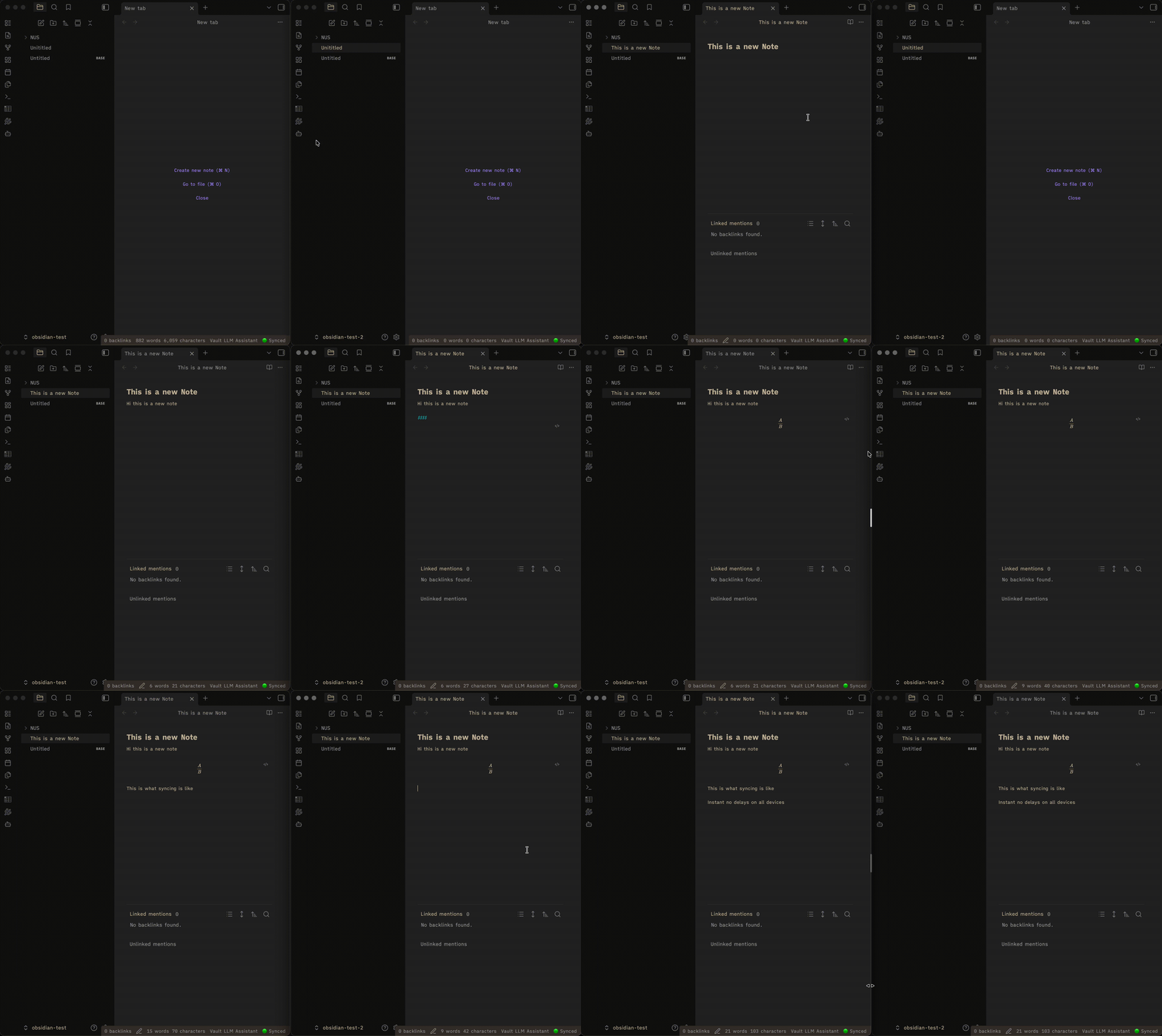
Sync your Obsidian vault with Supabase in real time. Edit the same note on two devices simultaneously, keep platform-specific settings separate, and access your notes from anywhere.
</div>
<br />
<div align="center">
**Note:** This is an unofficial way to sync and back up your notes. [Obsidian Sync](https://obsidian.md/sync) is the official supported option.
</div>
<div align="center">
<a href="https://github.com/brianstm/obsidian-supabase-jump/releases">
<img src="https://img.shields.io/github/v/release/brianstm/obsidian-supabase-jump?style=for-the-badge&sort=semver&label=LATEST&color=6874e8" alt="Latest release" />
</a>
</div>
## Demo

> If the video is blurry, you can [download it here](assets/video-demo.mp4).
## Features
- **Real-time collaborative editing** - Two devices sharing the same account can edit the same note at the same time. Yjs CRDTs handle merging automatically; updates broadcast instantly as you type with no duplication.
- **Real-time sync** - Changes propagate across all your devices via Supabase Realtime
- **Conflict resolution** - Newer files always win (based on modification time)
- **Binary file support** - Images, PDFs, and other attachments sync via Supabase Storage
- **Frontmatter parsing** - Properties and tags from markdown frontmatter are stored in dedicated columns for SQL querying
- **Selective sync** - Exclude specific folders from syncing
- **Settings sync** - The `.obsidian/` folder syncs automatically to share themes, snippets, and plugin settings across devices
- **Platform-specific config** - Choose which config files sync only to mobile or only to desktop (e.g. keep separate themes or plugin lists per platform)
- **Self-hosted support** - Works with any Supabase-compatible instance, not just supabase.com
- **Mobile compatible** - Works on both desktop and mobile Obsidian
- **One-click setup** - Automated database and storage configuration
- **Offline-first** - Local changes are queued and synced when you reconnect
## Quick Start
### 1. Create a Supabase Project
1. Go to [supabase.com](https://supabase.com) and create a free account
2. Create a new project
3. Copy your **Project URL** and **anon/public key** from **Settings → API**
### 2. Install the Plugin
The plugin is pending review in the community plugin store. Install it via **BRAT** (recommended) or manually in the meantime.
#### Install via BRAT (Recommended)
[BRAT](https://github.com/TfTHacker/obsidian42-brat) lets you install and auto-update beta plugins directly from GitHub.
1. Install the **BRAT** plugin from the Obsidian Community Plugins store
2. Open **Settings → BRAT → Add Beta Plugin**
3. Paste the repo URL: `https://github.com/brianstm/obsidian-supabase-jump`
4. Click **Add Plugin** - BRAT will install it and keep it up to date automatically
#### Manual Installation
1. Download `main.js` and `manifest.json` from the [latest release](https://github.com/brianstm/obsidian-supabase-jump/releases)
2. Create a folder: `<vault>/.obsidian/plugins/supabase-jump/`
3. Copy the files into that folder
4. Reload Obsidian and enable the plugin in **Settings → Community plugins**
### 3. Configure the Plugin
1. Open **Settings → SupaBase Jump**
2. In the **Initial setup** section:
- Generate a **Personal Access Token** at [supabase.com/dashboard/account/tokens](https://supabase.com/dashboard/account/tokens)
- Paste it into the **Personal access token** field
- Click **Run full setup** - this creates the database table, storage bucket, and enables Realtime
3. Fill in your credentials:
- **Project URL** - Your Supabase project URL (e.g. `https://xxxxx.supabase.co`)
- **Anon/public key** - Your anon/public key
- **Email** - Your Supabase account email
- **Password** - Your Supabase account password
4. Click **Connect**
That's it! Your vault will start syncing automatically.
## Usage
### Automatic Sync
Once connected, the plugin automatically:
- Pushes local changes to Supabase (debounced by 1 second)
- Pulls remote changes from other devices in real time
- Syncs on startup (if **Sync on startup** is enabled)
- Syncs periodically based on your **Sync interval** setting
### Real-Time Collaborative Editing
When two devices open the same markdown note, they join an ephemeral Supabase Realtime channel for that file. Edits are merged using [Yjs](https://github.com/yjs/yjs) CRDTs. Changes appear on the other device instantly as you type, with no full-document replacement or text duplication. The Yjs state is kept only in memory; once you close the note the channel is released and normal `mtime`-based conflict resolution takes over.
### Platform-Specific Config Paths
In **Settings → Platform-specific config paths**, toggle which Obsidian config files should sync only to the current platform (mobile or desktop):
| Toggle | Path | Example use |
| ---------------------- | ------------------------ | ------------------------------ |
| Appearance | `appearance.json` | Different theme on mobile |
| Themes folder | `themes/` | Mobile-only themes |
| CSS Snippets | `snippets/` | Mobile/desktop-only CSS |
| All plugins | `plugins/` | Desktop-only plugin data |
| Installed plugins list | `community-plugins.json` | Different plugins per platform |
| Custom hotkeys | `hotkeys.json` | Different shortcuts on mobile |
| Workspace layout | `workspace.json` | Different pane layout |
Use the **Custom paths** field to add any other paths not listed above.
When a file matches a platform-specific path, it is tagged in the database (`platform = 'mobile'` or `platform = 'desktop'`). Pull operations skip rows tagged for a different platform.
### Manual Sync
Use the **Actions** section in settings:
- **Sync now** - Full two-way sync (push + pull)
- **Fetch now** - Pull remote changes without pushing local files
Or use the command palette:
- `SupaBase Jump: Force sync now`
- `SupaBase Jump: Fetch from database`
- `SupaBase Jump: Show sync status`
### Exclude Folders
To exclude folders from syncing, add them to **Excluded folders** (comma-separated) in settings.
Example: `Templates, archive/old`
By default no folders are excluded. If you want to prevent vault settings from syncing entirely, add `.obsidian` to your excluded list (or use the platform-specific config paths feature for finer control).
### Self-Hosted Supabase
The plugin works with any Supabase-compatible URL. Enter your self-hosted instance URL in the **Project URL** field. Note that the one-click setup uses the Supabase cloud management API, so for self-hosted instances you will need to run the SQL manually using the guide in the settings panel.
## How It Works
### Architecture
- **Text files** (`.md`, `.txt`, etc.) - Content stored directly in the `vault_files` PostgreSQL table
- **Binary files** (images, PDFs, etc.) - Uploaded to Supabase Storage; metadata in `vault_files`
- **Database sync** - Supabase Realtime broadcasts row changes to all connected clients for file-level sync
- **Live editing sync** - A per-file Supabase Broadcast channel carries Yjs CRDT updates for same-note co-editing
- **Conflict resolution** - Higher `mtime` (modification time) wins for file-level sync; Yjs handles in-session edits automatically
### Database Schema
The plugin creates a `vault_files` table with:
| Column | Type | Description |
| ------------------------ | --------- | ------------------------------------------------- |
| `id` | text (PK) | `{vaultId}::{filePath}` (slashes → `__SLASH__`) |
| `vault_id` | text | Unique ID for your vault |
| `path` | text | File path relative to vault root |
| `content` | text | File content (text files only) |
| `storage_path` | text | Supabase Storage key (binary files only) |
| `frontmatter` | jsonb | All YAML frontmatter properties |
| `tags` | text[] | Tags extracted from the `tags:` frontmatter field |
| `platform` | text | `'all'`, `'mobile'`, or `'desktop'` |
| `mtime`, `ctime`, `size` | bigint | File metadata |
| `deleted` | boolean | Soft-delete flag |
| `user_id` | uuid | Used by RLS to scope rows to each user |
### Querying Frontmatter from Supabase
Once notes are synced you can query them directly from the Supabase SQL editor or any Postgres client:
```sql
-- All notes tagged "book"
SELECT path, frontmatter->>'title', tags
FROM vault_files
WHERE 'book' = ANY(tags) AND deleted = false;
-- Notes where status is not "done"
SELECT path, frontmatter->>'status'
FROM vault_files
WHERE frontmatter->>'status' != 'done' AND deleted = false;
-- Notes by a specific author, sorted by date
SELECT path, frontmatter->>'date'
FROM vault_files
WHERE frontmatter->>'author' = 'Alice'
ORDER BY frontmatter->>'date' DESC;
-- Count notes per tag
SELECT tag, COUNT(*)
FROM vault_files, unnest(tags) AS tag
WHERE deleted = false
GROUP BY tag ORDER BY count DESC;
-- Desktop-only config files
SELECT path FROM vault_files
WHERE platform = 'desktop' AND deleted = false;
```
### Storage Bucket
Binary files are stored in a private `vault-attachments` bucket with:
- RLS policies ensuring users can only access their own files
- Base64url-encoded keys to handle special characters in filenames
- Original file extensions preserved for MIME type inference
## Troubleshooting
### "Setup failed at step 1/2/3"
- **Step 1 (Database)** - Check your Personal Access Token is valid and has the required permissions
- **Step 2 (Storage bucket)** - If auto-creation fails, manually create a bucket named `vault-attachments` (Private) in **Supabase → Storage**
- **Step 3 (RLS policy)** - Ensure your Supabase project has the `storage` schema enabled
### "Email not confirmed"
If you see this error after connecting:
1. Check your email inbox for a confirmation link from Supabase
2. Click the link to confirm your account
3. Click **Connect** again in the plugin settings
Or disable email confirmation:
1. Go to **Supabase → Authentication → Providers → Email**
2. Uncheck **"Confirm email"**
### Files not syncing
1. Check the status bar (bottom-right) - it should show **🟢 Synced**
2. Open the browser console (**Ctrl+Shift+I** / **Cmd+Option+I**) and look for errors
3. Verify your **Vault ID** is set in settings
4. Check that the file path is not in your **Excluded folders** list
5. Try **Sync now** manually from settings
### Real-time editing not working
1. Ensure both devices are connected (🟢 Synced in the status bar)
2. Make sure both devices have the same file open
3. Check the browser console for channel subscription errors
4. The CRDT channel only activates for `.md` files in a MarkdownView
### "Invalid key" errors
The plugin automatically handles special characters in filenames by base64url-encoding storage keys. If you still see this error:
1. Ensure you are running the latest version of the plugin
2. Check the browser console for the full error message
3. Report the issue on [GitHub](https://github.com/brianstm/obsidian-supabase-jump/issues) with the filename
## Development
### Building from Source
```bash
git clone https://github.com/brianstm/obsidian-supabase-jump.git
cd obsidian-supabase-jump
npm install
npm run dev
npm run build
```
### Project Structure
```
src/
├── main.ts # Plugin entry point and lifecycle management
├── settings.ts # Settings interface and UI
├── supabase.ts # Supabase client and authentication
├── sync.ts # File sync logic and Realtime listeners
├── realtime-crdt.ts # Yjs CRDT manager for real-time co-editing
└── frontmatter.ts # YAML frontmatter parser
```
## Privacy & Security
- Your vault data is stored in **your own Supabase project** - not on third-party servers
- All database access uses **Row Level Security (RLS)** - you can only read and write your own files
- The CRDT broadcast channel is **ephemeral** - no Yjs state is persisted to the database
- Passwords are hashed by Supabase Auth - the plugin never stores plaintext passwords
- No telemetry or analytics - the plugin is fully open source
## License
MIT - see [LICENSE](LICENSE)
## Support
- **Issues & Feature Requests** - [GitHub Issues](https://github.com/brianstm/obsidian-supabase-jump/issues)
## Acknowledgments
Built with:
- [Obsidian Plugin API](https://docs.obsidian.md)
- [Supabase](https://supabase.com)
- [Supabase JS Client](https://github.com/supabase/supabase-js)
- [Yjs](https://github.com/yjs/yjs) - CRDT library for real-time collaborative editing
How to Install
- Download the CSS file below
- Move it to your vault's
.obsidian/snippets/folder - Open Obsidian → Settings → Appearance → CSS Snippets → Enable it
Stats
Stars
23
Forks
4
License
NOASSERTION
Last updated 26d ago