
2 Stars
GitHubCSSAny theme
# Monorepo README Summary
This is a summary of all the README.md files in the monorepo. It is generated by the script `scripts/readme_summarizer/summarize_readmes.py` and should be updated whenever a README.md file is added or updated.
## Table of Contents
- [bramses-highly-opinionated-vault-2023](#bramses-highly-opinionated-vault-2023)
- [chatgpt-md](#chatgpt-md)
- [obsidian-ghost-publish](#obsidian-ghost-publish)
- [weekly-digest-gpt](#weekly-digest-gpt)
- [alfred-workflows](#alfred-workflows)
- [youtube-assets-from-video](#youtube-assets-from-video)
- [uploads](#uploads)
- [move_project](#move_project)
- [switchboard](#switchboard)
- [gpt-to-chatgpt-ts](#gpt-to-chatgpt-ts)
- [eleven-labs-obsidian](#eleven-labs-obsidian)
- [moon](#moon)
- [moons](#moons)
- [ytclip-10s](#ytclip-10s)
- [query-zettel-embeddings-obsidian](#query-zettel-embeddings-obsidian)
- [summarize-with-gpt3-obsidian](#summarize-with-gpt3-obsidian)
- [gpt-to-chatgpt-py](#gpt-to-chatgpt-py)
- [spotify-recently-played-markdown-list](#spotify-recently-played-markdown-list)
- [chatgpt-export](#chatgpt-export)
- [i-aint-reading-all-that](#i-aint-reading-all-that)
- [process-notes-alfred](#process-notes-alfred)
## Relationship Graph
This is a graph of the relationships between the README.md files in the monorepo. It is generated by the script `scripts/readme_summarizer/summarize_readmes.py` and should be updated whenever a README.md file is added or updated.
```mermaid
graph LR
bramses-highly-opinionated-vault-2023 --> chatgpt-export
bramses-highly-opinionated-vault-2023 --> chatgpt-md
bramses-highly-opinionated-vault-2023 --> obsidian-ghost-publish
chatgpt-export --> chatgpt-md
chatgpt-md --> chatgpt-export
chatgpt-md --> obsidian-ghost-publish
gpt-to-chatgpt-ts --> gpt-to-chatgpt-py
gpt-to-chatgpt-py --> gpt-to-chatgpt-ts
obsidian-ghost-publish --> chatgpt-md
obsidian-ghost-publish --> bramses-highly-opinionated-vault-2023
alfred-workflows --> bramses-highly-opinionated-vault-2023
alfred-workflows --> obsidian-ghost-publish
youtube-assets-from-video --> obsidian-ghost-publish
i-aint-reading-all-that --> bramses-highly-opinionated-vault-2023
i-aint-reading-all-that --> obsidian-ghost-publish
process-notes-alfred --> bramses-highly-opinionated-vault-2023
switchboard --> chatgpt-export
summarize-with-gpt3-obsidian --> bramses-highly-opinionated-vault-2023
summarize-with-gpt3-obsidian --> obsidian-ghost-publish
query-zettel-embeddings-obsidian --> bramses-highly-opinionated-vault-2023
query-zettel-embeddings-obsidian --> obsidian-ghost-publish
moon --> alfred-workflows
eleven-labs-obsidian --> bramses-highly-opinionated-vault-2023
eleven-labs-obsidian --> obsidian-ghost-publish
ytclip-10s --> obsidian-ghost-publish
ytclip-10s --> youtube-assets-from-video
ytclip-10s --> alfred-workflows
weekly-digest-gpt --> bramses-highly-opinionated-vault-2023
```
## bramses-highly-opinionated-vault-2023
Path in Monorepo:
```
/bramses-highly-opinionated-vault-2023
```
<details><summary>Click to expand</summary>
---
aliases: [README]
tags: [readme]
title: README
date created: Friday, December 9th 2022, 12:24:59 pm
date modified: Saturday, December 17th 2022, 6:15:46 pm
linter-yaml-title-alias: README
---
# README
## Introduction
Welcome to **Bramses' Highly Opinionated Vault 2023**! Thanks for checking it out.
What you'll see in this repo is a **highly opinionated, unapologetic** way to use [the knowledge base application Obsidian](https://obsidian.md/). Note that this is not the *only* way to use Obsidian, nor is it the *correct* way. But it is a way that **works well**, especially once you understand the [philosophies](#Philosophies) behind it.
Some of these techniques may be familiar to you, others may be novel due to the *idiosyncracies about how my own mind works*. I'll do my best to explain all of my philosophies and lived experience in the creation of this vault. Some techniques, processes and plugins are built into the platform. Other techniques leverage powerful external softwares to greatly enhance the Obsidian experience. I'll argue for those as they come as well as provide potential alternatives.
**Bramses' Highly Opinionated Vault 2023** is a **fully working vault template** that you'll be able to [run on your own](#installation) by using the "Use this Template" button in the top right corner.
By following this guide and leveraging this template, I can promise that you'll be able to evolve from possibly never having used Obsidian to **being up to date with the way I think about using this phenomenal software**. If you are a current Obsidian user, I promise you'll come away with a few new tricks and theories to integrate into your own vault, or perhaps help you full pivot into this strategy. I hope you enjoy and have fun!!
*NB: This guide is **really** long, so don't be afraid to use the [Table of Contents feature in the top left corner of the README](https://github.blog/changelog/2021-04-13-table-of-contents-support-in-markdown-files/).
## Motivation
I've been using Obsidian for well over a year and have developed many experiments, some of which succeeded and many others that have failed. I have tried to compile all the lessons from these experiences and create a vault that mirrors my up to date thinking on how Obsidian can be maximally utilized.
**Bramses' Highly Opinionated Vault 2023** (BHOV-2023) will tread the line of practicality and theory. Let's dive in!
## Philosophies
Before we get into anything practical we **need** to discuss the underlying philosophies powering this vault, or none of the implementations will make any sense. Most of these philosophies I've learned or adapted from great contemporary and erstwhile authors and thinkers -- the following is a reflection of both my value structure as well as my take on the works of others.
Philosophies we'll encounter along the way:
(*nb: github and obsidian use different link styles for multiple word titles so if you are reading this in Obsidian press the (o) next to the names to jump to the heading, disregard if you are on Github*)
- [Deep Work](#deep-work) [(o)](#deep%20work) ([Cal Newport](https://www.calnewport.com/))
- [Time Block Planning](#time-block-planning) [(o)](#time%20block%20planning) ([Cal Newport](https://www.calnewport.com/))
- [PARA](#para) ([Tiago Forte](https://fortelabs.com/))
- [CODE](#code) ([Tiago Forte](https://fortelabs.com/))
- [Progressive Summarization](#progressive-summarization) [(o)](#progressive%20summarization) ([Tiago Forte](https://fortelabs.com/))
- [Zettelkasten](#zettelkasten) ([Niklas Luhmann](https://en.wikipedia.org/wiki/Niklas_Luhmann))
- [Digital Garden](#digital-garden) [(o)](#digital%20garden) ([Andy Matuschack](https://andymatuschak.org/))
- [An unexamined life is not worth living](#An-unexamined-life-is-not-worth-living) [(o)](#An%20unexamined%20life%20is%20not%20worth%20living) ([Socrates](https://en.wikipedia.org/wiki/Socrates))
- [Jamming](#jamming) (Music Production)
- [AGILE](#agile) (Software Development Project Management)
- [Metcalfe's Law](#metcalfes-law) [(o)](#metcalfe's%20law) (Computer Science)
- [Atticus Finch is the same in the house as he is on the public streets](#Atticus-Finch-is-the-same-in-the-house-as-he-is-on-the-public-streets) [(o)](#Atticus%20Finch%20is%20the%20same%20in%20the%20house%20as%20he%20is%20on%20the%20public%20streets) ([To Kill a Mockingbird](https://en.wikipedia.org/wiki/To_Kill_a_Mockingbird))
- [Large Language Models and Transformers](#Large-Language-Models-and-Transformers) [(o)](#Large%20Language%20Models%20and%20Transformers) (Machine Learning)
- [Automation and Scripting](#Automation-and-Scripting) [(o)](#Automation%20and%20Scripting) (Software Development)
- [Content management systems](#Content-management-systems) [(o)](#Content%20management%20systems) (Software Development)
- [Antifragility](#Antifragility) ([Nassim Taleb](https://www.fooledbyrandomness.com/))
- [Version Control Systems](#Version-Control-Systems) [(o)](#Version%20Control%20Systems) (Software Development)
- [Causa Sui](#Causa-Sui) [(o)](#Causa%20Sui) ([Ernest Becker](https://en.wikipedia.org/wiki/Ernest_Becker))
- [Linking Your Thinking + Maps of Content](#Linking-Your-Thinking) [(o)](#Linking%20Your%20Thinking) ([Nick Milo](https://www.linkingyourthinking.com/))
### Deep Work
To do *deep work* is to be able to focus on a significant problem for an uninterrupted block of time. As a software engineer and writer, I am dependent on the flow state to create my best work and cut through the noise of digital and physical distraction.
To increase the likelihood of entering the flow state, and enhancing the quality of the flow state while it's engaged, BHOV-2023 has tools to help you cut through the noise and focus on what needs to get done.
Processes:
- Intra-Vault Research
- Keeping relevant project info in one spot
- Vault wide task management protocols
Plugins:
- QuickAdd
- Tasks
Related Philosophies:
- [Time Block Planning](#time-block-planning)
### Time Block Planning
*Time Block Planning* is the intentional process of giving every hour a "job". This intentional workflow allows for the creator to get a bird's eye view of their active commitments. This methodology bubbles up from daily commitments to a **weekly view** and a **quarterly view**. These views allow for enough space for projects to finish, while being short enough to see realistic change.
In BHOV-2023, I don't functionally time block that much. This is because I usually get a late start to the day, and I don't like using calendars that much. I've found writing the time next to notes in my daily page works just fine, e.g.:
```
1-3p coding
330-5 meeting with [[blah]]
...
```
*if I need a notification for a meeting, I'm most likely gonna be late regardless…*
If you *are* planning on using a daily calendar, I'd recommend the [Full Calendar plugin](obsidian://show-plugin?id=obsidian-full-calendar). I hear good things!
Time Block Planning is great for weekly planning and quarterly planning as well. **The weekly plan informs the actions taken in the daily plan and the quarterly plan informs the actions taken in the weekly plan.** When combined with Templater (plugin) and Periodic Notes (plugin), Time Block Planning gives a great weekly review to look forward to.
Plugins:
- Templater
- Periodic Notes
- Full Calendar (optional)
Related Philosophies:
- [Deep Work](#deep-work)
- [Agile Planning](#agile)
### PARA
The *PARA framework* is a structure that utilizes cross app folders with the same names (**P**rojects, **A**reas, **R**esources, **A**rchives) act as buckets to capture different bits of information. The main value of PARA to this vault is the `Project` and `Archive` folders. These two folders alone do a ton of work and allow resources to "live" inside their parent project folder. This makes organization **much** easier, as well as the retrieval of resources used to create old projects.
If you look in the PARA directory (`/_PARA`), you'll notice a distinct lack of and *Areas* and *Resources* folder. That is because in BHOV-2023, I've offloaded a lot of the value those folders provide to other tools and techniques that will be discussed later. If you have well defined areas in your life and prefer to keep non-project related resources in a centralized place, feel free to recreate the folders!
Scripts:
- `quick-add-create-project-folder.js`
- `quick-add-file-filter.js`
- `quick-add-projects-folder-kanban-variables.js`
- `quick-add-projects-folder-variables.js`
Plugins:
- QuickAdd
- Kanban
- Shimmering Obsidian (optional)
- Waypoint
Related philosophies:
- [CODE](#code)
### CODE
*CODE* by Tiago Forte stands for **Capture**, **Organize**, **Distill** and **Express**. Fast capture with minimal friction is a priority goal of BHOV-2023, because you never know when and where inspiration will strike.
To do quick **capture** on my computer, I leverage Shimmering Obsidian (powerful plugin in Alfred that can be evoked anywhere on your Mac (while watching a video, browsing the web, etc.)) and custom written iOS shortcuts.
The point of Capture shortcuts is to avoid the [Doorway effect](https://en.wikipedia.org/wiki/Doorway_effect#:~:text=The%20doorway%20effect%20is%20a,remained%20in%20the%20same%20place.). The shortcuts put raw thoughts in our `Inbox/` for future processing. The important part is that we can **trust that our ideas will land in a place where we can process them later**.
*A similar process is done on my mobile device leveraging iOS shortcuts and Obsidian Sync.*
These apps and plugins serve as scouts, running the long distance of time and space to place ideas in your trusted vault from anywhere in the world.
> In a nod to Greek history, the first marathon commemorated the [run](https://www.livescience.com/5359-perfect-running-pace-revealed.html) of the soldier Pheidippides from a battlefield near the town of Marathon, Greece, to Athens in 490 B.C. According to legend, Pheidippides ran the approximately 25 miles to announce the defeat of the [Persians](https://www.livescience.com/who-were-the-persians) to some anxious Athenians. Not quite in mid-season shape, he delivered the message "Niki!" (Victory!) then keeled over and died.
In BHOV-2023, **Organization** is accomplished using plugins like Dataview and Tasks to surface relevant data from across the entire vault. For example, tasks captured from your mobile device on the go anywhere in your vault will show up in the same place with this Tasks filter:
```\tasks
not done
heading includes todo/mobile
```
This is a great way to de-stress about open tasks getting buried in some previous note, never to be seen again.
**Distill** will be discussed in the Progressive Summarization section, and **Express** in the Digital Garden and CMS sections.
Plugins:
- Shimmering Obsidian
- Sync
- iOS shortcuts
- Readwise
Scripts:
- `quick-add-file-filter.js`
- `quick-add-projects-folder-kanban-variables.js`
- `quick-add-projects-folder-variables.js`
Related Philosophies:
- Progressive Summarization
- Digital Garden
- CMS
### Progressive Summarization
*Progressive Summarization* is a research/reading technique developed by Tiago Forte. In short, the goal is to read something, look for salient and helpful material, and highlight it. Then a second pass is applied, doubly emphasizing the important bits **you find important**. Finally, a third pass is done to rewrite the concept in **your own words**. Let's use the paragraph from above as an example:
Highlighted from [source](https://www.livescience.com/11011-marathons-26-2-miles-long.html):
> …
>
> In a nod to Greek history, the first marathon commemorated the [run](https://www.livescience.com/5359-perfect-running-pace-revealed.html) of the soldier Pheidippides from a battlefield near the town of Marathon, Greece, to Athens in 490 B.C. According to legend, Pheidippides ran the approximately 25 miles to announce the defeat of the [Persians](https://www.livescience.com/who-were-the-persians) to some anxious Athenians. Not quite in mid-season shape, he delivered the message "Niki!" (Victory!) then keeled over and died.
>
> …
Second pass (*notice the bolded text*):
> …
>
> In a nod to Greek history, the first marathon commemorated the [run](https://www.livescience.com/5359-perfect-running-pace-revealed.html) of the soldier Pheidippides from a battlefield near the town of Marathon, Greece, to Athens in 490 B.C. According to legend, **Pheidippides ran the approximately 25 miles to announce the defeat of the [Persians](https://www.livescience.com/who-were-the-persians)** to some anxious Athenians. Not quite in mid-season shape, he delivered the message **"Niki!" (Victory!) then keeled over and died**.
>
> …
Third pass (*my own words of the passage above*):
The first marathon was run not for fun or to push one's body for exercise, but for duty. The messenger Pheidippides made the 25 mile trek on foot to pronounce victory (Niki!) to the Athenian citizens. He then promptly died.
---
To facilitate this process BHOV-2023 leverages Readwise and Unique Note Creator to do the three passes. Readwise is pass one, pass two is to exract salience and a title and tags (this can be done with AI thanks to GPT-3 Summarizer!), but a lot of the times I do it by hand. Finally, the tird pass is setting the note into it's final Zettelkasten state, and assigning to a PARA project, or leaving it in the root directory.
Plugins:
- Unique Note Creator
- Readwise
- GPT-3 Summarizer (optional)
Related Philosophies:
- Large Language Models
- Zettlekasten
- PARA
### Zettelkasten
*Zettelkasten*, German for slip box, is the metaphorical glue that holds ideas together that don't belong to a particular [PARA](#para) project. Zettelkasten is a loose but extremely powerful structure, and a system with few [hard and fast rules that can scale magnificently](https://zettelkasten.de/introduction/).
These rules are:
1. Unique Identifier as filenames
2. Atomic content -- one note roughly equals one coherent thought
3. Links, tags, and citations are more important than including the knowledge in the note itself
Fortunately for us, Zettelkasten is a core feature of the Obsidian workflow. The core plugin Unique Note Creator will take care of creating IDs. Plugins like Footnote Shortcut and Zotero Plugin make citing external resources breeze. This allows you as the author to focus on two things:
1. Is this note atomic?
2. What will I link it to?
In BHOV-2023, Zettlekasten is responsible for ideas and notes that don't fit cleanly into the `Projects` or `Archive` folders of [PARA](#para).
In other words, Zettelkasten notes are evergreen knowledge that form your lattice of thinking, but don't have specific utility. In BHOV-2023, the goal of the Zettelkasten is to serve as puzzle pieces to help us Express (the E in [CODE](#code)) ourselves.
Notes like [[202212090137]] and [[202212090136]] live in the root directory, but have tags that serve as "buckets". The page preview plugin allows us to hover over the notes and see what's inside (if you're reading this in Obsidian, go ahead and give it a try!).
**Make sure to give context to links when you link them for future reference.**
When creating a new file in BHOV-2023, by default it will automatically create it to the Zettelkasten spec. A single Zettelkasten is referred to as a Zettel, so each note is tagged with \#zettel by default in BHOV-2023.
Plugins:
- Templater
- Unique Note Creator
- Omnisearch
- Local Graph
- Backlinks
- Unique Note Creator
Related Philosophies:
- Large Language Models
- Digital Gardening
Workflows:
New file (`ctrl-n`) automatically creates a Zettelkasten note to spec, you just need to enter a title as specified by Templater.
If you have content you want to extract from an existing note into a Zettel, you can highlight the text you want to convert, copy it to clipboard, and then create a new note with `ctrl-n`
You can use `alt-shift-z` to search Zettelkasten notes by their human readable titles.
### Digital Gardening
If Zettelkasten is the planting of the seed of a single idea, *Digital Gardening* is the maintenance of the whole. It is the work of groundskeeping the entire vault, and finding utility in the edges.
We can ease the "writers' block" of deciding which notes to upkeep by leveraging **Random Note Review**, which will surface three notes to review in our Daily Note.
```
<%* const files = app.vault.getFiles(); const random = Math.floor(Math.random() * (files.length - 1)); const random2 = Math.floor(Math.random() * (files.length - 1)); const random3 = Math.floor(Math.random() * (files.length - 1)); const randomNote = files[random]; const randomNote2 = files[random2]; const randomNote3 = files[random3] -%>
- [ ] [[<% randomNote.basename %>]]
- [ ] [[<% randomNote2.basename %>]]
- [ ] [[<% randomNote3.basename %>]]
<%* const todayIs = tp.date.now("YYYY-MM-DD") %>
```
The side benefit of all this work is that it publishable! Since a garden is a collection of linked and curated thoughts, a published garden serves as a public utility similar to maintained gardens in the real world.
Visitors can meander around [your thought garden](https://www.bramadams.dev), stopping to marvel at the hydrangeas, or beelining straight for the mini pagoda and water feature in the corner.
Later, we'll address how to separate private and public, but for now, assume any note that you do the work to Zettelkasten-ize, will eventually have some sort of public value.
Plugins:
- Publish
- Templater
- Footnote Shortcut
Related philosophies:
- Zettelkasten
- Content Management Systems
### An Unexamined Life is Not Worth Living
*Daily journaling* is a *meta habit*, a habit that anyone can apply to their existing life at any point for an improved experience.
Journaling allows for reflection and revisitation of past thoughts and events, planning and decomposing future desires into attainable goals, and most importantly, journaling serves as a conduit for thought in the present.
The self-Socratic method undertaken by a journaling exercise is both a form of catharsis and a tool for unabated growth.
In BHOV-2023, **the dashboard is the daily note**. The daily note is the reflection of the driver, a trusted sidekick in the goings on of the day. In addition, thanks to Time Block Planning, BHOV-2023 has weekly and Quarterly notes as well, which are linked to the evolving daily note.
Leveraging Templater and Periodic Notes, BHOV-2023 creates a flexible daily note template that can easily adapt to the owner's life.
Plugins:
- Templater
- Periodic Notes
- Dataview
- Tasks (optional)
- Map View (optional)
- iOS Shortcuts (optional)
- Default New Tab Page (optional)
### Jamming
In music production, *jamming* is getting together with some like minded individuals to create a creative output. The goal is to have fun and find a riff that everyone can groove to, and bring out the best in their instrument.
Obsidian is first and foremost a single player experience. There are ways to engage publicly, but many of these techniques are readonly.
Indeed, the best jamming sessions in Obsidian come from the notes that already exist in the vault. We can use random notes to surface and inspire thought, to break existing thought patterns and introduce new concepts into our line of thinking.
The **goal of jamming is to have no goal**. The idea is to *have fun, to explore the vault for interesting ideas or concepts to snowball off of later*.
Plugins:
- Random Note
- Canvas
- Pinned Notes
### AGILE
In technology, **AGILE** is the process of splitting software development work into two week sprints.
The AGILE methodology pairs well with [PARA](#para) and Time Block Planning because it forces us to prioritize elements of a project that can be delivered in two weeks.
In BHOV-2023, Weekly Notes (`/Calendar/Weekly`) highlight active projects, as well as when they were started to give a high level grasp of management. In the projects themselves, there is a `QuickAdd: Add to Project Kanban` option, allowing you to quickly add new to-do items to the project.
Quarterly notes (`/Calendar/Quarterly`) track the opposite. The quarterly note tracks **how much was achieved in the quarter**. This is good for feeling accomplished. The Quarterly note also [stores projects you want to accomplish, but don't have time for right now](#someday/maybe-tasks-(GTD)).
Plugins:
- Dataview
- Templater
- Kanban
### Metcalfe's Law
**Metcalfe's Law** is a concept that says that the value of a network is the square of the number of nodes in the network.
In the parlance of Zettelkasten, **the more connected notes you have, the higher the value of the overall system.**
Processing notes from Readwise and Daily Notes will automatically put you into Metcalfe Law category, over a long period of time. **The goal is to keep showing up, and to keep expanding your network whenever possible.**
Related Philosophies:
- Digital Garden
- Progressive Summarization
### Atticus Finch is the Same in the House as He is on the Public Streets
Being a **local device first application**, Obsidian is "private by default" (well, at least as private as everything else on your laptop).
Obsidian also has tools for publishing public notes that we saw in the Digital Garden section above, namely the Publish plugin.
BHOV-2023 acknowledges the need to keep certain things private and has a **Private folder that uses Supercharged Links and Style Settings to visually warn you if you are linking to a private note in your shared section**. In addition, in `.gitignore` there are a selection of files you may want to consider keeping Private and not committing to version control software (discussed later).
Plugins:
- Supercharged Links
- Style Settings
- Obsidian Git
- Publish
- Sync
### Large Language Models and Transformers
AI has been taking over the news lately, particularly **Large Language Models** (LLMs). These models serve as transformers, meaning that they can embed any type of data (code, text, images, etc.) and use a strategy called *attention* and a *bunch of data* to predict the next token using probability.
[How and why this works is beyond the scope of this README](https://dugas.ch/artificial_curiosity/GPT_architecture.html), but know that we can use LLMs to our benefit.
Thanks to Zettelkasten, we have perfectly cordoned off atomic thoughts that can be embedded for semantic search.
Semantic search is a powerful type of search that indexes across meaning instead of full text searching. For example, I might be able to search singer and retrieve "Taylor Swift", but if I were using full text search, singer and Taylor Swift have no letters in common so I would return zero results. This is not relevant for BHOV-2023, but I'm actively working in this area, so hope for good news on this front soon!
Plugins:
- GPT-3 Summarizer
Related Philosophies:
- Zettelkasten
### Automation and Scripting
**Automation** is useful because it prevents the creative, energy-requiring human from having to do repeat, boring work. By abstracting away a problem, we can simply press a button that will fire a bunch of processes in the background to do work for us.
Automation provides **leverage**, which is desperately needed if one wants to get serious work done. In BHOV-2023, automation can be found everywhere, from the templates to the commands in the [ribbon](#ribbon-commands); each automation is meant to save you time and to allow you to put your energy where it really matters, forming new ideas and finishing quality projects.
Plugins:
- `/_scripts`
- Templater
- DataviewJS
- QuickAdd
### Content Management Systems
Posting content on the internet has become a very normalized thing to do -- whether you post on your own domain or a large website like Twitter. Sharing coherent and well structured thought is rapidly becoming a necessary skill to survive in the 21st century.
Fortunately for us, we have a whole databank of really good thoughts to pull from! With structured data sourcing from PARA and "unstructured" data emerging from our Zettelkasten, creating long form content is more about stitching together existing raw material than creating from scratch.
A **content management system** makes the process of posting easier taking care of boilerplate, formatting, serving to readers, etc. The most popular example is Wordpress, though many tools like Ghost/Substack serve similar roles these days.
Obsidian can also be used as a full e2e CMS. I know because I built one into Obsidian! The plugins required to make a full CMS are outside the scope of BHOV-2023, but if you'd like to see the code that powers my Obsidian backed CMS you can click [here](https://github.com/bramses/kaneki) and [here](https://github.com/bramses/kaneki-obsidian), or if you want a deep dive on the process of building a CMS into Obsidian, click [here](https://www.bramadams.dev/). If you use [Ghost](https://ghost.org) as a CMS, I also wrote a fork of the Obsidian Ghost Publish [here](https://github.com/bramses/obsidian-ghost-publish)
Plugins:
- Kanban
Related philosophies:
- PARA
- Zettelkasten
- Deep Work
### Antifragility
*Antifragility* is a concept by Nassim Taleb that states that certain systems can get **stronger** in response to minor crises. Antifragile systems don't just recover or rebound from stressors, they thrive. Examples of antifragile systems include animal muscles that get stronger when put under stress. The immune system is another example of an Antifragile system.
In BHOV-2023, Antifragility means that as your vault evolves you shouldn't feel ashamed or embarassed if a project fails, or an experiment with a new structure backfires. One of the top priorites of BHOV-2023 is to be flexible and adapt to **your system**. Remember, *many/all of the items I'm suggesting are optional*, but the stress of trying to make them adapt into your world view will make you and BHOV-2023 a stronger system. Fight what you see, be skeptical, make it better!
> **Absorb what is useful, reject what is useless, add what is essentially your own**
> - Bruce Lee
Related philosophies:
- Zettelkasten
- An Unexamined Life is not Worth Living
### Version Control Systems
*Version Control Systems* like Git and SVN are specialized programs that track in history what happened to a particular file. For example, click this link to see a secret sentence that used to live right here: <https://github.com/bramses/bramses-highly-opinionated-vault-2023/commit/bbb68cbfd5e224f3a2a4b3022afc73364c236233?diff=split>
These changes are particularly useful to software engineering teams who need to trace the history of a working block of code. For our case in BHOV-2023, Git is mainly used for two things: file versioning and light publishing capability.
Git very easily can monitor the **state** of the vault at any period of time, creating a snapshot of connections, notes, and plugins at a given moment in time. This means that we can update our files without fear that we'll delete something important.
Git(Hub) also serves as a light publishing tool because you can have a public repository and GitHub has a Markdown renderer which means that when people visit files they will render in Markdown -- [example](https://github.com/bramses/bramses-highly-opinionated-vault-2023/blob/main/Readwise/Articles%20Test/The%20Ancient%20Japanese%20Technique%20That%20Produces%20Lumber%20Without%20Cutting%20Trees.md).
Plugins:
- Obsidian Git
External Software:
- GitHub
Related philosophies:
- Digital Garden
- Content Management Systems
### Causa Sui
In the Denial of Death, philosopher Ernest Becker discusses the idea that we all knowingly or unknowingly undergo *Causa Sui projects*, or immortality projects.
An *immortality project* is the desire for one to create meaning past their own life span, using their work, genetic progeny, or cultural beliefs of an afterlife.
As a daily journal system as well as a project management system, BHOV-2023 attempts to help spark and foster creativity, allowing the Causa Sui project to emerge organically through your thoughts, daily goings on, and work.
In addition, publishing Zettelkasten notes **allows you to be highly productive, without doing extra work**.
Related Philosophies:
- Zettelkasten
### Linking Your Thinking
**Linking your Thinking** by Nick Milo is the concept of using emergence to discover relationships between your notes.
I think of MoCs as directionally flexible Table of Contents. You can gather together a case from across your notes and link them in one space.
Automatically, Folder Notes include the Waypoint plugin which will keep a live version of all children in a folder. This is great for Parent level folders like `Projects` and `Archive`.
Manually, you may also look to create your own Maps of Content (MOCs) from a particular tag, or create a Zettelkasten note that is a map of other Zettelkasten Notes. Meta!
Plugins:
- Luhmann
- Unique Note Creator
## Implementation
Now that we have examined some of the philosophies that power BHOV-2023, we get to go into the gritty details of how to set BHOV-2023 up, starting with the **Big Three Workflows**.
### The Big Three
Most interactions with BHOV fall under three categories: project related work, daily notes related work, and Zettelkasten related work. Each has its own set of workflows, and particularities. Let's dive into each and see how to work with each of them.
#### From Capture To Complete Thought (Zettelkasten)
There are numerous ways that new information comes into the BHOV-2023 vault. As long as we can trust that items will enter our vault, we can deal with them whenever. Since obsidian is folder backed, anything that can insert a file into BHOV-2023 will show up in your vault. If a note has the \#to-process tag, it will show up in `Computed/To Process`.
When you open a note that needs processing, take a second to think about the note that you are looking at. Is it missing information or context that you can provide? Is it too long? Can it be shortened down to something more pithy?
To me, a note is "Zettelkastened" once it: conforms to the [Zettelkasten](#zettelkasten) format and you wouldn't mind putting in a letter and sealing up in an envelope (atomic).
Finally highlight the text that you just created and cut/copy it to clipboard. Once in the clipboard hit `ctrl-n` to make a new note, and templater it will automatically create a Zettelkasten note. Make sure to go back to the note you created and link the newly processed note!
#### Project Management Like a Pro (Projects)
Projects are goals that have a particular end state, whether that is a deadline or some sort of "project completion" state.
A project you are currently working on will go under the `_PARA/Projects` folder. You can use the [ribbon commands](#ribbon-commands) to interface directly with active projects with the help of macros and user scripts.
When a project is finished, the folder is moved to the `_PARA/Archive` folder. For future projects if there was a particularly helpful resource, you can "summon" it by looking in the Resources of your Archived project.
Publishing the WIP resources is a great way to show your work, without having to stress about making a brand new format!
> Once a day, after you’ve done your day’s work, go back to your documentation and find one little piece of your process that you can share. Where you are in your process will determine what that piece is. If you’re in the very early stages, share your influences and what’s inspiring you. If you’re in the middle of executing a project, write about your methods or share works in progress. If you’ve just completed a project, show the final product, share scraps from the cutting-room floor, or write about what you learned. If you have lots of projects out into the world, you can report on how they’re doing—you can tell stories about how people are interacting with your work. ([Location 211](https://readwise.io/to_kindle?action=open&asin=B00GU2RGGI&location=211))
>
> Show Your Work! - Austin Kleon
#### Daily Note Domination
Last but not least, the Daily Note Workflow allows for capture of events, thoughts, and to-dos in the real world. In the Daily Note Template, you can easily move up to the weekly note and the quarterly note that a daily note belongs to. In addition, the ribbon command `Capture Thought` allows for quick capture to the current daily note.
### Folder Structure
The following is the folder structure used by BHOV-2023, along with short descriptions as to why each exists.
- \_PARA
- Projects (*active projects*)
- Test Project
- Kanban (*project board for a specific project*)
- Scratchpad (*back of the napkin thoughts for a specific project*)
- Test Project (*every folder has a file of the same name -- this is looked for by Dataview and in Waypoint*)
- Archive (*finished projects*)
- \_scripts (*a collection of JS scripts that power BHOV-2023*)
- \_tests (*tests for BHOV 2023*)
- \_tutorial
- Hotkeys (*hotkeys used by BHOV-2023*)
- Attachments (*images used for this README*)
- Attachments (*public images and pdfs*)
- Computed (*dataviews of information computed across your vault*)
- Trackers (*trackers like habit trackers, reminders etc*)
- Tasks (*open tasks found using - \[ \] all across the vault*)
- Calendar (*collection of time-bound notes: daily, weekly, quarterly*)
- Daily
- Weekly
- Quarterly
- Databases (databases are a collection of files that have very similar attributes to each other like people recipe work out etc.)
- Inbox
- Computer Capture (*notes captured from external apps from your computer*)
- Smartphone Capture (*notes captured from external apps from your phone*)
- Private
- CRM (*a database of people, including support for social media handles*)
- Attachments (*images will automatically be placed into this folder*)
- Readwise-Example (*an example folder to show the integration between BHOV-2023 and Readwise*)
- Articles Test
- The Ancient Japanese Technique That Produces Lumber Without Cutting Trees (*an example of how a readwise article is lined to a project and put into To Process for summarization*)
- Templates (*templater uses these to populate files*)
- Daily
- Weekly
- Quarterly
- People
- Zettelkasten Note (*triggered every time a new file is made to help conform to [Zettelkasten](#zettelkasten) spec*)
- Canvases (optional) (*a list of Obsidian Canvases*)
- Excalidraw (optional) (*a list of Excalidraw items*)
### Elements of Markdown Important to BHOV-2023
#### Footers
*Footers* serve two very important roles: citation and non destructive updates. Citation is used in the [Zettelkasten](#Zettelkasten), to help link a note to its source material.
Footers also make for great **non destructive updates** to notes. This means you can revisit an old note, and instead of altering it directly, you can append a footnote to the end of a thought, without changing the structural meaning of the original file. Think of it as sedimentary rock, or a really lightweight [VCS](#version-control-system).
Footnote Shortcut combined with Natural Language Dates allows for super easy non destructive updates that serve as asides, knowledge from a wiser and smarter future you.[^1]
#### YAML
*YAML*, or frontmatter, serves as a way to get computed values or track over time. For example, if you are looking to establish a daily reading habit, you may desire to put that habit in a YAML and then track it.
```
// /Daily/2023-01-01
---
read: 0
---
// /Computed/Trackers.md
\`\`\`tracker
searchType: frontmatter
searchTarget: read
fixedScale: 1.0
fitPanelWidth: true
folder: Daily
datasetName: Read 20 mins or more
month:
\`\`\`
```
#### Tags
Tags are great for searching and grouping. Try and choose memorable tags that will stick out, and to group similar tags together using a plugin like Tag Wrangler.
### Tests
The test folder allows you to check if the plug-ins are performing as normal. Since obsidian can't run test like you might in code you have to be a little bit more cheeky about running tests and really talk them out step-by-step as you might in writing unit tests for a programming language.
### CRM
Another private but universal trait of humans is our relationships to others. Knowing this BHOV-2023 includes a private CRM (`Private/CRM`) that can help keep track of the important people in your life, as well as a smart computed view in `Computed/CRM`.
I use my CRM to keep track of important days like birthdays as well as items discussed (adult relationships can go months without speaking).
### Ribbon Commands
 - Add a quick thought to Project_Name/Scratchpad. Good for project specific thoughts.
 - Create a new task in a project kanban. Good for an open specific project task.
 - create a new project with an optional Kanban Board, Resources page, and Scratchpad.
 - Lint a file. Can also by triggered with `cmd + s`
 - capture a thought to your daily note (if it exists)
 - Insert a link to another Zettel using the **Luhmann** plugin
 - open daily note
 - move a zettelkasten note from the root to the `Private` folder
 - Open a map view of all your notes using the **Map View** plugin. Looks for `location: [lat,long]` in frontmatter
 - open a new Excalidraw drawing using the **Excalidraw** plugin
 - Open active file (and vault) in VSCode
## Tips and Tricks
### Someday/Maybe Tasks (GTD)
Since BHOV-2023 is catered towards immediate processes, you may be wondering where to put open goals you have for yourself that aren't immediately trackable; like "learn Italian" or "run a 5k". I personally create a Kanban within my Quarterly note, and in addition to the regular columns (To Do, In Progress, Complete, Waiting On) I have a fourth column called "Someday/Maybe". The reason I put it in my quarterly note is that quarterly review happens infrequently enough (once every three months) that I get to decide if I really want to take on a Someday/Maybe task. In addition, Quarterly planning is a great time to do long term goal planning and come up with concrete steps!
### How To Search Effectively
Search is a critical component to a well functioning vault. Putting these notes in matters little if you can't find them later. Search can be split into two steps (broadly): the **index step**, and the **query step**.
The index step is where you have the most control. Make sure to populate your notes (especially the Zettels) with tags that you'll remember later. Choose a reasonable and helpful title, and add an alias or two, and split content into helpful headers!
The query step is more out of your hands but you can do things to improve your experience. Know if you are fuzzy searching or searching for exact keywords before you make you make a query. Leverage quotes (\"\") for exact searching, use Omnisearch for fuzzy searches. If you don't like the results you recieve from Omnisearch, try tweaking weights in the settings.
## External Tools
**Bramses' Highly Opinionated Vault 2023** uses *a lot* of external tools and technologies. I firmly believe that each of these technologies plays a significant role in making Obsidian an ecosystem instead of a stand alone application. These tools serve as scouts, fetching information from different places and returning the goods to "home base". That being said, some/most/all have some form of financial component as well as their own learning curves, so I wouldn't be dissapointed if you don't want to use them. That said **Bramses' Highly Opinionated Vault 2023** works a lot better as a holistic system if you do.
### Tools Used
- Readwise ($)
- Alfred (Mac only) ($)
- Shortcuts (iOS only)
- Zotero
- GitHub
- Sync ($)
- Publish ($)
### Readwise
Readwise is a very powerful software that syncs with multiple form of inputs whether that be Twitter or books. The Readwise Official integration automatically syncs into Obsidian once you set it up with your account.
If you'd like to copy my settings you can go into `tests/external/readwise` to see the export settings that I've used.
### Alfred
*Mac only*
Alfred is a global Mac search app that replaces Spotlight. Alfred's main claim to fame is this program ability allowing you to add multiple workflows that you can trigger with a hot key like "sc" or "run", etc.
### Zotero
Zotero is an app that can help you with footnotes in citations in your Zettelkasten notes. There is a chrome extension that allows you to save the title of pretty much any book on Amazon, and then insert it directly into obsidian for a footnote and a citation.
### GitHub
GitHub is a hosting service for code, in BHOV-2023 we use it to store snapshots of our vault, as well as make public changes that others can comment on.
### Sync
[Sync](https://obsidian.md/sync) is an Obsidian official paid service that allows you to sync your obsidian vault between devices. Each vault has a 10 GB limit, so be careful with what you do with images, PDFs, movie files etc.
### Publish
[Publish](https://obsidian.md/publish) is another official Obsidian paid service that allows you to share your vault on a [public URL](https://www.bramadams.dev).
### Shortcuts
*IOS only*
Shortcuts are small bits of code that run on your phone. These small workflows allow for macro style functionality.
In the near future I will publish the shortcuts that I use daily in a sister repo to BHOV-2023.
## A Day in the Life - Real World Use
BHOV-2023 is only helpful if you can use it day in/day out as a tool to help you in life. Here's how I would use it in any random day (let's say Tuesday, perhaps):
**Morning** - refer to my weekly note to see what tasks I have open there -prepare the resources I need to do my best work, move tasks into my daily note and put commitments in my calendar
**Afternoon** - do deep work on my open projects as well as taken care of any commitments, Capture any to-dos that come up from my phone or my computer without context switching
**Evening** - review the notes in `Computed/To Process`. Process these notes into Zettelkasten notes.
**Night** - read new content in the reader app (blogs, youtube videos, podcasts) or my kindle and highlight the things that I like
### Special Case: Saturday or Sunday
Reflection is a critical component to the value of this vault, and so one day a week **must** be carved out to do reflection. This shouldn't take more than thirty minutes or so, but it does need to happen once a week, so choose what works best for you.
Reflection is an extension on what happens on a normal evening where I spend more time processing notes and try to do deeper work in consolidating the thought processes that I've had over the week.
In BHOV-2023 it's easy to traverse through a whole week and just click between the notes to see what you thought during the different days, and use that as firepower to create new notes and ideas.
## Mobile Integration (General)
In BHOV-2023, mobile is mainly used for "upstream" and "downstream" work. Upstream work is raw note insertion. On my phone, I have a "battalion" of shortcuts that manage putting notes into my Obsidian vault. From there, I do most of my processing work on the computer.
Downstream work is searching for existing notes or doing light [progressive summarization](#progressive-summariztion). I try to keep the plugins on mobile light, here's what I use:
- Dataview
- Templater (must have if you want to interface with a Daily Note)
- Periodic Notes (must have if you want to interface with a Daily Note)
- Kanban
- Paste URL into Selection
- Luhman (must have if you want to search the BHOV Zettelkasten directory)
I'm hoping to refine BHOV-2023 for mobile over the course of 2023, and have something ready for BHOV-2024!
## Installation
Great! Now that that's out of the way, we can finally get to running the vault, *phew*!
1. Select `Use this Template` **or** `git clone https://github.com/bramses/bramses-highly-opinionated-vault-2023.git`. This will create a separate GitHub repo for you that will allow you to diverge and add your own flavor to BHOV-2023.
2. Download into your local machine using `git clone` or `download zip`.
3. Open the vault and rename it to whatever you want and open it in Obsidian
4. Select "Trust Author ad enable plugins" to get the community plugins in BHOV-2023 (see picture below)
1. 
5. Before you commit anything to GitHub, make sure you edit `.gitignore` to match what you want to publish. Doing this early will save you headaches down the road if you decide to publish (*part*) of your vault. To do this run the command: `Obsidian Git: edit .gitignore`. You'll already see some commented out options that you might choose to hide from uploading to get hub whether it's private or public.
6. Depending on when you clone this repo, you may want to check plugins for updates. In the bottom right corner, the plugin Plugin Update Tracker will alert you if any plugins in BHOV-2023 need to be updated. If the little plug icon has a red X next to it see what plug-ins need to be updated, and update them.
7. Open this file (README) and pin it with `ctrl-.`
8. From there explore the vault a bit. I would first recommend visiting the starred notes in the bottom left corner.
9. Then I recommend opening the PARA folder, looking at the projects in the files within.
1. Try adding to the Test Project scratch pad by using the `Quick add: add to project scratchpad` command
2. Do the same with the project kanban command
10. Hit the open today button in the left and ribbon to create a new daily note
### "Required" Plugins
Truly nothing in this vault is *required*, but if you want the full experience, these community plugins are quote-unquote mandatory:
The following is a list of these plugins as well as a one sentence blurb of how I use them in BHOV-2023 and why they create the fabric of the system.
- [Auto Link Title](obsidian://show-plugin?id=obsidian-auto-link-title)
- Auto Link Title is a simple but powerful time saving plugin, turning two steps into one. Copy a link on the internet, highlight the text you want to replace in Obsidian and paste as usual. Done!
- [Calendar](obsidian://show-plugin?id=calendar)
- a calendar in the bottom right of the workspace[^2] -- easily jump to a daily note by clicking the day
- [Commander](obsidian://show-plugin?id=cmdr)
- add custom [commands to Obsidian ribbon bar](#ribbon-commands) for easy clicking
- [Dataview](obsidian://show-plugin?id=dataview)
- used in the `/Computed` folder to surface notes from all across the vault, as well as using Yaml for some special features
- [Folder Note](obsidian://show-plugin?id=folder-note-plugin)
- creates a "readme" type file at any directory
- [Footnote Shortcut](obsidian://show-plugin?id=obsidian-footnotes)
- easily insert foot notes. Great for Zettelkasten!
- [Kanban](obsidian://show-plugin?id=obsidian-kanban)
- puts a Kanban board into Obsidian. A simple and powerful extension of the plain to do system, that allows us to make use of multiple columns, and adhere to the tenants of time block planning as well as AGILE
- [Luhmann](obsidian://show-plugin?id=luhman)
- lowers the learning curve greatly for dealing with Zettelkasten notes. Searches by H1 in notes, and allows for easy insertion of Zettelkasten notes from other contexts (check out the chain link in the in the ribbon to the left or press alt shift Z to search your current Zettelkasten notes)
- [Natural Language Dates](obsidian://show-plugin?id=nldates-obsidian)
- allows the use of the @ symbol to insert dates like yesterday tomorrow etc.
- [Obsidian Git](obsidian://show-plugin?id=obsidian-git)
- Version control built into obsidian -- allows for very easy back ups and snapshots
- [Obsidian Linter](obsidian://show-plugin?id=obsidian-linter)
- helps remove the stress of the chore of keeping notes clean, and also populates the YAML with important data
- [Omnisearch](obsidian://show-plugin?id=omnisearch)
- a fast and alternative to the obsidian built-in search, works really well for fuzzy searching
- [Periodic Notes](obsidian://show-plugin?id=periodic-notes)
- extends the daily notes core plug into include weekly and quarterly templates. Also functions very well with templater and calendar
- [QuickAdd](obsidian://show-plugin?id=quickadd)
- a powerful extension that allows us to create macros that do multiple things. Also accept user Scripps so can run JavaScript to create new files and the like. In BHOV-2023, Quick ad is used to enter face with a PARA folder directly, saving the user multiple keystrokes and a ton of time
- Random Note
- [Readwise](obsidian://show-plugin?id=readwise-official)
- *look -- I really hate to put a paid subscription plugin on the "required" list, but this app is **so** good, it's really revolutionized my reading experience across Twitter/Kindle/blogs/podcasts. Plus their new [Reader](https://readwise.io/read) app is straight up awesome. A lot of the ease of this vault, both philosophically and day to day lived experience derives from Readwise, so don't use it at your own risk*
- [Recent Files](obsidian://show-plugin?id=recent-files-obsidian)
- a simple but powerful plug-in that shows you the recently open files which is useful when you don't want to re-search for certain file
- [Style Settings](obsidian://show-plugin?id=obsidian-style-settings)
- style settings works together with supercharged links to provide the emoji in front of the private note section
- [Supercharged Links](obsidian://show-plugin?id=supercharged-links-obsidian)
- see above
- [Templater](obsidian://show-plugin?id=templater-obsidian)
- templater is a powerful plug-in that allows us to create templates for any type of note including YAML, capturing user highlighted text, creating titles on the fly, etc.
- [Waypoint](obsidian://show-plugin?id=waypoint)
- waypoint is an auto generated folder representation in a note. BHOV-2023 uses this as a automated map of content. Pairs very well with the Folder Note plugin
### Optional Plugins
These plugins aren't needed, as some are QoL and others have a steep price tag attached (some even have both!). But these apps are no less critical to my workflow than the "Required" apps above, so I need to include them.
The following is a list of these plugins as well as a one sentence blurb of how I use them in BHOV-2023 and why you may be interested.
- [Open Vault in VSCode](obsidian://show-plugin?id=open-vscode)
- Visual studio code has very powerful support for multiple cursors. These cursors allow for simultaneous editing. This plug-in opens visual studio code to the current note that you were are on in obsidian. Also allows for editing of `.js` files found in the `/scripts` directory
- [Map View](obsidian://show-plugin?id=obsidian-map-view)
- if you put the location tag in your YAML and include latitude and longitude you can see that note on a map view of the entire planet. This gives a new dimension to notetaking allowing you to see the location of where your notes were taken.
- [Excalidraw](obsidian://show-plugin?id=obsidian-excalidraw-plugin)
- Excalidraw is a very powerful drawing tool that allows you to condense thought into visual images. Excalidraw is great for both drawing and visual storytelling
- [Shimmering Obsidian](https://github.com/chrisgrieser/shimmering-obsidian) (Alfred plugin)
- shimmering obsidian is how BHOV captures screen shots into the vault as well as capturing to-do's. Shimmering obsidian is an Alfred plug-in and therefore is Mac only
- [Full Calendar](obsidian://show-plugin?id=obsidian-full-calendar)
- Full calendar is a calendar in obsidian. Full calendar allows you to connect notes to independent meetings and events in your schedule
- [New Tab Default Page](obsidian://show-plugin?id=new-tab-default-page)
- new tab default page is what happens when you hit the plus button on the tab bar you can choose to open a random note a daily note or anything in between
- [Lumberjack](obsidian://show-plugin?id=lumberjack-obsidian)
- lumber jack is a plug-in that allows you to log to your daily note a pending after the journal heading or use the timber obsidian URL to append an out directly to your inbox
- [Plugin Update Tracker](obsidian://show-plugin?id=obsidian-plugin-update-tracker)
- plug-in update tracker keeps track of plug-ins that you've installed and let you know when they need updating it also tells you what is in there Changelog so you can see the code that changed
- [GPT-3 Summarizer](https://github.com/bramses/summarize-with-gpt3-obsidian)
- GPT-3 summarizer takes a highlighted block of text generates a title and tags for it leveraging the machine learning model GPT3
- [Ozan's Image in Editor Plugin](obsidian://show-plugin?id=oz-image-plugin)
- Ozan's image in editor plug-in helps in the displaying of images without having to use the exclamation point In front of the mark down command
- [Simple Embeds](obsidian://show-plugin?id=simple-embeds)
- simple embeds allows you to view tweets and YouTube videos directly inside of your obsidian
- [Settings Search](obsidian://show-plugin?id=settings-search)
- Setting search adds a search bar to the settings window allowing you to move quickly through the settings in obsidian
- [Tag Wrangler](obsidian://show-plugin?id=tag-wrangler)
- tag wrangler allows for editing and renaming tags all across the vault, as well as batching tags together
- [Zotero Integration](obsidian://show-plugin?id=obsidian-zotero-desktop-connector) (requires [Better BibTeX for Zotero addon](https://github.com/retorquere/zotero-better-bibtex))
- Zotero is an external app that allows us to do citations. The Zotaro integration allows us to bring those citations into obsidian
- [Tracker](obsidian://show-plugin?id=obsidian-tracker)
- tracker gives us visualizations of things that we might want to track over time. It's really good for habit trackers and you can do bar charts, line charts, etc. -- any type of graph that you can imagine basically
- [Timestamper](obsidian://show-plugin?id=obsidian-timestamper)
- timestamper is an easy way to get a Zettelkasten ID without having to manually type it yourself
- [Admonition](obsidian://show-plugin?id=obsidian-admonition)
- Customizable callouts, that use the code block (\`\`\`) format instead of the blockquote (>) format
- [Gallery](obsidian://show-plugin?id=obsidian-gallery)
- Display images in your vault in a searchable, mood board like format
- [Projects](obsidian://show-plugin?id=obsidian-projects)
- Notion style project management in Obsidian
- [Text Snippets](obsidian://show-plugin?id=text-snippets-obsidian)
- expand text shortcuts into full sentences like "qbfjlzd" -> "the quick brown fox jumped over the lazy dog"
- [Advanced Tables](obsidian://show-plugin?id=table-editor-obsidian)
- An improvement to built in MD tables, allows for row editing similar to Google Sheets
- [Wikipedia](obsidian://show-plugin?id=obsidian-wikipedia)
- Insert Wikipedia snippets into your vault by searching for the article title
- [Stack Overflow Answers](obsidian://show-plugin?id=obsidian-stack-overflow)
- Insert answers from Stack Overflow directly into Obsidian
- [Auto Note Mover](obsidian://show-plugin?id=auto-note-mover)
- automatically move notes to another folder using a tag
- Minimal Theme Settings
- [Note Refactor](obsidian://show-plugin?id=note-refactor-obsidian)
- Refactor notes by headings -- helpful if you want to partition a note by headings
- [Frontmatter Links](obsidian://show-plugin?id=frontmatter-links)
- If you have URLs in your frontmatter/sources, this plugin is for you. Gives the ability to click links in YAML and open in the browser
- [WikiLinks to MDLinks](obsidian://show-plugin?id=wikilinks-to-mdlinks-obsidian)
- Used to make the process of getting screenshots into BHOV for the GitHub README. Helpful if you're doing something similar!
### Migration Guide for Current Obsidian Users
In the creation of BHOV-2023, the author was in the middle of his own migration from his vault of 1.5 years to BHOV. So this is all quite relevant!
First, the the questions you should ask yourself is: what about your current vault is necessary, what you'd like to change, and where you ideally want to be after migrating. Keep in mind, many of the tricks and strategies used in BHOV-2023 can be inserted into existing vaults, so you might not even need to make a full move! If you're interested in a particular philosophy you can look at the plug-in section under it and just try and integrate those plug-ins into your vault.
After following the traditional [installation section](#installation), the first thing you're probably going to want to do is start migrating a few notes you already have in your old vault into the correct buckets. Once you get a feel for that manually, try to move your outside vault workflows (Alfred, Readwise, etc) to point to BHOV-2023. This will help facilitate the transition without a drastic switch over as new notes will be placed into BHOV-2023 and your existing workflows will be maintained in your old vault.
### Settings
BHOV-2023 has set up numerous settings, but the important ones are as follows:
- *Default View for New Tabs* - Reading View (this is great for tables and Markdown format heavy files, but Live Preview works well too)
- *Attachment Folder Path =* `Private/Attachments` - BHOV-2023 tries to stay local first whenever possible so automatically inserted images will be put into the Private folder
- *CSS Snippets; dataview table overflow* - A CSS snippet that allows for horizontal scrolling of long Dataview tables
### After You're Up and Running
After getting your sea legs for a few days (perhaps a week!) and you feel comfortable with **Bramses' Highly Opinionated Vault 2023** system, it will sadly be time for us to part and for you to forge onwards. You'll be able to safely delete the following files:
- README
- \_tests/\*
- Readwise-Example/\*
- \_tutorial/\*
- \_PARA/Archive/Archived Project (*!Note: do not delete the Archive folder itself, just the example folder*)
- \_PARA/Projects/Test Project (*!Note: do not delete the Projects folder itself, just the example folder*)
- \_PARA/Projects/Test Project 2 (*!Note: do not delete the Projects folder itself, just the example folder*)
- /Computed/Trackers (if you're not using the Tracker Plugin)
### Troubleshooting
Obsidian is a software with many winding roads. Due to the complexity of community plugins being largely driven by independent developers that work for free, some plugins don't always function as they should. Here's a few things to look out for:
##### Sometimes Commander (plugin) moves things on the ribbon by themselves or items disappear
Try `View > Force Reload
#### Sync is acting weird
Make sure that you are syncing to this vault and not another one in your sync settings
#### Templater isn't completing templates correctly
This one's tricky, but try and find out the error from `View > Toggle Developer Tools`. If that doesn't work try to delete the offending line or the template all together.
#### Dataview isn't querying correctly
Make sure the query is syntactically correct. Look into the *tag* or *path* that it is pulling from, do they exist?
#### A script isn't working and I don't know which one
Check the `_scripts` folder. You can't see/edit JS in Obsidian, so you'll need to edit it in another software like VSCode
#### Should I fork or "Use this Template" for BHOV-2023?
[This Stack Overflow answer should help](https://stackoverflow.com/a/68737256/3952024)
#### BHOV-2023 Template was updated and I want the updates!
This is a bit tricky since any template children off of BHOV-2023 have entirely separate histories. [But it it is technically possible](https://stackoverflow.com/questions/56577184/github-pull-changes-from-a-template-repository).
## Videos
Over the year of 2023, I'll be deep diving into different components of BHOV-2023 as some aspects are better communicated visually.
- [BHOV-2023 Example Usage 2022-12-11 - YouTube](https://www.youtube.com/watch?v=28QZ3Zp9GBw&ab_channel=BramAdams)
## Final Word
BHOV-2023 would not be possible without **the amazing team and community that make Obsidian what it is**. This vault works because the technology is built by an amazing team and an amazing community, and all thanks goes to all of the fantastic developers that keep the lights on.
I really do love this software -- it's had such a major impact on my life, it's hard to accurately quantify. It truly is a life-changing piece of technology. I jokingly tell my friends that I've had two pivotal moments in my life where I've noticed a stepwise improvement in my intelligence. The first was when I started reading as an adult as a past-time instead of as a chore. The second is when I first manually linked two discrete ideas in Obsidian and saw them connected real space. The edge between the notes felt like a formalization of a new thought -- *something new that I could grasp tangibly*.
If you liked what you read here, please go ahead and give this repo a star. Better yet if you feel so inclined hit the donate button ;). As I come across new and better paradigms I'm planning on keeping BHOV-2023 updated, perhaps even doing a yearly release with major updates. In the interim I will be updating this README as I go along the year, as well as participating in any discussions above in the [discussions](https://github.com/bramses/bramses-highly-opinionated-vault-2023/discussions) tab.
*Note: If you use BHOV-2023 on Android or Windows, please let me know what replacements you use for the iOS/Mac apps. I'd really appreciate it!*
There is an a lot of knowledge that got lost during the set up of this vault but I tried to be as explicit as possible with every step. As time goes on I will try and update this vault to match the parity of starting from scratch and getting new users going as fast as possible.
Thank you for reading!
## About the Author
Bram Adams (@bramses) is a writer and programmer based out of NYC.
Bram publishes a Zettelkasten with a weekly newsletter, is a [community developer ambassador for OpenAI](https://platform.openai.com/ambassadors), and does freeleance contracts ([for hire!](https://www.bramadams.dev/about/#consulting)) related to AI/web dev/AR+VR.
Bram is the creator of [Stenography](https://stenography.dev), an API and [VSC Extension](https://marketplace.visualstudio.com/items?itemName=Stenography.stenography) that automatically documents code on save, which went [#1 on Product Hunt](https://www.producthunt.com/products/stenography#stenography). He also is the author of [Bramses' Highly Opinionated Vault](https://github.com/bramses/bramses-highly-opinionated-vault-2023), an extremely detailed philosophy + vault template used by hundreds of Obsidian users (new and old!), and [ChatGPT MD](https://github.com/bramses/chatgpt-md), a (nearly) seemless integration of Chat GPT into Obsidian which has been downloaded by thousands of Obsidian users.
You can learn more about him and his work on his [website](https://www.bramadams.dev/about/).
The best way to support his work is to sign up for his newsletter [here](https://www.bramadams.dev/#/portal/).
[^1]: hello from the future!
[^2]: [calendar example](https://github.com/bramses/bramses-highly-opinionated-vault-2023/blob/main/_tutorial/Attachments/calendar.png)
</details>
[link](https://github.com/bramses/bramses-highly-opinionated-vault-2023)
## chatgpt-md
Path in Monorepo:
```
/chatgpt-md
```
<details><summary>Click to expand</summary>
# ChatGPT-MD
A (nearly) seamless integration of ChatGPT into Obsidian.
## Demo
https://user-images.githubusercontent.com/3282661/223005882-6632c997-b9a6-445b-800c-77a4b76a6325.mov
### (youtube mirror - for mobile users ⬇️)
[](https://youtu.be/CxDlol_DDI8)
## Features
- Chat from *any* MD note
- Create Chat *Templates* for sharing and running similar scenarios. Check out the companion repo [chatgpt-md-templates](https://github.com/bramses/chatgpt-md-templates) for some templates!
- As *minimal boilerplate as possible*, only two required in fact! `<hr class="__chatgpt_plugin">` and `role::system|assistant|user`
- Use *frontmatter* to change variables for the ChatGPT API
- *Stream* characters to Obsidian, creating a realtime feel
- Uses *regular Markdown*. Meaning everything from *lists* to *code blocks* from ChatGPT *will render*!
- Create chats from *highlighted text*.
- [*Infer title* from messages](https://github.com/bramses/chatgpt-md/discussions/11). Can be set to run automatically after >4 messages.
- Stream at cursor position or at end of file. Can be set in settings.
- Choose [heading level for role](https://github.com/bramses/chatgpt-md/pull/22) h1-h6. Can be set in settings.
- Custom endpoints can be specified using the url parameter in your front matter. See FAQ for an example.
- Stop a running stream with a command. See commands section below.
- (NEW!) Choose between nine languages for "Infer Title". Can be set in settings.
- (NEW!) ChatGPT comment blocks. Allows you to leave scratchpad notes, backlinks...or anything else really!! See command below for details.
### Commands
#### Chat
The main command! Parses the file and calls ChatGPT. Recommended to add to a hotkey for easy usage.
#### Create New Chat with Highlighted Text
Take currently highlighted text and default frontmatter and create a new chat file in `Chat Folder`
#### Create New Chat From Template
Create a new chat file from a template specified in `Chat Template Folder`. Remember to check out [chatgpt-md-templates](https://github.com/bramses/chatgpt-md-templates) for some templates!
#### Infer Title
[Infer the title of the chat from the messages](https://github.com/bramses/chatgpt-md/discussions/11). Requires at least 2 messages. Can be set in settings to run automatically after >4 messages.
#### Add comment block
Add a comment block to the editor that will not be processed by ChatGPT. Allows you to leave scratchpad notes, backlinks...or anything else really!
Comments begin with `=begin-chatgpt-md-comment` and end with `=end-chatgpt-md-comment`


#### Clear Chat
Removes all messages but leaves frontmatter
#### Stop Streaming (Does not work on mobile)
Stops the stream. Useful if you want to stop the stream if you don't like where ChatGPT is heading/going too long.
#### Add Divider
Add a ChatGPT MD Horizontal Rule and `role::user`.
**!! Note: both `role::system|assistant|user` AND `<hr class="__chatgpt_plugin">` are REQUIRED for the plugin to work!!**
## Installation
### Community Plugins
Go to Community Plugins and search `ChatGPT MD`
### Local
1. Clone this repo into your `plugins` directory in your vault
2. Run `npm i` and `npm run build`
### Both
1. Insert your OpenAI API Key into the settings
2. Set `Chat Folder` and `Chat Template Folder`
3. Add a hotkey for `Chat` (Im using `alt-[`)
## FAQ
### Q: The chat seems to be getting cut off halfway through
To address this, first try to increase your `max_tokens` (default is set to 300). You may also want to update it more permanently in the default frontmatter settings. See pics below:


### Q: Code Blocks cut off halfway through and leave \`\`\`
The Obsidian editor renders backticks in automatically (see [issue](https://github.com/bramses/chatgpt-md/issues/15#issuecomment-1466813500)) and fires extra logic that causes the stream to add extra backticks. To address this, you can:
1. at the end of the code block add \`\`\` (three backticks) to close the code block BEFORE the `<hr>` and delete the three extra Obsidian added automatically.
2. in `role::user` write "keep going"
See pics below:


### Q: How do I use GPT-4?
If you are off the [waitlist](https://openai.com/waitlist/gpt-4-api), simply replace `model: gpt-3.5-turbo` with `model: gpt-4` in the frontmatter. (*note: gpt-4 is slower than turbo!*)
### Q: How do I use a custom endpoint?
```md
---
system_commands: ['I create small self contained app ideas that could fit in a CodePen or a Replit']
url: https://localhost
---
```
The custom API must conform to the OpenAI API spec. eg you could use Azure's OpenAI hosted endpoints here. Refer to your provider for API key handling.
## About the Developer
This repository was written by Bram Adams, a writer and programmer based out of NYC.
Bram publishes a Zettelkasten with a twice/weekly newsletter, is a [community developer ambassador for OpenAI](https://platform.openai.com/ambassadors), and does freeleance contracts (for hire!) related to AI/web dev/AR+VR.
Bram is also the creator of [Stenography](https://stenography.dev), an API and [VSC Extension](https://marketplace.visualstudio.com/items?itemName=Stenography.stenography) that automatically documents code on save. He also is the author of [Bramses' Highly Opinionated Vault](https://github.com/bramses/bramses-highly-opinionated-vault-2023), an extremely detailed philosophy + vault template used by hundreds of Obsidian users, new and old.
You can learn more about him and his work on his [website](https://www.bramadams.dev/about/).
The best way to support his work is to sign up for his newsletter [here](https://www.bramadams.dev/#/portal/).
</details>
[link](https://github.com/bramses/chatgpt-md)
## obsidian-ghost-publish
Path in Monorepo:
```
/obsidian-ghost-publish
```
<details><summary>Click to expand</summary>
# Obsidian Ghost Publish
Plugin for publish to [Ghost](https://ghost.org/) site for [Obsidian](https://obsidian.md/) with a single click.
## How to use
- Create a custom integration follow this [link](https://ghost.org/integrations/custom-integrations/). You would need an **Admin API Key** and **API URL**.
- Once you install the plugin, enable the plugin and add the API KEy and API URL to the setting.
- That's it! you now are able to publish the current document by click on the ghost icon on the sidebar or use the command pallete (CMD+P).
## Frontmatter format
Obsidian Ghost Publish use frontmatter to specify on how you want to publish your post.
At the moment, the format is limited to:
```md
title: string (default: file name)
tags: (default: [])
- tag1
- tag2
featured: boolean (default: false)
published: boolean (default: false)
excerpt: string (default: undefined)
feature_image: string (default: undefined)
```
Note:
- `published` will allows you to specify if you want to publish a post now or draft a post.
### How to run on dev
- Clone this repo.
- `npm i` or `yarn` to install dependencies
- `npm run dev` to start compilation in watch mode.
### Manually installing the plugin
- Run `npm run build`
- Copy over `main.js` and `manifest.json` to your vault `VaultFolder/.obsidian/plugins/your-plugin-id/`.
### Issues & Requests
- For feature requests, please take use of Discussions.
- For any issues with current versions, please use Issues.
</details>
[link](https://github.com/bramses/obsidian-ghost-publish)
## weekly-digest-gpt
Path in Monorepo:
```
/weekly-digest-gpt
```
<details><summary>Click to expand</summary>
# Weekly Digest from Obsidian Files with GPT-4
## Introduction
This program automatically extracts the latest weekly file from a specified Obsidian directory and uses GPT-4 to generate a summarised weekly digest.
## Prerequisites
- Node.js installed in your environment
- OpenAI GPT-4 API Key
- A directory containing your Obsidian files
## Setup
1. Clone or download this repository to your local machine.
2. Install the necessary packages. At the root of your project, run:
```
npm install
```
3. You need to set up two environment variables:
- `OPENAI_API_KEY`: Your OpenAI API key.
- `DIGEST_PATH`: The path to the directory that contains your Obsidian files.
To set these variables, you can use a .env file in your project root. The file should contain the following:
```
OPENAI_API_KEY=yourapikey
DIGEST_PATH=/path/to/your/obsidian/files
```
Replace `yourapikey` and `/path/to/your/obsidian/files` with your actual OpenAI API key and the path to your Obsidian files, respectively.
## Running the Program
To run the program, simply use the command `node index.js` in your terminal, where `index.js` is the name of this script.
## How it Works
1. The script first checks if the necessary environment variables have been set and if the digest path exists.
2. It calls the `getLatestFile()` function to find the most recently created file in the specified directory.
3. Once the latest file is found, the content of the file is read and passed to the `weeklyDigest()` function.
4. In the `weeklyDigest()` function, GPT-4 is called upon to summarize the content of the file into a weekly digest.
**Note:** This script assumes that all the files in the `DIGEST_PATH` are in plain text format. If there are any non-text files in the directory, this could cause errors.
## Handling Errors
If the script encounters an error, it will print a descriptive error message and exit. Common reasons for errors include:
- The OpenAI API key is not set
- The `DIGEST_PATH` environment variable is not set
- The path specified by `DIGEST_PATH` does not exist
- No text files are found in the specified path
- An error occurred while communicating with the OpenAI API
## Conclusion
This script provides an automated way to generate a summarized digest of your weekly Obsidian notes using the power of GPT-4. It's a great tool for reviewing your weekly progress and recapping your thoughts.
</details>
[link](https://github.com/bramses/weekly-digest-gpt)
## alfred-workflows
Path in Monorepo:
```
/alfred-workflows
```
<details><summary>Click to expand</summary>
# alfred-workflows
a collection of alfred workflows
## Installation of workflows
If you want to install a single workflow, click `View Raw` on the file you want download the .alfredworkflow file and double click it to open it in Alfred.
## Workflows
### yt-clip
Clip -15/+15 seconds from a YouTube video at a timestamp.
### PM Obsidian
Append to Resources or Kanban file in an Obsidian vault. [Learn more about this here](https://www.bramadams.dev/202305121544/#code)
### Important Apps Switcher
An example of how to use Alfred to set up hotkeys b/w different apps
</details>
[link](https://github.com/bramses/alfred-workflows)
## youtube-assets-from-video
Path in Monorepo:
```
/youtube-assets-from-video
```
<details><summary>Click to expand</summary>
create yt assets from a transcript using the whisper api (file must be less than 25mb)
</details>
[link](https://github.com/bramses/youtube-assets-from-video)
## uploads
Path in Monorepo:
```
/youtube-assets-from-video/uploads
```
<details><summary>Click to expand</summary>
this folder is where multer stores uploads
</details>
[link](https://github.com/bramses/youtube-assets-from-video/tree/main/uploads)
## move_project
Path in Monorepo:
```
/scripts/move_project
```
<details><summary>Click to expand</summary>
Run `move_project` from root dir of project
## purpose is to
use `git mv` to move a submodule to the archive dir
</details>
[link](https://github.com/bramses/scripts/tree/main/move_project)
## switchboard
Path in Monorepo:
```
/switchboard
```
<details><summary>Click to expand</summary>
# switchboard
## runing
1. `poetry shell`
2. `poetry install`
3. `uvicorn main:app --reload`
## deploy
[](https://vercel.com/new/clone?repository-url=https%3A%2F%2Fgithub.com%2Fbramses%2Fswitchboard&env=API_KEY&envDescription=api%20bearer%20token&envLink=https%3A%2F%2Fgithub.com%2Fbramses%2Fswitchboard%2Fblob%2Fmain%2F.env.example&demo-title=switchboard&demo-description=an%20example%20of%20switchboard&demo-url=https%3A%2F%2Fswitchboard.vercel.app%2Fdocs)
</details>
[link](https://github.com/bramses/switchboard)
## gpt-to-chatgpt-ts
Path in Monorepo:
```
/_archive/gpt-to-chatgpt-ts
```
<details><summary>Click to expand</summary>
# gpt-to-chatgpt-ts
Convert GPT Completion style message to a ChatGPT call
PYTHON VERSION HERE -> https://github.com/bramses/gpt-to-chatgpt-py
## Installation
```bash
npm i gpt-to-chatgpt
```
## Functions
```ts
toChatML(text: string, options?: { system_messages?: string[], role?: Role }): Message[]
```
This function converts a string of text into an array of chat messages in ChatML format, which can be used to display a chat conversation. The options parameter allows you to specify additional options, including:
- `system_messages`: An optional array of system messages that should be included in the chat conversation.
- `role`: An optional role to assign to the chat message. The default is Role.USER.
```ts
get_message(response: any, options?: { usage?: boolean, role?: boolean, isMessages?: boolean }): string | { usage: Usage, messages?: string[], message?: string, roles?: string[] }
```
This function extracts the chat message from a GPT chat response object. The response object is expected to contain a choices array with at least one element, each of which should contain a message field with the chat message. The options parameter allows you to specify additional options, including:
- `usage`: A boolean that indicates whether to include usage statistics for the chat response. The default is false.
- `role`: A boolean that indicates whether to include the role assigned to the chat message. The default is false.
- `isMessages`: A boolean that indicates whether to return the messages as an array. The default is false.
## Usage
To use these functions, simply import them from the module:
```ts
import { toChatML, get_message, Role } from "./index";
// Use the functions here
```
### Full Example Using OpenAI TS API
```ts
const { Configuration, OpenAIApi } = require("openai");
const { toChatML, get_message } = require("gpt-to-chatgpt")
require("dotenv").config();
const configuration = new Configuration({
apiKey: process.env.OPENAI_API_KEY,
});
const openai = new OpenAIApi(configuration);
openai.createChatCompletion({
model: "gpt-3.5-turbo",
messages: toChatML('this is a test')
}).then((data) => {
console.log((get_message(data.data)));
});
// As an AI language model, I cannot provide a specific answer to the prompt, as it is too broad. However, I confirm that this is a test.
```
## Tests
This module includes a test file that can be run using the following command:
```bash
npm test
```
The tests cover the basic functionality of the toChatML() and get_message() functions, as well as some additional options.
## About the Developer
This repository was written by Bram Adams, a writer and programmer based out of NYC.
Bram publishes a Zettelkasten, with a twice/weekly newsletter (which you can subscribe to [here](https://www.bramadams.dev/#/portal/)), is a community developer ambassador for OpenAI and does freeleance contracts (for hire!) related to AI/web dev/AR+VR.
Bram is also the creator of [Stenography](https://stenography.dev), a API and [VSC Extension](https://marketplace.visualstudio.com/items?itemName=Stenography.stenography) that automatically documents code on save.
You can learn more about him and his work on his [website](https://www.bramadams.dev/about/).
</details>
[link](https://github.com/bramses/gpt-to-chatgpt-ts)
## eleven-labs-obsidian
Path in Monorepo:
```
/_archive/eleven-labs-obsidian
```
<details><summary>Click to expand</summary>
# Obsidian Sample Plugin
This is a sample plugin for Obsidian (https://obsidian.md).
This project uses Typescript to provide type checking and documentation.
The repo depends on the latest plugin API (obsidian.d.ts) in Typescript Definition format, which contains TSDoc comments describing what it does.
**Note:** The Obsidian API is still in early alpha and is subject to change at any time!
This sample plugin demonstrates some of the basic functionality the plugin API can do.
- Changes the default font color to red using `styles.css`.
- Adds a ribbon icon, which shows a Notice when clicked.
- Adds a command "Open Sample Modal" which opens a Modal.
- Adds a plugin setting tab to the settings page.
- Registers a global click event and output 'click' to the console.
- Registers a global interval which logs 'setInterval' to the console.
## First time developing plugins?
Quick starting guide for new plugin devs:
- Check if [someone already developed a plugin for what you want](https://obsidian.md/plugins)! There might be an existing plugin similar enough that you can partner up with.
- Make a copy of this repo as a template with the "Use this template" button (login to GitHub if you don't see it).
- Clone your repo to a local development folder. For convenience, you can place this folder in your `.obsidian/plugins/your-plugin-name` folder.
- Install NodeJS, then run `npm i` in the command line under your repo folder.
- Run `npm run dev` to compile your plugin from `main.ts` to `main.js`.
- Make changes to `main.ts` (or create new `.ts` files). Those changes should be automatically compiled into `main.js`.
- Reload Obsidian to load the new version of your plugin.
- Enable plugin in settings window.
- For updates to the Obsidian API run `npm update` in the command line under your repo folder.
## Releasing new releases
- Update your `manifest.json` with your new version number, such as `1.0.1`, and the minimum Obsidian version required for your latest release.
- Update your `versions.json` file with `"new-plugin-version": "minimum-obsidian-version"` so older versions of Obsidian can download an older version of your plugin that's compatible.
- Create new GitHub release using your new version number as the "Tag version". Use the exact version number, don't include a prefix `v`. See here for an example: https://github.com/obsidianmd/obsidian-sample-plugin/releases
- Upload the files `manifest.json`, `main.js`, `styles.css` as binary attachments. Note: The manifest.json file must be in two places, first the root path of your repository and also in the release.
- Publish the release.
> You can simplify the version bump process by running `npm version patch`, `npm version minor` or `npm version major` after updating `minAppVersion` manually in `manifest.json`.
> The command will bump version in `manifest.json` and `package.json`, and add the entry for the new version to `versions.json`
## Adding your plugin to the community plugin list
- Check https://github.com/obsidianmd/obsidian-releases/blob/master/plugin-review.md
- Publish an initial version.
- Make sure you have a `README.md` file in the root of your repo.
- Make a pull request at https://github.com/obsidianmd/obsidian-releases to add your plugin.
## How to use
- Clone this repo.
- `npm i` or `yarn` to install dependencies
- `npm run dev` to start compilation in watch mode.
## Manually installing the plugin
- Copy over `main.js`, `styles.css`, `manifest.json` to your vault `VaultFolder/.obsidian/plugins/your-plugin-id/`.
## Improve code quality with eslint (optional)
- [ESLint](https://eslint.org/) is a tool that analyzes your code to quickly find problems. You can run ESLint against your plugin to find common bugs and ways to improve your code.
- To use eslint with this project, make sure to install eslint from terminal:
- `npm install -g eslint`
- To use eslint to analyze this project use this command:
- `eslint main.ts`
- eslint will then create a report with suggestions for code improvement by file and line number.
- If your source code is in a folder, such as `src`, you can use eslint with this command to analyze all files in that folder:
- `eslint .\src\`
## Funding URL
You can include funding URLs where people who use your plugin can financially support it.
The simple way is to set the `fundingUrl` field to your link in your `manifest.json` file:
```json
{
"fundingUrl": "https://buymeacoffee.com"
}
```
If you have multiple URLs, you can also do:
```json
{
"fundingUrl": {
"Buy Me a Coffee": "https://buymeacoffee.com",
"GitHub Sponsor": "https://github.com/sponsors",
"Patreon": "https://www.patreon.com/"
}
}
```
## API Documentation
See https://github.com/obsidianmd/obsidian-api
</details>
[link](https://github.com/bramses/eleven-labs-obsidian)
## moon
Path in Monorepo:
```
/_archive/moon
```
<details><summary>Click to expand</summary>
A CLI from the moon, beamed directly to your terminal
```
Usage:
moon [command]
Available Commands:
completion Generate the autocompletion script for the specified shell
help Help about any command
new Create a new moon folder inside working dir
orbit Choose a command from moon.config.json to run against
readMe Read all files in the directory
Flags:
-h, --help help for moon
--openAPIKey string OPENAI API KEY [Required]
Use "moon [command] --help" for more information about a command.
```

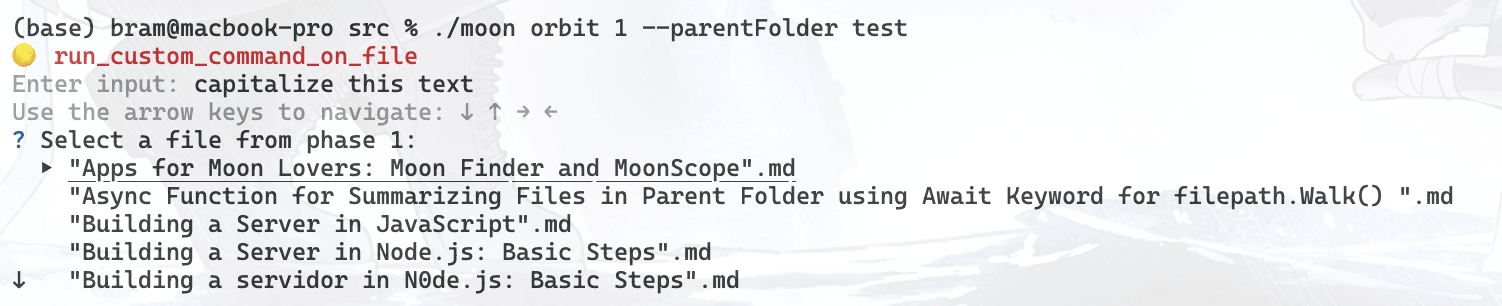

</details>
[link](https://github.com/bramses/moon)
## moons
Path in Monorepo:
```
/_archive/moon/src/moons
```
<details><summary>Click to expand</summary>
# Function to Send Prompt to OpenAI GPT-3 API and Extract Delta Content via Server-Sent Events (SSE).md
# Function to Send Prompt to OpenAI GPT-3 API and Extract Delta Content via Server-Sent Events (SSE)
This code defines a function `ssereq` that sends a prompt to the OpenAI GPT-3 API via an HTTP POST request and receives a response using Server-Sent Events (SSE). The prompt is provided as an argument to the function and is sent as a message in the request body.
The response received via SSE is a sequence of JSON messages that are parsed to extract the delta.content field, which is then written to a file and returned by the function as a string.
The function also sets some headers in the HTTP request and handles errors that may occur during the process.
# Parsing JSON Data to Custom Structs.md
# Parsing JSON Data to Custom Structs
The code in this file defines the `Command` and `Config` structs and their respective fields using the `json` package to define the field names in JSON format.
Moreover, the file includes a function named `ReadConfig()` that accepts a file path, extracts the JSON data from the file and maps it to the defined `Config` struct. It returns an error in case of any reading or parsing issues.
# README.md
# Helpful Assistant README
This file contains a brief instruction on how to summarize a document in README format. The content emphasizes the importance of creating a clear and concise summary with an accurate title that reflects the main topics covered in the document. The goal is to provide a quick and easy-to-understand overview of the content for readers who may not have the time or interest to read the whole document. A good README should be easy to scan, highlight the key points, and provide a clear structure that enables readers to quickly find the information they need. By following these guidelines, you can create an effective README that helps readers quickly understand the purpose and content of a document.
# file name: How to gracefully close an SSE connection with response.close() or body.close() in Python.md
</details>
[link](https://github.com/bramses/moon/tree/main/src/moons)
## ytclip-10s
Path in Monorepo:
```
/_archive/ytclip-10s
```
<details><summary>Click to expand</summary>
# YT Clip 10s
Clip a YouTube Video 10 seconds and get an embed link.
## Running
- Grab YT share link e.g. https://youtu.be/wHh3J3z8ezQ with a start time e.g. https://youtu.be/wHh3J3z8ezQ?t=175
- run main on share link
- use `shouldWrap == true` if you want iframe surrounded by div
## Output
```html
<iframe width="560" height="315" src="https://www.youtube.com/embed/wHh3J3z8ezQ?start=170&end=180" title="YouTube video player" frameborder="0" allow="accelerometer; autoplay; clipboard-write; encrypted-media; gyroscope; picture-in-picture; web-share" allowfullscreen></iframe>
```
</details>
[link](https://github.com/bramses/ytclip-10s)
## query-zettel-embeddings-obsidian
Path in Monorepo:
```
/_archive/query-zettel-embeddings-obsidian
```
<details><summary>Click to expand</summary>
# GPT3 Summarizer
https://user-images.githubusercontent.com/3282661/202096004-8d3d2d4b-f818-4307-a153-6c0e676b179f.mov
# Installation
1. clone the repo: https://github.com/bramses/summarize-with-gpt3-obsidian
2. copy repo into `your_obsidian_vault/.obsidian/.plugins` (tip! click the folder icon in the community plugins tab to open your plugins folder)
# Settings
<img width="797" alt="Screenshot_2022-08-28_16-08-00" src="https://user-images.githubusercontent.com/3282661/202095040-6594b410-9e61-486b-97c6-aed3cff2a57b.png">
</details>
[link](https://github.com/bramses/query-zettel-embeddings-obsidian)
## summarize-with-gpt3-obsidian
Path in Monorepo:
```
/_archive/summarize-with-gpt3-obsidian
```
<details><summary>Click to expand</summary>
# GPT3 Summarizer
https://user-images.githubusercontent.com/3282661/202096004-8d3d2d4b-f818-4307-a153-6c0e676b179f.mov
# Installation
1. clone the repo: https://github.com/bramses/summarize-with-gpt3-obsidian
2. copy repo into `your_obsidian_vault/.obsidian/.plugins` (tip! click the folder icon in the community plugins tab to open your plugins folder)
# Settings
<img width="797" alt="Screenshot_2022-08-28_16-08-00" src="https://user-images.githubusercontent.com/3282661/202095040-6594b410-9e61-486b-97c6-aed3cff2a57b.png">
</details>
[link](https://github.com/bramses/summarize-with-gpt3-obsidian)
## gpt-to-chatgpt-py
Path in Monorepo:
```
/_archive/gpt-to-chatgpt-py
```
<details><summary>Click to expand</summary>
# gpt-to-chatgpt-py
Convert a regular GPT call into a ChatGPT call
TYPESCRIPT VERSION HERE -> https://github.com/bramses/gpt-to-chatgpt-ts
## Installation
```py
pip install gpt-to-chatgpt==0.1.4
```
## Functions
### toChatML()
Converts a string message into a Chat Markup Language (ChatML) object.
#### Usage
```python
toChatML(message:str, options:Optional[dict]=None) -> List[dict]
```
#### Arguments
- message: The string message to be converted to ChatML.
- options (optional): A dictionary that can contain the following keys:
- system_messages: A list of strings that represent system messages to be added to the ChatML object.
- role: The role of the message (either Role.USER or Role.ASSISTANT).
#### Examples
```python
toChatML('hello')
# Output: [{'role': Role.USER, 'content': 'hello'}]
```
```python
toChatML('hello', {'system_messages': ['hi'], 'role': Role.ASSISTANT})
# Output: [{'role': Role.SYSTEM, 'content': 'hi'}, {'role': Role.ASSISTANT, 'content': 'hello'}]
```
### get_message()
Extracts the message content from a response object.
#### Usage
```python
get_message(response: dict, options: Optional[dict] = None) -> Union[str, dict]
```
### Full Usage
```py
import openai
import os
from dotenv import load_dotenv
from gpt_to_chatgpt import toChatML, get_message
load_dotenv()
openai.api_key = os.getenv("OPENAI_API_KEY")
res = openai.ChatCompletion.create(
model="gpt-3.5-turbo",
messages=toChatML("this is a test"),
)
print(get_message(res))
# As an AI language model, I don't really take tests, but I'm always ready to respond to your prompts and queries. How can I assist you today?
```
#### Arguments
- response: The response object from which to extract the message content.
- options (optional): A dictionary that can contain the following keys:
- usage: A boolean value that indicates whether to return the usage information of the response.
- role: A boolean value that indicates whether to return the role of the message.
- isMessages: A boolean value that indicates whether to return the message as a list of messages.
#### Examples
```python
get_message(test_response)
# Output: 'The 2020 World Series was played in Arlington, Texas at the Globe Life Field, which was the new home stadium for the Texas Rangers.'
get_message(test_response, {'usage': True, 'role': True, 'isMessages': True})
# Output: {'usage': {'prompt_tokens': 56, 'completion_tokens': 31, 'total_tokens': 87},
# 'roles': ['assistant'],
# 'messages': ['The 2020 World Series was played in Arlington, Texas at the Globe Life Field, which was the new home stadium for the Texas Rangers.']}
get_message(test_response, {'usage': True, 'role': True})
# Output: {'usage': {'prompt_tokens': 56, 'completion_tokens': 31, 'total_tokens': 87},
# 'role': 'assistant',
# 'message': 'The 2020 World Series was played in Arlington, Texas at the Globe Life Field, which was the new home stadium for the Texas Rangers.'}
get_message(test_response, {'usage': True, 'isMessages': True})
# Output: {'usage': {'prompt_tokens': 56, 'completion_tokens': 31, 'total_tokens': 87},
# 'messages': ['The 2020 World Series was played in Arlington, Texas at the Globe Life Field, which was the new home stadium for the Texas Rangers.']}
```
## About the Developer
This repository was written by Bram Adams, a writer and programmer based out of NYC.
Bram publishes a Zettelkasten, with a twice/weekly newsletter (which you can subscribe to [here](https://www.bramadams.dev/#/portal/)), is a community developer ambassador for OpenAI and does freeleance contracts (for hire!) related to AI/web dev/AR+VR.
Bram is also the creator of [Stenography](https://stenography.dev), a API and [VSC Extension](https://marketplace.visualstudio.com/items?itemName=Stenography.stenography) that automatically documents code on save.
You can learn more about him and his work on his [website](https://www.bramadams.dev/about/).
</details>
[link](https://github.com/bramses/gpt-to-chatgpt-py)
## spotify-recently-played-markdown-list
Path in Monorepo:
```
/_archive/spotify-recently-played-markdown-list
```
<details><summary>Click to expand</summary>
# Installation
`npm install`
# Running
1. `node index.js`
2. Route to `http://localhost:${PORT}/login`
3. Login with Spotify
4. Route to `http://localhost:${PORT}/recently-played`
# Example Output
```md
- [RUCKUS](https://open.spotify.com/track/2OFXp7HvdswNg41lPavDkg)
- [High Enough](https://open.spotify.com/track/60al6ZkP5cOsZN96FqzDGH)
- [Pop Thieves (Make It Feel Good)](https://open.spotify.com/track/5YeKhMgxegy26epLJxnfGE)
- [III. Telegraph Ave. ("Oakland" by Lloyd)](https://open.spotify.com/track/3hyyG3Rm7DdmDwG2ZHfxFR)
- [Cold](https://open.spotify.com/track/6l0knFRwTeQgJ2yHHqwKmt)
- [I Fall Apart](https://open.spotify.com/track/75ZvA4QfFiZvzhj2xkaWAh)
- [SLOW DANCING IN THE DARK](https://open.spotify.com/track/0rKtyWc8bvkriBthvHKY8d)
- [Militant](https://open.spotify.com/track/6ZZw6vR15Tg59f7fl9NZ4X)
- [Martin & Gina](https://open.spotify.com/track/1VLtjHwRWOVJiE5Py7JxoQ)
- [I'll Go](https://open.spotify.com/track/72pGB4XOzAE45n0Zt7wP5A)
- [Simple and Clean](https://open.spotify.com/track/1hcz09fqi3jhVFlV4FMDIg)
- [Kaer Morhen (The Witcher Lofi)](https://open.spotify.com/track/7oEFW2OlmwHA4Ex0zwt7B2)
- [Wake Up](https://open.spotify.com/track/6K6OCvFQ4i7KKfGJsOAqY1)
- [Time in a Tree](https://open.spotify.com/track/4IxT56ZckzSo6gbAb3LDLZ)
- [Write Our Names](https://open.spotify.com/track/04L0p8GVp0O2OL8MXMjlsB)
- [Lemon Tree](https://open.spotify.com/track/1NvpO1o8SpkdH3txtJQQc7)
- [Missed Calls](https://open.spotify.com/track/2kFhiZBYcBziK57oro6Mbt)
- [help herself](https://open.spotify.com/track/4YMc3A256xFBS0xcT77Qce)
- [Spin](https://open.spotify.com/track/2ms0EyHCqDbhH2aqpJ4SJd)
- [Falling Slowly](https://open.spotify.com/track/7f4bsFFcKOU7ysIPjj0yCj)
- [Falling Slowly](https://open.spotify.com/track/7f4bsFFcKOU7ysIPjj0yCj)
- [Everything Goes On](https://open.spotify.com/track/3WBRfkOozHEsG0hbrBzwlm)
- [Kill My Friends](https://open.spotify.com/track/2B49Zt5DvRujMHhCiBALOC)
- [Falling](https://open.spotify.com/track/0Aqi7ArnBrGblW5T6p2jmD)
- [5% TINT](https://open.spotify.com/track/11kDth1aKUEUMq9r1pqyds)
- [Bow Down](https://open.spotify.com/track/5qD3Qv8Wu3r5uRD0DahcZy)
- [Chasing Clouds](https://open.spotify.com/track/4Iw6e5hL3ynmUNV2tgClHL)
- [The One Who Laughs Last](https://open.spotify.com/track/4wMqSymM7ozpFH3qCptZc0)
- [RIP](https://open.spotify.com/track/56Hl42nCqpRKXZYqoWJjMp)
- [Power is Power (feat. The Weeknd & Travis Scott)](https://open.spotify.com/track/4cbdPT6uaBOgOQe3fLMofl)
- [I Am Hell (Sonata In C#)](https://open.spotify.com/track/4QVvAb0wLkHptNrGZAyFKI)
- [A View From The End Of The World](https://open.spotify.com/track/3Exf5qfG17vBeUyTXvxGYm)
- [Goosebumps - Remix](https://open.spotify.com/track/5uEYRdEIh9Bo4fpjDd4Na9)
- [Zagreus](https://open.spotify.com/track/7MRb8WlYgIvLnaywawF6EH)
- [Warrior Inside](https://open.spotify.com/track/4STlXjW6sovdM4RyL9l5pP)
- [The One Who Laughs Last](https://open.spotify.com/track/4wMqSymM7ozpFH3qCptZc0)
- [L'Arabesque Sindria](https://open.spotify.com/track/6VnAojJ5dxkP9jPlrioscV)
- [L'Arabesque Sindria](https://open.spotify.com/track/6VnAojJ5dxkP9jPlrioscV)
- [Ephemeral](https://open.spotify.com/track/7501OuBQChRztHQlEOA0F3)
- [Sugar Skulls](https://open.spotify.com/track/3fmDLAPVx4GiDtnPyDcqxO)
- ["sometimes you meet the right people at the wrong times"](https://open.spotify.com/track/1J5WWo4zSTWIKD7VFr6wn4)
- [Old Yeller](https://open.spotify.com/track/15grT9hTHPxf9jU9YTVEEH)
- [Resist and Disorder](https://open.spotify.com/track/4onvDep8OyHKT85RBO3b4V)
- [Don't Care](https://open.spotify.com/track/5sBElUXaf5CtlFeUSQrGuY)
- [Fireside](https://open.spotify.com/track/38uRB2juU174xSeDdc5tMO)
- [Domination](https://open.spotify.com/track/36asW9E8em0nc4d8iliJsz)
- [Melatonin](https://open.spotify.com/track/4Lsb93G2Zx22n0OROfgMWn)
- [Skyscrapers](https://open.spotify.com/track/7A4HDy55FvvOmODuP6Bok3)
- [Skyscrapers](https://open.spotify.com/track/7A4HDy55FvvOmODuP6Bok3)
- [Sign Of Life](https://open.spotify.com/track/73QoCfWJJWbRYmm5nCH5Y2)
```
# Limitations
Spotify Recently Played API caps at 50 tracks: https://developer.spotify.com/documentation/web-api/reference/#/operations/get-recently-played
</details>
[link](https://github.com/bramses/spotify-recently-played-markdown-list)
## chatgpt-export
Path in Monorepo:
```
/_archive/chatgpt-export
```
<details><summary>Click to expand</summary>
# chatgpt-export
Format and download ChatGPT conversations to markdown, JSON, and PNG for sharing and exporting chat logs.
Exports the active ChatGPT chat log directly from the browser console.
## Usage
1. Navigate to [chat.openai.com/chat](https://chat.openai.com/chat).
2. Open the chat thread you'd like to export.
3. Follow the below steps depending on which output type you'd like.
### JSON
1. Open browser console
2. Copy and paste this function:
`fetch('https://raw.githubusercontent.com/ryanschiang/chatgpt-export/main/dist/json.min.js').then(response => response.text()).then(text => eval(text))`
OR:
1. Copy contents of `/dist/json.min.js`
2. Paste into browser console
### Markdown
1. Open browser console
2. Copy and paste this function:
`fetch('https://raw.githubusercontent.com/ryanschiang/chatgpt-export/main/dist/md.min.js').then(response => response.text()).then(text => eval(text))`
OR:
1. Copy contents of `/dist/md.min.js`
2. Paste into browser console
### Image (.PNG)
1. Open browser console
2. Copy and paste this function:
`fetch('https://raw.githubusercontent.com/ryanschiang/chatgpt-export/main/dist/image.min.js').then(response => response.text()).then(text => eval(text))`
OR:
1. Copy contents of `/dist/image.min.js`
2. Paste into browser console
#### Example output:

## Limitations
This is a trivial implementation as ChatGPT currently does not support sharing or exporting conversations. It may break with future changes.
It currently supports:
- Paragraphs / Text
- Lists
- Code blocks
- Tables
</details>
[link](https://github.com/bramses/chatgpt-export)
## i-aint-reading-all-that
Path in Monorepo:
```
/i-aint-reading-all-that
```
<details><summary>Click to expand</summary>
# i-aint-reading-all-that
voice record > whisper > gpt > copy to clipboard
https://user-images.githubusercontent.com/3282661/231927256-4f2eb3c4-f0a5-441c-8ba3-8c83bb270fe2.MP4
</details>
[link](https://github.com/bramses/i-aint-reading-all-that)
## process-notes-alfred
Path in Monorepo:
```
/process-notes-alfred
```
<details><summary>Click to expand</summary>
# process-notes-alfred
Use Obsidian Advanced URI to open a note (can be downloaded from Obsidian plugin store) and uses Spotify Mini Alfred plugin (https://alfred-spotify-mini-player.com) to play a song.
Requires:
- set up Spotify Alfred
- Obsidian
- Obsidian Advanced URI plugin
</details>
[link](https://github.com/bramses/process-notes-alfred)How to Install
- Download the CSS file below
- Move it to your vault's
.obsidian/snippets/folder - Open Obsidian → Settings → Appearance → CSS Snippets → Enable it
Stats
Stars
2
Forks
0
Last updated 34mo ago