obsidian-at-home
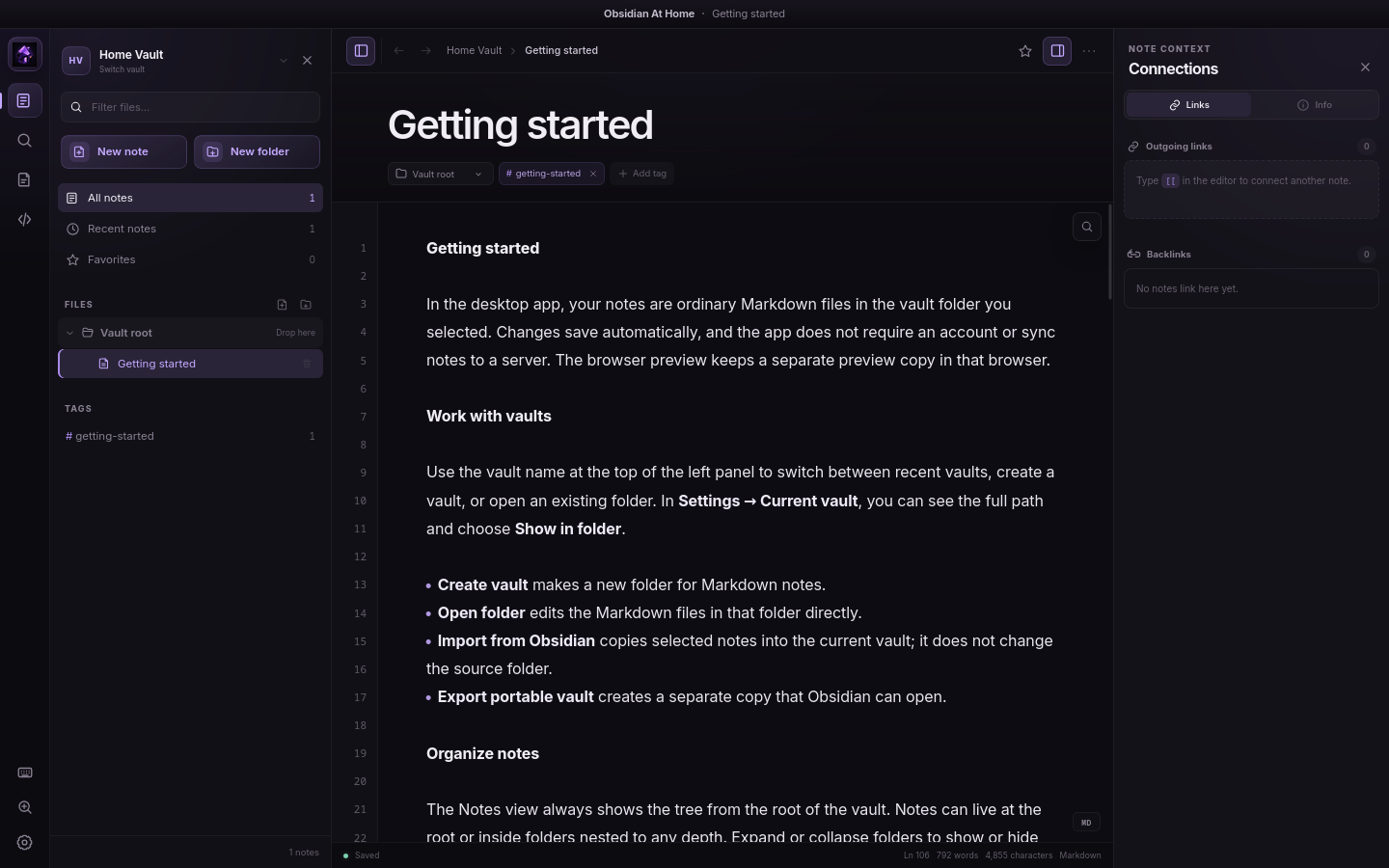
A local-only Markdown notebook built with Vue, Tauri, and Rust, featuring folders, wiki links, backlinks, search, templates, CSS snippets, and Obsidian import/export.
Obsidian At Home
A local-only desktop app for writing, organizing, and linking Markdown notes.
Vue 3 · Tauri 2 · Rust
Notes stay as Markdown files in folders you choose. No account is required, and notes are not sent to a server.
This is not a complete Obsidian replacement: cloud sync, graph view, automation, and community plugins are not supported.
[!NOTE] This project is not affiliated with or endorsed by Obsidian or Dynalist Inc.
Features
- Create, open, and switch between vaults of ordinary
.mdand.markdownfiles. - Organize notes in nested folders with drag-and-drop and right-click file actions.
- Write in a unified live Markdown editor with inline formatting, interactive task checkboxes, tables, spellcheck, syntax-highlighted fenced code blocks, and find-in-note.
- Embed local images or other files, resize images in Markdown, and keep assets with the vault.
- Move through note history with back and forward controls, or revisit notes from Recent notes.
- Return to each note's cursor and scroll position, even after restarting the app.
- Zoom the app with
Ctrl/Cmd++,-, or0. - Personalize the app with light and dark themes, bundled typefaces, or fonts installed on your computer.
- Link notes or jump directly to headings with wiki or Markdown links, then browse outgoing links and backlinks.
- Search titles, content, folders, and tags, or jump to a note with the quick switcher.
- Use freeform tags, favorites, and reusable templates.
- Modify the UI with CSS snippets.
- Import from Obsidian or export a portable vault.
Storage and Obsidian compatibility
Each vault is a folder on your computer. Notes are ordinary Markdown files you can edit with other tools. App-only metadata, including cursor and viewport positions, stays in the vault's .obsidian-at-home folder.
Open an existing Markdown or Obsidian vault directly, or use Settings to:
- Import from Obsidian copies notes, folders, supported image files, non-image attachments, and CSS snippets into the current vault. Notes can be merged or replaced; the source is unchanged.
- Export portable vault creates an Obsidian-compatible copy of notes, image files, non-image attachments, templates, and CSS snippets without overwriting existing folders.
Neither option copies Canvas files, themes, plugins, hotkeys, or workspace settings. They are not backup or sync tools.
Embedded images
Use the image button, press Ctrl/Cmd + Shift + I, or paste an image from the clipboard. Images use standard Markdown paths such as . Optional Obsidian-compatible alt-text suffixes set the displayed width, height, or both: , , and .
Settings can store new images at the vault root, beside the containing note, or in a chosen vault-relative folder. App-created references include an #oah-image=... fragment so the app can recover a uniquely identifiable renamed or moved image while retaining a portable relative path for other Markdown readers.
Supported image files appear in the left file tree. Drag an image from the tree into a note to insert another reference without duplicating the file, or drag a rendered image within its note to move the reference. Images can be renamed from the tree or dragged between folders; references update with the file. Removing the final reference does not delete the image, so an unused image remains available in the tree until it is removed from the vault explicitly.
Embedded files
Use the file button or press Ctrl/Cmd + Shift + A to copy a non-image file into the vault. Attachments use ordinary Markdown links such as [Report.pdf](Attachments/Report.pdf), so other Markdown readers retain a usable path. App-created links also include an #oah-asset=... fragment that lets Obsidian At Home recover a uniquely identifiable attachment after it is renamed or moved.
You can also drag up to 100 files at a time from Finder, File Explorer, or a Linux file manager directly to their intended position in a note. Supported images use the image pipeline; other regular files use the attachment pipeline. Folders and unavailable items are skipped, and multiple files retain their drop order.
Attachment cards work on their own and inside lists, tasks, blockquotes, and tables. Use Rename on a rendered card or in the file tree to rename the stored file and update its references throughout the vault. Editing a Markdown link label changes only its displayed text. Ordinary documents open in their operating-system default app only after an explicit click. Archives use Save archive as… instead of opening or extracting inside the vault; the destination must be outside the active vault. Executables and installers cannot be opened from the app.
Settings provide the same root, beside-note, and chosen-folder storage options used by images. Attachments appear in the left file tree and can be dragged into notes or organized between folders while their references update. Removing the final reference does not delete the attachment.
Build and install
Prerequisites
- Node.js 22.12 or newer and npm; if using Node.js 20, use version 20.19 or newer
- A stable Rust toolchain
- The Tauri prerequisites for your operating system
Clone the repository and install dependencies:
git clone https://github.com/autoboxer/obsidian-at-home.git
cd obsidian-at-home
npm ci
macOS
macOS 11 or newer is required. If needed, install Xcode Command Line Tools:
xcode-select --install
Build the app and DMG:
npm run desktop:build
Artifacts are written to src-tauri/target/release/bundle/. Open the DMG, then copy Obsidian At Home to /Applications (or ~/Applications without administrator access).
The app is unsigned and not notarized. If Gatekeeper blocks your build, Control-click it, choose Open, and confirm.
Linux
Install the system libraries and build tools listed in the Tauri Linux prerequisites. Package names and installation commands vary by distribution.
Build the Linux bundles:
npm run desktop:build
Artifacts are written to src-tauri/target/release/bundle/. Use the AppImage or install the .deb or .rpm produced for your distribution.
For example, on Fedora:
sudo dnf install ./src-tauri/target/release/bundle/rpm/*.rpm
Development
| Command | Purpose |
|---|---|
npm run desktop | Run the desktop app in development mode |
npm run dev | Preview the interface at http://localhost:1420 |
npm run build | Type-check and build the frontend |
npm run desktop:build | Build desktop artifacts for the current platform |
npm run check | Build the frontend and run cargo check |
The browser preview cannot open arbitrary folders or use native import/export. It uses a separate localStorage vault that is not shared with the desktop app.
License
Released under the MIT License.
How to Install
- Download the repository ZIP below
- Unzip it and find the CSS snippet file
- Move the CSS file into your vault's
.obsidian/snippets/folder - Open Obsidian → Settings → Appearance → CSS Snippets → Enable it
Stats
Stars
1
Forks
0
License
MIT
Last updated 1mo ago
Categories