Readingcard Template
Obsidian-readingcard-template
一个Obsidian的阅读卡片模板
特点:
- 基于WeRead同步的微信阅读笔记自动生成;
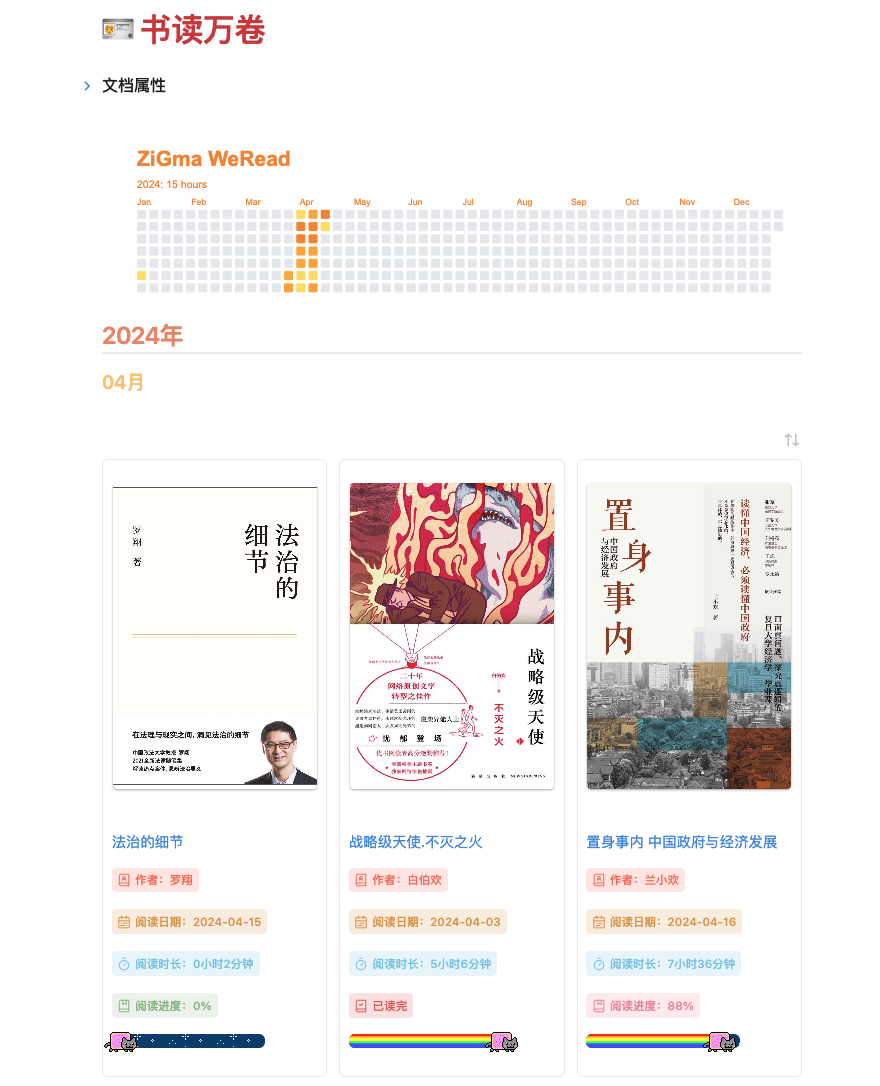
- 以卡片的形式展示正在阅读或者已经阅读书籍;
- 以年、月分类展示当月所读的书籍;
- 自定义色彩管理,可自行变更主题。
更新:
- 重写了书籍信息展示的css,以替换Badges插件;
- 优化了代码逻辑,较大幅度提升了性能;
准备工作
1. 插件
需要安装如下插件:
- WeRead GitHub - zhaohongxuan/obsidian-weread-plugin: Obsidian Weread Plugin is a plugin to sync Weread(微信读书) hightlights and annotations into your Obsidian Vault.
- Dataview GitHub - blacksmithgu/obsidian-dataview: A data index and query language over Markdown files, for https://obsidian.md/.
Badges GitHub - gapmiss/badges: A light-weight plugin for displaying inline "badges" in Obsidian.md- (选装)Callout Manager GitHub - eth-p/obsidian-callout-manager: An Obsidian.md plugin that makes creating and configuring callouts easy.
请自行在第三方插件页面搜索安装。
2.CSS文件
1. Cardview
因为Dataview原生并不支持卡片展示,因此需要自行添加CSS片段以支持该功能。
将以下CSS片段下载后,置入设置-外观-CSS代码片段文件夹中并启用:
cardview.css
2.NyanCat-Progress
该进度条样式源于# Obsidian Dataview丨让彩虹猫咪来追踪你的微信读书进度吧■■■■■■□□□□□□
但是该样式使用<progress>标签 + ::afer伪元素实现,在iOS版的Obsidian中无法显示::after伪元素,因此我用<div>标签复刻了一个。
将以下CSS片段下载后,置入设置-外观-CSS代码片段文件夹中并启用:
nyancat-div.css
如果在其他地方需要引用该样式,请使用以下方式:
<div class="nyan-cat-progress-container"><div class="nyan-cat-progress-bar" value=8><div class="nyan-cat-rainbow"><div class="nyan-cat-img"></div></div></div></div>
3.mybadges
当展示数量超过10个以后(可能是5个),插件Badges对于展示卡片的渲染就会呈现卡顿。
因此,在保证展示效果的前提下,重新写了css片段,以增强性能。
以我为例,笔记文件夹中共有33篇笔记,如果使用Badges插件进行渲染的话需要2751ms,而更改为css渲染仅需702ms,提升了将近4倍性能。
插件设置
1.WeRead
WeRead插件请根据官方指引进行设置,如果需要我的笔记模板,则如下:
---
isbn: {{metaData.isbn}}
lastReadDate: {{metaData.lastReadDate}}
intro: {{metaData.intro}}
---
## 元数据
> [!abstract]- {{metaData.title}}
> - 
> - 书名: {{metaData.title}}
> - 作者: {{metaData.author}}
> - 简介: {{metaData.intro | replace('\r\n', '') | replace('\n', '') }}
> - 链接: {{ pcUrl }}
> - 出版时间: {{ metaData.publishTime }}
> - ISBN: {{metaData.isbn}}
> - 分类: {{metaData.category}}
> - 出版社: {{metaData.publisher}}
## 高亮划线
{% for chapter in chapterHighlights %}
{% if chapter.level == 1 %}### {{chapter.chapterTitle}}{% elif chapter.level == 2 %}#### {{chapter.chapterTitle}}{% elif chapter.level == 3 %}##### {{chapter.chapterTitle}}{% endif %}
{% for highlight in chapter.highlights %}{% if highlight.reviewContent %}
> [!highlight] 高亮
> {{ highlight.markText |trim }}
>> [!comment] 评论
>> {{ highlight.reviewContent |trim }}
>> <p class='weread-time'>- {{highlight.createTime}}</p>{% else %}
> [!highlight] 高亮
> {{ highlight.markText |trim }}
> <p class='weread-time'>- {{highlight.createTime}}</p>{% endif %}
{% endfor %}{{ '---' }}{% endfor %}
## 读书笔记
{% for chapter in bookReview.chapterReviews %}{% if chapter.reviews or chapter.chapterReview %}
### {{chapter.chapterTitle}}
{% if chapter.reviews %}{%for review in chapter.reviews %}
> [!annotation] 划线
> {{review.abstract |trim }}
>> [!notes] 笔记
>> {{review.content}}
>> <p class='weread-time'>- {{review.createTime}}</p>
{% endfor %}{% endif %}{% endif %}{{ '---' }}{% endfor %}
## 本书评论
{% if bookReview.bookReviews %}{% for bookReview in bookReview.bookReviews %}
> [!review] 书评 No.{{loop.index}}
> {{bookReview.mdContent | replace("\r\n", "\n> ")}}
> <p class='weread-time'>- {{highlight.createTime}}</p>
{% endfor%}{% endif %}
2. Callout Manager(如不需要WeRead笔记模板,请跳过)
因为在WeRead的笔记模板中引用了自定义的Callout样式,因此需要在Callout Manager中进行添加以下样式(需以下名称,颜色和图标可以自行定义):
- highlight
- comment
- annotation
- notes
- review
3. Dataview
需要在Dataview中打开Enable JavaScript Queries和Enable Inline JavaScript Queries以使用DataviewJS。
ReadingCard
1. 新建文件,并在文件头添加cssclasses
---
cssclasses:
  - cards
  - table-max
  - cards-cols-3
  - cards-cover
  - cards-align-bottom
  - cards-2-3
---
2. 添加ReadingCard代码
- 将代码块类型定义为:
dataviewjs,并置入代码:ReadingCard.js - 将Path地址改为你的读书笔记路径,即
WeRead插件中笔记保存位置; - 选择预览模式即可;
- 如需变更主题,请变更
selected的值,亦可自行配色。
进阶——每日阅读热力图
[!quote] 需要借助另一个项目 GitHub - ZiGma/Weread_ReadTime_Heatmap 以使用Github的Action功能生成每日的微信阅读热力图,生成后直接在Obsidian中引用即可。
进阶——每日阅读热力图(旧)
[!quote] 需要借助另一个工具 GitHub - malinkang/weread2notion-pro以使用Github的Action功能生成每日的微信阅读热力图,生成后直接在Obsidian中引用即可。
[!quote] 官方设置教程 WeRead2Notion-Pro使用文档
- Fork上述
Weread2Notion-pro项目; - 获取微信读书的Cookie(理论上复制WeRead插件中的
Cookie也可以); - 授权项目调用Notion的API Notion – The all-in-one workspace for your notes, tasks, wikis, and databases.
- 在Fork项目中确认写入权限:
在路径
Settings->Actions->General中确认Workflow permissions为Read and write permissions状态。 - 在Fork项目中添加
secrets变量: 点击Settings->Secrets and variables->New repository secret依次添加
| secret键 | 值 | 备注 |
|---|---|---|
| WEREAD_COOKIE | 第2步获取 | |
| NOTION_TOKEN | 第3步获取 | |
| NOTION_PAGE | 第3步获取 | |
| Name | 热力图标题 |
- 在
Settings->Secrets and variables中添加variables
| variables键 | 值 | 备注 |
|---|---|---|
| BACKGROUND_COLOR | #ffffff | 背景颜色,如果需要透明背景则设置为none |
| DOM_COLOR | #e8eaed | 未填充的色块 |
| TRACK_COLOR | #ffe75a | 一级颜色 |
| SPECIAL_COLOR | #feb934 | 二级颜色 |
| SPECIAL_COLOR2 | #f98c28 | 三级级颜色 |
| TEXT_COLOR | #f98c28 | 文字颜色 |
| Year | 2024 | 年份 |
- 因为项目默认会将热力图生成后上传至指定网站,所以需要修改一下action所运行的
workflow文件,打开.github/workflows/read_time.yml,将下面的
- name: Rename weread.svg to a random name
    run: |
        RANDOM_FILENAME=$(uuidgen).svg
        mv ./OUT_FOLDER/weread.svg ./OUT_FOLDER/$RANDOM_FILENAME
        echo "Renamed file to $RANDOM_FILENAME"
- name: read time sync
    run: |
        python -u scripts/read_time.py
替换成
- name: push
    run: |
        git checkout --orphan output
        git reset
        git config --local user.email "action@github.com"
        git config --local user.name "GitHub Action"
        git add ./OUT_FOLDER
        git commit -m '生成热力图' || echo "nothing to commit"
        git push origin output -f || echo "nothing to push"
- 项目运行后,会自动在
output分支中的./OUT_FOLDER文件夹中存放名为weread.svg的热力图。但是如果直接引用图片在预览模式则可能会自动添加阴影,因此需要自定义一下CSS样式。 在ReadingCard中添加<img src="https://raw.githubusercontent.com/ZiGmaX809/weread2notion-pro/output/OUT_FOLDER/weread.svg" class="custom_card">并且在设置-外观-CSS代码片段中添加自定义片段
.custom_card {
	--webkit-filter: drop-shadow: 0 0px 0px #ccc !important;
	box-shadow: 0 0px 0px #ccc;
}
Related
How to Install
- Download the repository ZIP below
- Unzip it and find the CSS snippet file
- Move the CSS file into your vault's
.obsidian/snippets/folder - Open Obsidian → Settings → Appearance → CSS Snippets → Enable it
Stats
Stars
8
Forks
2
Last updated 19mo ago
Categories