NotesMD CLI
Note: With the release of the official Obsidian CLI, this project has been renamed from "Obsidian CLI" to "NotesMD CLI" to avoid confusion. NotesMD CLI works without requiring Obsidian to be running, making it perfect for scripting, automation, and terminal-only environments.
Table of Contents
- Description
- Install
- Migrating from Obsidian CLI
- Usage
- Deprecated Commands
- Excluded Files
- Contribution
- License

Description
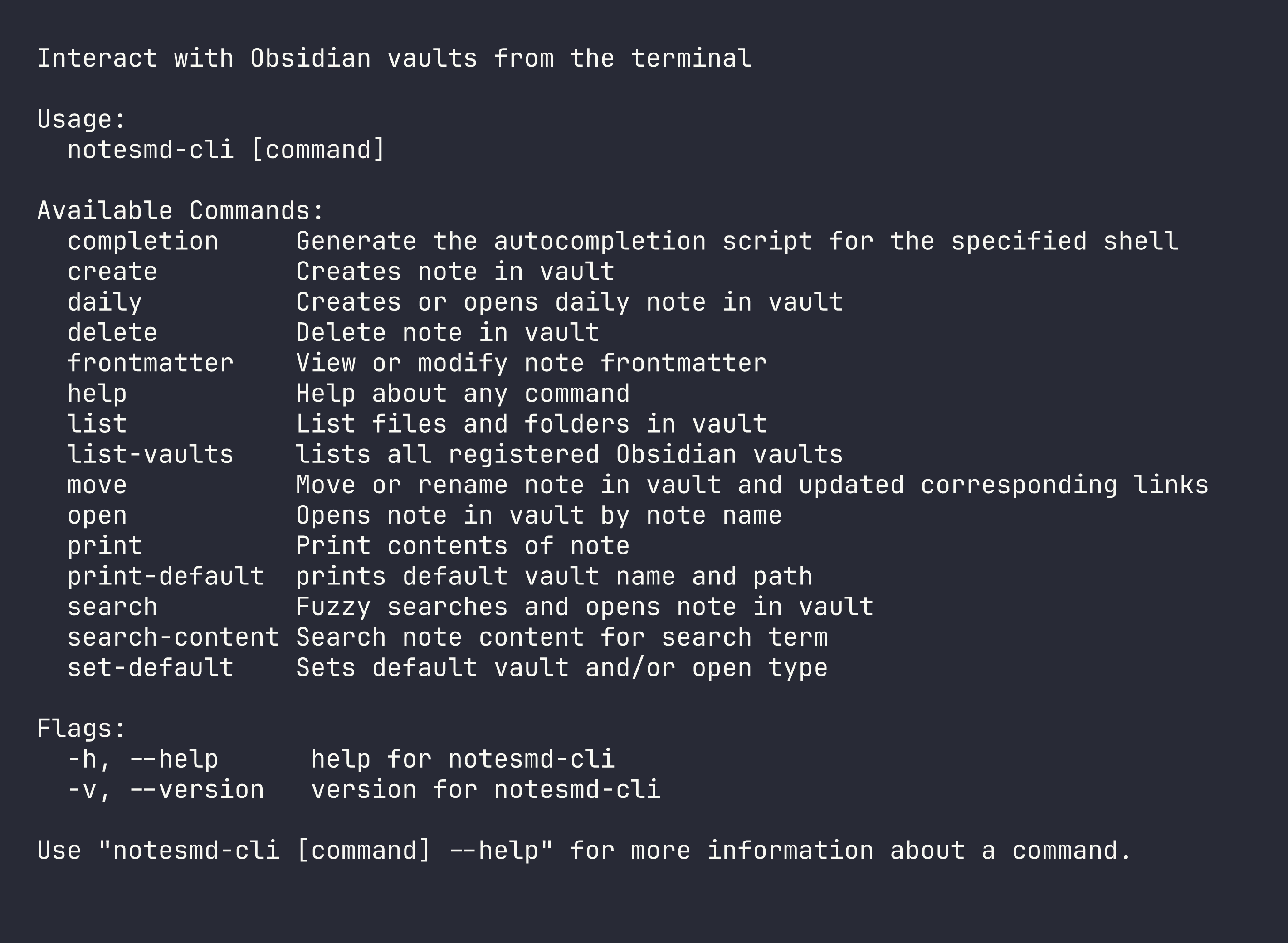
Obsidian is a powerful and extensible knowledge base application that works on top of your local folder of plain text notes. This CLI tool (written in Go) will let you interact with the application using the terminal. You are currently able to open, search, list, move, create, update and delete notes.
Install
Windows
You will need to have Scoop installed. On powershell run:
scoop bucket add scoop-yakitrak https://github.com/yakitrak/scoop-yakitrak.git
scoop install notesmd-cli
Mac and Linux
You will need to have Homebrew installed.
brew tap yakitrak/yakitrak
brew install yakitrak/yakitrak/notesmd-cli
Arch Linux (AUR)
Install the offical binary with your preferred AUR helper:
yay -S notesmd-cli-bin
Or build from source:
yay -S notesmd-cli
Build from Source
Requires Go 1.19 or later.
git clone https://github.com/yakitrak/notesmd-cli.git
cd notesmd-cli
go build -o notesmd-cli .
sudo install -m 755 notesmd-cli /usr/local/bin/
Headless / No Obsidian Installed
If you're running on a headless server or don't have Obsidian installed (e.g., server environments, containers, or systems without a GUI), you can still use this CLI. When Obsidian is installed, it registers vaults automatically. For headless environments, you register them via the CLI instead.
Setup Instructions:
# Register your vault directory
notesmd-cli add-vault /home/user/vaults/my-brain

# Set it as default
notesmd-cli set-default-vault "my-brain"

# Or do both in one step
notesmd-cli add-vault /home/user/vaults/my-brain --set-default
For multiple vaults:
notesmd-cli add-vault /home/user/vaults/personal
notesmd-cli add-vault /home/user/vaults/work
notesmd-cli set-default-vault "personal"
You can then pass --vault "work" to target a specific vault.
Manual setup (without CLI commands)
-
Create the Obsidian config directory:
mkdir -p ~/.config/obsidian -
Create
obsidian.jsonwith your vault configuration:{ "vaults": { "any-unique-id": { "path": "/home/user/vaults/my-brain" } } }The key (
any-unique-id) can be anything. The CLI uses the directory name as the vault name (e.g.,my-brainabove). Use the absolute path. Do not use~as the CLI does not expand it to your home directory.
Migrating from Obsidian CLI
Upgrading from obsidian-cli v0.2.3 or earlier? See the detailed Migration Guide for step-by-step instructions on uninstalling the old version, installing Vault CLI, and migrating your configuration.
Usage
Help
# See All command instructions
notesmd-cli --help
Editor Flag
The open, daily, search, search-content, create, and move commands support the --editor (or -e) flag, which opens notes in your default text editor instead of the Obsidian application. This is useful for quick edits or when working in a terminal-only environment.
The editor is determined by the EDITOR environment variable (e.g., "vim", "code", or "code -w"). If not set, it defaults to vim.
Supported editors:
- Terminal editors: vim, nano, emacs, etc.
- GUI editors with wait flag: VSCode (
code), Sublime Text (subl), Atom, TextMate- The CLI automatically adds the
--waitflag for supported GUI editors to ensure they block until you close the file
- The CLI automatically adds the
Example:
# Set your preferred editor (add to ~/.zshrc or ~/.bashrc to make permanent)
export EDITOR="code"  # or "vim", "nano", "subl", etc.

# Use with supported commands
notesmd-cli open "note.md" --editor
notesmd-cli daily --editor
notesmd-cli search --editor
notesmd-cli search-content "term" --editor
notesmd-cli create "note.md" --open --editor
notesmd-cli move "old.md" "new.md" --open --editor
To avoid passing --editor every time, configure it as the default open type once:
notesmd-cli set-default-vault --open-type editor
Add Vault
Registers a directory as an Obsidian vault. Creates the Obsidian config file (~/.config/obsidian/obsidian.json) if it does not exist. Alias: av
If you have Obsidian installed, vaults are registered automatically when you open them. You only need this command for headless setups or environments where Obsidian is not installed (servers, containers, CI).
# Register a vault
notesmd-cli add-vault /path/to/vault

# Register and set as default
notesmd-cli add-vault /path/to/vault --set-default
Remove Vault
Removes a vault from the Obsidian config. Does not delete any files on disk. If the removed vault was the default, the default is cleared. Alias: rv
# Remove by vault name
notesmd-cli remove-vault "{vault-name}"

# Remove by vault path
notesmd-cli remove-vault /path/to/vault
List Vaults
Lists all registered Obsidian vaults. The default vault is marked with (default). Alias: lv
# Lists all vaults (name and path, default marked)
notesmd-cli list-vaults

# Outputs vaults as JSON
notesmd-cli list-vaults --json

# Outputs only vault paths (useful for scripting)
notesmd-cli list-vaults --path-only

# Show only the default vault (name, path, open type)
notesmd-cli list-vaults --default

# Get just the default vault path (useful for scripting)
notesmd-cli list-vaults --default --path-only
You can add this to your shell configuration file (like ~/.zshrc) to quickly navigate to the default vault:
obs_cd() {
    local result=$(notesmd-cli list-vaults --default --path-only)
    [ -n "$result" ] && cd -- "$result"
}
Then you can use obs_cd to navigate to the default vault directory within your terminal.
Set Default Vault and Open Type
Defines the default vault and/or open type for future usage. If no default vault is set, pass --vault with other commands to specify which vault to use.
# Set default vault (by name or path)
notesmd-cli set-default-vault "{vault-name}"

# Set default open type: 'obsidian' (default) or 'editor'
notesmd-cli set-default-vault --open-type editor

# Set both at once
notesmd-cli set-default-vault "{vault-name}" --open-type editor
When default_open_type is set to editor, commands that support --open will open notes in $EDITOR automatically, without needing to pass --editor each time.
Note: open and other commands in notesmd-cli use this vault's base directory as the working directory, not the current working directory of your terminal.
Open Note
Open given note name in Obsidian (or your default editor). Note can also be an absolute path from top level of vault.
# Opens note in obsidian vault
notesmd-cli open "{note-name}"

# Opens note in specified obsidian vault
notesmd-cli open "{note-name}" --vault "{vault-name}"

# Opens note at a specific heading (case-sensitive)
notesmd-cli open "{note-name}" --section "{heading-text}"

notesmd-cli open "{note-name}" --vault "{vault-name}" --section "{heading-text}"

# Opens note in your default editor instead of Obsidian
notesmd-cli open "{note-name}" --editor
Daily Note
Creates or opens today's daily note directly on disk. Obsidian does not need to be running. If .obsidian/daily-notes.json exists in the vault, the CLI reads folder, format (Moment.js date format, default YYYY-MM-DD), and template from it. A template file's content is used when creating a new daily note. If the config is missing or unreadable, defaults are used (vault root, YYYY-MM-DD, no template).
# Creates / opens daily note in obsidian vault
notesmd-cli daily

# Creates / opens daily note in specified obsidian vault
notesmd-cli daily --vault "{vault-name}"

# Creates / opens daily note in your default editor
notesmd-cli daily --editor

# Adds content to daily note (appends if note already exists)
notesmd-cli daily --content "abcde"

# Adds content and opens in editor
notesmd-cli daily --content "abcde" --editor
Search Note
Starts a fuzzy search displaying notes in the terminal from the vault. You can hit enter on a note to open that in Obsidian.
# Searches in default obsidian vault
notesmd-cli search

# Searches in specified obsidian vault
notesmd-cli search --vault "{vault-name}"

# Searches and opens selected note in your default editor
notesmd-cli search --editor
Search Note Content
Searches for notes containing a term in note content. By default, it opens an interactive picker and lets you open the selected note in Obsidian (or your editor). For automation and scripting, use --no-interactive or --format json to print results to stdout.
# Searches for content in default obsidian vault
notesmd-cli search-content "search term"

# Searches for content in specified obsidian vault
notesmd-cli search-content "search term" --vault "{vault-name}"

# Searches and opens selected note in your default editor
notesmd-cli search-content "search term" --editor

# Prints grep-style results to stdout (non-interactive)
notesmd-cli search-content "search term" --no-interactive

# Prints JSON for scripts (implies non-interactive mode)
notesmd-cli search-content "search term" --format json
List Vault Contents
Lists files and folders in a vault path. If no path is provided, it lists the vault root.
# Lists vault root
notesmd-cli list

# Lists contents of a subfolder in default vault
notesmd-cli list "001 Notes"

# Lists contents of a subfolder in specified vault
notesmd-cli list "001 Notes" --vault "{vault-name}"
Print Note
Prints the contents of given note name or path in Obsidian.
# Prints note in default vault
notesmd-cli print "{note-name}"

# Prints note by path in default vault
notesmd-cli print "{note-path}"

# Prints note in specified obsidian
notesmd-cli print "{note-name}" --vault "{vault-name}"
Create / Update Note
Creates a note (can also be a path with name) directly on disk. Obsidian does not need to be running. If the note already exists and neither --overwrite nor --append is passed, the file is left unchanged. Intermediate directories are created automatically.
When the note name has no explicit path (no /), the CLI reads .obsidian/app.json from the vault to check for a configured default folder (newFileLocation: "folder" and newFileFolderPath). If configured, the note is placed in that folder. If the config is missing or unreadable, the note is created at the vault root.
# Creates empty note in default vault
notesmd-cli create "{note-name}"

# Creates empty note in specified vault
notesmd-cli create "{note-name}" --vault "{vault-name}"

# Creates note with content
notesmd-cli create "{note-name}" --content "abcde"

# Overwrites an existing note
notesmd-cli create "{note-name}" --content "abcde" --overwrite

# Appends to an existing note
notesmd-cli create "{note-name}" --content "abcde" --append

# Creates note and opens it in Obsidian
notesmd-cli create "{note-name}" --content "abcde" --open

# Creates note and opens it in your default editor
notesmd-cli create "{note-name}" --content "abcde" --open --editor
Move / Rename Note
Moves a given note(path from top level of vault) with new name given (top level of vault). If given same path but different name then its treated as a rename. All links inside vault are updated to match new name.
# Renames a note in default obsidian
notesmd-cli move "{current-note-path}" "{new-note-path}"

# Renames a note and given obsidian
notesmd-cli move "{current-note-path}" "{new-note-path}" --vault "{vault-name}"

# Renames a note in default obsidian and opens it
notesmd-cli move "{current-note-path}" "{new-note-path}" --open

# Renames a note and opens it in your default editor
notesmd-cli move "{current-note-path}" "{new-note-path}" --open --editor
Delete Note
Deletes a given note (path from top level of vault).
# Deletes a note in default vault
notesmd-cli delete "{note-path}"

# Deletes a note in specified vault
notesmd-cli delete "{note-path}" --vault "{vault-name}"
Frontmatter
View and modify YAML frontmatter in notes. Alias: fm
# Print frontmatter of a note
notesmd-cli frontmatter "{note-name}" --print

# Edit a frontmatter field (creates field if it doesn't exist)
notesmd-cli frontmatter "{note-name}" --edit --key "status" --value "done"

# Delete a frontmatter field
notesmd-cli frontmatter "{note-name}" --delete --key "draft"

# Use with a specific vault
notesmd-cli frontmatter "{note-name}" --print --vault "{vault-name}"
Deprecated Commands
The following commands still work but print a deprecation warning to stderr (so pipes and scripts are unaffected). They will be removed in the next major version.
| Old command | Replacement |
|---|---|
set-default | set-default-vault |
print-default | list-vaults --default |
print-default --path-only | list-vaults --default --path-only |
Excluded Files
The CLI respects Obsidian's Excluded Files setting (Settings > Files & Links > Excluded Files).
search- excluded notes won't appear in the fuzzy findersearch-content- excluded folders won't be searched
All other commands (open, move, print, frontmatter, etc.) still access excluded files as they refer to notes by name.
Contribution
Fork the project, add your feature or fix and submit a pull request. You can also open an issue to report a bug or request a feature.
License
Available under MIT License
How to Install
- Download the template file from GitHub
- Move it anywhere in your vault
- Open it in Obsidian — done!
Stats
Stars
1398
Forks
66
License
MIT
Last updated 5d ago
Categories
Tags