Copilot Llm Wiki
LLM-Wiki: A Copilot-native personal knowledge graph. Inspired by Karpathy’s compounding knowledge pattern. Ingest, query, and interlink your second brain with AI.
GitHub Copilot Wiki: An AI-Powered Second Brain Template
A forkable template for building LLM-maintained personal knowledge bases using GitHub Copilot.
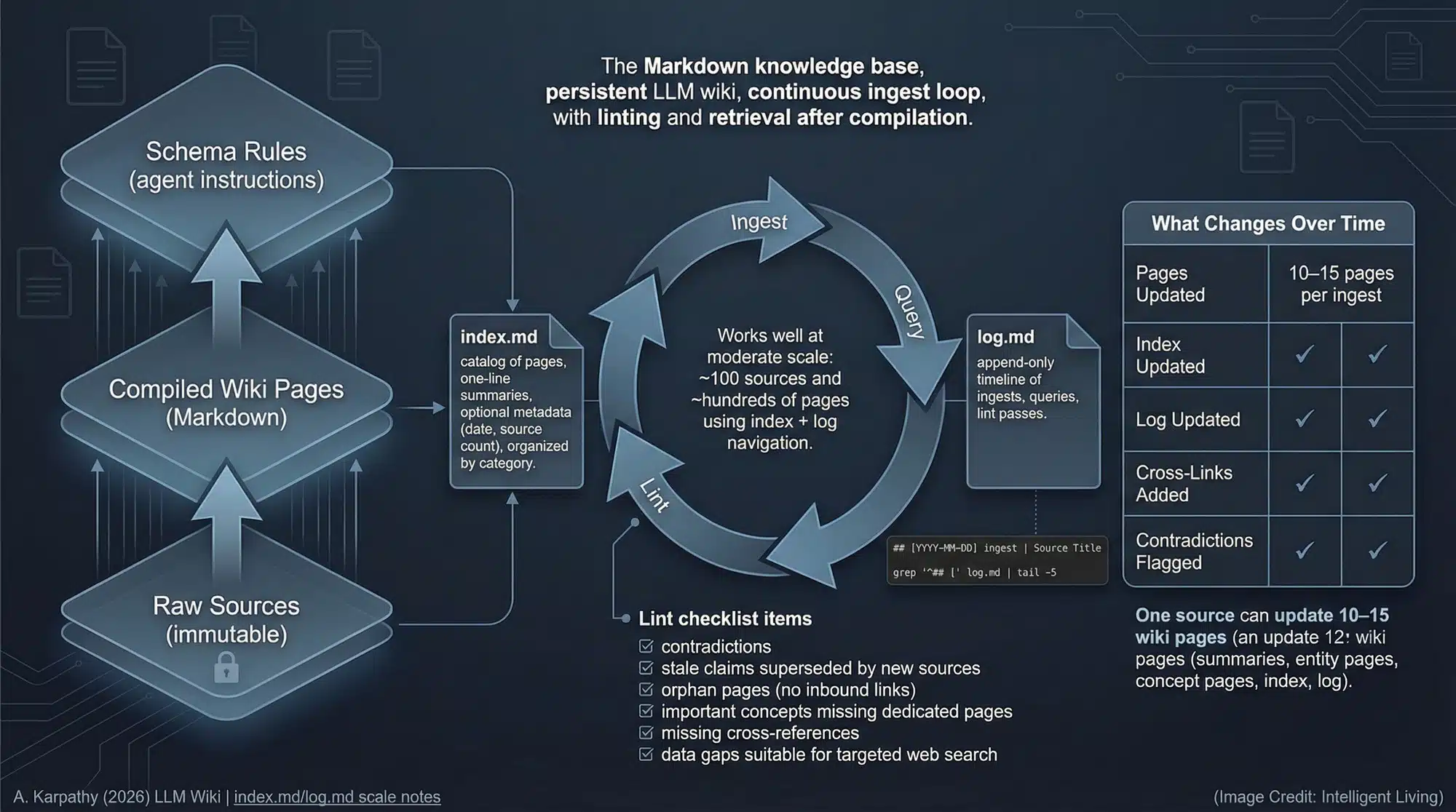
Instead of starting from scratch on every query, Copilot incrementally builds and maintains a persistent, interlinked wiki of markdown files that compounds with every source ingested.
This project is an implementation of the LLM-Wiki concept popularized by Andrej Karpathy, designed to create a "Compounding Knowledge Pattern" through purely file-based local storage.
🏗️ Architecture: The Three Layers
The system is divided into three distinct layers of responsibility:

- Raw Sources (
raw/): Your collection of source documents. These are immutable—the AI reads them but never modifies them. - The Wiki (
wiki/): Generating interlinked markdown files. The AI owns this layer—it writes it; you read it. - The Schema (
.github/copilot-instructions.md): The "brain" or configuration layer. It tells the AI how to be a disciplined wiki maintainer rather than a generic chatbot.
🚀 10-Minute Setup Guide
- Fork this repository: Click the "Fork" button to create your own copy.
- Clone and Open in VS Code: Open the repo in an environment with GitHub Copilot installed.
💻 Terminal Quick Start (One-liners)
For rapid setup, you can skip the UI and use the terminal:
- Scaffold only (fastest):
npx degit SriSatyaLokesh/copilot-llm-wiki#main my-wiki - Fork and Clone (official):
gh repo create my-wiki --template="SriSatyaLokesh/copilot-llm-wiki" --public --clone
⚙️ Configuration
- Enable Prompt Files:
- Open VS Code Settings (
Ctrl+,). - Search for
github.copilot.chat.promptFiles. - Set it to
true.
- Open VS Code Settings (
- Drop your first source: Put a markdown file or a URL reference in the
raw/directory. - Run Ingest:
- In VS Code Chat: Type
/ingest(or use the paperclip icon to attach.github/prompts/ingest.prompt.md) and provide- Batch Mode: Drop multiple markdown files inraw/and run:
- In VS Code Chat: Type
- Bash:
./.github/skills/wiki-ingest/scripts/intake.sh - PowerShell:
.\.github\skills\wiki-ingest\scripts\intake.ps1).
🧠 Core Workflows
📥 Ingest
Tell Copilot to "ingest
- Fetch and save the source to
raw/. - Extract key facts.
- Create/update pages in
wiki/entities/andwiki/concepts/. - Update the
wiki/index.mdandwiki/log.md.
🔍 Query
Ask a question about your knowledge domain. Copilot will:
- Read
wiki/index.mdto find relevant pages. - Consult the interlinked wiki pages.
- Answer with citations.
- Offer to file the answer as a new QA page in
wiki/qa/.
🧹 Lint
Run "lint the wiki" via lint.prompt.md or the librarian agent to check for orphans, broken links, or contradictions.
🛠️ Customization
- Open
.github/copilot-instructions.md. - Find the
[YOUR DOMAIN]placeholders and replace them with your specific domain (e.g., "Medical Research", "Codebase Documentation", "Legal Case Files"). - Customize the
wiki/overview.mdto reflect your project's goals.
🤖 Librarian Agent (CLI)
If you have the GitHub Copilot CLI installed, you can invoke the dedicated librarian agent:
copilot --agent librarian -p "ingest raw/new-data.md"
The librarian agent automatically decides between direct ingestion and using the intake scripts based on the complexity of your request.
📊 Visualization (Obsidian Recommended)
To get the most out of your LLM Wiki, we highly recommend using Obsidian to view your wiki/ directory.
- Knowledge Graph: Use Obsidian's "Graph View" to see how your entities and concepts are interconnected.
- Easy Navigation: Clickable links, back-links, and local previews make exploring your knowledge base feel like a "second brain."
- Markdown-Native: Since the wiki is 100% standard markdown, Obsidian handles it natively without any conversion needed.
Inspired by Andrej Karpathy's llm-wiki. Built by the community.
How to Install
- Download the ZIP or clone the repository
- Open the folder as a vault in Obsidian (File → Open Vault)
- Obsidian will prompt you to install required plugins
Stats
Stars
0
Forks
0
Last updated 2d ago
Categories
Tags