Knowledge OS
Build your own AI-powered Knowledge OS using Obsidian and Claude. Includes vault template, CLAUDE.md, obsidian-skills setup, and full English installation guide.
Knowledge OS — Obsidian + Claude Setup Guide
A personal knowledge operating system where Obsidian is your database and Claude is your AI agent adapted and documented for GitHub.
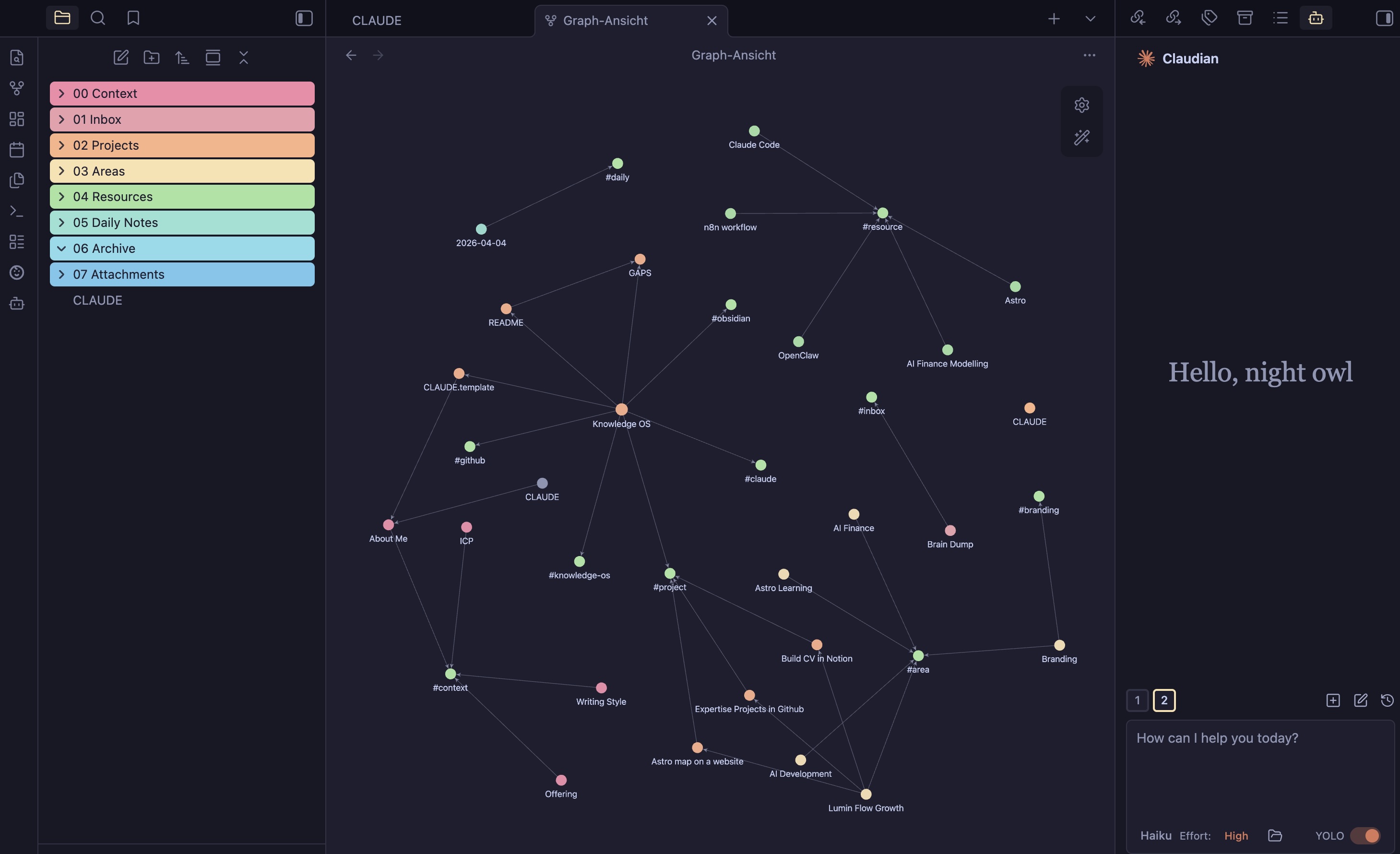
Knowledge OS Interface
What Is This?
This repo contains a ready-to-use vault template and setup guide for building a Knowledge OS — a local, AI-powered workspace that combines Obsidian's structured note-taking with Claude's agentic capabilities. Claude can read, write, sort, and manage your vault files directly. Everything is stored locally as plain .md files — you own your data.
Think of it as a personal operating system for your thoughts, projects, and decisions — one that gets smarter and more personalized the more you use it.
Required Tools
| Tool | Purpose | Download |
|---|---|---|
| Obsidian | Vault / note-taking interface | obsidian.md |
| Claude Pro or Max | AI agent (required for CLI/tool access) | claude.ai/upgrade |
| BRAT (Obsidian plugin) | Installs beta plugins from GitHub | Via Obsidian → Settings → Community Plugins → search "BRAT" |
| Claudian (beta plugin) | Embeds Claude directly inside Obsidian | github.com/YishenTu/claudian — installed via BRAT |
| obsidian-skills | Skills that teach Claude how to manage your vault | github.com/kepano/obsidian-skills |
Optional (for visual customization)
| Tool | Purpose | Download |
|---|---|---|
| AnuPuccin Theme | Clean, colorful Obsidian theme | Obsidian → Settings → Appearance → Themes → search "AnuPuccin" |
| Style Settings | Enables Rainbow folder colors | Obsidian → Settings → Community Plugins → search "Style Settings" |
| Excalidraw | Whiteboard / visual notes inside Obsidian | Obsidian → Settings → Community Plugins → search "Excalidraw" |
System Overview
graph TD
    A[🧠 You] -->|type commands| B[Claudian Plugin]
    B -->|runs inside| C[Obsidian Vault]
    B -->|powered by| D[Claude AI]
    D -->|reads vault skills| E[obsidian-skills]
    D -->|reads your context| F[CLAUDE.md]
    D -->|creates & edits| G[.md Notes]
    G --> H[00 Context]
    G --> I[01 Inbox]
    G --> J[02 Projects]
    G --> K[03 Areas]
    G --> L[04 Resources]
    G --> M[05 Daily Notes]

    style A fill:#7c3aed,color:#fff
    style D fill:#f59e0b,color:#fff
    style C fill:#0ea5e9,color:#fff
    style F fill:#10b981,color:#fff
Setup Flow
flowchart LR
    P1["📦 Phase 1\nInstall Obsidian\n& create vault"]
    P2["🔌 Phase 2\nInstall BRAT\n+ Claudian plugin"]
    P3["🛠 Phase 3\nInstall\nobsidian-skills"]
    P4["📄 Phase 4\nAdd CLAUDE.md\n& run onboarding"]
    P5["⚡ Phase 5\nLearn daily\nworkflows"]
    P6["🎨 Phase 6\nOptional visual\ncustomization"]

    P1 --> P2 --> P3 --> P4 --> P5 --> P6

    style P1 fill:#7c3aed,color:#fff
    style P2 fill:#6d28d9,color:#fff
    style P3 fill:#4f46e5,color:#fff
    style P4 fill:#2563eb,color:#fff
    style P5 fill:#0284c7,color:#fff
    style P6 fill:#0891b2,color:#fff
Phase 1 — Install Obsidian & Create Your Vault
- Download and install Obsidian from obsidian.md.
- Open Obsidian and click Create new vault.
- Name your vault and choose a local folder. All notes will be stored as plain
.mdfiles in this folder — no cloud lock-in.
Why local files? Your knowledge belongs to you. Plain Markdown files are readable by any editor, portable, and future-proof.
Phase 2 — Connect Claude Inside Obsidian
Step 1: Enable Community Plugins
- Open Settings (gear icon, bottom left).
- Go to Community Plugins → click Turn on community plugins.
Step 2: Install BRAT
- In Community Plugins, click Browse and search for "BRAT".
- Install and enable it.
Step 3: Install Claudian via BRAT
- Open the BRAT settings (Settings → BRAT).
- Click Add Beta Plugin.
- Paste this URL:
https://github.com/YishenTu/claudian - Click Add Plugin and enable Claudian.
Claudian embeds Claude Code as an agent inside your vault. Claude gains full read/write/bash capabilities over your vault files — this is what makes the system agentic.
Step 4: Log in to Claude
- Click the Claudian icon in the left sidebar.
- Log in with your Claude Pro or Max account.
- Select the model you want to use (recommended: Claude Sonnet for daily work, Opus for complex reasoning).
Step 5: Enable Yolo Mode
In the Claudian settings, enable Yolo Mode. This allows Claude to execute file commands without asking for confirmation each time — essential for smooth workflows. Only enable this if you trust the commands you're giving.
Phase 3 — Install Obsidian Skills
Skills are instruction files that teach Claude how to interact with Obsidian — how to create notes, use wikilinks, generate canvases, and use the CLI.
Via Claudian chat (recommended):
Open the Claudian chat window and paste:
Install the obsidian skills from https://github.com/kepano/obsidian-skills
Manually:
Clone the repo and copy the contents into a .claude folder at the root of your vault:
git clone https://github.com/kepano/obsidian-skills.git
# Copy the /skills folder contents into <your-vault>/.claude/skills/
Available skills after installation:
| Skill | What Claude learns |
|---|---|
obsidian-markdown | Wikilinks, callouts, embeds, properties |
obsidian-bases | Creating .base database views |
json-canvas | Visual canvas / mind maps |
obsidian-cli | Vault CLI commands |
defuddle | Web clipping — clean markdown from any URL |
Phase 4 — Add the CLAUDE.md File
The CLAUDE.md file is the brain of the system. It lives in the root of your vault and tells Claude everything it needs to know: who you are, how your vault is structured, and what rules to follow.
How to set it up:
- Copy the
CLAUDE.mdfile from this repo into the root folder of your vault. - Edit it with your own information (see the template below or the included file).
- Open the Claudian chat and type:
do the onboarding - Claude will read
CLAUDE.md, then interview you about your background, goals, and work style to fill in the rest of your context files.
What the onboarding creates:
Claude automatically builds the following folder structure:
📁 00 Context/          ← Your profile, ICP, writing style, offering
📁 01 Inbox/            ← Raw ideas, brain dumps, unprocessed notes
📁 02 Projects/         ← Active tasks with a goal and deadline
📁 03 Areas/            ← Ongoing responsibilities (no end date)
📁 04 Resources/        ← Reference knowledge, tools, research
📁 05 Daily Notes/      ← Daily logs (format: YYYY-MM-DD.md)
📁 06 Archive/          ← Completed projects and inactive areas
📁 07 Attachments/      ← Images and media files
CLAUDE.md Template
Below is the minimal template. Customize the sections marked with ← fill in.
# Vault Context

This vault is the Obsidian Brain of **[Your Name]**.  ← fill in

## About Me

[Brief bio — who you are, what you do, your expertise.]  ← fill in

**Core Expertise:**
- [Skill 1]
- [Skill 2]
- [Skill 3]

**Work Style:** [e.g. "Creatively chaotic first, then structured."]  ← fill in

Full profile in [[00 Context/About Me]].

## Vault Structure

- **00 Context/**: Personal context profile. Read these files when creating content.
- **01 Inbox/**: Quick thoughts, brain dumps, unprocessed notes.
- **02 Projects/**: Active projects with a concrete goal and end date.
- **03 Areas/**: Ongoing areas of responsibility without an end date.
- **04 Resources/**: Reference material and knowledge repositories.
- **05 Daily Notes/**: Daily log. Format: YYYY-MM-DD.md
- **06 Archive/**: Completed projects and inactive areas.
- **07 Attachments/**: Images, PDFs, media.

## Rules for This Vault

- Use [[Wikilinks]] for connections between notes
- New notes without a clear place go in 01 Inbox/
- Keep notes atomic: one idea per note
- Daily Notes use format: YYYY-MM-DD.md
- Use YAML Frontmatter: tags, status (active/completed/paused), date
- File names: Normal capitalization with spaces (e.g. "My Note.md")
- Move completed projects to 06 Archive/ only on explicit instruction
- When I say "remember this" or "save this", save it thematically

## Session Routines

### At Session Start
1. Check 01 Inbox/ for new notes and offer to sort them

### Context on Demand
When I ask "What's happening?" or "Where did I leave off?":
Read recent Daily Notes and active projects and brief me.

### At Session End
Offer to:
1. Create a Daily Note entry with a summary
2. Save new insights as notes
3. Clean up the Inbox if needed
Phase 5 — Daily Workflows
Once set up, these are the core habits that make the system work.
The Inbox Principle
Dump everything into 01 Inbox/ during the day without thinking about structure. At the end of a session, tell Claude:
Sort the inbox
Claude reads each note and moves or reorganizes it into the right folder.
Daily Log
At the end of each day, give Claude a quick summary of what you did:
Log today: finished the client proposal, had a call with Marc, decided to pause the website project
Claude saves this as a Daily Note (05 Daily Notes/2026-04-04.md) that it can reference later.
Weekly Review
Do a weekly review based on my daily notes from this week
Claude reads your daily logs and gives you a summary of what you completed, what's open, and what to focus on next.
Remember This
Make it a habit to say "remember this" whenever you make a decision, define a rule, or learn something important:
Remember this: we're targeting B2B clients with 50-200 employees
Claude saves the information to the most relevant file in your vault.
Session Start Briefing
What's happening? / Where did I leave off?
Claude reads your recent Daily Notes and open Projects, then gives you a briefing.
Phase 6 — Visual Customization (Optional)
To recreate the look from the original video:
- Theme: Settings → Appearance → Themes → search "AnuPuccin" → Install and activate.
- Rainbow folders: Install the Style Settings community plugin → open Style Settings → enable Rainbow Folders (set to "Full").
- Graph view colors: Open Graph View → click the settings cog → add Groups, one per folder, using path filters (e.g.
path:00 Context). Assign a color to each.
Repo Structure
/
├── CLAUDE.md                    ← The AI instruction file — copy this into your vault root
├── README.md                    ← This guide
├── Obsidian brain/
│   ├── CLAUDE.md
│   ├── 00 Context/
│   ├── 01 Inbox/
│   ├── 02 Projects/
│   ├── 03 Areas/
│   ├── 04 Resources/
│   ├── 05 Daily Notes/
│   ├── 06 Archive/
│   ├── 07 Attachments/
│   └── .obsidian/
│       └── plugins/
│           ├── obsidian42-brat/     ← BRAT plugin
│           ├── claudian/            ← Claude agent plugin
│           └── obsidian-skills/     ← Vault skills for Claude
What's Missing / Known Gaps
See GAPS.md for a full list of missing pieces and improvement ideas. Summary:
- No
.gitignore— your vault may contain private personal data. Add one before pushing. - The original
CLAUDE.mdtemplate is not publicly shared (gated behind a newsletter). This repo provides an open alternative. - No mobile setup guide (Obsidian iOS/Android + Claude mobile).
- No troubleshooting section for common Claudian/BRAT issues.
- No backup/sync strategy documented (Obsidian Sync, iCloud, Git).
Troubleshooting
Claudian not showing up after BRAT install → Restart Obsidian after enabling the plugin in BRAT settings.
Claude says it can't access files → Make sure your vault folder is open in Obsidian and Claudian is active. Try reopening the vault.
Skills not working
→ Verify the .claude/skills/ folder exists in your vault root. You may need to restart Obsidian.
Yolo Mode asks for confirmation anyway → Some commands (like deleting files) always prompt regardless of Yolo Mode. This is a safety feature.
Credits & References
- Original concept & video: Julian Ivanov on YouTube
- Claudian plugin: YishenTu/claudian
- Obsidian Skills: kepano/obsidian-skills
- BRAT plugin: TfTHacker/obsidian42-brat
- Obsidian: obsidian.md
- Claude: claude.ai
License
MIT — use freely, adapt, and share.
How to Install
- Download the ZIP or clone the repository
- Open the folder as a vault in Obsidian (File → Open Vault)
- Obsidian will prompt you to install required plugins
Stats
Stars
2
Forks
0
License
MIT
Last updated 6mo ago
Categories